1OM-1075-002.pdf - 第91页
2. Starting or Exiting from the Application 2 . 1 Getting Started (1) When the [POWER ON] button on the operation panel is pressed, it illuminates in yellowish green and the self-diagnostics function starts. (a) Press an…
1.2.2 Notes on Handling Touch Screens
(1) Since the touch screen uses the molecules in liquid crystals, handle
it like glass.
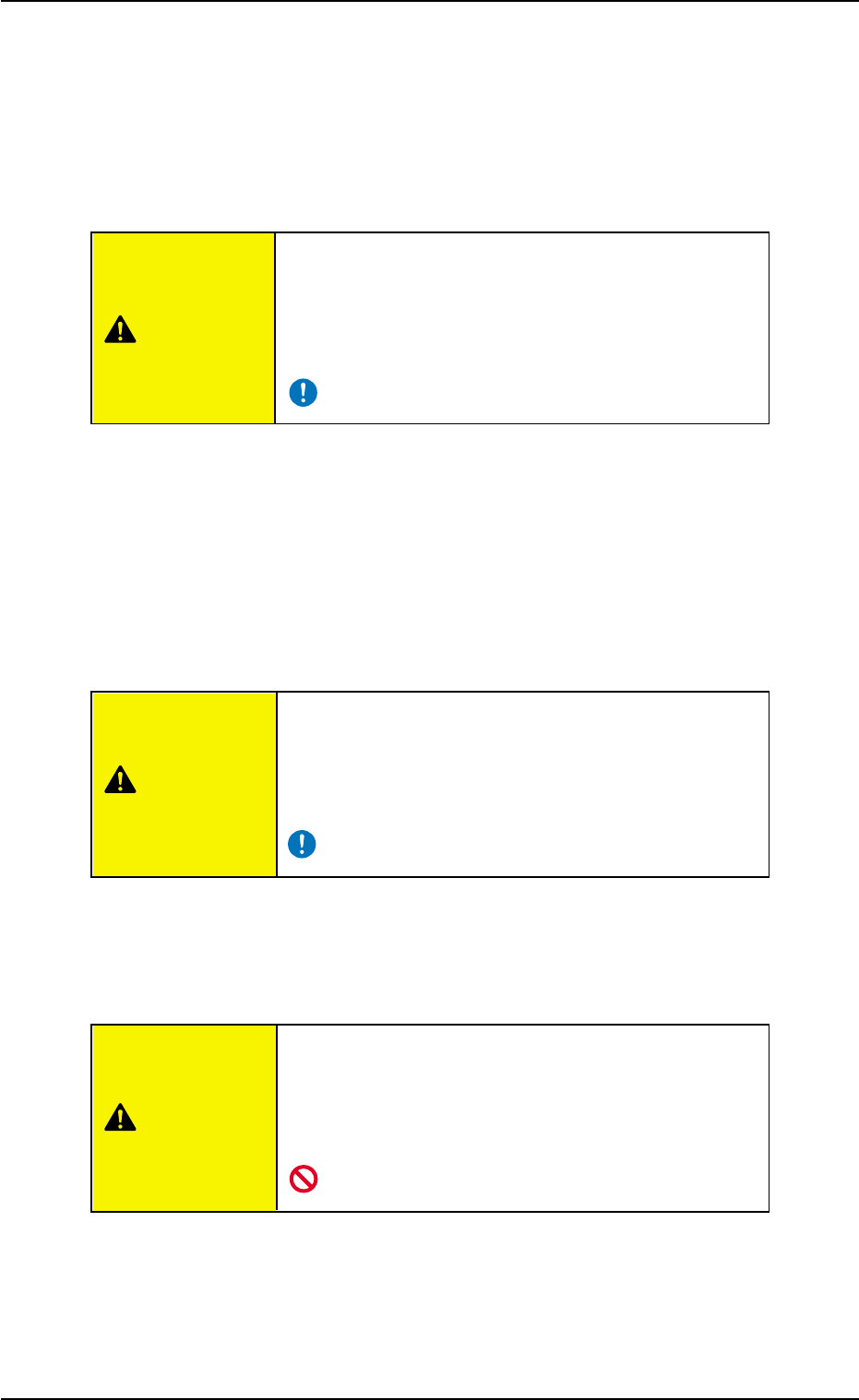
Do not apply strong pressure to the touch screen.
Do not apply strong pressure to the touch screen.
Otherwise, it may easily break.
Do not press the touch screen with a force of 0.78 N
(80 gf) or more.
(2) When temperature is low at power-up, the brightness of the back
light drops. The deterioration is not abnormal. The brightness re-
sumes normal after a few minutes.
When the back light is turned on or off repeatedly at low tempera-
ture, the life will be shortened.
(3) Cleaning of Touch Screen
Be sure to turn off the [POWER ON] button before
cleaning work.
Otherwise, the touch screen will react to your touch
during cleaning, resulting in data corruption.
When the surface of the touch screen gets dirty, wipe off the dirt
and dust with a soft cloth soaked in ethanol.
Do not use acetone, thinner, benzine, etc., to clean
the touch screen.
If the surface is wiped with an organic solvent, the
surface of the touch screen may melt or get cloudy.
1.2 Touch Screen
0308-002 2-3 AHB01EOPP
CAUTION
CAUTION
CAUTION
2. Starting or Exiting from the Application
2.1 Getting Started
(1) When the [POWER ON] button on the operation panel is pressed, it
illuminates in yellowish green and the self-diagnostics function starts.
(a) Press and hold the [POWER ON] button for more than 1
second.
(b) It takes 2 to 3 minutes until the self-diagnostics operation is
completed. Please wait for a while.
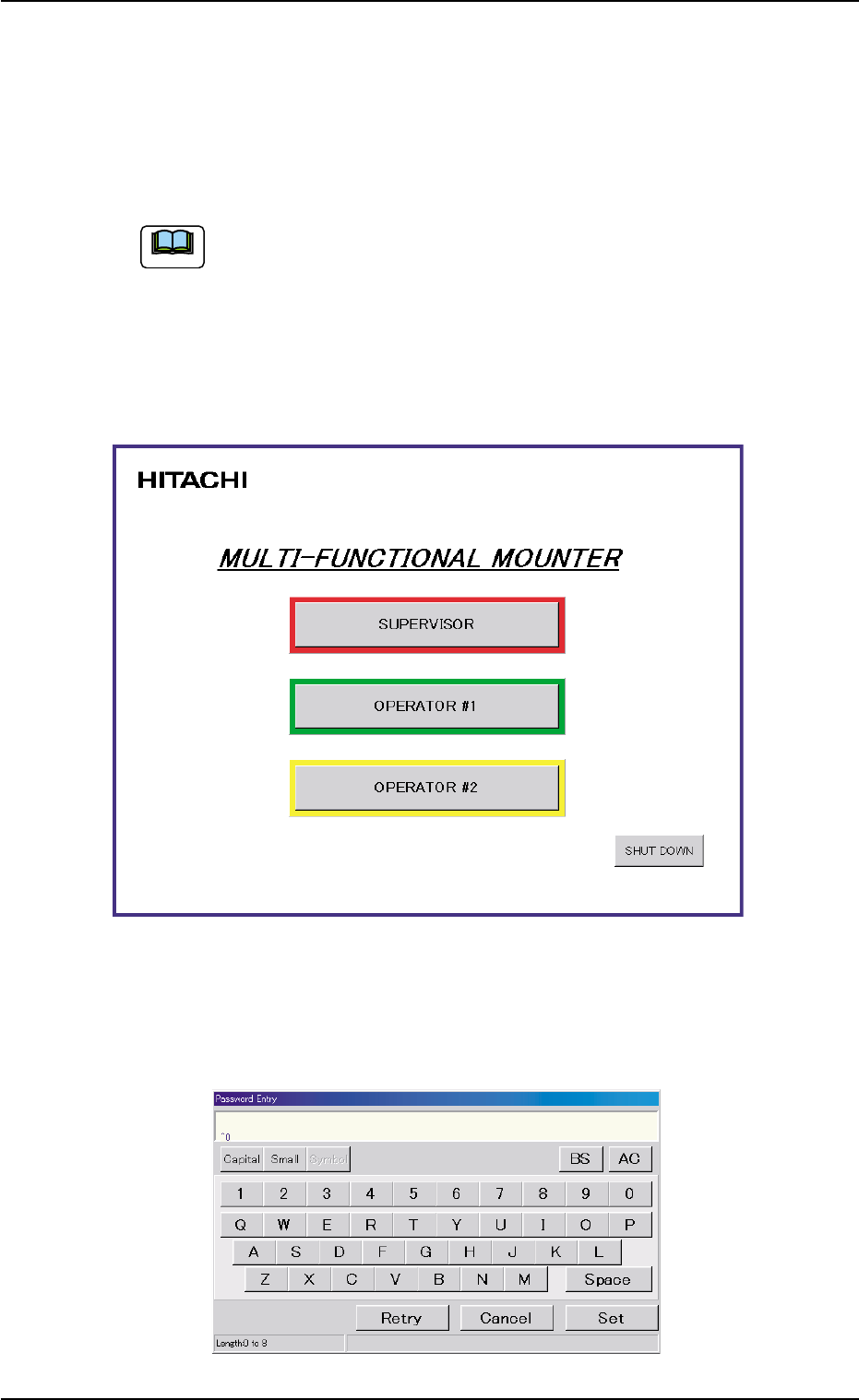
When the self-diagnostics operation is completed, the "Login Type
Selection" window appears on the touch screen.
Fig. 1B2 "Login Type Selection" Window
(2) Press the [SUPERVISER], the [OPERATOR #1], or the [OPERA-
TOR #2] button according to the given authority.
The "Password Entry" window opens.
Fig. 1B3 "Password Entry" Window
2. Starting or Exiting from the Application
Note
0308-002 2-4 AHB01EOPP
This machine is provided with a password function which pre-
vents various types of data groups from being deleted by mis-
take and keeps unauthorized user (third party) from operating
the machine.
The following three kinds of passwords are available and each
gives individually approved user’s access to the computer sys-
tem of the machine.
Refer to "4.2 "Password" Tab" in "Section 5" of "Vol. 3: Pro-
gramming and Machine Data" for details.
[SUPERVISOR] : Access can be gained by only the person
identified as "Supervisor".
[OPERATOR #1] : Access can be gained by only the person
identified as "Operator #1".
For example, the person identified as "Op-
erator #1" is given a permission to all ma-
chine operations including data editing.
[OPERATOR #2] : Access can be gained by only the person
identified as "Operator #2".
For example, the person identified as "Op-
erator #2" is limited to only the operations
related to the automatic operation.
(3) Enter the password.
The entered password appears as "*" in the "Password Entry" win-
dow.
(4) Press the [Set] button.
The main menu bar appears and the "AUTO OPN." window opens
on the touch screen.
Refer to "2.2 Structure of Operation Windows" for the displayed main
menu bar and the "AUTO OPN." window.
When no password is set, press the [SUPERVISOR], the
[OPERATOR #1], or the [OPERATOR #2] button accord-
ing to the given authority. The "AUTO OPN." window opens.
2.1 Getting Started
Note
0206-002 2-5 AHB01EOPP
Note