1OM-1075-002.pdf - 第63页
*12 Front T ouch Screen Fig. 1A15 The operation window will be displayed on the front touch screen. V arious types of operations become available by touching the operation buttons and tabs on the screen. Since the touch …
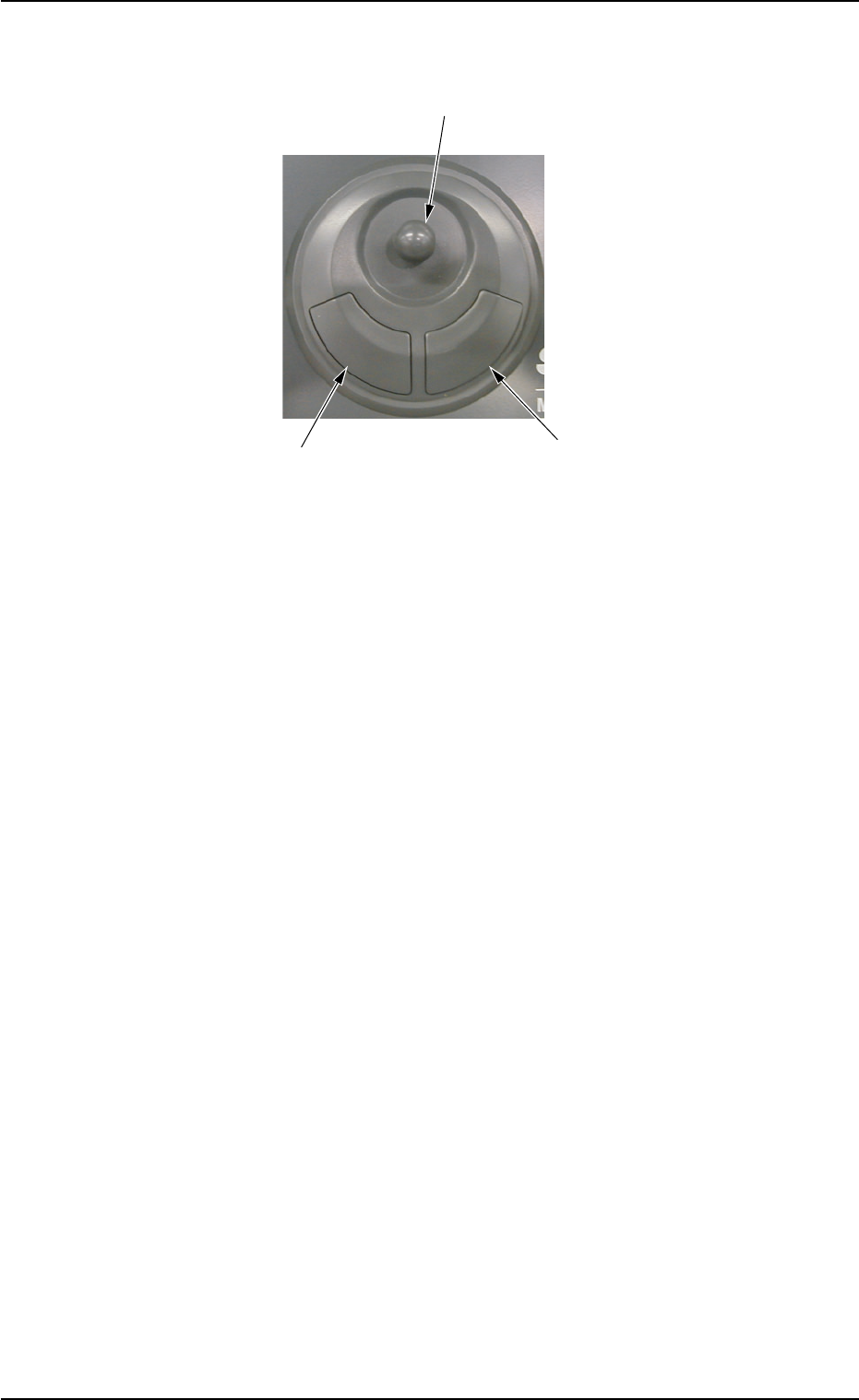
*11 Pointing Device
Fig. 1A14
This device is used to indicate where the pointer is on the operation
screen.
Basic Operations of Pointing Device
• Pointer
To point to an object on the operation screen, move the pointer with
the joystick.
• Click
To click, point the pointer (arrow mark) at the object you want to se-
lect, and quickly press and release the left button.
Quickly pressing and releasing the right button is called "Right-Click".
• Double-Click
To press the left button twice in rapid succession while keeping the
pointer motionless between clicks.
• Drag
To move an object on the screen from one place to another by point-
ing to it, holding the left button down, and pulling it to where you want
it to be, using the joystick. When the pointer has dragged the object
to the desired position, release the left button.
Joystick
Left Button
Right Button
0107-001 1-17 AHB01EOPP
2.3 Equipment for Operations
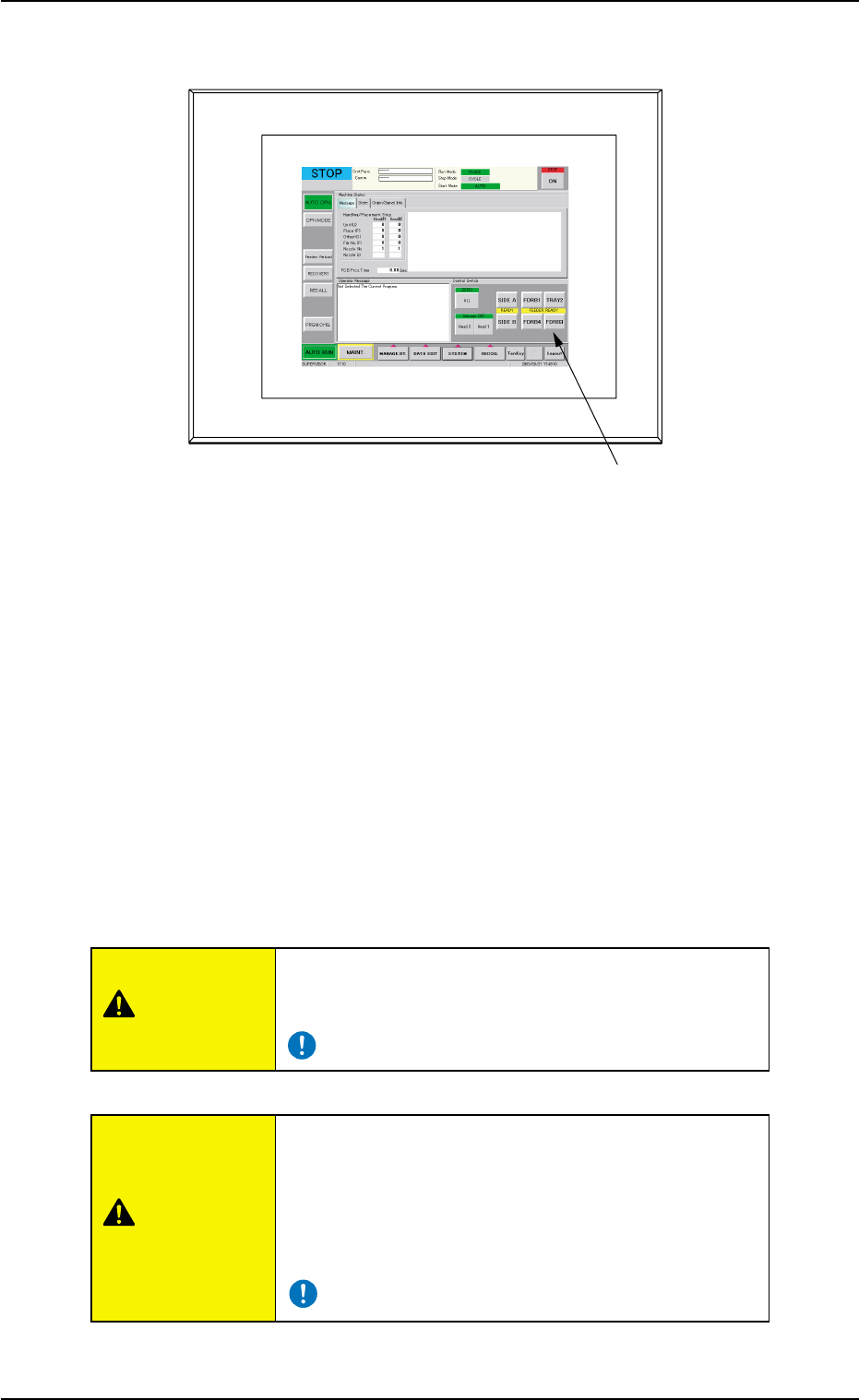
*12 Front Touch Screen
Fig. 1A15
The operation window will be displayed on the front touch screen.
Various types of operations become available by touching the operation
buttons and tabs on the screen.
Since the touch screen uses the molecules in liquid crystals, handle it
like glass.
Do not the apply strong pressure to the touch screen. Try not to touch
the screen except for input operations.
The touch-sensitive regions of the touch screen reacts to a force of
0.098 N (10 gf) to 0.78 N (80 gf).
Do not press the screen with an excessive force.
The surface of the touch screen is fragile. Do not rub
the surface nor touch it with a pen, a screwdriver, etc.
The device is not a water-proof and encapsulated type.
Avoid dust, water droplet, oil droplet, and metal pieces.
Especially, when metal pieces or combustible mate-
rial is mixed into the machine, it may lead to fire igni-
tion.
0308-003 1-18
AHB01EOPP
Front Touch Screen
2.3 Equipment for Operations
CAUTION
CAUTION

When temperature is low at power-up, the brightness of the back light
drops. The deterioration is not abnormal.
The brightness resumes normal after a few minutes.
When the back light is turned on or off repeatedly at low temperature,
the life will be shortened.
Refer to "1.2.2 Notes on Handling Touch Screens" in "Section
2" for the detailed information on how to clean the touch screens.
*13 Working Lamp Switch
This switch is used to turn on or off the working lamp on the front
side.
0206-002 1-19
AHB01EOPP
2.3 Equipment for Operations
Note