1OM-1075-002.pdf - 第93页
2 . 2 Structure of Operation Windows Fig. 1B4 Main Menu Bar and "AUTO OPN." Window • Window Composition *1 Main Menu Bar The main menu bar has five buttons ([AUT O RUN], [MAINT .], [MAN- AGE. DT .], [DA T A EDI…
This machine is provided with a password function which pre-
vents various types of data groups from being deleted by mis-
take and keeps unauthorized user (third party) from operating
the machine.
The following three kinds of passwords are available and each
gives individually approved user’s access to the computer sys-
tem of the machine.
Refer to "4.2 "Password" Tab" in "Section 5" of "Vol. 3: Pro-
gramming and Machine Data" for details.
[SUPERVISOR] : Access can be gained by only the person
identified as "Supervisor".
[OPERATOR #1] : Access can be gained by only the person
identified as "Operator #1".
For example, the person identified as "Op-
erator #1" is given a permission to all ma-
chine operations including data editing.
[OPERATOR #2] : Access can be gained by only the person
identified as "Operator #2".
For example, the person identified as "Op-
erator #2" is limited to only the operations
related to the automatic operation.
(3) Enter the password.
The entered password appears as "*" in the "Password Entry" win-
dow.
(4) Press the [Set] button.
The main menu bar appears and the "AUTO OPN." window opens
on the touch screen.
Refer to "2.2 Structure of Operation Windows" for the displayed main
menu bar and the "AUTO OPN." window.
When no password is set, press the [SUPERVISOR], the
[OPERATOR #1], or the [OPERATOR #2] button accord-
ing to the given authority. The "AUTO OPN." window opens.
2.1 Getting Started
Note
0206-002 2-5 AHB01EOPP
Note
2.2 Structure of Operation Windows
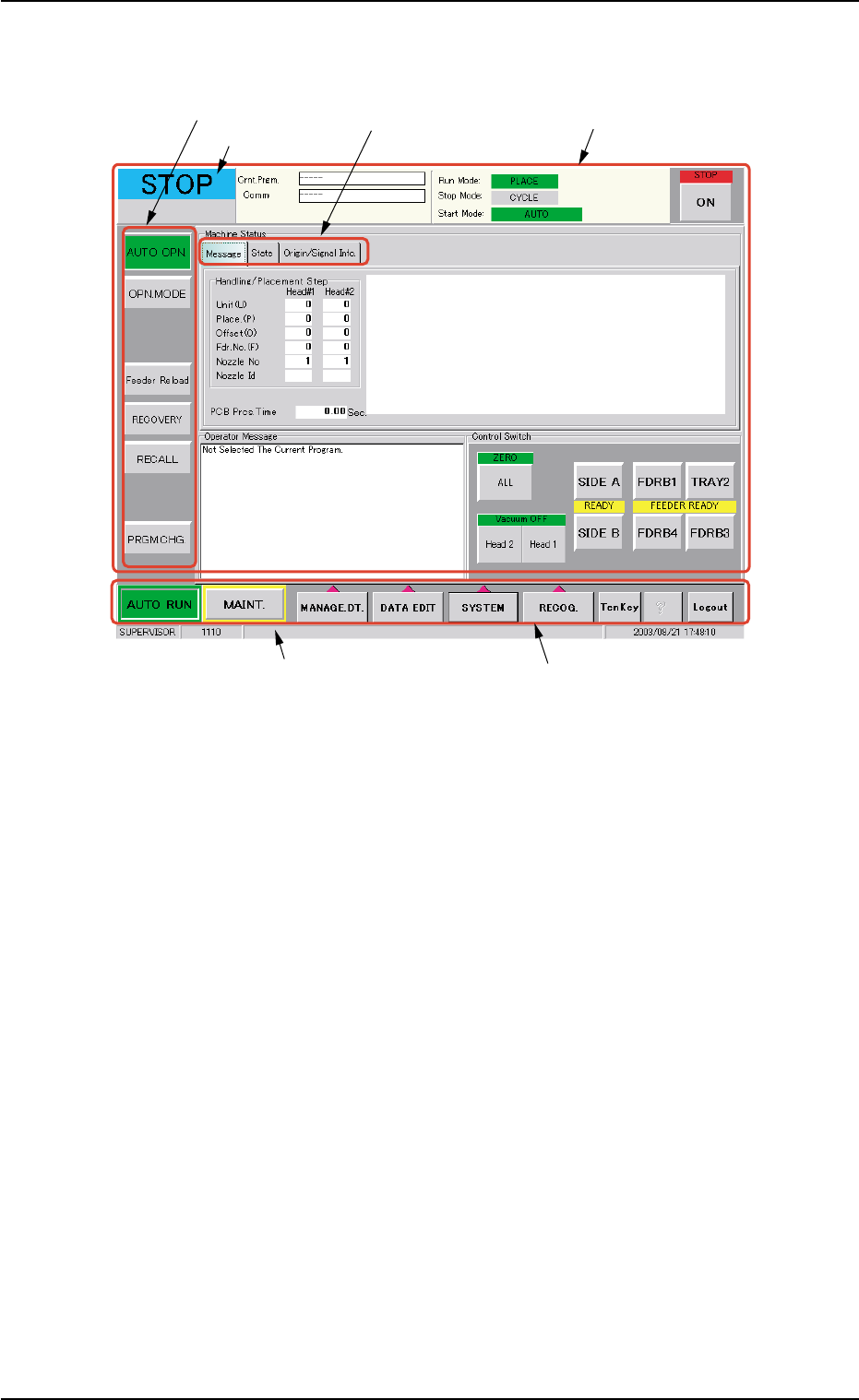
Fig. 1B4 Main Menu Bar and "AUTO OPN." Window
• Window Composition
*1 Main Menu Bar
The main menu bar has five buttons ([AUTO RUN], [MAINT.], [MAN-
AGE. DT.], [DATA EDIT], and [SYSTEM] buttons) as main menus,
one button ([RECOG.] button) for selection of a recognized image
pattern to be displayed, and three operation buttons ([TenKey], [?],
and [Logout] buttons).
Refer to "Section 4 Navigation on Touch Screen" in "Vol. 2: Opera-
tion (Supervisor)" for the detailed information on the main menu bar.
*2 Submenu Bar
The submenu bar has the buttons to select the submenus.
When each button on the submenu bar is selected, the corresponding
operation window opens.
When a button on the main menu bar is pressed, the corresponding
submenu bar appears.
Refer to "Section 4 Navigation on Touch Screen" in "Vol. 2: Opera-
tion (Supervisor)" for the detailed information on the submenu bar.
2.2 Structure of Operation Windows
0308-004 2-6 AHB01EOPP
*5 Current Mode
*6 Supplementary Explanation
*1 Main Menu Bar
*2 Submenu Bar
*3 Tabs
*4 Operation Window
("AUTO OPN." Window)

*3 Tabs
When a window is composed of several sheets, all sheets are pro-
vided with extensions called "Tab" and laid on top of each other so
that the tab of each is visible.
Refer to "Section 4 Navigation on Touch Screen" in "Vol. 2: Opera-
tion (Supervisor)" for the detailed information on the tabs.
*4 Operation Window
This window is provided with main menus related to the automatic
operation of the machine.
All operations required for automatic operation are included in this
window.
When the [MAINT.] button on the main menu bar is pressed, the
"MAINT." window opens.
Refer to "Section 5 Menus for Automatic Operation" and "Section 6
Menus for Maintenance" of "Vol. 2: Operation (Supervisor)" for the
structures of the "AUTO OPN." and "MAINT." windows.
*5 Current Mode
The current machine status is indicated at real time.
"RUN" : This indicates that the machine is running.
"PAUSE" : This indicates that the machine is stopped tempo-
rarily.
"WAIT" : This indicates that the machine is in the standby mode.
"STOP" : This indicates that the machine is stopped.
"TEACH": The machine is performing a teaching operation.
"RUN" : The machine is being activated (zeroing and manual
operations, etc.).
"TEST" : The machine is performing a device test, using one
of the tabs in the "DEVICE TEST" window (submenu).
*6 Supplementary Explanation
Indicated are the "LOGIN" type, the window No., and the current
date & time.
2.2 Structure of Operation Windows
0206-003 2-7 AHB01EOPP