SYS-CP842-1.1E.pdf - 第160页
SYS-CP842-1.1E 4.Commands CP-842E / CP-842ME System Reference 151 4.2 Command Descriptions This chapter gives an alphabetical list of the commands that occur on the machine. This list is designed to provide the ope r ato…
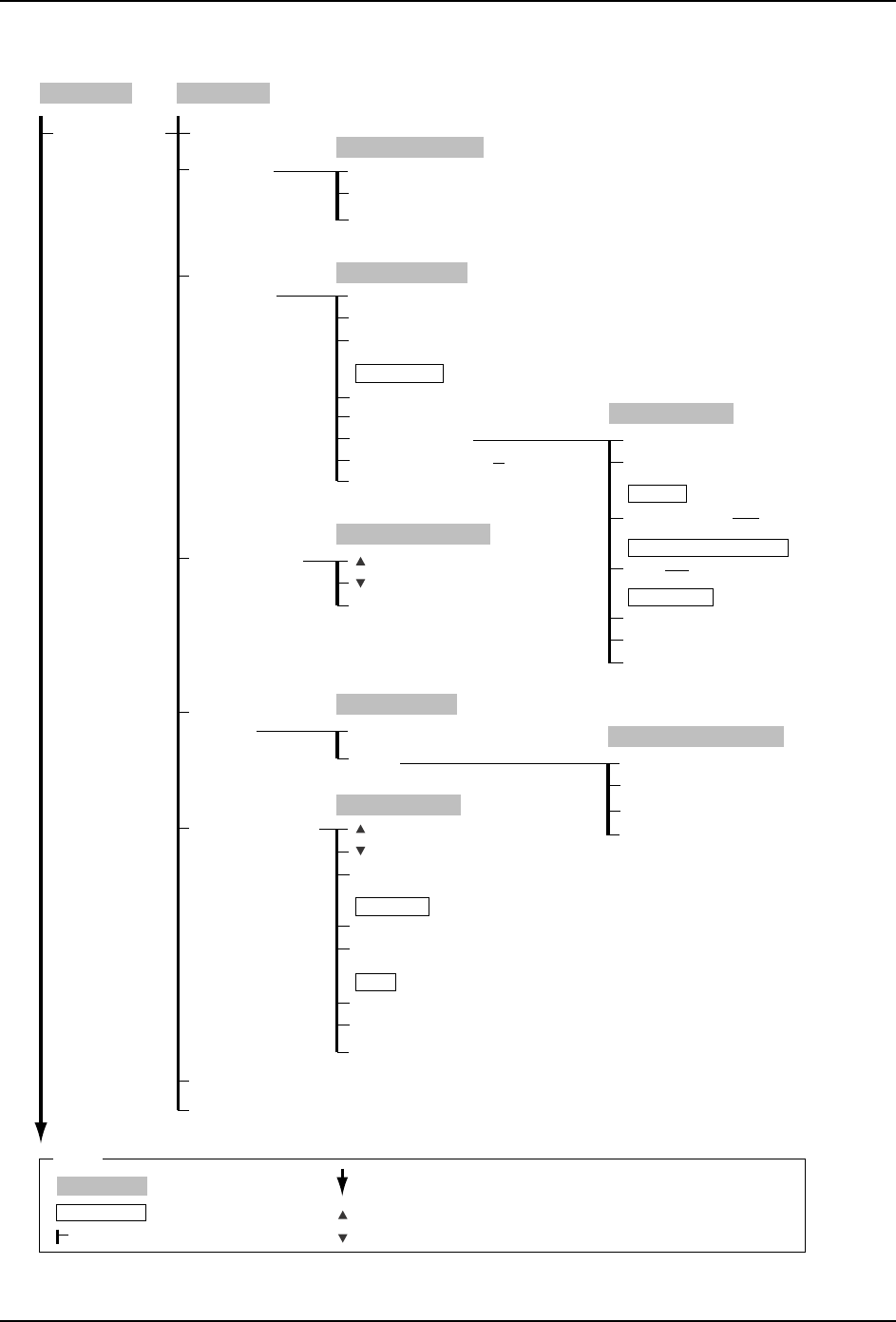
4.Commands SYS-CP842-1.1E
150 CP-842E / CP-842ME System Reference
Maintenance
Maintenance
(Continued)
C73SC010E-4
Maintenance for
Each Machine
Servo Check CAM/NZ
Version Up
Feeder Check
Reader Test
Loader Cylinder
Measure Vacuum
Pressure
Y-Direction Offset
Servo Check CAM/NY
Close
Version Upgrade
→
OK
Close
Version Upgrade
→
OK
Nozzle (1 - 6)
Jig Check OK
Close
Close
Measure Vacuum Pressure
All Nozzle
(1 - 16)
(1 - 16)
Close
Loader Cylinder Select
Slot settings (1 - 40)
Close
Display mode change
Stage 1
Stage 2
ID reader settings
Feeder reader settings
Displayed stage
Feeder ID Reading
Stage settings (1 - 40)
Slot No.
→
Numeric Keypad
Close
Test Read Start
Move
Laser On
Laser Off
Test Read
Move to Barcode Read Position
Laser Settings
ID reader settings
Stage No.
→
Numeric Keypad
[START button]
[START button]
[START button]
Stage 1
Stage 2
Slot No.
→
Numeric Keypad
Clear
Clear All
Select Stage
Data
Y-Direction Offset
Holder (1 - 6)
Close
Nozzle Allocation
(1 - 40)
(1 - 40)
Peripheral dev ver up
Production
Operation Mode
: Command name
: Screen name
Production
: Command group
: Continued on the next page
: Press to scroll upwards
Legend
: Press to scroll downwards
( )
: General description
[ ]
: Push button
→
: Displays separate dialog box

SYS-CP842-1.1E 4.Commands
CP-842E / CP-842ME System Reference 151
4.2 Command Descriptions
This chapter gives an alphabetical list of the commands that occur on the machine.
This list is designed to provide the operator with a basic outline of each command.
Each entry in the following list is presented in the manner shown below.
Explanation:
The title bar of each command list item contains the name of the command and the
name of the screen at which the command is located. The title of the screen is not nec-
essarily identical to the name of the command by which the screen has been accessed.
The command path is given immediately after each command title. The command
path lists the sequence of commands by which the command in question can be
accessed. The command path need not always be a sequence of commands. It often
includes the START button and, in some cases, it is necessary to select a nozzle before
a command can be selected.
The command path is followed by the command description. The command descrip-
tion gives a brief outline of the function of the command. When required, a note con-
taining additional information is included.
Finally, the revision history is given for each entry. The revision history item gives
information on the latest version in which changes have been made to the command in
question.
Note: To gain an understanding of the use of a command in specific operations, refer to part 2 Machine System.
Load Panel Panel loade
r
Command path: [Panel loader] [Load Panel]
Press to load a panel onto the main conveyor.
Note: Push the START button to execute the operation.
Revision history: V1.00
Command name Screen name
Command description
C73SC011

4.Commands SYS-CP842-1.1E
152 CP-842E / CP-842ME System Reference
Command name Screen name
Actuator Maintenance
Command Path: [Maintenance] - [Actuator]
Press to access a diagnostics screen for the machine actuators.
Revision history:
Automatic Production
Command Path: [Production]
Press to set the production mode to Automatic.
Revision history:
Auto Conveyor Change Machine Configuration Data
Command Path: [Maintenance] - [Machine Configuration Data] - [Auto Conveyor
Change]
Press to access the screen at which settings can be made for conveyor width change
during changeover operation.
Revision history:
Auto Recovery Recovery
Command Path: [Recovery] - [Auto Recovery]
Press to execute automatic recovery in response to part errors.
Revision history:
Basic Machine Configuration Data
Command Path: [Maintenance] - [Configuration] - [Basic]
Press to access the screen at which the basic machine calibration settings can be
made.
Revision history: