SYS-CP842-1.1E.pdf - 第55页
3.Machine System SYS-CP842-1.1E 46 CP-842E / CP-842ME System Reference Specifying Nozzle Tolerance Values at the Machine You can set the tolerances va lues for the various nozzle checks at the [Nozzle Check Limits] scre …

SYS-CP842-1.1E 3.Machine System
CP-842E / CP-842ME System Reference 45
4. To specify the tolerance limits for the nozzle check, press [Nozzle Check Limits].
5. At “Change Display”, select between displaying results for the narrow camera, or the
wide camera.
6. When your settings are complete, press [Enter] to enable the START button. Press the
START button to execute the nozzle check.
When the START button is pressed, the machine begins the specified nozzle checks. The
progress of the check is shown at the green table in the [Nozzle Check] screen. A key of
the symbols is below the results table. When the test is complete, you will be able to see
which nozzles can be used, and which nozzles need to be replaced.
Note: Nozzle replacement information is in your Mechanical Reference.
To view the statics of the nozzles gathered by the machine during the nozzle check, press
[Nozzle Check Details].
Note: Only the nozzle length inspection is performed for frontlight type black nozzles.
3.Machine System SYS-CP842-1.1E
46 CP-842E / CP-842ME System Reference
Specifying Nozzle Tolerance Values at the Machine
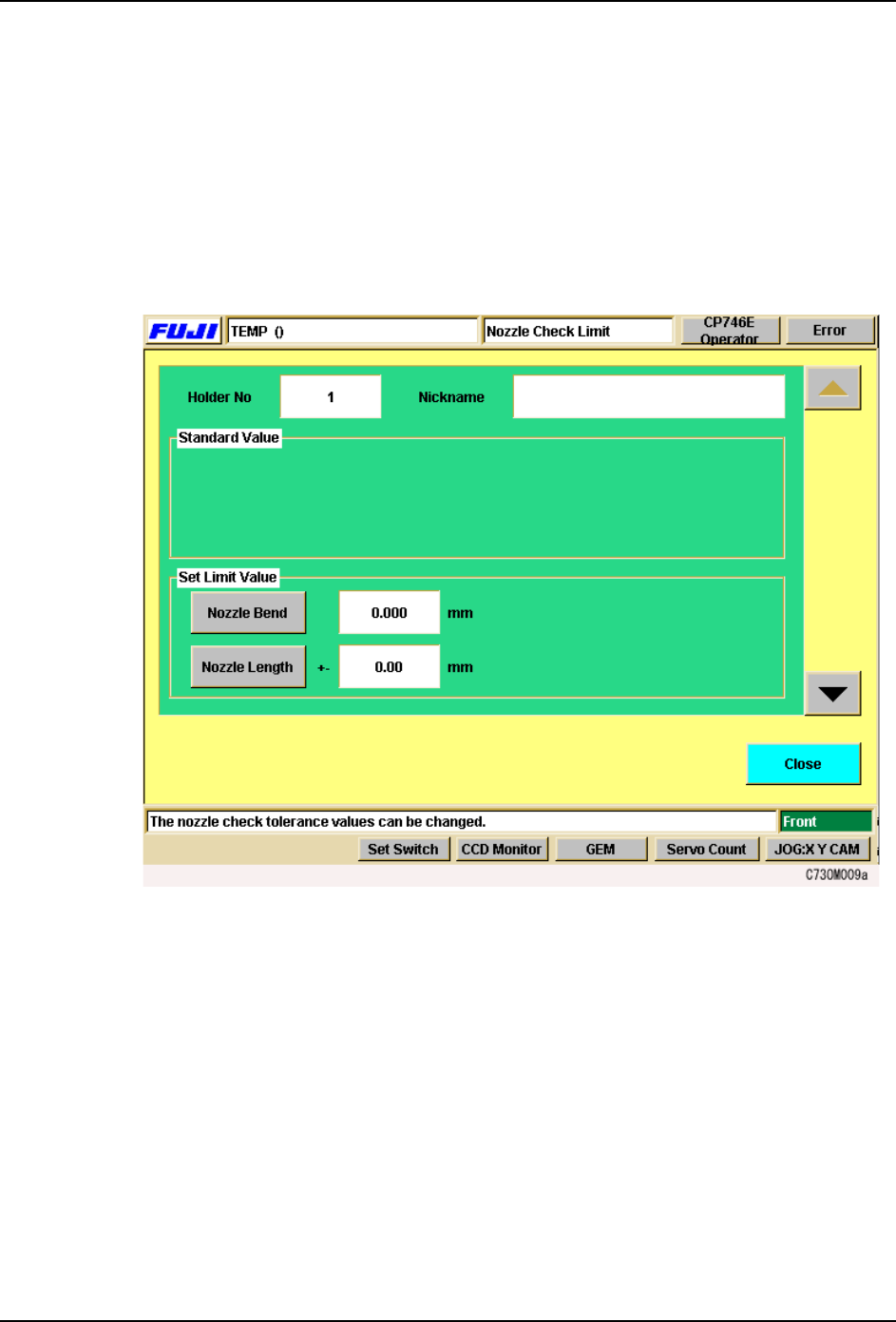
You can set the tolerances values for the various nozzle checks at the [Nozzle Check
Limits] screen. The settings made at this screen are used to determine whether nozzles
are acceptable for production or not.
Procedure
1. At the [Main] screen, press [Nozzle Check]. The [Nozzle Check] screen displays.
2. From the [Nozzle Check] screen, press [Nozzle Check Limits]. The following screen
displays.
3. The screen for holder 1 tolerance values displays first. Use the up and down arrows on
the right to move between the nozzle holders.
4. In the “Set Limit Value” section, select the tolerance to be set. When you select a
command, the numeric keypad displays. Input the tolerance limit (the input range
displays at the numeric keypad), and press [OK] to enter the setting.
5. When your settings are complete, press [Close] to return to the [Nozzle Check] screen.
Skipping a Nozzle Manually (Changing Nozzle Status)
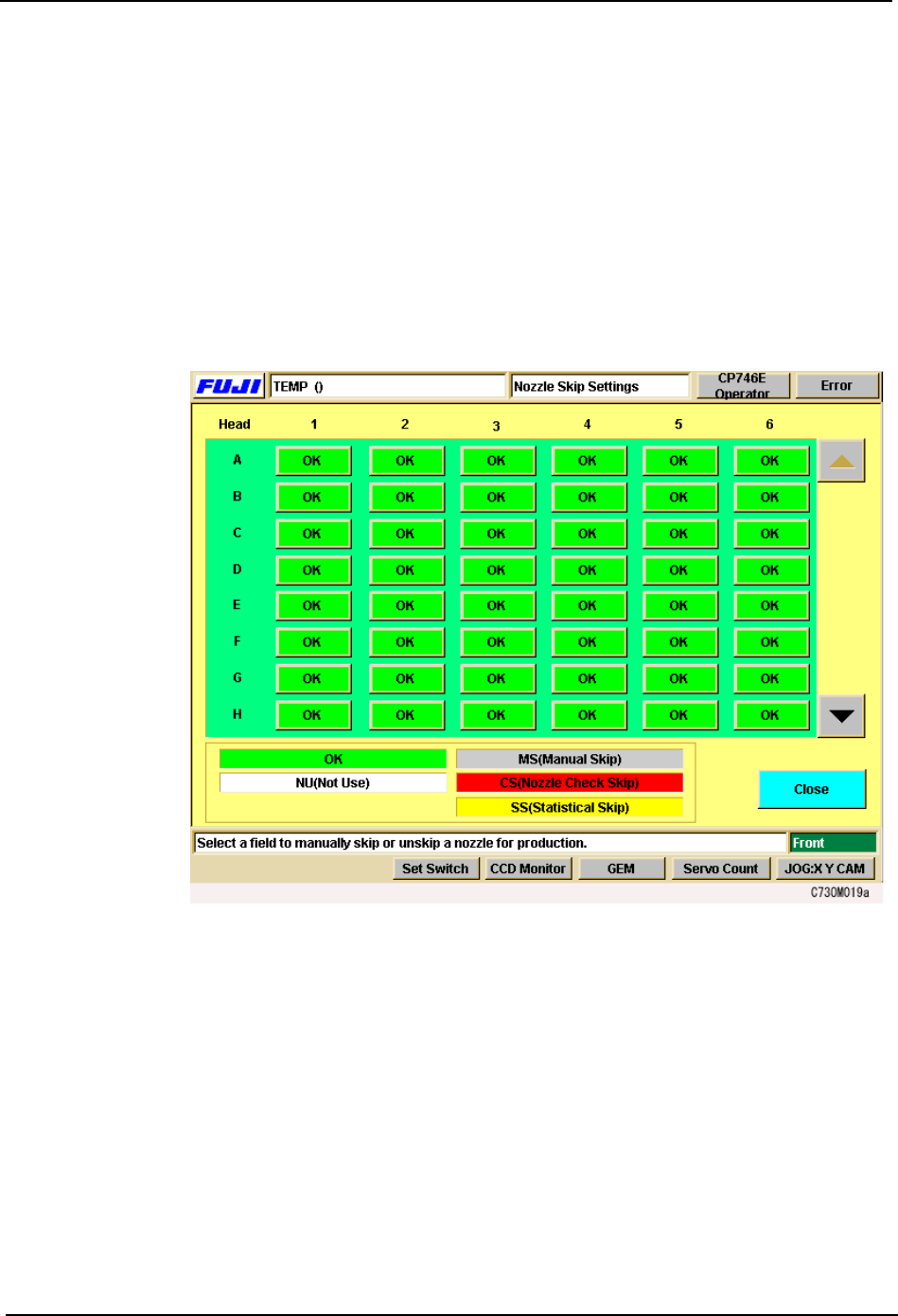
Users can manually change the status of a nozzle at the machine. There are five nozzle
statuses..
OK: The condition of the nozzle is acceptable for production.
NU (Not Used): There is no nozzle in that position.
SYS-CP842-1.1E 3.Machine System
CP-842E / CP-842ME System Reference 47
The operator can manually skip a nozzle using the following procedure. This procedure can
also be used to change the other nozzle statuses.
Procedure
1. Press [Nozzle Skip] at the [Main] screen. The [Nozzle Skip] screen displays.
2. There is one button for each nozzle and the status of the nozzle is indicated by its color.
A key to the status colors is shown below the table.
3. To skip a nozzle manually press the [OK] button for that nozzle. “OK” switches to “MS”
(Manual Skip). Manually skipped nozzles or nozzles automatically skipped can be
returned to an [OK] status by pressing the button for that [MS], [CS], or [SS] status
nozzle.
MS (Manual Skip): The operator has manually eliminated that nozzle from
assembly.
CS (Check Skip): The nozzle was rejected during a nozzle check.
SS (Statistical Skip): The nozzle was eliminated from assembly through statistical
processing.