SYS-CP842-1.1E.pdf - 第74页
SYS-CP842-1.1E 3.Machine System CP-842E / CP-842ME System Reference 65 3.1.12 Inching Moving an Axis With the Inching Keys Inching is performed using the inch ing keys on the operation console. Inching can be performed a…

3.Machine System SYS-CP842-1.1E
64 CP-842E / CP-842ME System Reference
Troubleshooting
The following table shows the corrective actions for errors which may occur during
automatic conveyor width adjustments.
Next-Stage Follow-Up Control
CP-842E/842ME do not support follow-up control related to conveyor width changes. For
example, if a conveyor width change is performed at the previous stage machine in the line,
the operator must perform the same conveyor width change on the CP-842E/842ME.
CP-842E/842ME do not support follow-up control related to conveyor width changes. For
example, if a conveyor width change is performed at the previous stage machine in the line,
the operator must perform the same conveyor width change on the CP-842E/842ME.
On the other hand, if the next stage machine supports follow-up control related to conveyor
width changes, this follow-up control can be enabled by adding a follow-up dog to the CP-
842E/842ME.
Error Cause Corrective Action
T011E
Internal error in the conveyor
width change shell
"Panel check" error
during automatic
conveyor width change
Operation error
Backup pin detection
Conveyor control board failure at start-up,
etc.
Conveyor motion interference. Remove the obstacle.
Backup pins were detected. Remove the backup pins.
Cover is open
The cover at the previous or next stage
machine is open.
Close the cover at the previous or
next stage machine.
Backup pin detection problem.
Press the EMERGENCY STOP
button, then remove the backup pins.
Software limit was reached during operation.
Perform inching to bring the
conveyor width back within its
prescribed motion range.
A [Maximum Width] or [Specified Width]
command was executed when the conveyor
width was outside the software limits.
Perform inching to bring the
conveyor width back within the
software limits.
The "panel check" sensor detected the
presence of a panel in the loader during
a conveyor width change.
Remove the panel from the loader,
or check the sensor.
Perform a "data trace" operation,
then contact your Fuji representative.
SYS-CP842-1.1E 3.Machine System
CP-842E / CP-842ME System Reference 65
3.1.12 Inching
Moving an Axis With the Inching Keys
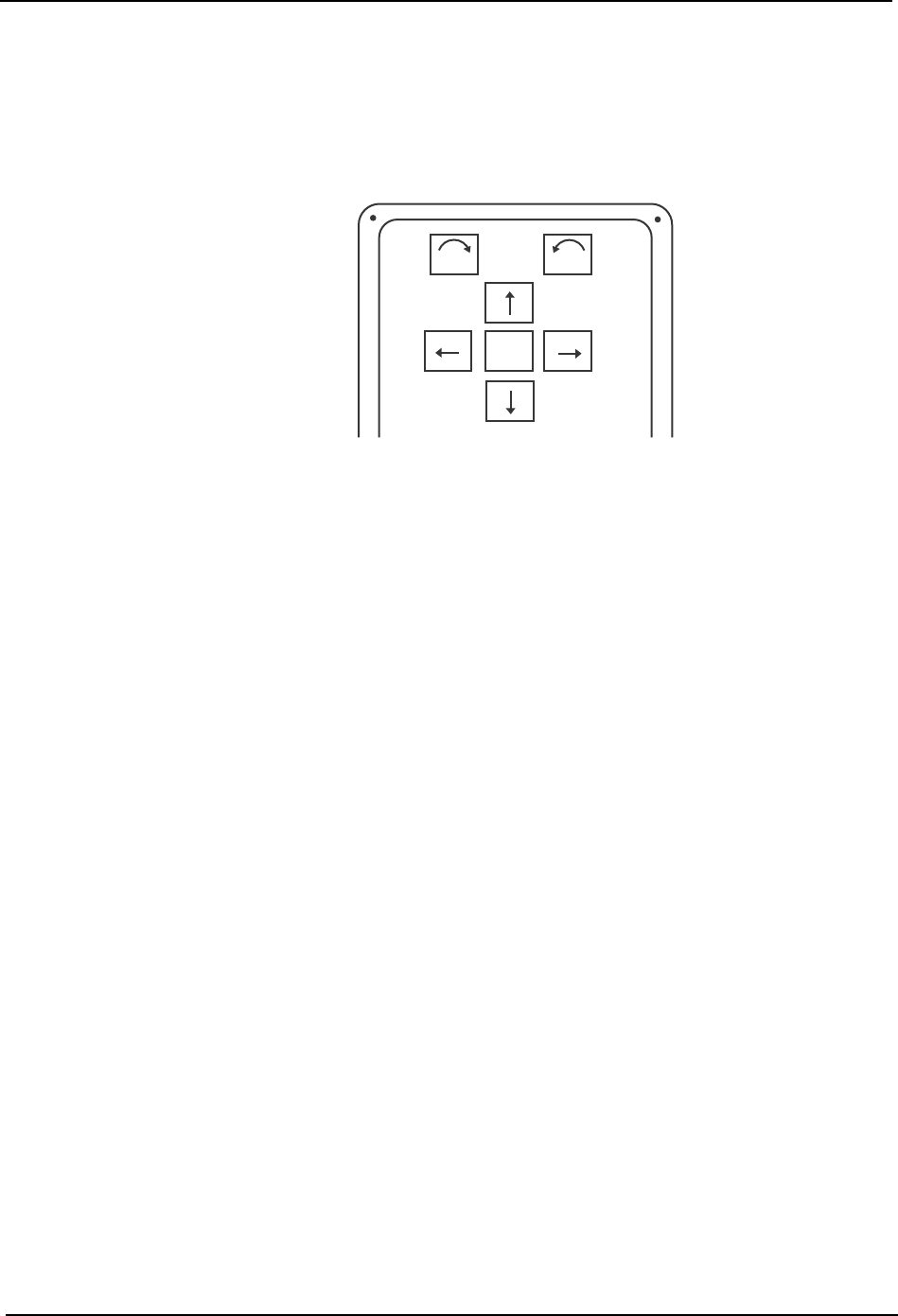
Inching is performed using the inching keys on the operation console. Inching can be
performed at any time except under the following conditions:
• When the machine is in START ready status
• During operation
• Before the cause of an emergency stop has been cleared
• When displaying the I/O command page
To inch an axis, press the inching key corresponding to the target axis and direction.
To move the target axis faster, hold down F (fast) as well as the chosen inching key for rapid
inching.
The axis combination displays at the [JOG] button in the command bar of the touch screen.
F
θ
θ
C7SS2001
3.Machine System SYS-CP842-1.1E
66 CP-842E / CP-842ME System Reference
Changing the Axis Group and the Rapid Inching Speed
The axes move at a very low speed when they are moved using the inching controls. When
moving axes longer distances, use the F (fast) in combination with the inching keys for
Rapid Inching. The Rapid Inching speed can be specified at the machine using the
following procedure.
Procedure
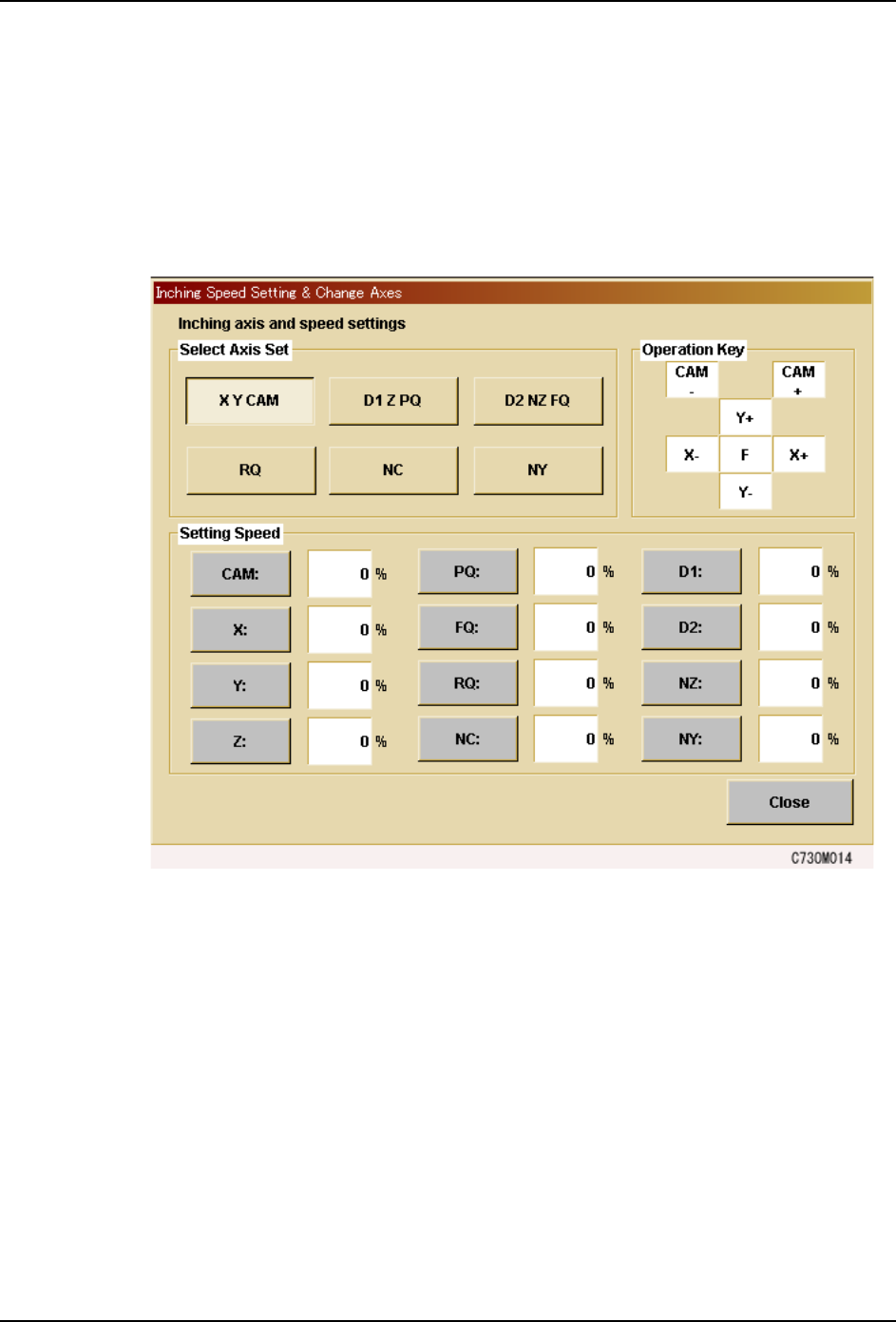
1. Press [JOG] to display the [Inching Speed Setting & Change Axes] screen.
2. Under [Select Axis Set], press the combination of axes to be controlled using the inching
keys.
3. To change the rapid axis speed by selecting the target axis under “Speed”, and entering
the percentage of full speed at which the axis is to be moved during Rapid Inching.