SYS-CP842-1.1E.pdf - 第223页
6.System Installation and Upgrade SYS-CP842-1.1E 214 CP-842E / CP-842ME System Reference 6.1.2 Installing the Operating System The System Software Recove ry Media CD-ROM is used to install the system software. 1. At the …

SYS-CP842-1.1E 6.System Installation
and Upgrade
CP-842E / CP-842ME System Reference 213
[Power] Screen
Specify the [Power] screen settings as shown below.
[BIOS] Screen
The [Bios] screen shows various types of information, but settings at this screen cannot be
changed.
[Boot] Screen
Arrange the order of the items as shown below. To change an items order, select the item
(highlighted), then use the [+] and [-] keys to move the item up and down, respectively.
To avoid a startup from the floppy disk (in systems with a floppy disk drive), select
Removable Devices, then press [Shift] + [1] to enter an exclamation mark (!) in front of
Removable Devices as shown below.
[Exit] Screen
When the settings described above have been made, select the first item Exit Saving
Changes and press [Enter] key. Select Yes at the confirmation message to register the
settings.
Power Savings: [Disabled]
Idle Mode: Off
Standby Timeout: Off
Auto Suspend Timeout: Off
Hard Disk Timeout: Disabled
Resume On time: [Off]
Resume time: [00:00:00]
Resume Date: [00/00/0000]
! Removable Devices
ATAPI CD-ROM Drive
Hard Drive
Network Boot

6.System Installation
and Upgrade SYS-CP842-1.1E
214 CP-842E / CP-842ME System Reference
6.1.2 Installing the Operating System
The System Software Recovery Media CD-ROM is used to install the system software.
1. At the exit dialog box for the BIOS settings, insert the System Software Recovery Media
CD-ROM into the CD drive, then select [Yes] at the dialog box. When the BIOS setting
operation is ended in this manner (with CD-ROM inserted), the system software installer
is automatically started, and installation begins.
2. When the installer begins, the license information of the Easy-Restore used for the
system recovery displays together with the message, Strike a key when ready at the
bottom of the screen. Press the SPACE key to proceed. Press the SPACE key three
times to reach the end of the license information and the installer.
When the operating system installation is complete, a dialog box displays asking you to
reboot ([Reboot] button displays).
3. Do not select reboot yet because you must replace the System Software Recovery
Media with the machine control software CD-ROM first. (Proceed to next section
Installing the Machine Control Software.)
Note: Do not restart with the System Software Recovery Media CD-ROM inserted, as this will reinstall
Windows NT.
SYS-CP842-1.1E 6.System Installation
and Upgrade
CP-842E / CP-842ME System Reference 215
6.1.3 Installing the Machine Control Software
1. With the reboot dialog box displayed (from the previous section), replace the System
Software Recovery Media CD-ROM with the machine control software CD-ROM. Now
you can reboot the system (press [ENTER] on the keyboard). After rebooting, Windows
NT is started, and the system installation starts automatically.
Note: If rebooting occurs without the CD-ROM inserted, Windows NT starts, and the following message
displays: Cant find shortcut link which starts Setup.EXE. If this occurs, click [OK] and insert the
application CD-ROM. The installation starts automatically.
2. When installation starts, the [Setup] screen displays together with a Yes/No confirmation
message asking whether to proceed with the installation. Select [Yes] to proceed to the
product ID input screen.
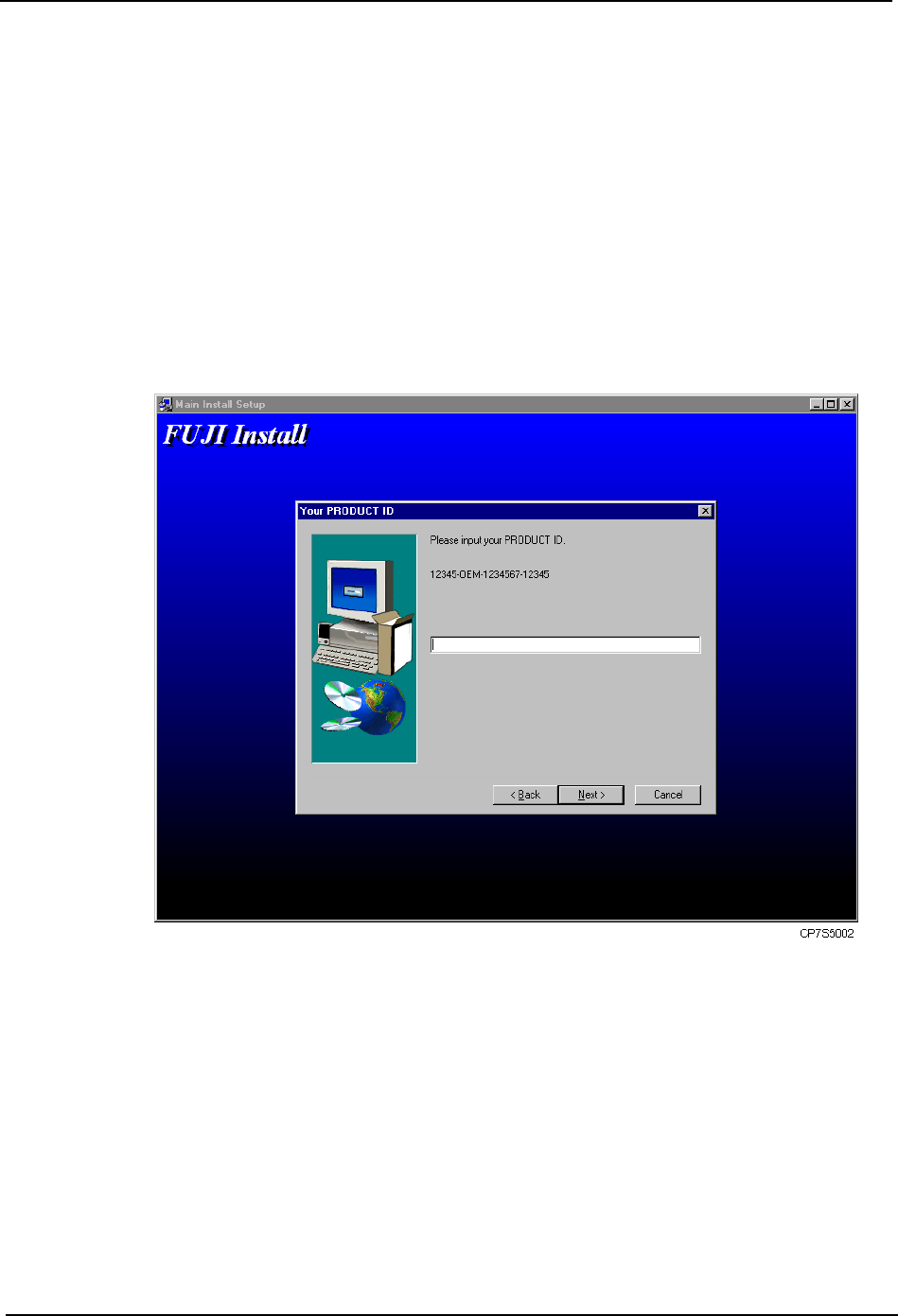
3. Enter the product ID and click [Next].
At the confirmation dialog box which then displays, verify that the ID is correct. If the ID
is incorrect, click [No] to return to the product ID input screen. If the ID is correct, click
[Yes] to continue with the installation. The remainder of the application installation is
performed automatically.
4. A message displays when installation is completed. Remove the CD-ROM and click
[OK].
5. After restarting, Windows NT will start up first, and then the application software will start
up (if correctly installed). If the installation has failed, repeat the installation from the
beginning.