SYS-CP842-1.1E.pdf - 第87页
3.Machine System SYS-CP842-1.1E 78 CP-842E / CP-842ME System Reference The command configuration is shown be low. Note: 1. The F-mar k (fiducial mark) data ed iting screen can be a ccessed by using the F-Mark Vision Test…
SYS-CP842-1.1E 3.Machine System
CP-842E / CP-842ME System Reference 77
6. Saving the edited program
a. Click the [Close] button at the test placement command screen to display a “save
production program” dialog box. When saved, production program overwriting
occurs.
7. Rechecking the data
a. Execute the simulation command again and verify that the panel parts match the wire
frame.
b. Load a new panel and execute the test placement command again to recheck the
results.
3.2.3 Commands for Editing Production Programs on the Machine
Each of the commands are explained below.
Accessing the Commands for On-Machine Editing
The simulation and test placement commands can be accessed in the following two ways.
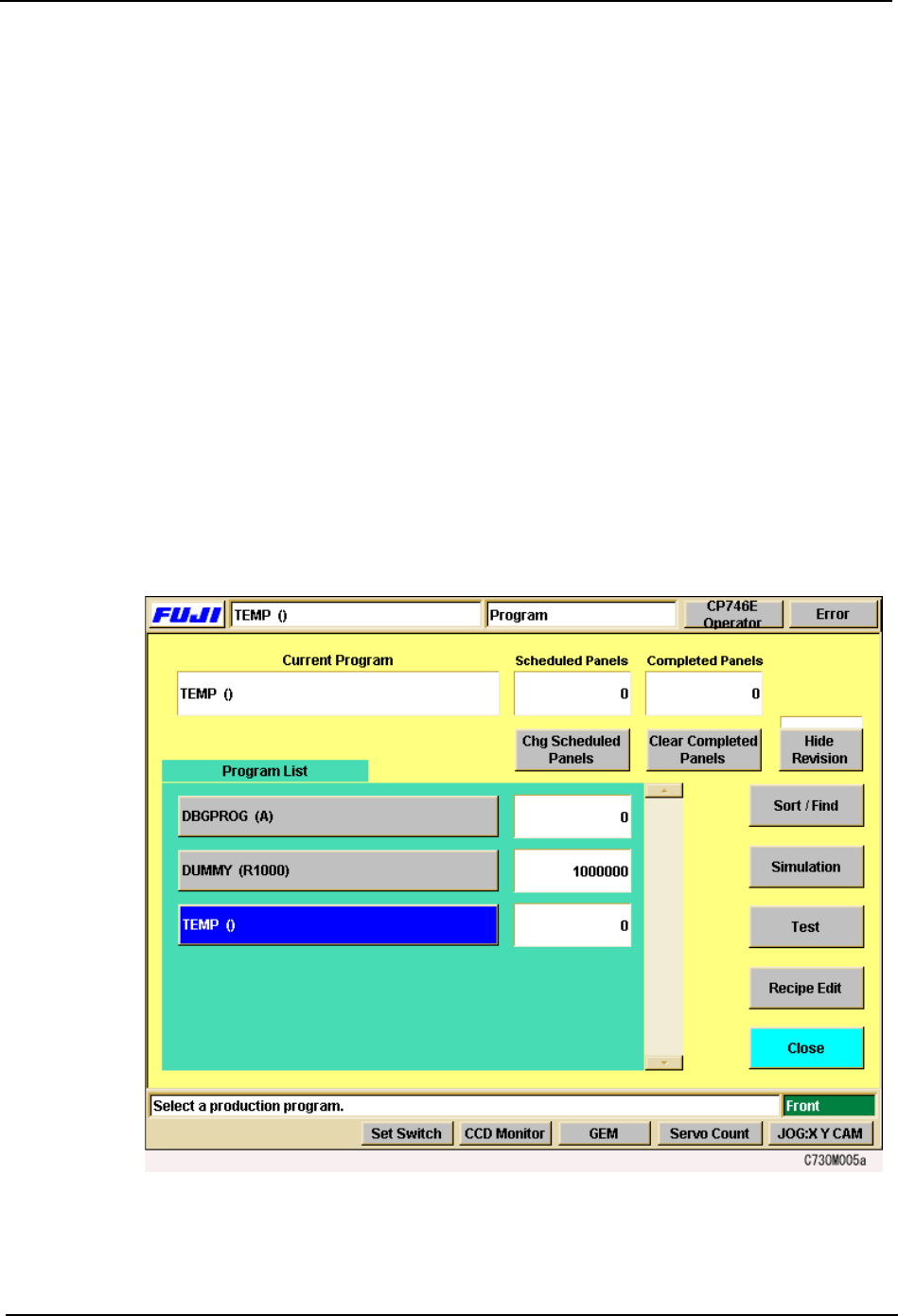
1. At the [Production Mode] screen, select either [Simulation] or [Test Placement], then
begin automatic operation by clicking [Auto] at the [Main] screen.
2. At the [Program] screen, click [Simulation] and [Test Placement].
3.Machine System SYS-CP842-1.1E
78 CP-842E / CP-842ME System Reference
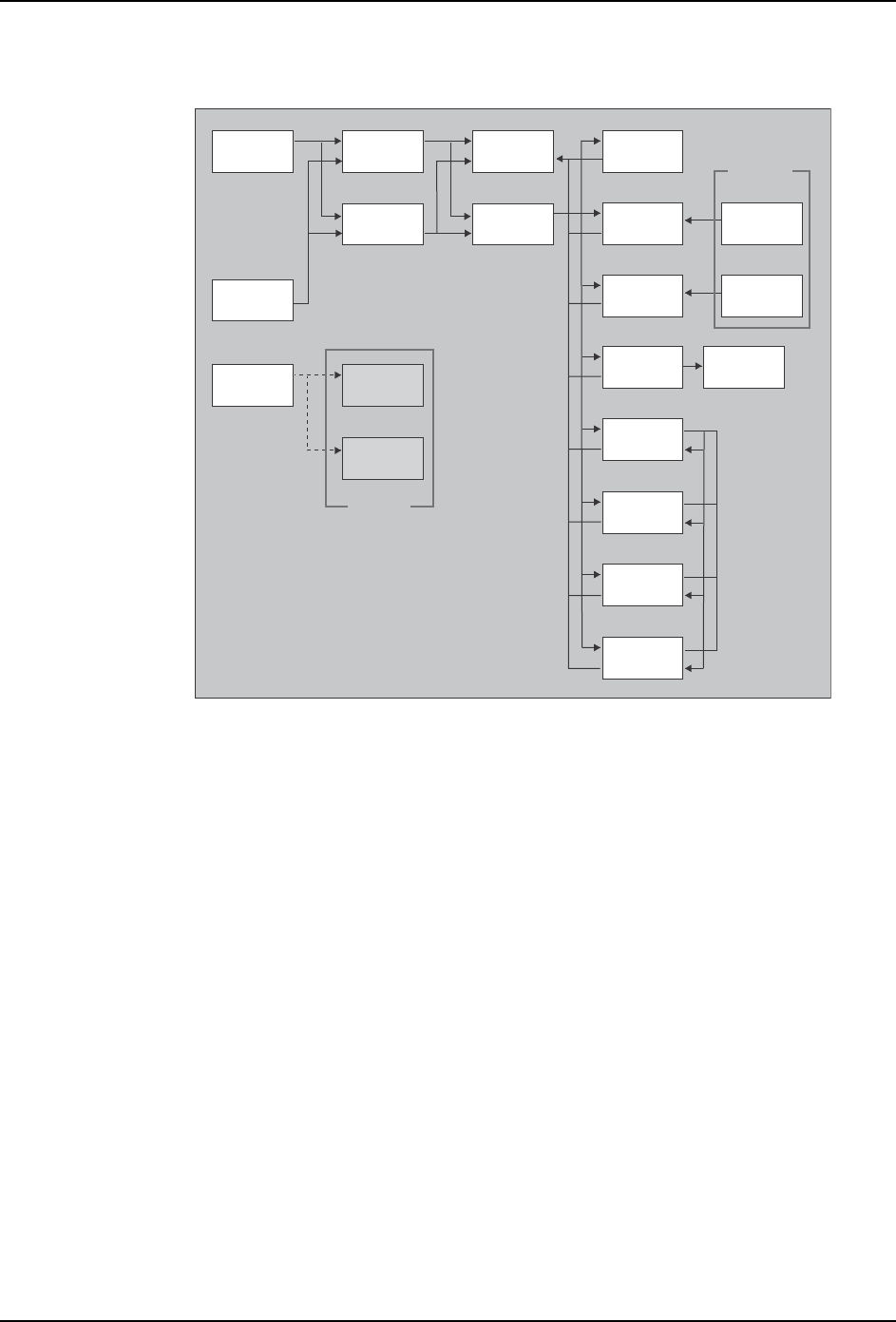
The command configuration is shown below.
Note:
1.The F-mark (fiducial mark) data editing screen can be accessed by using the F-Mark
Vision Test command. A simulation of the F-mark sequence can be performed at this
screen.
2.The BS-mark (block skip mark) data editing screen can be accessed by using the BS-
Mark Vision Test command. A simulation of the BS-mark sequence can be performed
at this screen.
CP7S2022E
Program
switching
Automatic
Simulation
Sequence
search
Test
placement
If the START switch is pressed,
operation proceeds to the screen
which was specified in the Production mode.
Production
program
editing
Sequence
data editing
Production
mode
Simulation
Test
placement
F-mark
data editing
F-Mark
Vision Test
Vision
commands
Switching
between
these screens
is possible
BS-mark
data editing
Pickup
data editing
Pickup
data editing
Body
data editing
Vision
type editing
Element
data editing
Lead
data editing
BS-Mark
Vision Test
Setting
buttons
SYS-CP842-1.1E 3.Machine System
CP-842E / CP-842ME System Reference 79
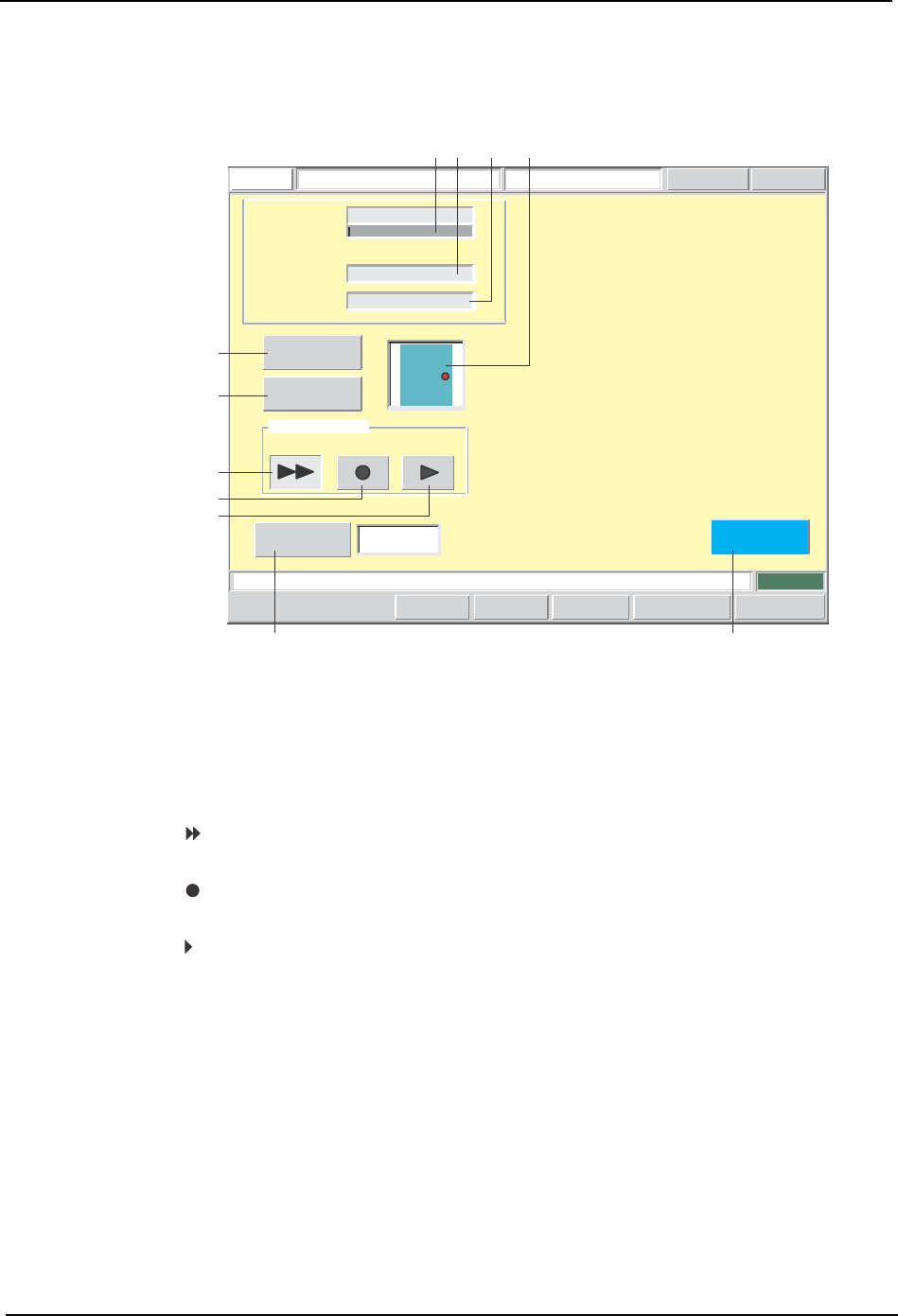
Simulation Screen
Simulations are performed from this screen.
Screen Button Explanations
Load a board, and then press START to commence simulation.
FUJI
ErrorOperator
JOG:X Y CAM
Servo CountGEM
CCD Monitor
SimulationFUJI_CP7_2001
Front
Close
Sequence (%) :
0
Sequence
Number :
Device Number :
1-0-1-0
123
Operation Mode
Continuous Step
Interval Timer
Starting
Sequence
Program Editor
[sec]
1
Set Switch
CP7S2008E
A
B
C
D
E
F G
1
23
4
A. [Production Start Sequence No.]: Switches to the sequence search screen.
B. [Production Program Edit]: Switches to the production program editing
screen.
C. [ ]:
Specifies a simulation in the continuous
operation mode.
D. [ ]:
Specifies a simulation in the step operation’s
repeat mode.
E. [ ]:
Specifies a simulation in the step operation’s 1-
sequence feed mode.
F. [Interval Timer]: Sets the length of intervals between sequences
for simulation in the continuous operation mode.
G. [Close]: Returns to the program switching screen. A
dialog box displays at this time inquiring if the
production program is to be saved. When
saved, production program overwriting occurs.