SYS-CP842-1.1E.pdf - 第79页
3.Machine System SYS-CP842-1.1E 70 CP-842E / CP-842ME System Reference 3.1.15 Vision System Displaying the Vision Mo nitor The touch screen has a built in vision monitor. Users can display the Vision Monitor and select b…
SYS-CP842-1.1E 3.Machine System
CP-842E / CP-842ME System Reference 69
Procedure
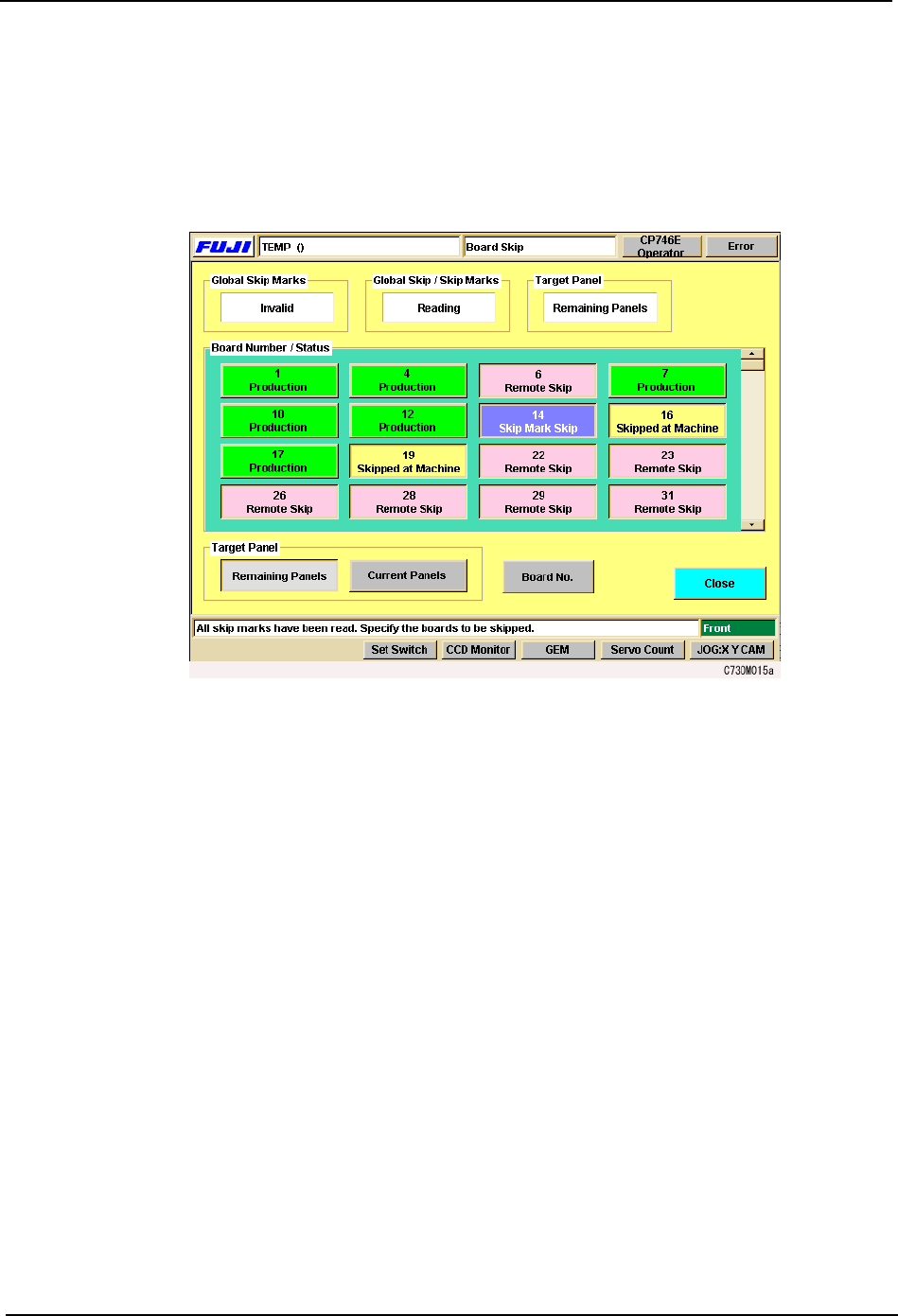
1. Press [Board Skip] at the [Main] screen. The [Board Skip] screen displays.
This screen is divided into color coded sections for each of the boards in the panel. As
is indicated in the color key on the screen, boards that have been specified to be skipped
in the production program are displayed in red, and these cannot be changed at the
machine. Boards that are to be produced display in green.
2. Under Board Number & Status, press the panel(s) to be skipped.
The color immediately changes to yellow to indicate that a manual skip has been set. It
is also possible to undo a skip, by pressing that board again to change the color back to
green.
3. Select whether the board skip is applied to the current panel only, or to all the remaining
panels. Press [Remaining Panels] or [Current Panels] under Target Panel.
4. Press [Close] to return to the [Main] screen.
3.Machine System SYS-CP842-1.1E
70 CP-842E / CP-842ME System Reference
3.1.15 Vision System
Displaying the Vision Monitor
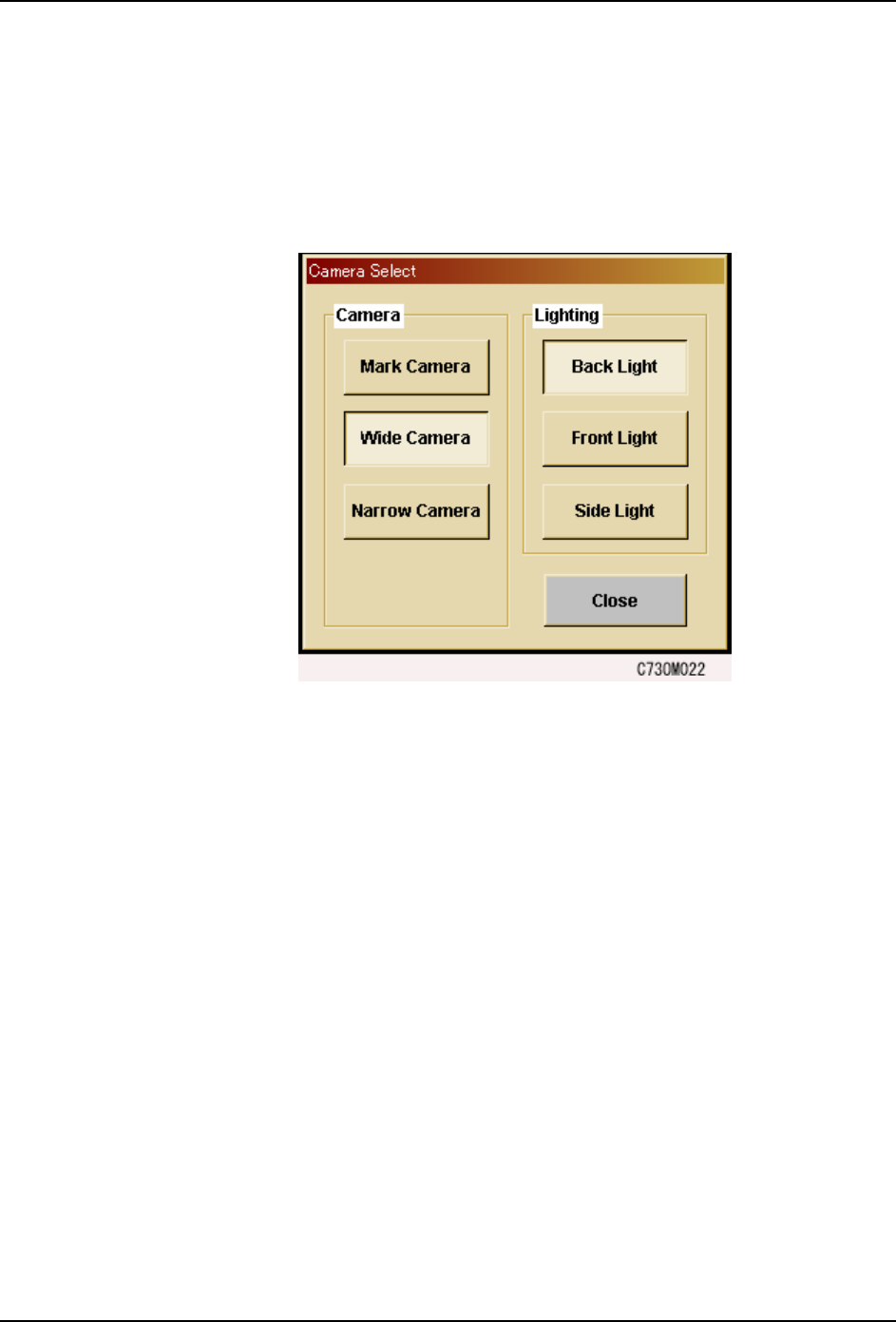
The touch screen has a built in vision monitor. Users can display the Vision Monitor and
select between the [Mark Camera], [Wide Camera] and [Narrow Camera] for the acquired
images displayed, by pressing [Vision] in the command bar. Press [Close] at this screen to
clear the Vision Monitor.
Note: During automatic operation, it is not possible to display the vision processing monitor in order to view
part images. Be sure to close the vision processing monitor before beginning automatic operation.
SYS-CP842-1.1E 3.Machine System
CP-842E / CP-842ME System Reference 71
Camera Monitor Settings
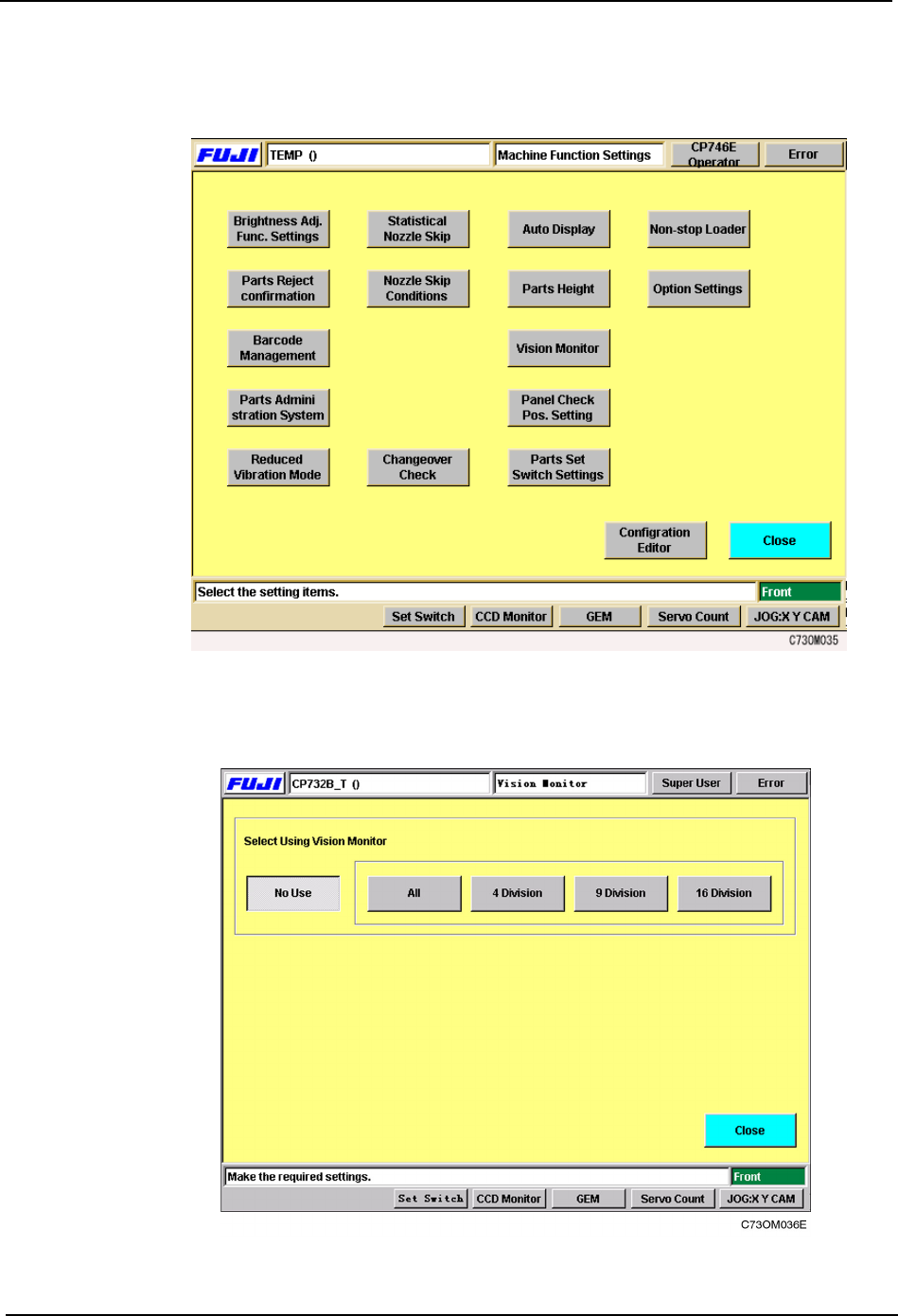
1. Select [Maintenance] [Configuration] [Vision Monitor] from the [Main] screen.
2. Select from [All], [4 Division], [9 Division] or [16 Division] for the display mode at the
external vision monitor.