SYS-CP842-1.1E.pdf - 第92页
SYS-CP842-1.1E 3.Machine System CP-842E / CP-842ME System Reference 83 a. If started when ther e is no panel present, a pa nel is loaded, a part is placed, an image of the placed part position is acquired by th e mark ca…

3.Machine System SYS-CP842-1.1E
82 CP-842E / CP-842ME System Reference
Screen Button Explanations
Display Item Explanations
Operation Explanation
1. Start
a. The START button lamp blinks except at the times shown below. Test placement
begins when the blinking START button is pressed.
• When at the sequence screen.
• When editing data (a ten-key pad or an input dialog box displays).
b. Screen buttons are disabled during a test placement.
c. If no nozzle origin position search or part discard operation has occurred since the
power was turned on, a nozzle origin position search is first performed when the
START button is pressed, followed by the test placement.
2. Continuous operation
a. Intervals are inserted between each sequence.
b. Operation continues until all sequences in the production program are completed. If
the CYCLE STOP button is pressed while operation is in progress, a stop does not
occur until the current sequence is completed.
3. Step operation
A. [Production Program Edit]: Switches to the production program editing
screen.
B. [Production Start Sequence No.]: Switches to the sequence search screen.
C. [ ]:
Specifies a test placement in the continuous
operation mode.
D. [ ]:
Specifies a test placement the step operation
mode.
E. [Unload]: When this button is clicked, all other screen
buttons except for the [Close] button are
disabled. The START button can then be
pressed to unload the panel.
F. [Close]: Returns to the program switching screen. A
dialog box displays at this time inquiring if the
production program is to be saved. When
saved, production program overwriting occurs.
1. [Sequence] Displays the sequence progression status as a bar graph which
indicates the percentage (%).
2. [Sequence No.] Displays the sequence number for which image acquisition (by
mark camera) is occurring.
3. [Device No.] Displays the stage number, group number, slot number, and
sub-slot number of the device for the displayed [Sequence No.]
(see item 2 above).

SYS-CP842-1.1E 3.Machine System
CP-842E / CP-842ME System Reference 83
a. If started when there is no panel present, a panel is loaded, a part is placed, an image
of the placed part position is acquired by the mark camera and displayed on the
monitor. Operation then stops.
4. Specifying the initial sequence
a. The initial sequence can be specified if a panel has been loaded to the main
conveyor but test placement is not occurring.
5. Panel unloading
a. A panel is not unloaded after production is completed. The [Unload] button must be
pressed to unload the panel.
b. A completed panel which is on the main conveyor is automatically unloaded if the
START button is pressed.
c. To perform another test placement after a test placement and simulation have been
completed, press the [Unload] button to unload the panel, then perform another test
placement.
6. Saving the production program
a. When the [Close] button is clicked after editing a production program, a dialog box
displays inquiring if the production program is to be saved. If saved, production
program overwriting occurs. If not saved, the edited content is abandoned.
3.Machine System SYS-CP842-1.1E
84 CP-842E / CP-842ME System Reference
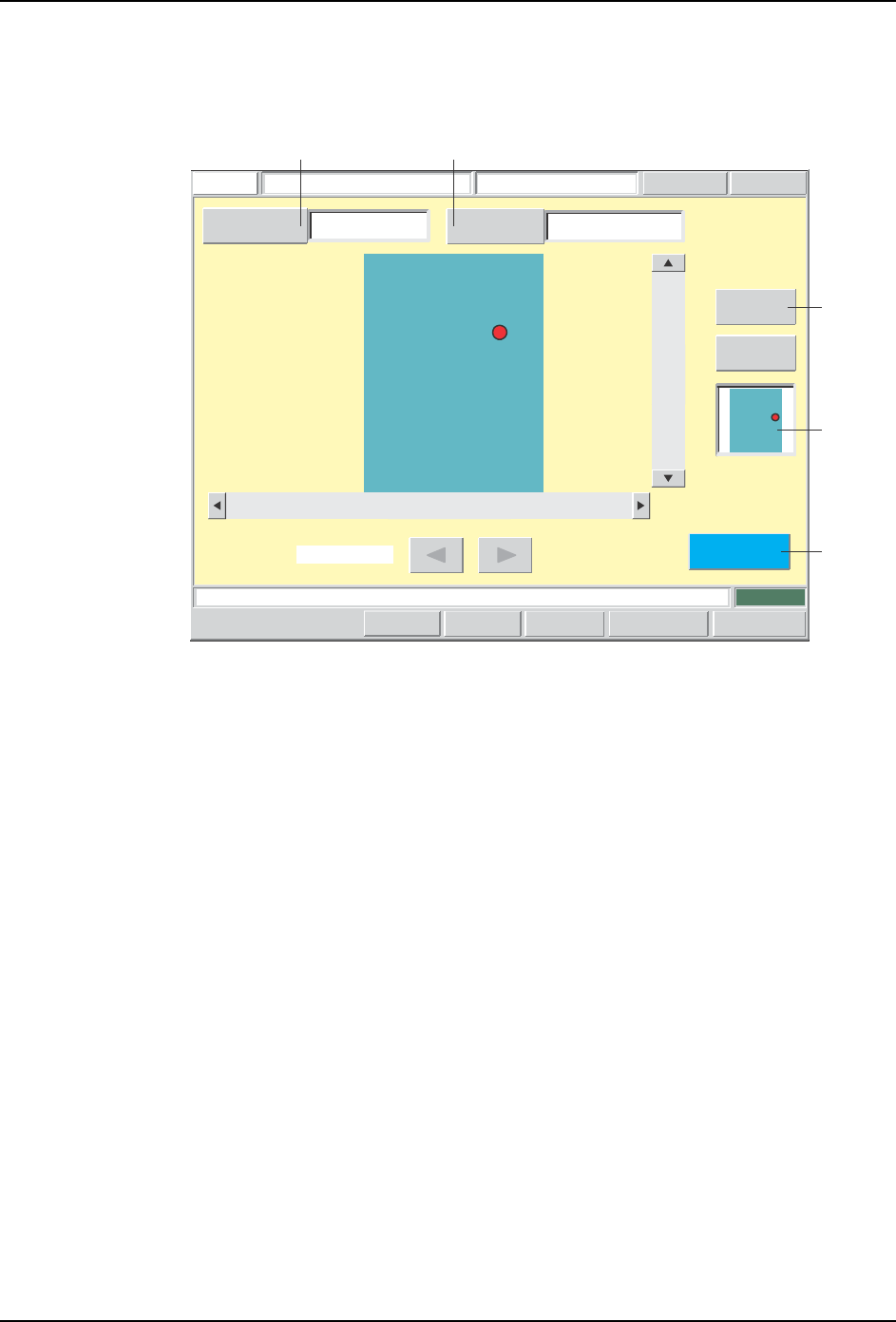
Sequence Search Screen
The sequence for which a simulation or test placement is desired is selected on this screen.
Screen Button Explanations
Display Item Explanations
Specifying A Sequence
A sequence can be specified in the following 3 ways.
Specify the sequence number.
FUJI
ErrorOperator
JOG:X Y CAM
Servo CountGEMCCD Monitor
Sequence SearchFUJI_CP7_2001
Front
Close
123
Sequence Number
ZOOM +
ZOOM -
Move Cursor
Reference
Designation Search
MIN
Set Switch
CP7S2010E
AB
C
1
D
A. [Sequence No.]: Displays a ten-key pad where the desired
sequence number (search object) can be
entered.
B. [Reference Designator Search]: Displays a ten-key pad where the desired
referencedesignator (search object) can be
entered.
C. [ZOOM+]: Zooms in and enables image scrolling, and
sequence cursor movement.
D. [Close]: Returns to either the simulation or the test
placement screen (returns to the screen from
which this screen was accessed).
1. [Monitoring Preview] Displays the panel position of the sequence number indicated
by the [Sequence No.] item (item A. above).