SYS-CP842-1.1E.pdf - 第35页
2.The Machine SYS-CP842-1.1E 26 CP-842E / CP-842ME System Reference 2.1.5 Touch Screen The operator issu es commands to th e machine from the tou ch screen at the fron t or rear of the machine. Each screen that app ears …

SYS-CP842-1.1E 2.The Machine
CP-842E / CP-842ME System Reference 25
CYCLE STOP button
This button can be used during operation to stop the machine at the end of the current
movement. Unlike the EMERGENCY STOP button, pressing CYCLE STOP does not cut
the 200V power.
READY ON button
This button cancels an error status and resupplies the 200V power to the servo system.
EMERGENCY STOP button
Pressing an EMERGENCY STOP button cuts the 200V power to the machine and stops
operation immediately. This button locks in position when pressed, and must be turned
clockwise to release it.
Users should familiarize themselves with the locations of the EMERGENCY STOP buttons
prior to operating the machine. In addition to the button on the front of the machine (shown
in the figure above), further EMERGENCY STOP buttons are positioned at the rear of the
machine, and on the optional MTU safety fence.
Refer to the illustration in Chapter 5 of the Safety Guidelines to confirm the positions of all
the EMERGENCY STOP buttons.
Side 1/2 ENABLE/LOCK switch
Toggle this switch to enable operation at the desired side; front (Side 1) or rear (Side 2), of
the machine. Operation at a given side of the machine cannot be enabled if the switch at
the other side of the machine is set to LOCK.
Power Off button (touch screen command that displays when the EMERGENCY
STOP button is pushed)
The [Power Off] button is used to turn off the main power to the machine.
This button can only be pressed after the EMERGENCY STOP button has been pushed.
2.The Machine SYS-CP842-1.1E
26 CP-842E / CP-842ME System Reference
2.1.5 Touch Screen
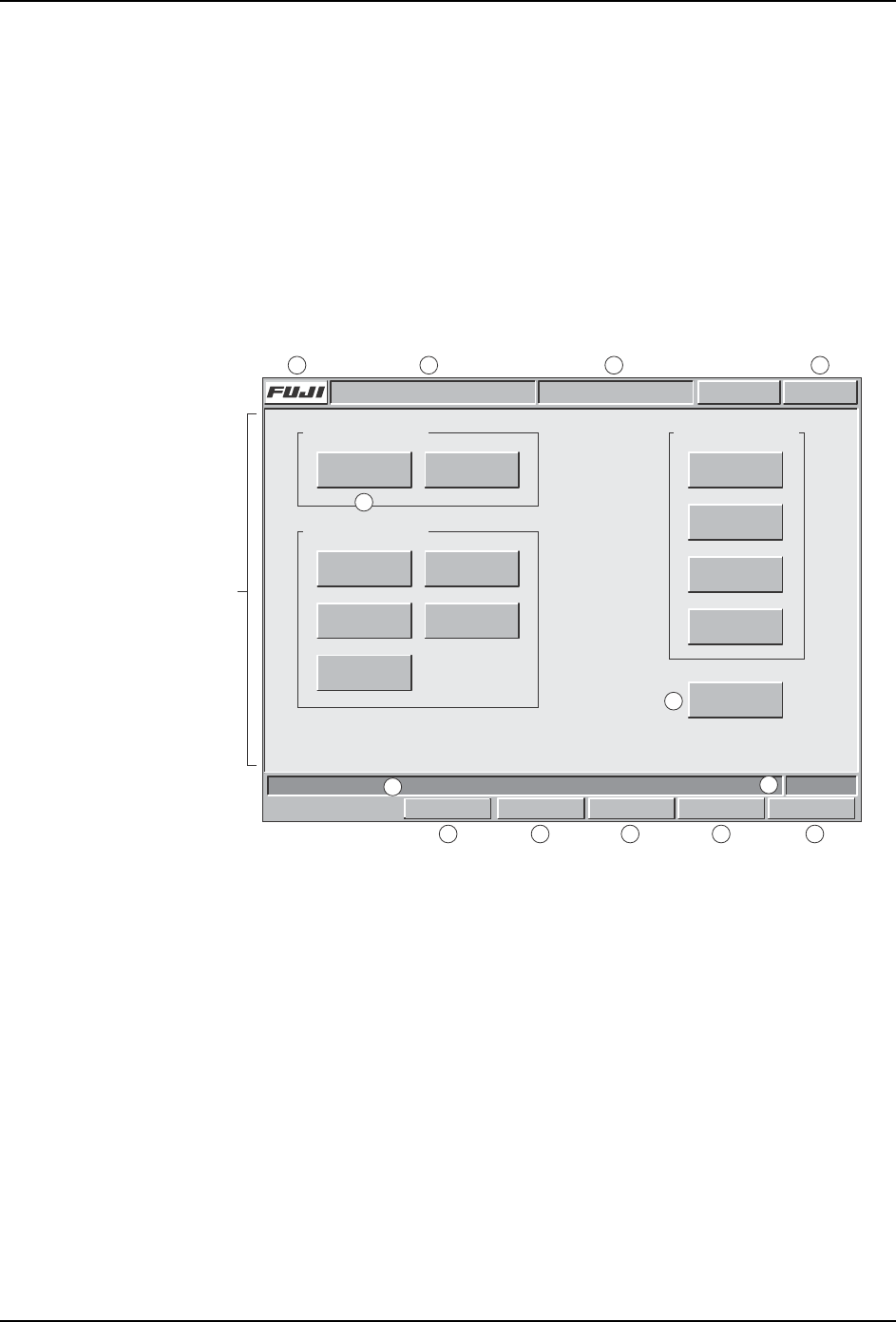
The operator issues commands to the machine from the touch screen at the front or rear of
the machine. Each screen that appears at the touch screen contains a number of command
buttons, which display the commands associated with the selection. Some screens, as in
the example below, are divided into sections with related commands being grouped
together.
Although different commands display at each screen, the title bar, information bar, and
command bar commands which are common to all screens (sections A to M in the figure
below) are explained below. Refer to part 3 of this manual for a detailed explanation of the
command hierarchy.
Title bar
a. Press the [FUJI] button to display version information for the machine control
software, vision system software, and operating system.
b. The name of the active program displays at this section of the title bar.
c. The name of the current screen displays at this section of the title bar.
d. This button displays in red if an error occurs. When red, this button can be pressed
at any screen to return to the red error screen.
Main area
e. The command buttons in the main section of each screen can be pressed to access
further related commands. Refer to part 3 for a detailed explanation of the command
hierarchy.
f. The [Close] button is available on all screens except the [Main] screen. Press this
button once to return to the previous screen. Press this button in succession to return
Command section
Screen name
Command section
Select a command.
Command section
COMMAND COMMAND COMMAND
COMMAND
COMMAND
COMMAND
Close
COMMAND COMMAND
COMMAND COMMAND
COMMAND
FRONT
Vision
0
Host Servo Count
Operator CallABC_PROG Error
JOG:XY CAM
Title bar
Main area
Infomation bar
Command bar
C73OM008a
a b cd
e
f
g
h
i
j
k lm
Set Switch

SYS-CP842-1.1E 2.The Machine
CP-842E / CP-842ME System Reference 27
to the [Main] screen.
Information bar
g. Messages display in this area of the information bar relating to the main procedures
associated with the screen above.
h. This displays either FRONT or REAR depending on which side of the machine is
currently set as the active side at which commands at the touch screen can be used.
To change the active side it is necessary to move the side selection switch on the
machine to ENABLE.
Command bar
i. Press the [Set Switch] button to display the [Parts Set Switch] screen. This switch is
used in place of the standard hardware switch to confirm that the setting of parts is
complete.
j. Press the [Vision] button to display a screen at which one of the three cameras can
be selected. When a camera button is pressed the raw image acquired by that
camera displays on screen.
k. Press the [Host] button to display a screen at which the communication and control
status can be specified.
l. Press [Servo Count] to display the [Servo Count] screen. This displays readings in
mm/deg. or pulses for each of the eleven axes on the machine.
m. Press [Jog:] to display a screen at which inching speed and other settings can be
made. The button carries the name of the selected axis combination which will move
when the inching controls are used.