SYS-CP842-1.1E.pdf - 第65页
3.Machine System SYS-CP842-1.1E 56 CP-842E / CP-842ME System Reference Note: Pick up offset values set in part data and Auto pick up offset Y values cannot be changed manually. 5. Whenever the auto pick up offset functio…
SYS-CP842-1.1E 3.Machine System
CP-842E / CP-842ME System Reference 55
Specifying Pick-up Offsets at the Machine
When a part cannot be successfully picked up using standard pick-up position offsets, the
operator can manually specify the offset at the machine.
Procedure
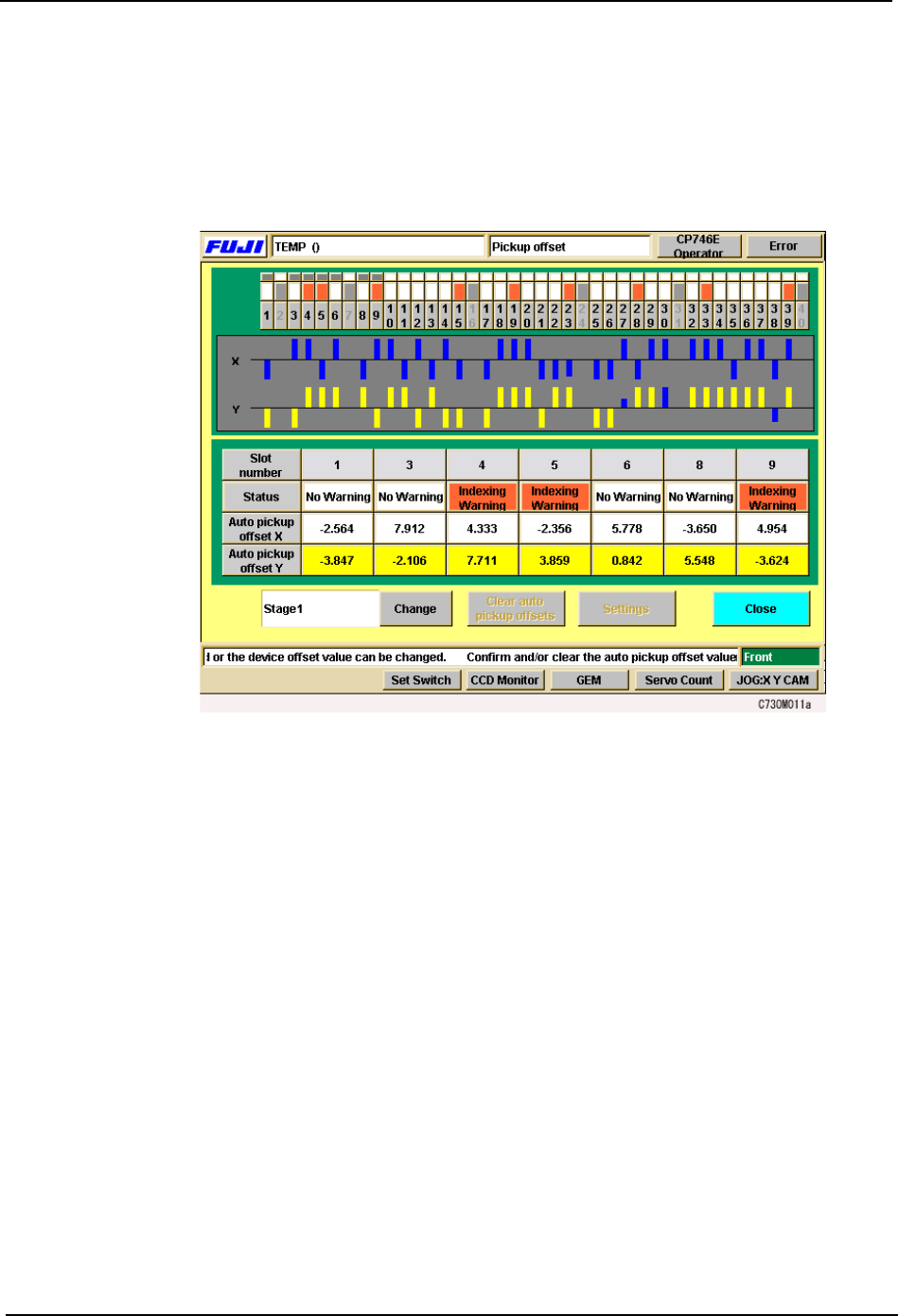
1. Press [Device Offsets] at the [Main] screen. The [Device Offsets] screen displays.
2. The XY orientation of the pick up position can be changed on the CP-842E/842ME.
Under each slot number, the slot warning status and X and Y auto pick up offset values
display. Select a slot number on the device table displayed at the top of the screen to
display information for that slot (for CP-842ME, 1 to 40, for CP-842E, 1 to 70). Press
[Change] to toggle the display between Stage 1 and Stage 2.
Note: Y pick up offsets cannot be edited manually.
3. To clear auto pick up offsets, select [Auto pick up offset X] or [Auto pick up offset Y] for
the corresponding slot and push [Clear auto pick up offsets].
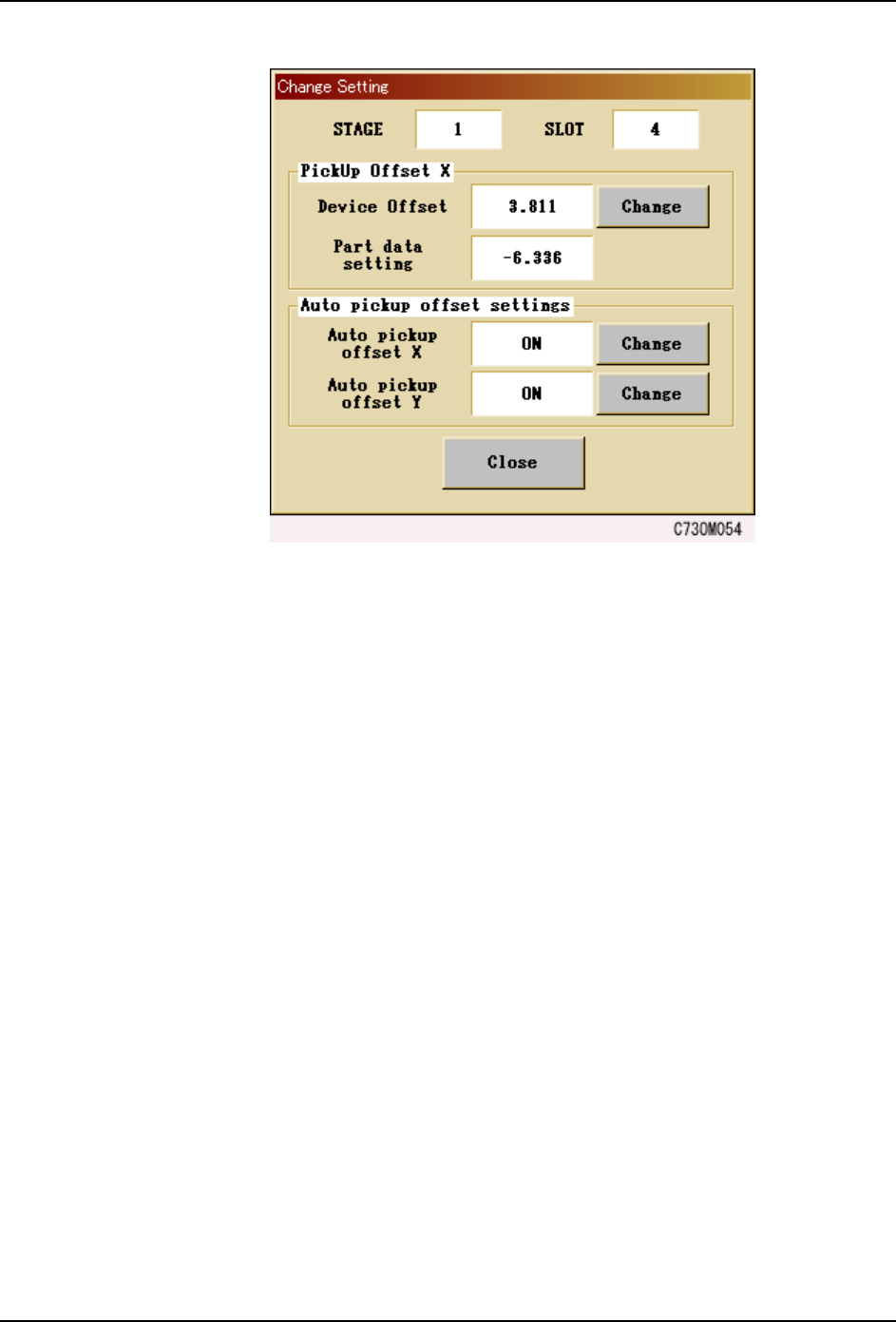
4. To manually change the X auto pick up offset values, select the slot number of the slot
to be changed, press [Settings] and the window shown below displays. Push [Change]
and enter the offset values via the numerical pad that displays.
3.Machine System SYS-CP842-1.1E
56 CP-842E / CP-842ME System Reference
Note: Pick up offset values set in part data and Auto pick up offset Y values cannot be changed manually.
5. Whenever the auto pick up offset function for X or Y needs to be enabled or disabled,
press the [Change] button next to the [Auto pick up offset X] or [Auto pick up offset Y]
buttons. Select [OK] on the confirmation window that displays.
Note: When the [Auto pick up offset X] function is enabled, placing positions are reevaluated and the
necessary auto pick up offsets are performed, even when pick up offset values have been set in part
data.

SYS-CP842-1.1E 3.Machine System
CP-842E / CP-842ME System Reference 57
3.1.7 Setting the Production Quantity
The machine can be set to produce up to 65535 panels in automatic operation. This setting
can be made when the production program is transmitted from the host (refer to your host
system documentation), or using commands at the machine.
Procedure
1. Press [Program] at the [Main] screen, and then press [Chg Scheduled Panels].
The numeric keypad displays.
2. Enter a value at the numeric keypad and press [OK].
The specified production quantity displays at the [Program] screen in the Scheduled
Panels column and also at the Scheduled Panels item at the [Production] screen when
viewed in the default [Loader] display mode.
3.1.8 Stopping and Restarting the Machine
Stopping the machine in an emergency.
• Push any of the EMERGENCY STOP buttons on the machine.
When the EMERGENCY STOP button is pushed the 200V power supply to the
servo system is cut, and the machine stops immediately. When pushed, the
button locks in position and must be turned in the direction of the arrows in order
to release it.
• When resuming operation, release the EMERGENCY STOP button, and then
press READY ON. Press the flashing START button to commence.
Stopping the machine at the end of the current cycle.
• Press the CYCLE STOP button.The machine stops at the end of the current
cycle. Pressing CYCLE STOP does not cut the 200V power.
• Press the flashing START button to resume operation.
Stopping the machine after completing the current panel(s).
• Press [Finish Current Panels] at the [Production] screen.The panel(s) currently
being produced is completed and sent to the next machine, then the machine
stops and the START button is enabled.
• Push the START button to resume operation.