FlexTRAK 2MB Material Handler Addendum Rev 05.pdf - 第102页
FlexTRAK Series 2MB Mater ial Handler Adden dum Tour of HMI Softw are for the Material Handler 5-36 © 2023 Nordson Corporation 3. Touch the RESET USER COUNT button. „ The User Cou nt screen opens (Figure 5-16). Figure 5-…
FlexTRAK Series 2MB Material Handler Addendum Tour of HMI Software for the Material Handler
© 2023 Nordson Corporation 5-35
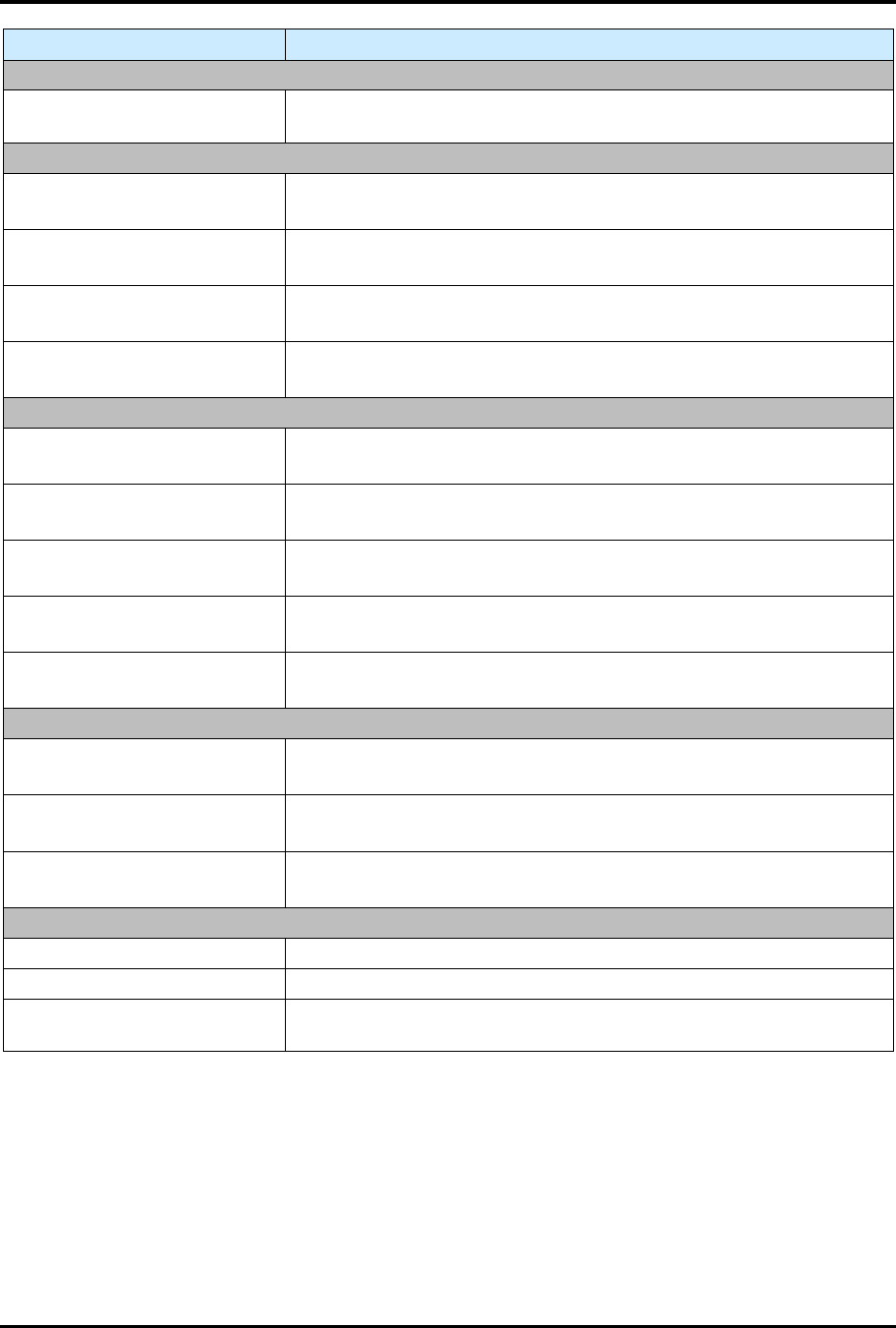
Control Description
PARAMETERS
REINITIALIZE
Touch to reinitialize system parameters, see 6.9 Reinitializing System
Parameters.
BELT SPEEDS
LOAD SPEED
Displays the current Belt Load Speed setting.
Touch to set the Belt Load Speed setting.
LANE SPEED
Displays the current Belt Lane Speed setting.
Touch to set the Belt Lane Speed setting.
JOG SPEED
Displays the current Belt Jog Speed setting.
Touch to set the Belt Jog Speed setting.
UNLOAD SPEED
Displays the current Belt Unload Speed setting.
Touch to set the Belt Unload Speed setting.
LANE TIMERS
LOAD IN TIME
Displays the current Load In Time setting.
Touch to set the Load In Time setting.
HS UNLOAD TIME
Displays the current HS Unload Time setting.
Touch to set the HS Unload Time setting.
NEXT PART
Displays the current Next Part setting.
Touch to set the Next Part setting.
BOAT OUT DELAY
Displays the current Boat Out Delay setting.
Touch to set the Boat Out Delay setting.
LOAD IN ALM TO
Displays the current Load In Alm To setting.
Touch to set the Load In Alm To setting.
AXIS SPEEDS
SET Z HI SPEED
Displays the current Set Z Hi Speed setting.
Touch to set the Set Z Hi Speed setting.
SET Y HI SPEED
Displays the current Set Y Hi Speed setting.
Touch to set the Set Y Hi Speed setting.
SET CONV AX SPD
Displays the current Set Conv Ax Spd setting.
Touch to set the Set Conv Ax Spd setting.
CYCLE COUNTERS
USER COUNT Displays the current number of boats processed.
LIFETIME COUNT Displays the cumulative number of boats processed.
RESET USER COUNT Touch button to reset the cycle counters to zero, see 6.10 Resetting
the User Boat Count.
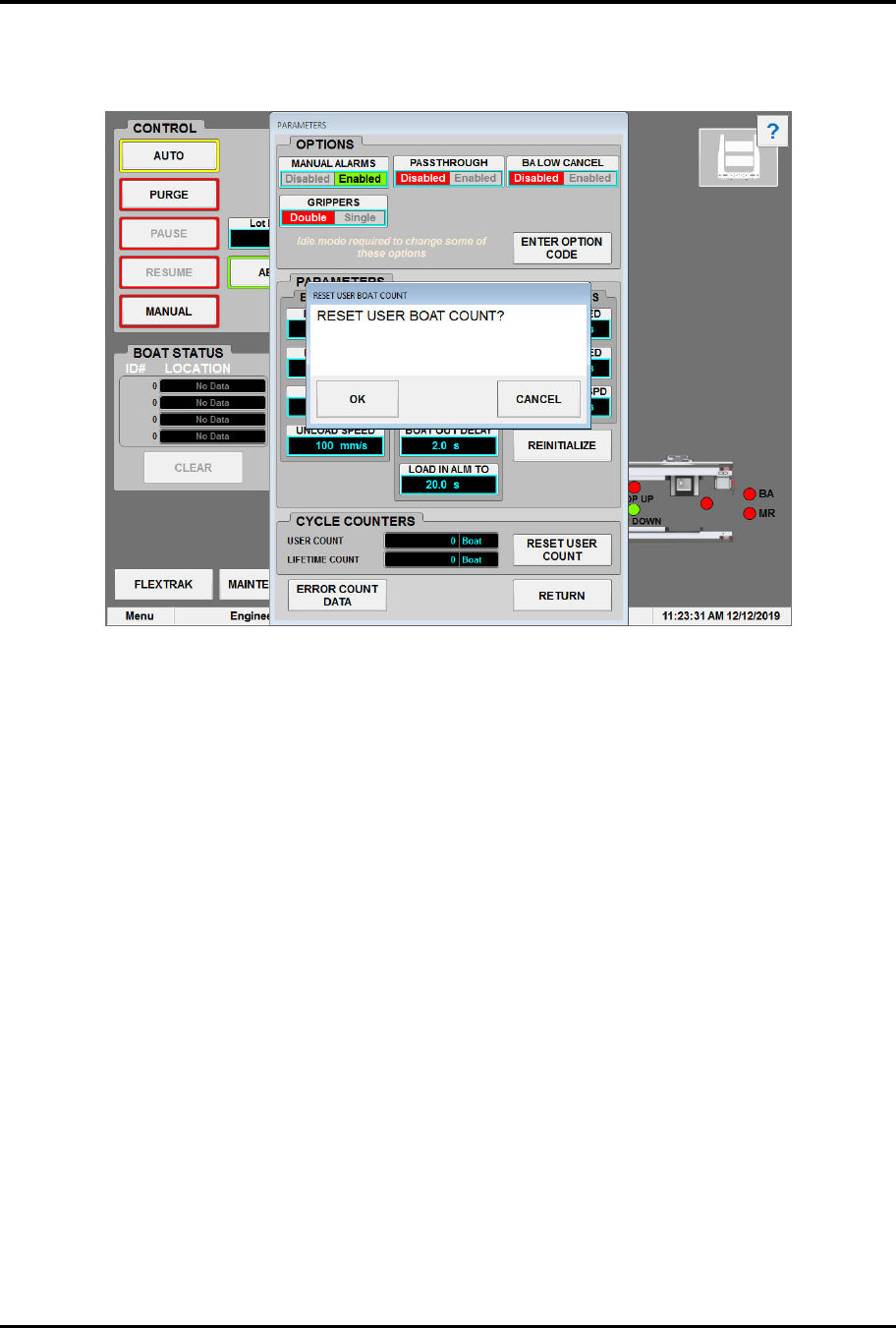
5.5.5.1 Reset User Count Screen
To view the reset user count screen:
1. On the MH Overview screen, touch the MAINTENANCE button.
„ The Maintenance Master screen opens (Figure 5-5).
2. Touch the SYSTEM button.
„ The Parameters screen opens (Figure 5-15).
FlexTRAK Series 2MB Material Handler Addendum Tour of HMI Software for the Material Handler
5-36 © 2023 Nordson Corporation
3. Touch the RESET USER COUNT button.
„ The User Count screen opens (Figure 5-16).
Figure 5-16 User Count Screen
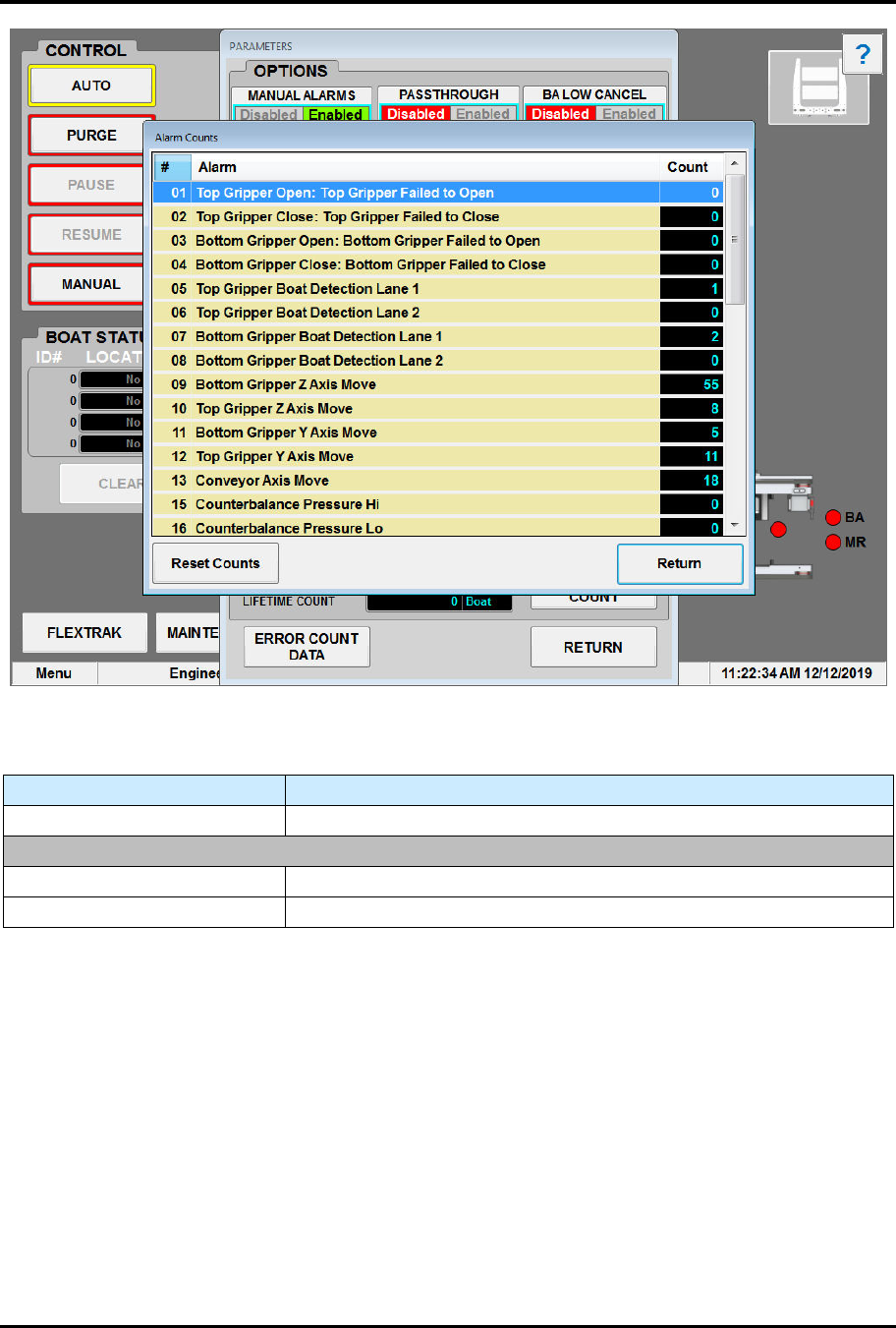
5.5.5.2 Alarm Counts Screen
To view the alarm counts screen:
1. On the MH Overview screen, touch the MAINTENANCE button.
„ The Maintenance Master screen opens (Figure 5-5).
2. Touch the SYSTEM button.
„ The Parameters screen opens (Figure 5-15).
3. Touch the ERROR COUNT DATA button.
„ The Alarm Counts screen appears (Figure 5-17).
FlexTRAK Series 2MB Material Handler Addendum Tour of HMI Software for the Material Handler
© 2023 Nordson Corporation 5-37
Figure 5-17 Alarm Counts Screen
Table 5-18 Alarm Counts Screen Controls and Indicators
Control Description
RESET COUNTS Touch to reset all alarm counters to zero.
ALARM (NAME) Displays the list of alarms.
(ALARM) COUNT Shows how many times the alarm has been triggered.
5.5.6 Variable Snapshot Screen
The Variable Snapshot screen (Figure 5-18) creates a snapshot of the machine state that can be sent to
Technical Support for troubleshooting. See Table 5-19 for descriptions of the Variable Snapshot screen
controls and indicators.
To access the parameters screen:
1. Touch the MAINTENANCE button on the MH Overview screen to access maintenance
commands.
„ The Maintenance Master screen opens (Figure 5-5).
2. Touch the VARIABLE SNAPSHOT button.
„ The Variable Snapshot screen opens (Figure 5-18).