FlexTRAK 2MB Material Handler Addendum Rev 05.pdf - 第68页
FlexTRAK Series 2MB Mater ial Handler Adden dum Tour of HMI Softw are for the Material Handler 5-2 © 2023 Nordson Corporati on 5.3 User Interface The FlexTRAK 2MB Mate rial Handler software layout (Figure 5-1) is desig n…

© 2023 Nordson Corporation 5-1
5 Tour of HMI Software for the Material
Handler
5.1 Overview
This section provides a tour of the FlexTRAK 2MB material handling HMI screens. The FlexTRAK
plasma module HMI screens are covered in the HMI Software User Guide. A detailed description of the
screens found within each of the following:
q User Interface
q Material Handler Overview Screen
q Maintenance Master Screen
q Axis Status Screen
q Digital Input Status Screen
q Digital Output Status Screen
q Conveyor Status Screen
q Parameters Screen
q Reset User Count Screen
q Alarm Counts Screen
q Variable Snapshot Screen
All of the HMI screens can be accessed through the FlexTRAK 2MB MH Overview screen. These screens
are used to:
q Enable Manual Mode
q Control Movements of the MH Shuttler and Conveyor
q View Shuttler and Conveyor Set Points
q Enable Teach Mode
q View Digital I/O’s
q View and Set General MH System Parameters
q Run Programs such as PCM Control and Pass-Through Mode
5.2 Safety First
Please review the safety section in the applicable plasma system manual before proceeding. It is important
to be familiar with the plasma system safety features and precautions indicated in the manual before
operating the HMI software.
FlexTRAK Series 2MB Material Handler Addendum Tour of HMI Software for the Material Handler
5-2 © 2023 Nordson Corporation
5.3 User Interface
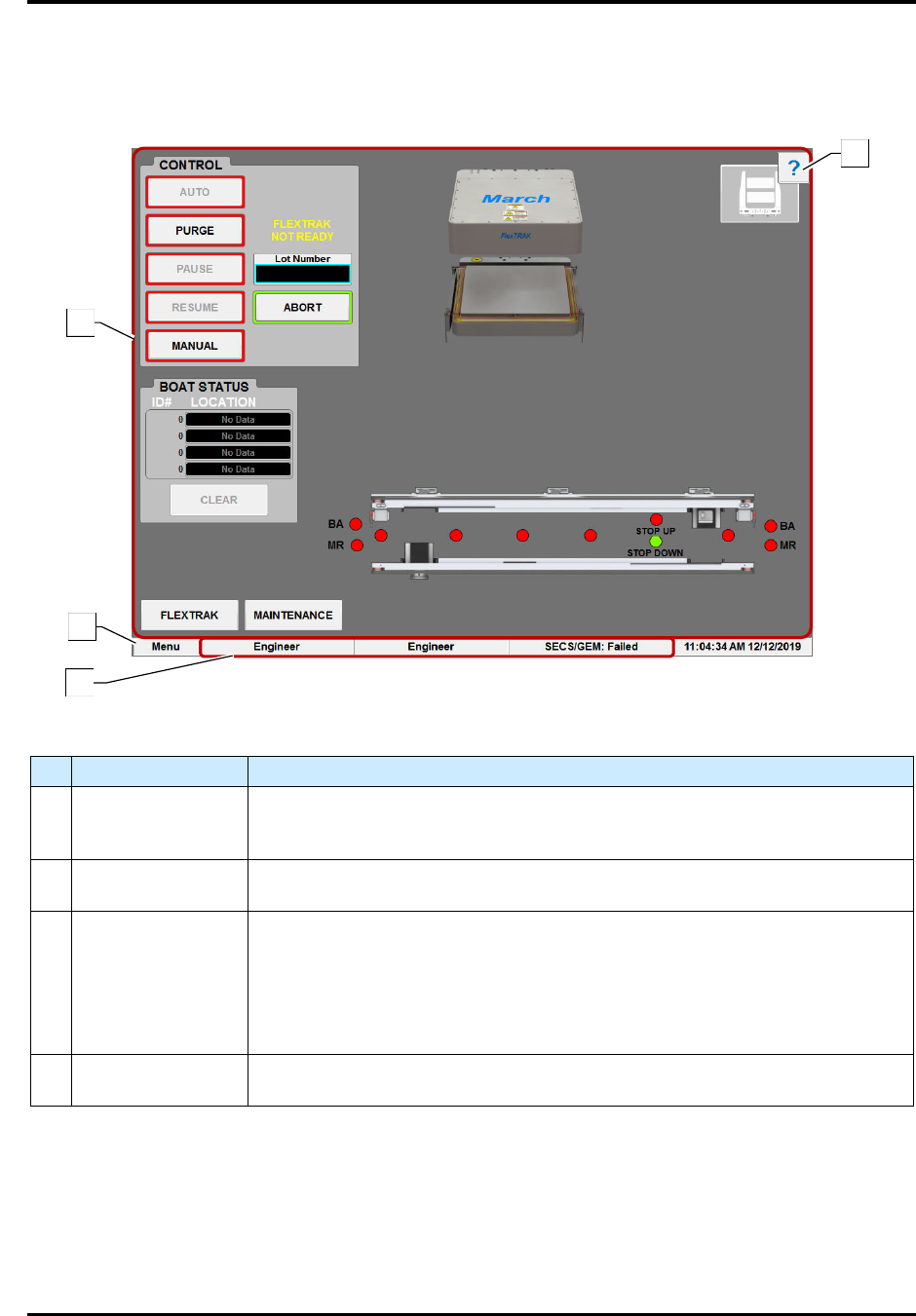
The FlexTRAK 2MB Material Handler software layout (Figure 5-1) is designed to maximize
functionality and ease of use.
Figure 5-1 User Interface
Table 5-1 User Interface Software Controls and Indicators
Control Description
1 OVERVIEW
The MH Overview screen for the HMI software has several tiles with software
controls and indicators. See Table 5-6 for a description at the MH Overview
screen controls and indicators.
2 MENU
Refer to the HMI Software User Guide for a description of the Menu screen
controls.
3 LOGIN BAR
Shows the currently logged in user ID, full name, and access level. If
SECS/GEM is enabled, the login bar will also show the current connection
state. Clicking the connection state will bring up the SECS/GEM Control
Panel.
Touch the Login Bar to log in or log out. Refer to the HMI Software User
Guide for more information.
4 HELP
Refer to the HMI Software User Guide for more information on the Helper
feature.
4
1
2
3
FlexTRAK Series 2MB Material Handler Addendum Tour of HMI Software for the Material Handler
© 2023 Nordson Corporation 5-3
5.3.1 Controls and Indicators
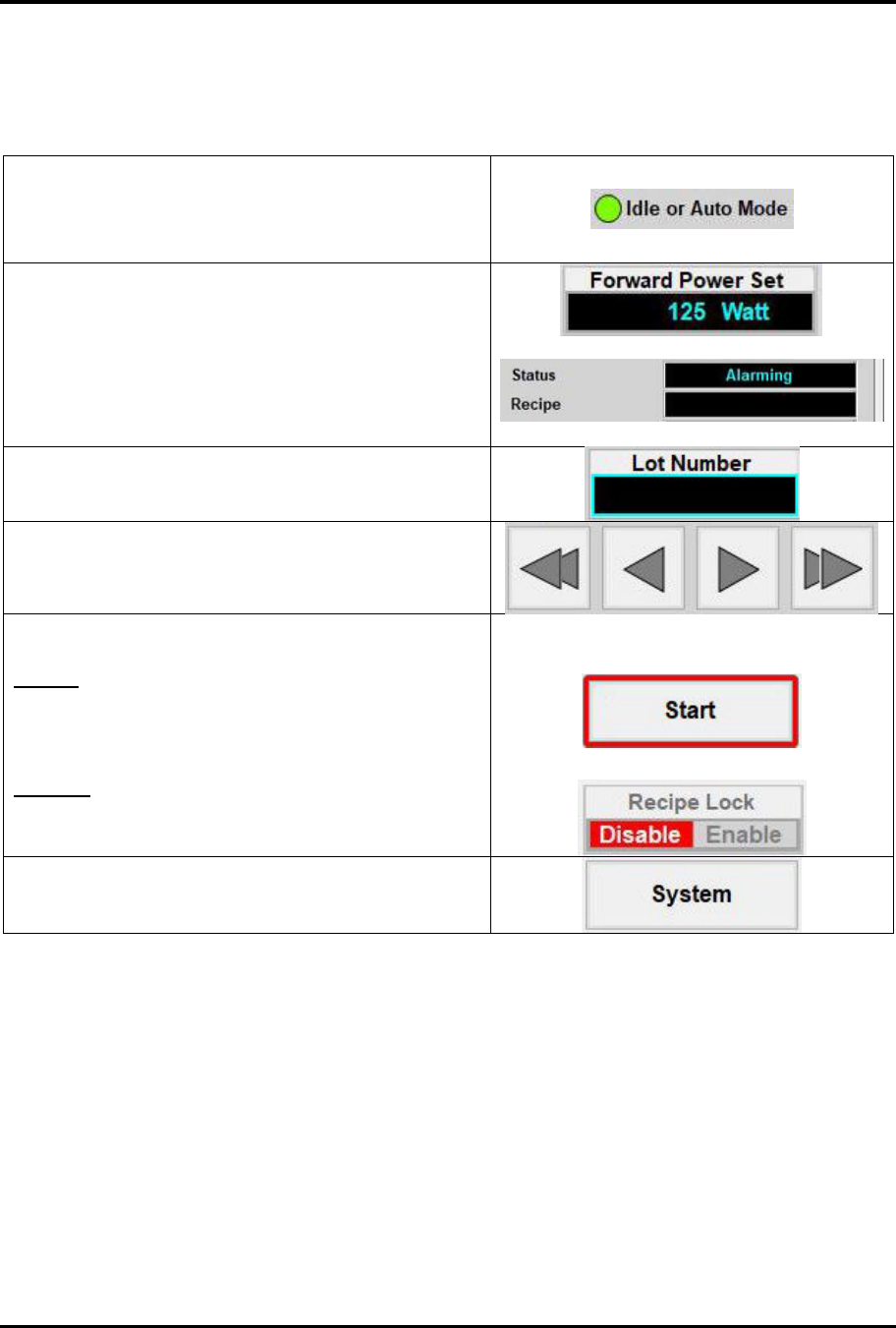
There are various types of controls and indicators in the software.
Table 5-2 Software Controls and Indicators
Status Indicators - Displays the current state of the
system.
Green - Conditions are met
Red - Conditions are not met
Fields - Displays current data or setpoint.
Changeable Fields - Displays the current data or
setpoint. Touching the field opens a popup allowing the
user to change the data or setpoint.
Controls - Touching the control sends a signal to the
plasma system.
Controls with Status Indicators - Touching the
control activates or deactivates the control.
Buttons
Green - Control is active
Yellow - Control is in process
Red - Control is inactive
Switches - The active state has a colored background
and the inactive state is grayed out.
Software Navigation Buttons - Touching the button
opens or closes a software screen.