FlexTRAK 2MB Material Handler Addendum Rev 05.pdf - 第81页
FlexTRAK Series 2MB Mater ial Handler Adden dum Tour of HMI Softw are for the Material Handler © 2023 Nordson Corporation 5-15 Table 5-11 Sequencing Screen Controls and Indicators Control Description Conveyor STATUS Disp…
FlexTRAK Series 2MB Material Handler Addendum Tour of HMI Software for the Material Handler
5-14 © 2023 Nordson Corporation
Table 5-10 Gripper Control Screen Controls and Indicators
Control Description
Top
GRIP Touch to activate the grip of the top gripper.
RELEASE Touch to release the grip of the top gripper.
Bottom
GRIP Touch to activate the grip of the bottom gripper.
RELEASE Touch to release the grip of the bottom gripper.
5.5.1.2 Sequence Status
The Sequencing screen displays the current operational status of the conveyor, shuttler, and chamber.
To access the sequencing screen:
1. Touch the MAINTENANCE button on the MH Overview screen to access maintenance
commands.
„ The Maintenance Master screen opens (Figure 5-5).
2. Touch the SHUTTLER button.
„ The Axis Status screen opens (Figure 5-6).
3. Touch the SEQUENCE button.
„ The Sequencing screen opens (Figure 5-9). Sequencing commands are described in
Table 5-11.The current operational status of the conveyor, shuttler, and chamber are
shown.
4. Touch the RETURN button to return to the Maintenance screen.
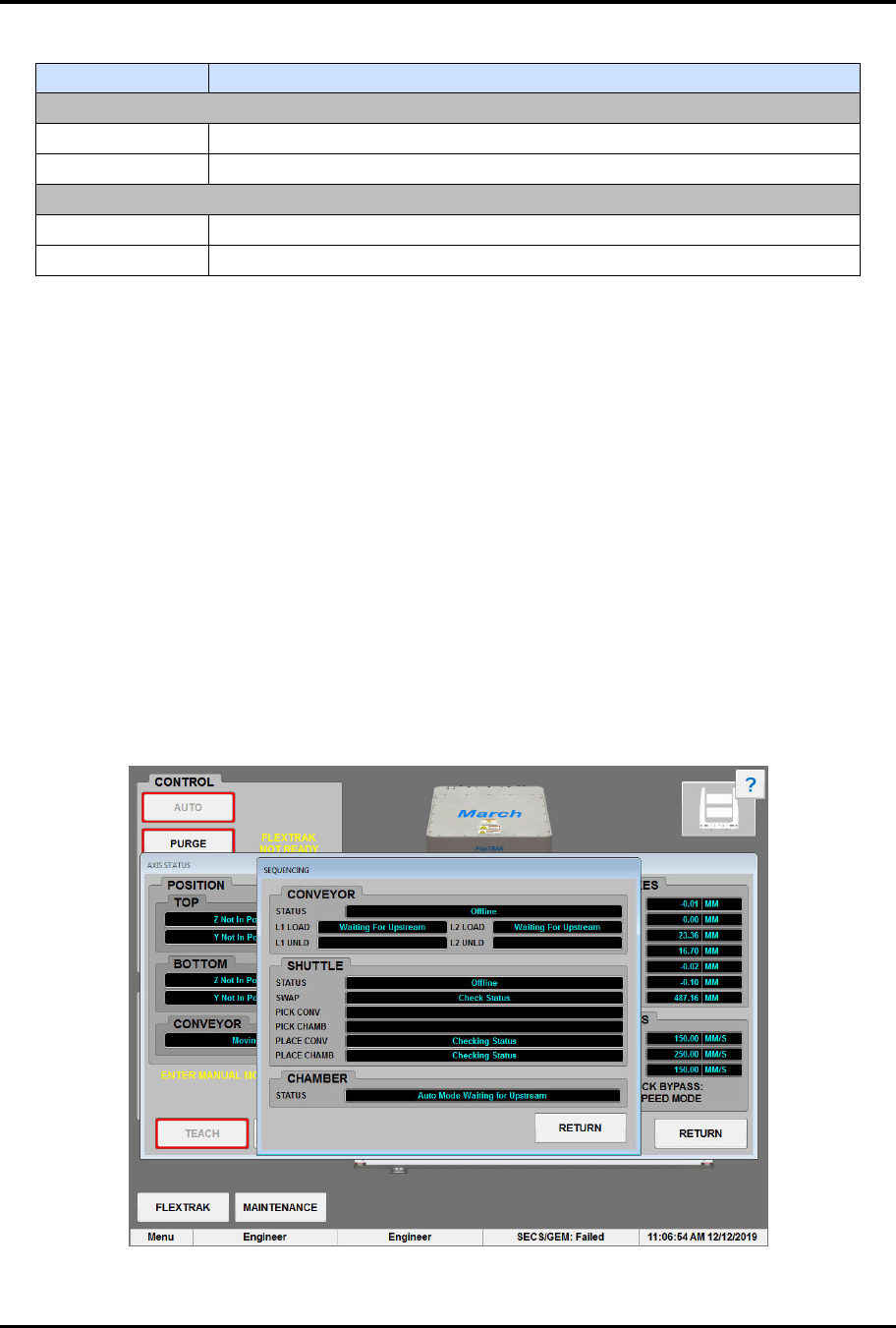
Figure 5-9 Sequencing Screen
FlexTRAK Series 2MB Material Handler Addendum Tour of HMI Software for the Material Handler
© 2023 Nordson Corporation 5-15
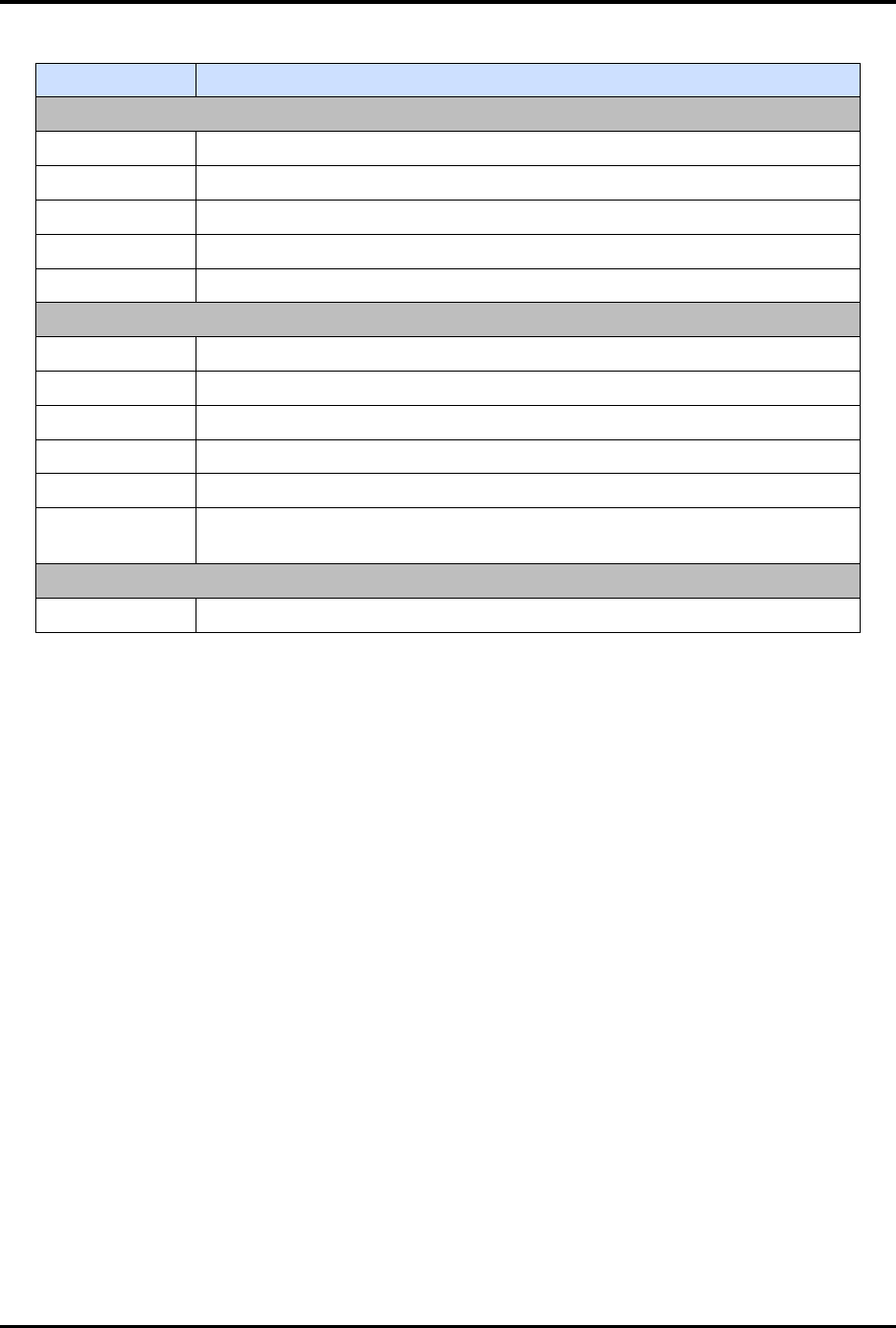
Table 5-11 Sequencing Screen Controls and Indicators
Control Description
Conveyor
STATUS Displays the status of the conveyor.
L1 LOAD Displays the status of the Lane 1 Load Position.
L1 UNLD Displays the status of the Lane 1 Unload Position
L2 LOAD Displays the status of the Lane 2 Load Position.
L2 UNLD Displays the status of the Lane 2 Unload Position.
Shuttler
STATUS Displays the status of the shuttle.
SWAP Displays the status of the shuttle swap position
PICK CONV Displays the status of the pick conveyor position.
PICK CHAMB Displays the status of the pick chamber position.
PLACE CONV Displays the status of the place conveyor position.
PLACE
CHAMB
Displays the status of the place chamber position.
Chamber
STATUS Displays the status of the chamber.
5.5.1.3 Shuttler Move
Shuttler Move allows you to manually manipulate the shuttler system.
To access shuttler move commands:
1. Touch the MAINTENANCE button on the MH Overview screen to access maintenance
commands.
„ The Maintenance Master screen opens (Figure 5-5).
2. Touch the SHUTTLER button.
„ The Axis Status screen opens (Figure 5-6).
3. Touch the SHUTTLE MOVE button.
FlexTRAK Series 2MB Material Handler Addendum Tour of HMI Software for the Material Handler
5-16 © 2023 Nordson Corporation
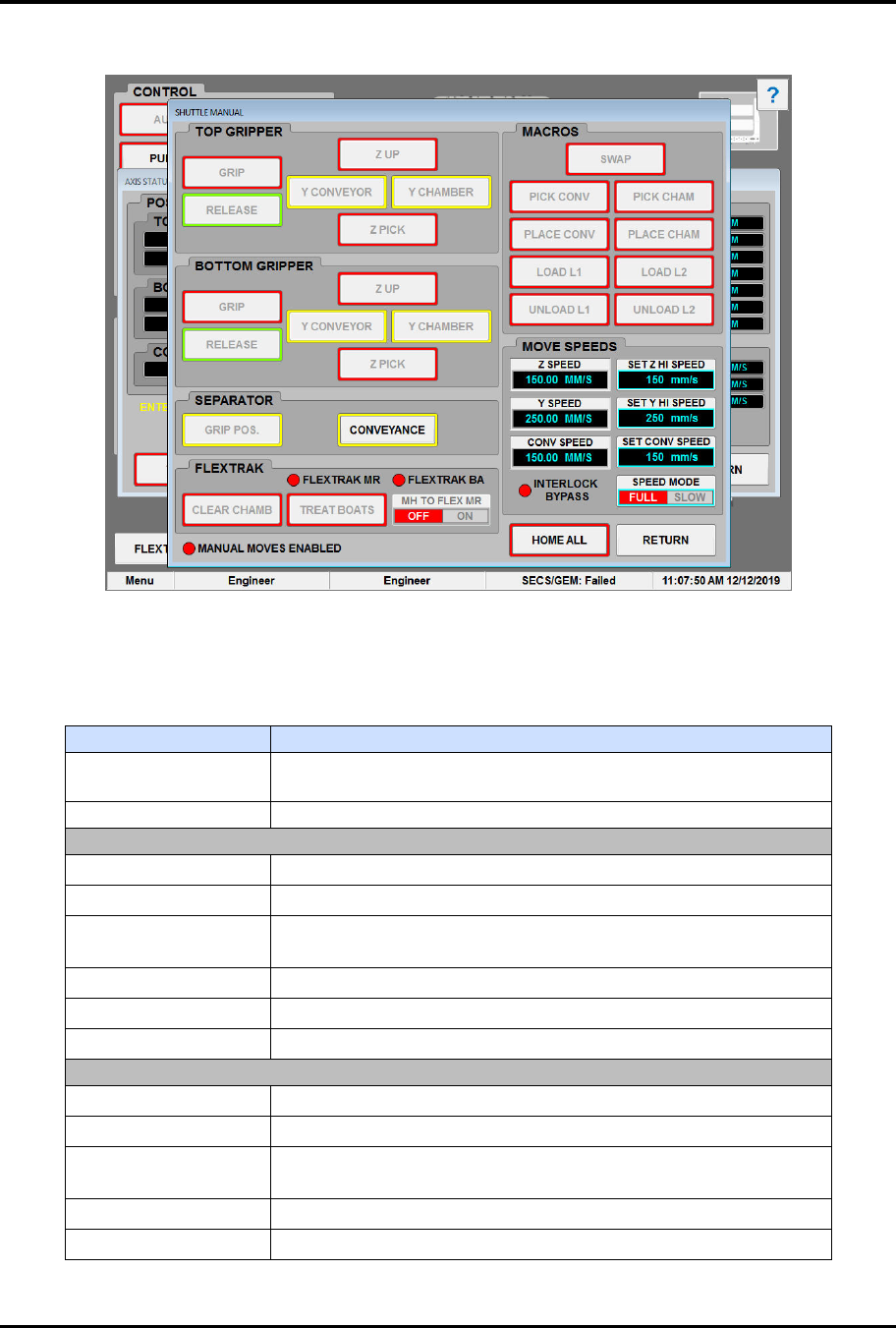
The Shuttle Move screen opens (Figure 5-10). Shuttle Move commands are described in Table 5-12.
Figure 5-10 Shuttle Move Screen - Manual Enabled
?
NOTE Buttons with a yellow border indicate the interlocks are met.
Table 5-12 Shuttle Move Commands
Control
Description
MANUAL MOVES
ENABLED
Displays the status of Manual mode. The radio button is red
when not active and green when active.
HOME ALL
Touch to home the top gripper, bottom
gripper, and conveyor.
TOP GRIPPER
GRIP Click to close the top gripper.
RELEASE Click to open the top gripper.
Z UP
Click to move the top gripper to the upper Z limit (swap
position).
Y CONVEYOR*
Click to move the top gripper to the conveyor.
Y CHAMBER* Click to move the top gripper to the chamber.
Z PICK Click to move the top gripper to the pick position.
BOT GRIPPER
GRIP Click to close the bottom gripper.
RELEASE Click to open the bottom gripper.
Z UP
Click to move the bottom gripper to the upper Z limit (swap
position).
Y CONVEYOR* Click to move the bottom gripper to the conveyor.
Y CHAMBER* Click to move the bottom gripper to the chamber.