FlexTRAK 2MB Material Handler Addendum Rev 05.pdf - 第111页
FlexTRAK Series 2MB Mater ial Handler Adden dum Operations © 2023 Nordson Corporation 6-7 6.6.1 Opera t ing in Auto Mode To operate the system in auto mode: 1. Power on the sy stem, see 6.3 System Start -up . „ The sy st…
FlexTRAK Series 2MB Material Handler Addendum Operations
6-6 © 2023 Nordson Corporation
6.5 Material Handler Homing Routine
The material handling system must perform a homing routine in order to be operational. There are
five (5) axes that must reach home before the system can reset to a safe position.
CAUTION! Simultaneous motion of all drives may occur while the material
handling system performs a homing routine.
The homing routine contains of the following steps:
1. The upper gripper travels vertically along its Z-axis.
2. The upper Z-axis home sensor indicates that it has reached its upper limit.
3. Once the upper gripper reaches its upper limit, it travels horizontally along the
Y-axis to the upper gripper Y-axis home sensor.
4. The lower gripper travels vertically along the Z-axis. The lower Z-axis home sensor
indicates that it has reached its lower limit.
5. Once the lower gripper reaches its upper limit, it travels horizontally along the
Y-axis to the lower gripper Y-axis home sensor.
6. Both the upper and lower gripper assemblies are now located towards the front of the
system with both the Y- and Z-axes limits met. This is the home position for the upper and
lower gripper assemblies.
7. The conveyor's separator travels horizontally along the Y-axis until its home sensor
indicates that it has reached its limit.
8. The assembly resets back to its last known pick and place positions.
9. The gripper positioned at the chamber performs a “pick at chamber” to ensure no carriers
are present.
10. Both carrier stops extend.
The system is ready for use.
6.6 Automatic (Auto) Mode
Automatic mode is normally used for production operations requiring limited operator intervention. In
automatic mode, workpieces are continually processed until system operations are stopped.
This section is intended for system operators who typically run process recipes in automatic mode.
WARNING! Check to make sure there are no parts on the conveyor or in the
chamber before clicking on AUTO. The system will
not operate until all carriers are manually removed
from the system.
FlexTRAK Series 2MB Material Handler Addendum Operations
© 2023 Nordson Corporation 6-7
6.6.1 Operating in Auto Mode
To operate the system in auto mode:
1. Power on the system, see 6.3 System Start-up.
„ The system computer starts, and the FlexTRAK-2MB System MH Overview screen
(Figure 6-3) displays on the monitor.
2. Log into the system, see 6.3 System Start-up.
„ At start-up, the plasma module will default to the previous running mode (automatic
mode, stop mode, or manual mode).
„ The current plasma mode will be highlighted in green.
„ At start-up, the MH will default to the stop mode.
?
NOTE In order for the system to start, the chamber lid must trigger the chamber up
switch and both grippers must be open. If a gripper is closed, the assembly must
be manually moved toward the home position.
3. Touch the FLEXTRAK button on the MH Overview screen.
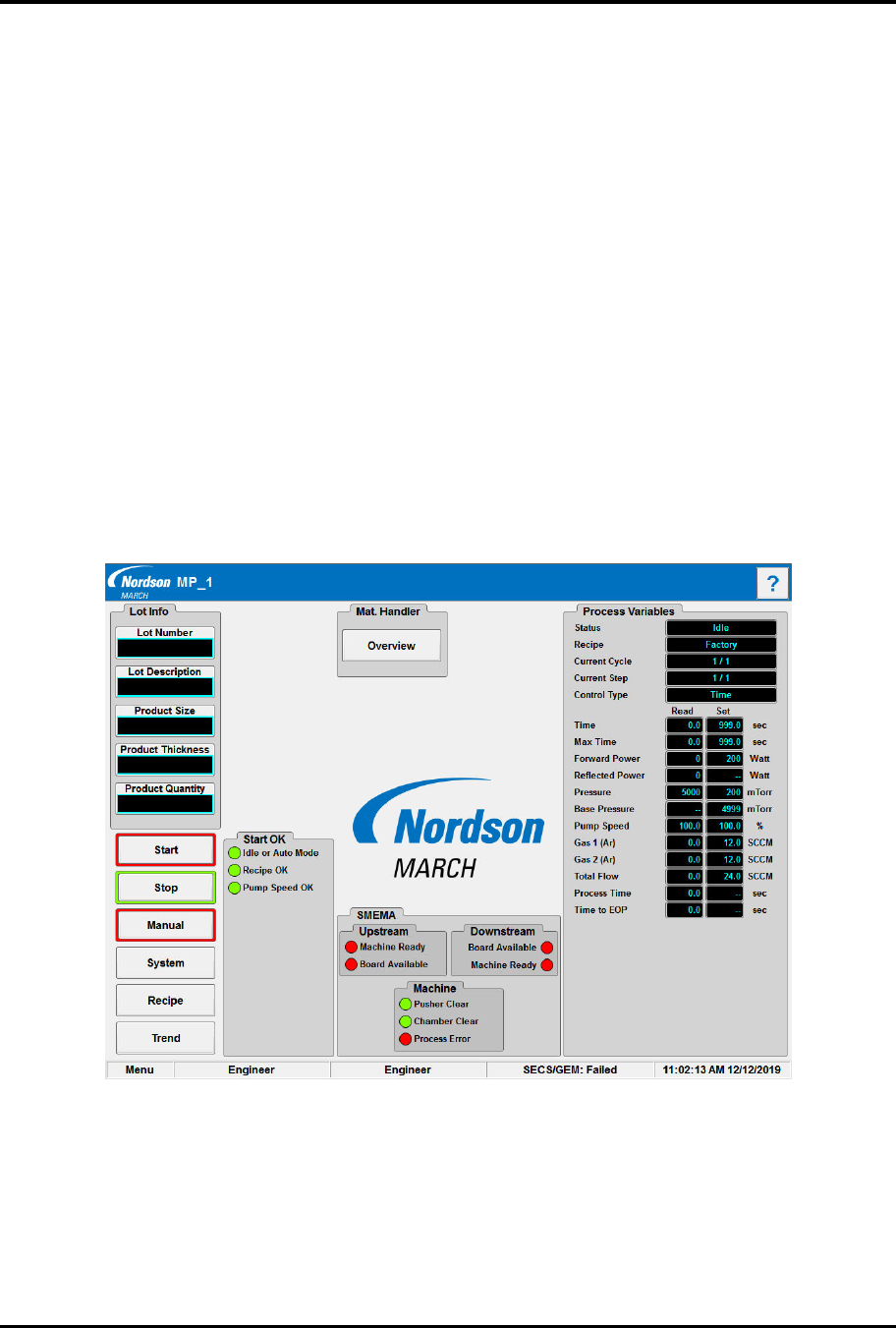
„ The FlexTRAK PM Overview screen opens (Figure 6-6).
Figure 6-6 FlexTRAK Plasma Module (PM) Overview Screen
4. If the plasma module is not in automatic mode, press the STOP button.
„ The STOP button is highlighted in green, and the START button is highlighted in red.
5. Touch the OVERVIEW button to access the MH Overview screen.
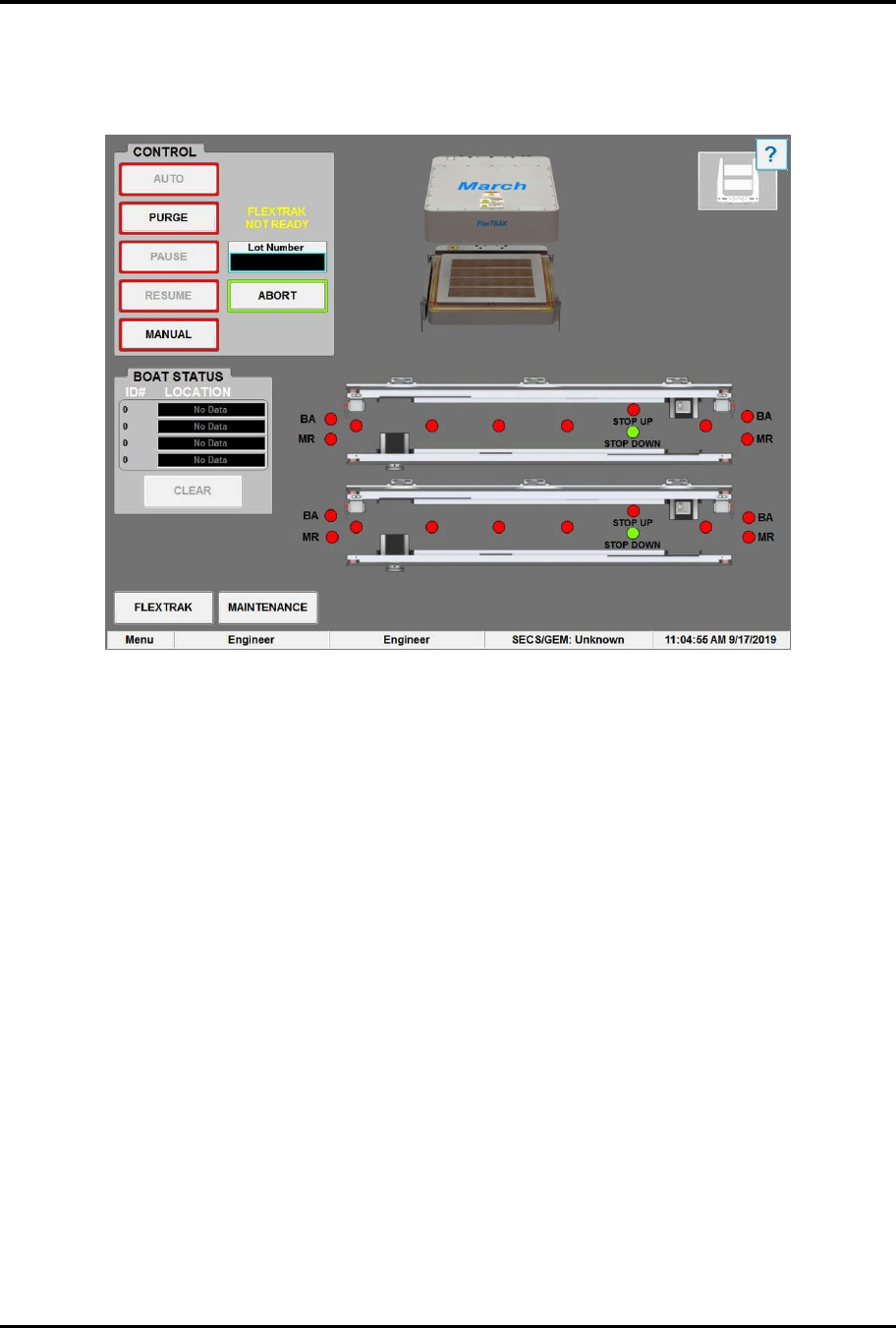
„ The MH Overview screen appears (Figure 6-7).
FlexTRAK Series 2MB Material Handler Addendum Operations
6-8 © 2023 Nordson Corporation
6. Visually check to see that the material handler is in Auto mode.
„ Under the Control Tab, the AUTO button should be highlighted in green and the
MANUAL button highlighted in red.
Figure 6-7 Material Handling System Overview Screen
7. Touch the AUTO button.
„ The system will perform a Home Reset.
„ The system is now ready to accept parts from an upstream machine.
6.6.2 Stopping In Auto Mode
The system can be stopped in auto mode from:
q PM Overview Screen - Stop
q MH Overview Screen - Purge
q MH Overview Screen - Pause
q MH Overview Screen - Abort
?
NOTE In case of an emergency, the operator can press the front or rear EMO button to
completely turn off power to the FlexTRAK-2MB or the E-stop button to stop all
FlexTRAK-2MB motion. For detailed information, see Section 2 - Safety.
To stop in auto mode from the FlexTRAK-2MB MH overview screen:
1. Click the STOP button on the FlexTRAK-2MB MH Overview screen
(Figure 6-6).
„ The current plasma process will immediately stop.