FlexTRAK 2MB Material Handler Addendum Rev 05.pdf - 第119页
FlexTRAK Series 2MB Mater ial Handler Adden dum Operations © 2023 Nordson Corporation 6-15 To use the PCM control: 1. If necessary, return to the PM Overview screen (Figure 6-6) and to uch eit her the AUTO or STOP button…
FlexTRAK Series 2MB Material Handler Addendum Operations
6-14 © 2023 Nordson Corporation
To manually control the shuttler system:
1. Touch the MANUAL button on the MH Overview screen to switch the MH to Manual
mode.
2. Touch the MAINTENANCE button to access maintenance commands.
3. Touch the SHUTTLER button.
„ The Axis Status screen opens (Figure 5-6).
4. Touch the SHUTTLE MOVE button.
„ The Shuttle Move screen opens (Figure 5-10).
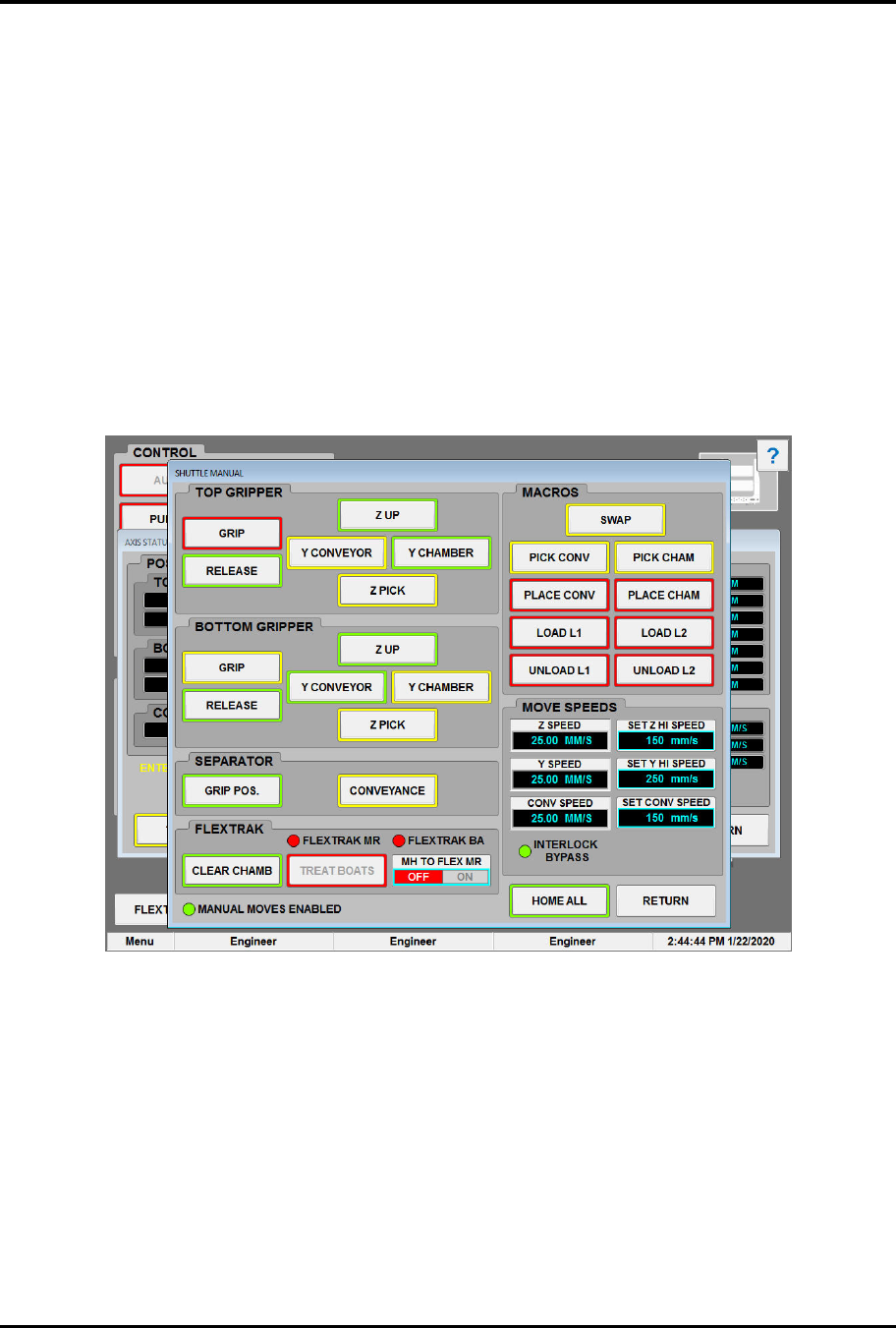
5. Use the manual shuttle controls (Figure 6-14) to manipulate the upper and lower grippers
and the separator.
„ See Table 5-12 for descriptions of the controls and indicators.
Figure 6-14 Shuttle Manual Screen - Manual Enabled
6.7.3 Using the Process Cycle Mode (PCM) Control
Process Cycle Mode is a routine that will continuously run the material handling system for diagnostic
purposes, such as testing a new process carrier or cycling the system during down times.
?
NOTE The FlexTRAK system must be in Stop mode when operating PCM Control with CYCLE
CHAMBER disabled. The FlexTRAK system must be in automatic mode when operating
PCM Control with CYCLE CHAMBER enabled.
FlexTRAK Series 2MB Material Handler Addendum Operations
© 2023 Nordson Corporation 6-15
To use the PCM control:
1. If necessary, return to the PM Overview screen (Figure 6-6) and touch either the AUTO or
STOP button.
2. Touch the MATERIAL HANDLER OVERVIEW button.
„ The MH Overview screen opens (Figure 5-4).
3. Touch the MAINTENANCE button.
„ The Maintenance Master screen opens (Figure 5-5).
4. Touch the SHUTTLER button.
„ The Axis Status screen opens (Figure 5-6).
5. Touch the PCM CONTROL button.
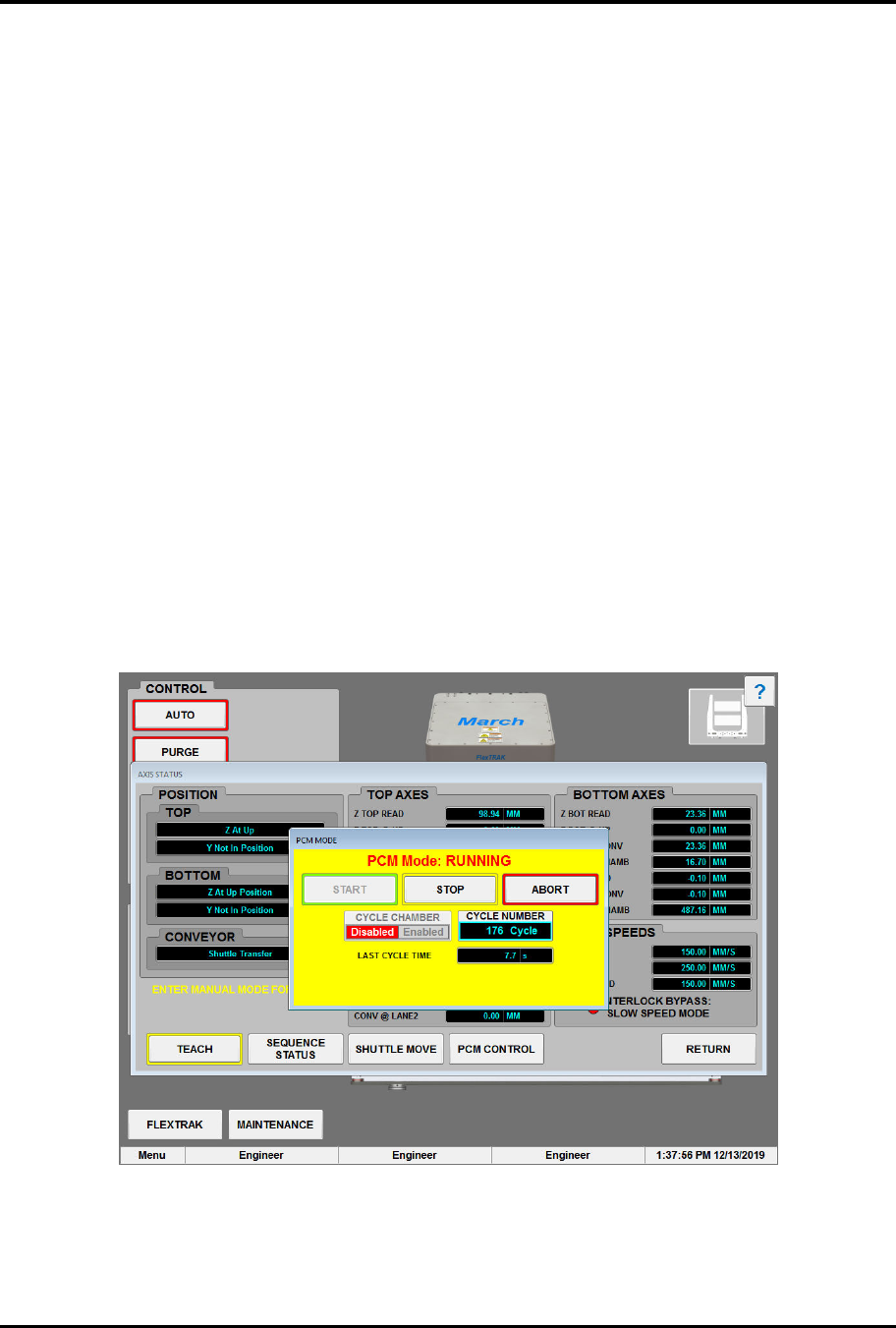
„ The PCM Mode screen opens (Figure 6-15).
„ Default PCM Mode is disabled.
6. Touch the START button.
„ The system will repeat the process cycle until stopped.
7. Touch the STOP button to stop the PCM at the end of the next cycle.
OR
Touch the ABORT button to stop the PCM at the current position. The MH will finish the
current move but not the complete cycle.
Figure 6-15 PCM Mode Dialog Box - Running
8. Touch the RETURN button to close the Axis Status screen.

FlexTRAK Series 2MB Material Handler Addendum Operations
6-16 © 2023 Nordson Corporation
6.7.4 Manipulating the Lane 2 Conveyor
?
NOTE Manual mode must be enabled in order to enter and manipulate the conveyor system.
Use these controls to manually manipulate and view conveyor parameters for Lane 2, see 6.7.6
Manipulating the Lane 1 Conveyor.
To manipulate the conveyor:
1. Touch the MATERIAL HANDLER button on the FlexTRAK PM Overview screen.
„ The MH Overview screen will open (Figure 5-4).
2. Touch the MAINTENANCE button.
„ The Maintenance Master screen opens (Figure 5-5).
3. Touch the SHUTTLER button.
„ The Axis Status screen opens (Figure 5-6).
4. If manual mode is not enabled, touch the MANUAL button.
5. Touch the CONVEYOR button.
„ The Conveyor Status screen opens (Figure 6-16).
6. Touch the MR2 MANUAL button to toggle the Machine Ready Signal ON or OFF.
7. Touch the BA2 MANUAL button to toggle the Board Available Signal ON or OFF.
?
NOTE BA/MR appear and disappear based on the separator position. If the separator is in
Lane 1, BA1/MR1 appears in Lane 1. If the separator is in Lane 2, BA2/MR2 appears in
Lane 2. If the separator is out of position (not in Lane 1 or in Lane 2), no BA/MR
appears.
8. Touch the LOAD Lane 2 button to manually turn on Lane 2.
„ Once enabled, a board is expected to arrive at the chamber pick position within 20 sec.
An internal timer begins to count down and will cause a load alarm if exceeded. The
MANUAL ALARMS switch on the Parameters screen (Figure 5-15) can manually
override this alarm.
9. Touch the UNLOAD Lane 2 button to manually turn on Lane 2.
„ Once enabled, a board is expected to depart the conveyor within 20 sec. An internal
timer begins to count down and will cause an unload alarm if exceeded. The MANUAL
ALARMS switch on the Parameters screen (Figure 5-15) can manually override this
alarm.