FlexTRAK 2MB Material Handler Addendum Rev 05.pdf - 第124页
FlexTRAK Series 2MB Mater ial Handler Adden dum Operations 6-20 © 2023 Nordson Corporation 6.7.7 M anu ally Test Motor Control Use these controls to manually test the motor fu nctionality of Lane 1 and Lane 2. To manuall…

FlexTRAK Series 2MB Material Handler Addendum Operations
© 2023 Nordson Corporation 6-19
6.7.6 Manipulating the Lane 1 Conveyor
Use these controls to manually manipulate and view conveyor parameters for Lane 2, see 6.7.4
Manipulating the Lane 2 Conveyor.
To manipulate the lane 1 conveyor:
1. Touch the MATERIAL HANDLER button on the FlexTRAK PM Overview screen.
„ The MH Overview screen opens (Figure 5-4).
2. Touch the MAINTENANCE button.
„ The Maintenance Master screen opens (Figure 5-5).
3. Touch the SHUTTLER button.
„ The Axis Status screen opens (Figure 5-6).
4. If manual mode is not enabled, touch the MANUAL button.
5. Touch the CONVEYOR button.
„ The Conveyor Status screen opens (Figure 6-16).
6. Touch the MR1 MANUAL button to toggle the Machine Ready Signal ON or OFF.
7. Touch the BA1 MANUAL button to toggle the Board Available Signal ON or OFF.
?
NOTE BA/MR appear and disappear based on the separator position. If the separator is in
Lane 1, BA1/MR1 appears in Lane 1. If the separator is in Lane 2, BA2/MR2 appears in
Lane 2. If the separator is out of position (not in Lane 1 or in Lane 2), no BA/MR
appears.
8. Touch the LOAD Lane 1 button to manually turn on Lane 1.
„ Once enabled, a board is expected to arrive at the chamber pick position within 20 sec.
An internal timer begins to count down and will cause a load in alarm if exceeded. The
MANUAL ALARMS switch on the Parameters screen (Figure 5-15) can manually
override this alarm.
9. Touch the UNLOAD Lane 1 button to manually turn on Lane 1.
„ Once enabled, a board is expected to depart the conveyor within 20 sec. An internal
timer begins to count down and will cause an unload alarm if exceeded. The MANUAL
ALARMS switch on the Parameters screen (Figure 5-15) can manually override this
alarm.
10. Touch the STOP 1 MANUAL button to toggle Lane 1’s board stop UP or DOWN.

FlexTRAK Series 2MB Material Handler Addendum Operations
6-20 © 2023 Nordson Corporation
6.7.7 Manually Test Motor Control
Use these controls to manually test the motor functionality of Lane 1 and Lane 2.
To manually test motor control:
1. Touch the MATERIAL HANDLER button on the FlexTRAK PM Overview screen
(Figure 6-6).
„ The MH Overview screen will open (Figure 5-4).
2. Touch the MAINTENANCE button.
„ The Maintenance Master screen opens (Figure 5-5).
3. Touch the SHUTTLER button.
„ The Axis Status screen opens (Figure 5-6).
4. If manual mode is not enabled, touch the MANUAL button.
5. Touch the CONVEYOR button.
„ The Conveyor Status screen opens (Figure 6-16).
6. Touch the MANUAL SPEED button to set the speed of both lanes.
7. Touch the MTR 2 MANUAL button to toggle the belt drive motors of Lane 2 ON or MAN.
„ When the motor control of Lane 2 is in Manual mode, all other Lane 2 speeds are
disabled and the conveyor will only run at the speed set in the MANUAL SPEED field.
8. Touch the MTR 1 MANUAL button to toggle the belt drive motors of Lane 1 ON or MAN.
„ When the motor control of Lane 1 is in Manual mode, all other Lane 1 speeds are
disabled and the conveyor will only run at the speed set in the MANUAL SPEED field.
6.7.8 Manipulating Separator Parameters
Use these controls to manually manipulate and view separator parameters. The separator controls the
movement of Lane 2.
To manipulate separator parameters:
1. Touch the MATERIAL HANDLER button on the FlexTRAK PM Overview screen.
„ The MH Overview screen will open (Figure 5-4).
2. Touch the MAINTENANCE button.
„ The Maintenance Master screen opens (Figure 5-5).
3. Touch the SHUTTLER button.
„ The Axis Status screen opens (Figure 5-6).
4. If manual mode is not enabled, touch the MANUAL button.
5. Touch the CONVEYOR button.
„ The Conveyor Status screen opens (Figure 6-16).
FlexTRAK Series 2MB Material Handler Addendum Operations
© 2023 Nordson Corporation 6-21
6. Touch the CONVEYANCE button to place Lane 2 inline to convey boards from upstream
to downstream machines.
7. Touch the GRIP POS. button to place Lane 2 in a position for the MH chamber assembly
to pick boards off and place boards onto the conveyor.
6.8 Resetting the Number of Cycles
To reset the number of cycles:
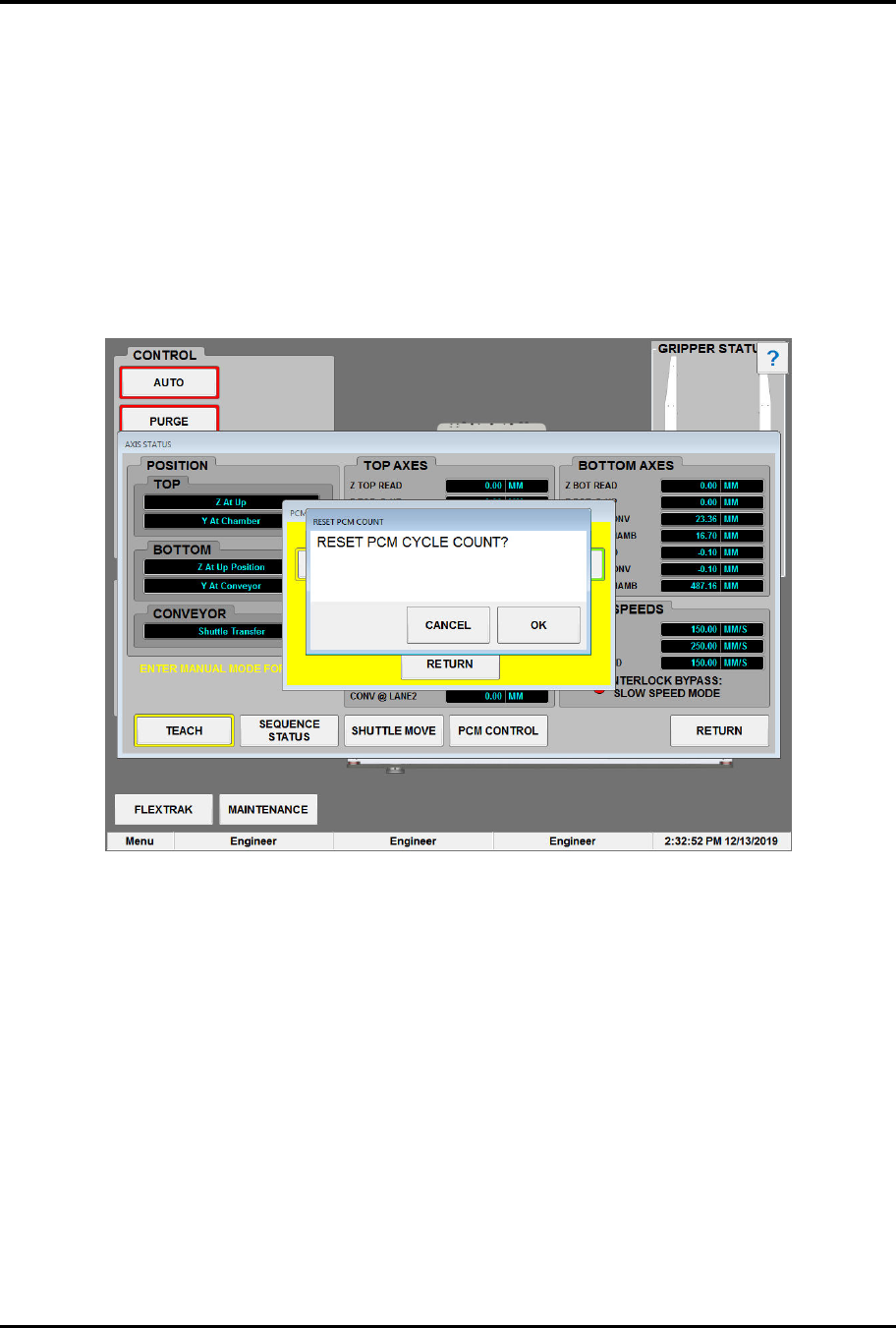
1. Touch the CYCLE NUMBER field.
„ The Reset PCM Count dialog box opens (Figure 6-17).
Figure 6-17 Reset Cycle Count Dialog Box
2. Touch the OK button.
„ The cycle count resets to zero (0).
3. Click RETURN to close and exit the PCM Mode screen.