FlexTRAK 2MB Material Handler Addendum Rev 05.pdf - 第113页
FlexTRAK Series 2MB Mater ial Handler Adden dum Operations © 2023 Nordson Corporation 6-9 „ The chamber will n ot accept new pieces , but the conveyors will continue t o load and unload parts. ? NOTE If there are unproce…
FlexTRAK Series 2MB Material Handler Addendum Operations
6-8 © 2023 Nordson Corporation
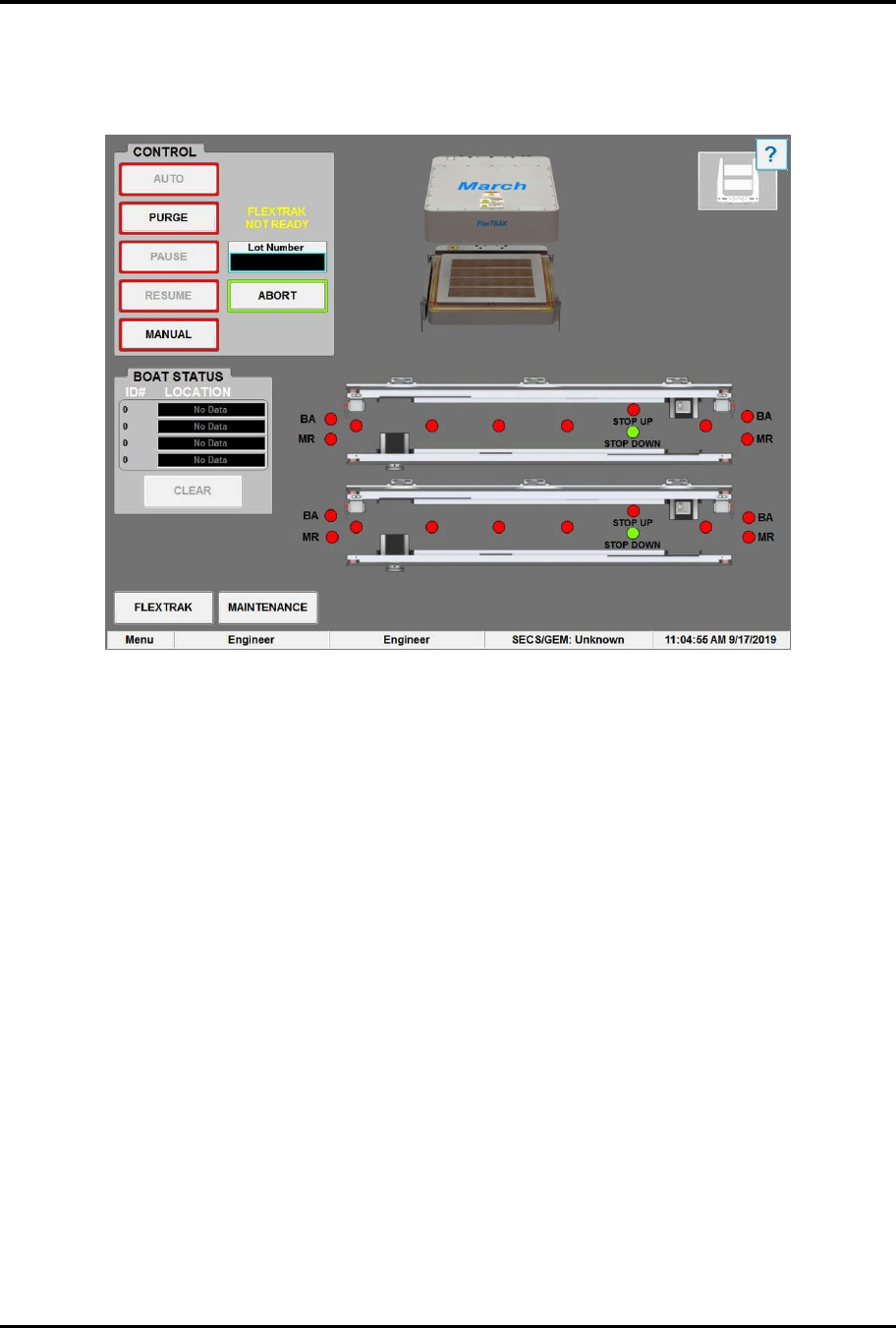
6. Visually check to see that the material handler is in Auto mode.
„ Under the Control Tab, the AUTO button should be highlighted in green and the
MANUAL button highlighted in red.
Figure 6-7 Material Handling System Overview Screen
7. Touch the AUTO button.
„ The system will perform a Home Reset.
„ The system is now ready to accept parts from an upstream machine.
6.6.2 Stopping In Auto Mode
The system can be stopped in auto mode from:
q PM Overview Screen - Stop
q MH Overview Screen - Purge
q MH Overview Screen - Pause
q MH Overview Screen - Abort
?
NOTE In case of an emergency, the operator can press the front or rear EMO button to
completely turn off power to the FlexTRAK-2MB or the E-stop button to stop all
FlexTRAK-2MB motion. For detailed information, see Section 2 - Safety.
To stop in auto mode from the FlexTRAK-2MB MH overview screen:
1. Click the STOP button on the FlexTRAK-2MB MH Overview screen
(Figure 6-6).
„ The current plasma process will immediately stop.
FlexTRAK Series 2MB Material Handler Addendum Operations
© 2023 Nordson Corporation 6-9
„ The chamber will not accept new pieces, but the conveyors will continue to load and
unload parts.
?
NOTE If there are unprocessed parts waiting to be placed in the chamber, then the
conveyors will be stalled until the FlexTRAK-2MB is resumed.
2. Touch the START button on the PM Overview screen (Figure 6-7) to resume processing.
To stop in auto mode via purge on the MH overview screen:
1. Click the PURGE button on the MH Overview screen (Figure 6-7).
„ The material handler stops accepting new process carriers and purges remaining
workpieces from the system.
„ All process carriers within the system will be plasma processed before exiting.
„ ID Tracking information is retained.
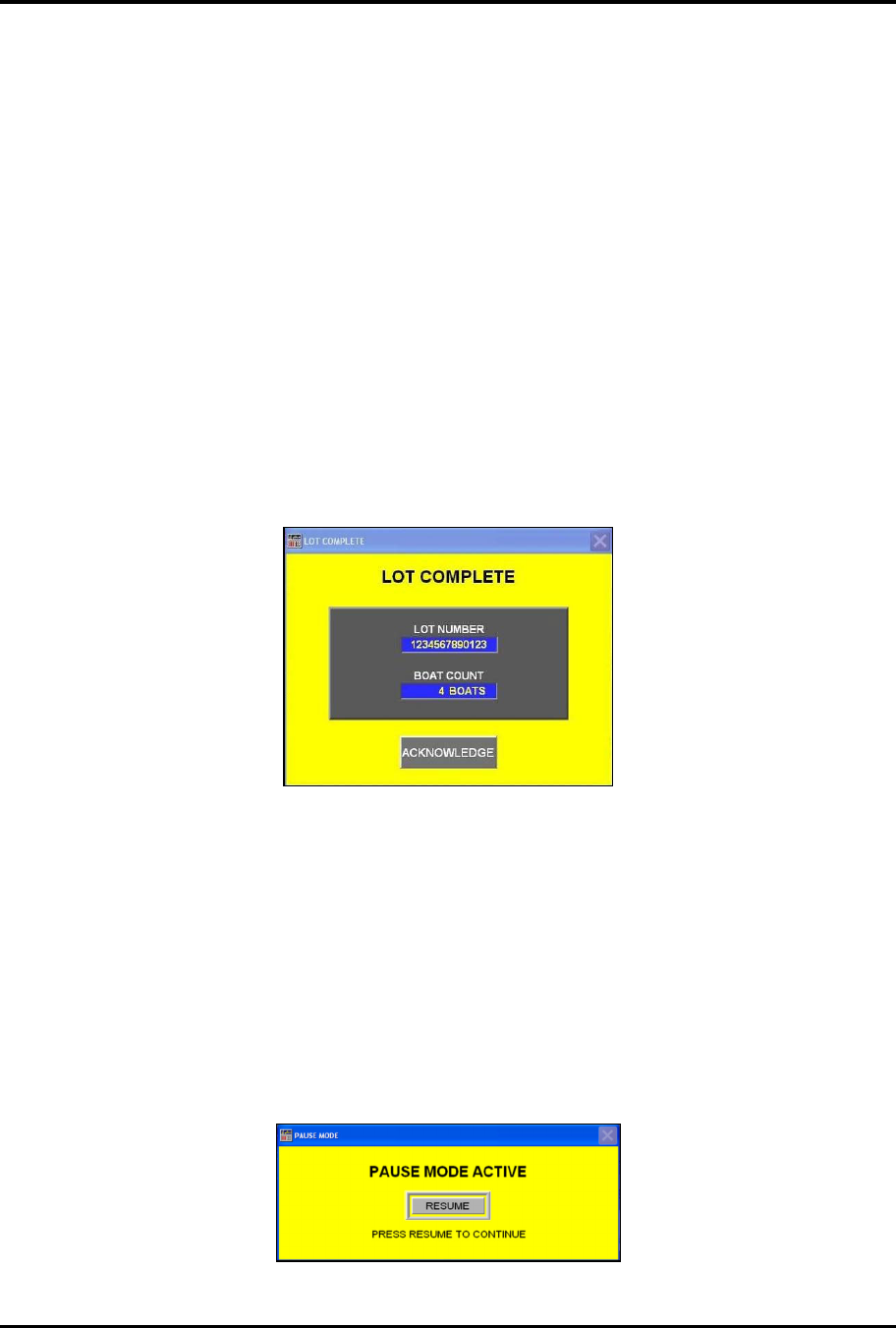
„ The Lot Complete dialog box opens once the last process carrier has exited the system.
Information about the lot number and process carrier count is displayed (Figure 6-8).
2. Click ACKNOWLEDGE in the Lot Complete dialog box to exit.
Figure 6-8 Lot Complete Dialog Box
To stop in auto mode via pause on the MH overview screen:
1. Click the PAUSE button on the MH Overview screen (Figure 6-7)
„ The system temporarily stops.
„ Boat ID tracking information is retained. Tracking will continue after system operations
have resumed.
„ The Pause Mode Active dialog box opens (Figure 6-9)
2. Click RESUME in the Pause Mode Active dialog box to acknowledge and continue system
operations.
Figure 6-9 Pause Mode Active Dialog Box
FlexTRAK Series 2MB Material Handler Addendum Operations
6-10 © 2023 Nordson Corporation
To stop in auto mode via abort on the MH overview screen:
1. Click the ABORT button from the MH Overview screen (Figure 6-7).
„ The system stops the current lot in progress.
„ The material handler will complete its last commands and then come to a complete
stop.
„ Boat tracking ID's will be disabled. Boat ID tracking information is NOT retained, and
all workpieces left in the system have to be manually removed.
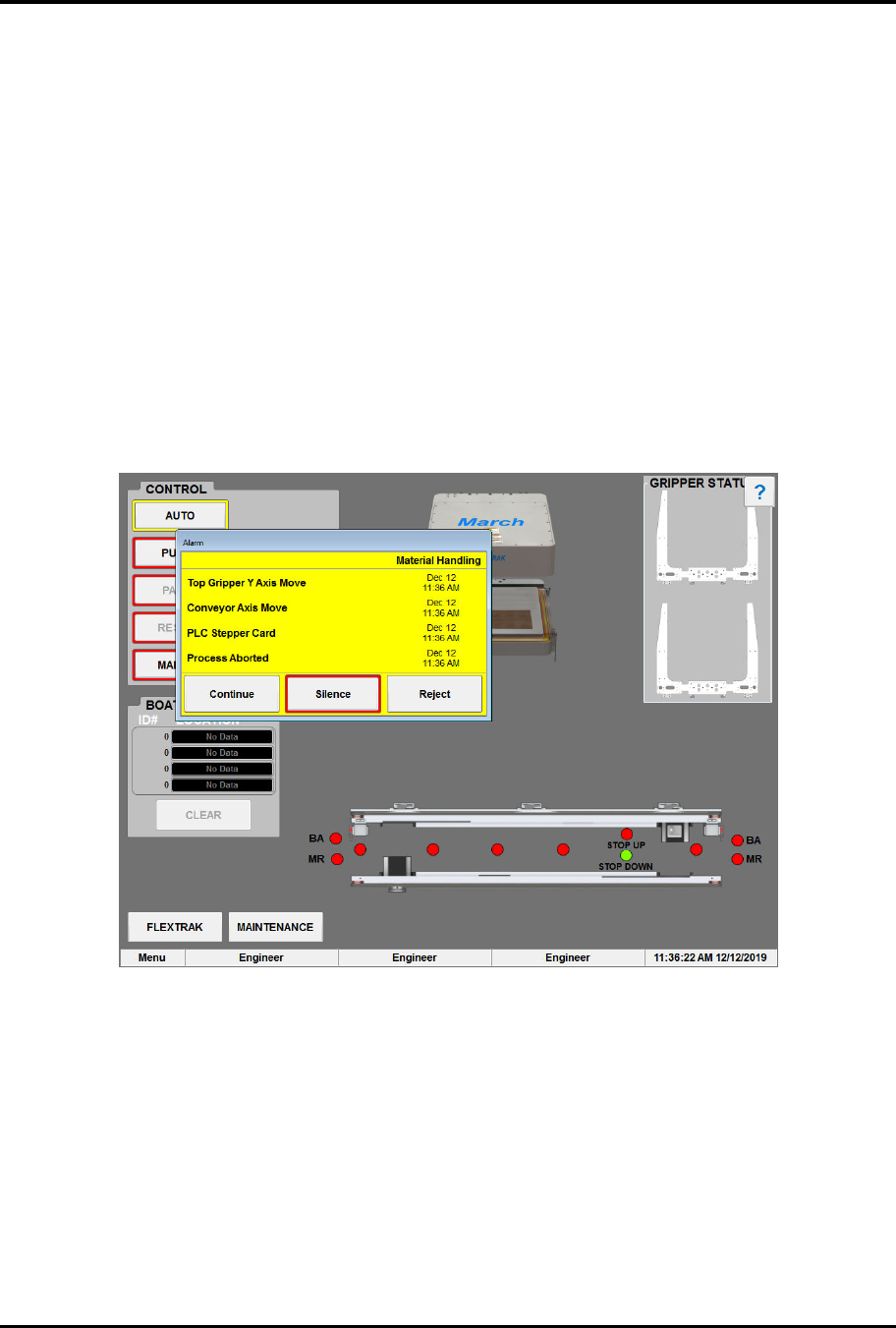
„ The Material Handling Alarm dialog box opens, indicating that the process has been
aborted (Figure 6-10).
2. Touch the SILENCE button to silence the alarm.
3. Touch the CONTINUE or REJECT button to acknowledge the alarm.
„ Stopping the material handler in this manner will require the manual unload of all
remaining parts in order to resume.
Figure 6-10 Material Handling Alarm Dialog Box