FlexTRAK 2MB Material Handler Addendum Rev 05.pdf - 第79页
FlexTRAK Series 2MB Mater ial Handler Adden dum Tour of HMI Softw are for the Material Handler © 2023 Nordson Corporation 5-13 Table 5-9 Teach Pad Screen Controls and Indi cators Control Description MODE Touch the MODE b…
FlexTRAK Series 2MB Material Handler Addendum Tour of HMI Software for the Material Handler
5-12 © 2023 Nordson Corporation
Control Description
AXIS SPEEDS
Z SPEED Displays the current speed of the Z-axis.
Y SPEED Displays the current speed of the Y-axis.
CONV SPEED Displays the current speed of the conveyor.
INTERLOCK
BYPASS; SLOW
SPEED MODE
This LED indicates Bypass mode is active. The LED is green when the
sensor is active.
?
NOTE
the axis speeds have all
been reset to 25mm/sec.
5.5.1.1 Teach Pad
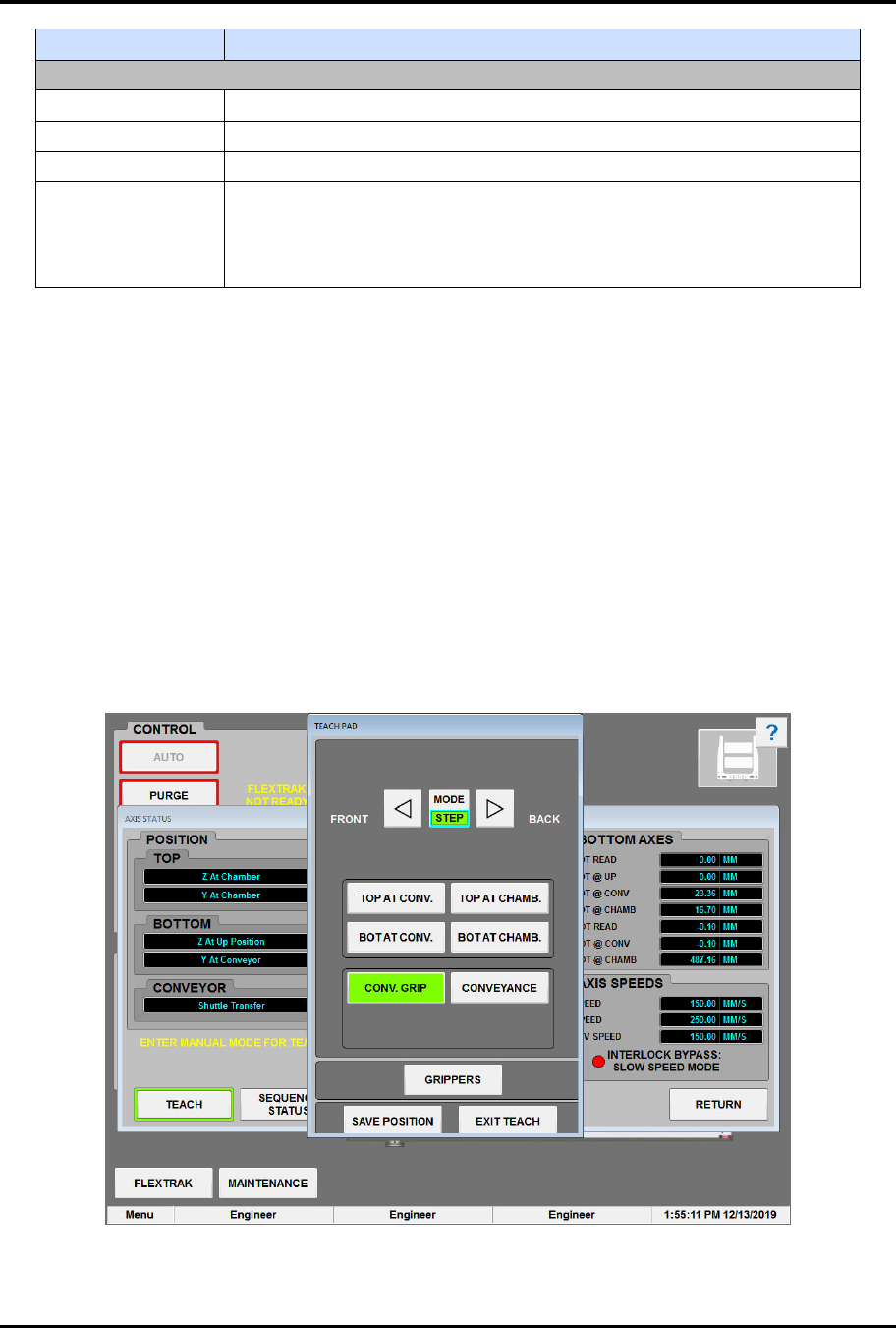
The Teach Pad screen is used to teach the axis positions on the shuttler (Figure 5-7).
To access the teach pad:
1. Touch the MAINTENANCE button on the MH Overview screen to access maintenance
commands.
„ The Maintenance Master screen opens (Figure 5-5).
2. Touch the SHUTTLER button.
„ The Axis Status screen opens (Figure 5-6).
3. Touch the TEACH button.
„ The Teach Pad screen opens (Figure 5-7). Teach Pad commands are described in
Table 5-9, see 7.1 Teaching MH Axis Position.
Figure 5-7 Teach Pad Screen
FlexTRAK Series 2MB Material Handler Addendum Tour of HMI Software for the Material Handler
© 2023 Nordson Corporation 5-13
Table 5-9 Teach Pad Screen Controls and Indicators
Control Description
MODE
Touch the MODE button to select the mode to control the speed of the
drive being taught. There are two modes: STEP and JOG. The green
highlighted text indicates which mode is active. Press once or hold down a
directional arrow button to move the assembly in the desired direction.
FRONT UP DOWN BACK
STEP: equals .05 mm per touch.
FRONT UP DOWN BACK
JOG: equals 5 mm per sec.
TOP AT CONV.
Touch to teach the top gripper at the conveyor to pick or place process
carriers.
BOT AT CONV.
Touch to teach the bottom gripper at the conveyor to pick or place process
carriers.
TOP AT CHAMB.
Touch to teach the top gripper at the chamber to pick or place process
carriers.
BOT AT
CHAMB.
Touch to teach the bottom gripper at the chamber to pick or place process
carriers.
CONV. GRIP
Touch to teach the position of conveyor Lane 2 so that a gripper can pick
or place process carriers.
CONVEYANCE
Touch to teach the position of conveyor Lane 2 so that the machine can
accept process carriers from an upstream machine.
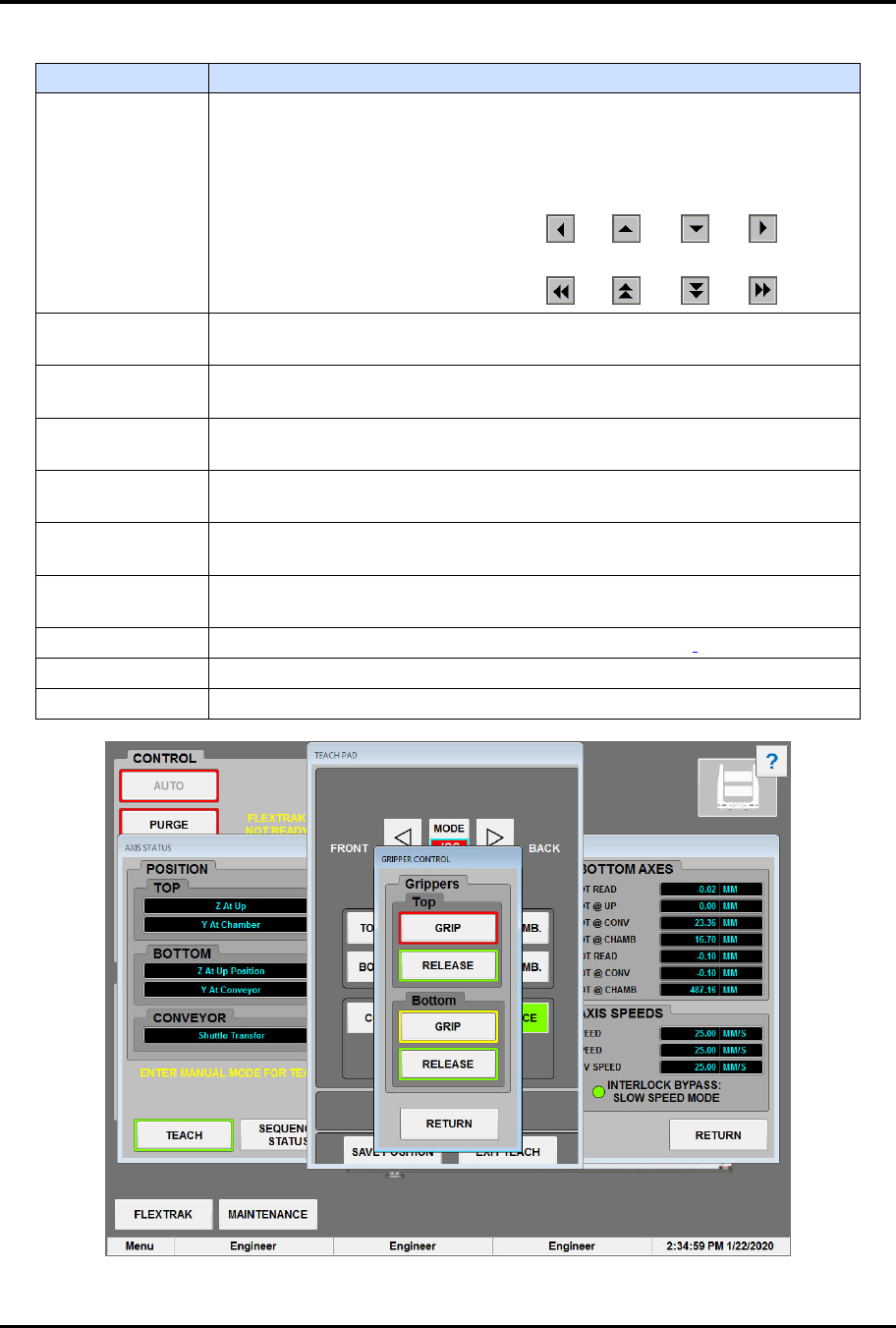
GRIPPERS Touch to gain access to the gripper controls (Figure 5-8).
SAVE POSITION Touch to save new teach points and overwrite existing values.
EXIT TEACH Touch the EXIT TEACH button to exit the teach mode.
Figure 5-8 Gripper Control Screen
FlexTRAK Series 2MB Material Handler Addendum Tour of HMI Software for the Material Handler
5-14 © 2023 Nordson Corporation
Table 5-10 Gripper Control Screen Controls and Indicators
Control Description
Top
GRIP Touch to activate the grip of the top gripper.
RELEASE Touch to release the grip of the top gripper.
Bottom
GRIP Touch to activate the grip of the bottom gripper.
RELEASE Touch to release the grip of the bottom gripper.
5.5.1.2 Sequence Status
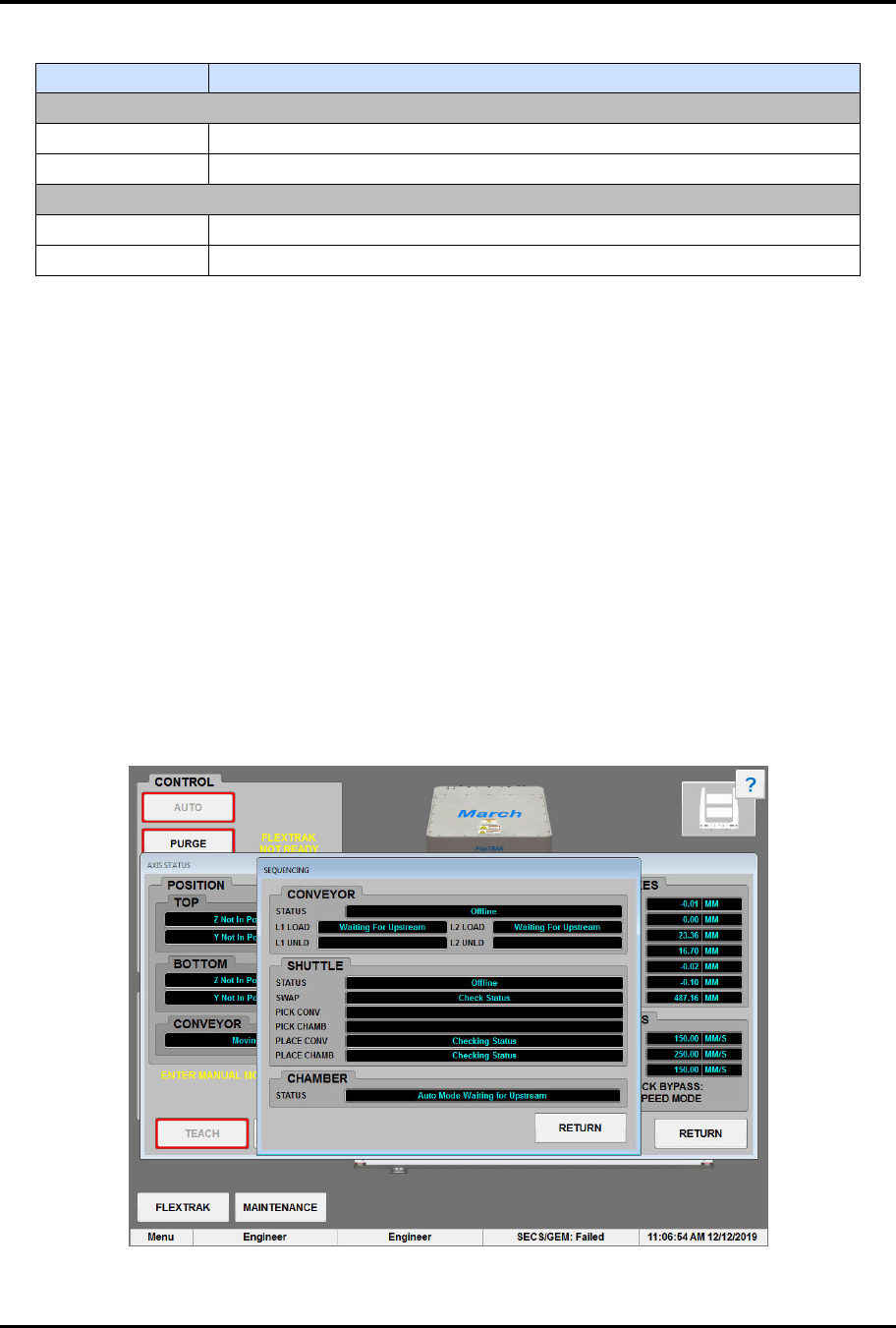
The Sequencing screen displays the current operational status of the conveyor, shuttler, and chamber.
To access the sequencing screen:
1. Touch the MAINTENANCE button on the MH Overview screen to access maintenance
commands.
„ The Maintenance Master screen opens (Figure 5-5).
2. Touch the SHUTTLER button.
„ The Axis Status screen opens (Figure 5-6).
3. Touch the SEQUENCE button.
„ The Sequencing screen opens (Figure 5-9). Sequencing commands are described in
Table 5-11.The current operational status of the conveyor, shuttler, and chamber are
shown.
4. Touch the RETURN button to return to the Maintenance screen.
Figure 5-9 Sequencing Screen