FlexTRAK 2MB Material Handler Addendum Rev 05.pdf - 第125页
FlexTRAK Series 2MB Mater ial Handler Adden dum Operations © 2023 Nordson Corporation 6-21 6. Touch the CONVEYANCE button to plac e Lane 2 inline to con vey boards from upstream to downstream machines. 7. Touch the GRIP …

FlexTRAK Series 2MB Material Handler Addendum Operations
6-20 © 2023 Nordson Corporation
6.7.7 Manually Test Motor Control
Use these controls to manually test the motor functionality of Lane 1 and Lane 2.
To manually test motor control:
1. Touch the MATERIAL HANDLER button on the FlexTRAK PM Overview screen
(Figure 6-6).
„ The MH Overview screen will open (Figure 5-4).
2. Touch the MAINTENANCE button.
„ The Maintenance Master screen opens (Figure 5-5).
3. Touch the SHUTTLER button.
„ The Axis Status screen opens (Figure 5-6).
4. If manual mode is not enabled, touch the MANUAL button.
5. Touch the CONVEYOR button.
„ The Conveyor Status screen opens (Figure 6-16).
6. Touch the MANUAL SPEED button to set the speed of both lanes.
7. Touch the MTR 2 MANUAL button to toggle the belt drive motors of Lane 2 ON or MAN.
„ When the motor control of Lane 2 is in Manual mode, all other Lane 2 speeds are
disabled and the conveyor will only run at the speed set in the MANUAL SPEED field.
8. Touch the MTR 1 MANUAL button to toggle the belt drive motors of Lane 1 ON or MAN.
„ When the motor control of Lane 1 is in Manual mode, all other Lane 1 speeds are
disabled and the conveyor will only run at the speed set in the MANUAL SPEED field.
6.7.8 Manipulating Separator Parameters
Use these controls to manually manipulate and view separator parameters. The separator controls the
movement of Lane 2.
To manipulate separator parameters:
1. Touch the MATERIAL HANDLER button on the FlexTRAK PM Overview screen.
„ The MH Overview screen will open (Figure 5-4).
2. Touch the MAINTENANCE button.
„ The Maintenance Master screen opens (Figure 5-5).
3. Touch the SHUTTLER button.
„ The Axis Status screen opens (Figure 5-6).
4. If manual mode is not enabled, touch the MANUAL button.
5. Touch the CONVEYOR button.
„ The Conveyor Status screen opens (Figure 6-16).
FlexTRAK Series 2MB Material Handler Addendum Operations
© 2023 Nordson Corporation 6-21
6. Touch the CONVEYANCE button to place Lane 2 inline to convey boards from upstream
to downstream machines.
7. Touch the GRIP POS. button to place Lane 2 in a position for the MH chamber assembly
to pick boards off and place boards onto the conveyor.
6.8 Resetting the Number of Cycles
To reset the number of cycles:
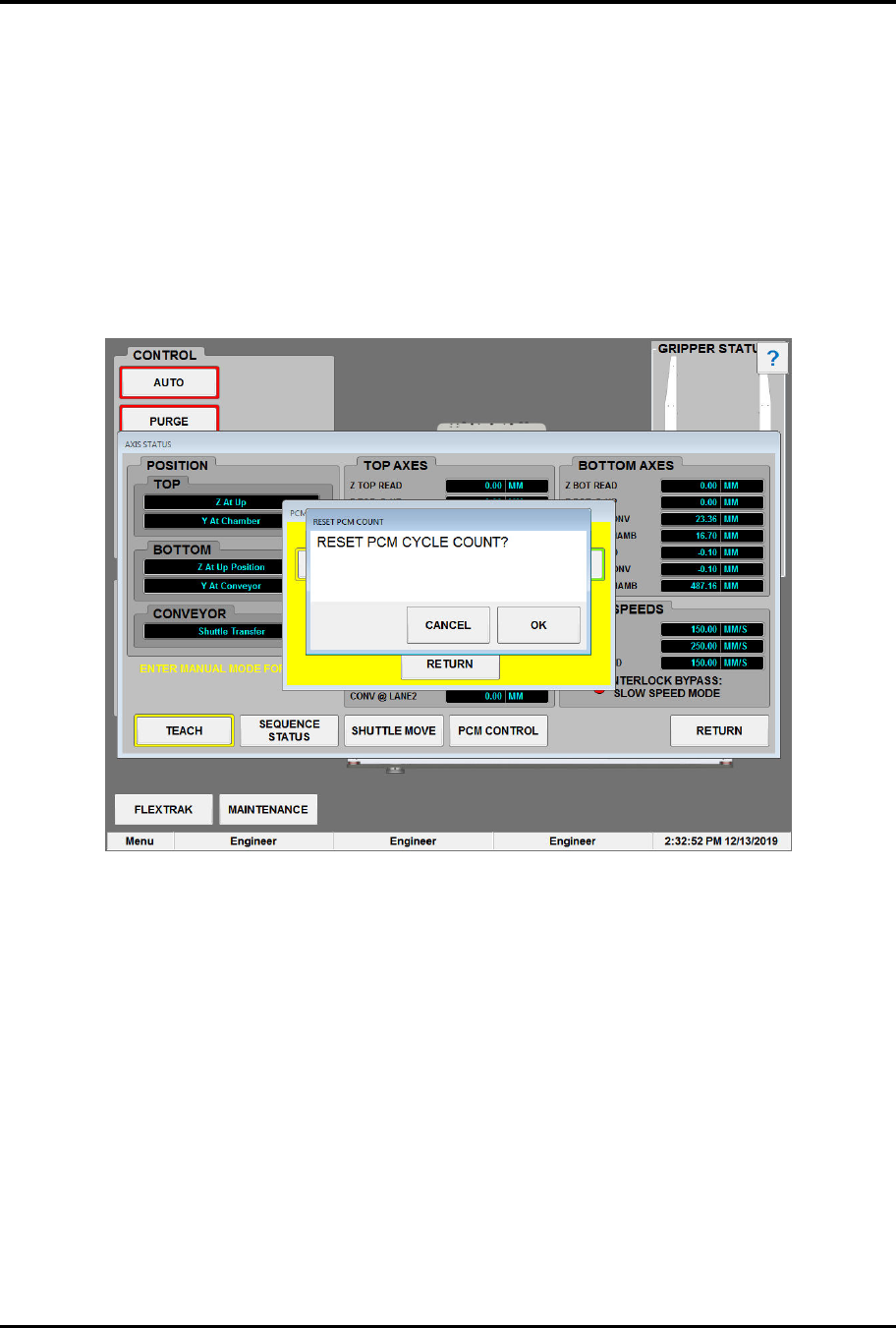
1. Touch the CYCLE NUMBER field.
„ The Reset PCM Count dialog box opens (Figure 6-17).
Figure 6-17 Reset Cycle Count Dialog Box
2. Touch the OK button.
„ The cycle count resets to zero (0).
3. Click RETURN to close and exit the PCM Mode screen.
FlexTRAK Series 2MB Material Handler Addendum Operations
6-22 © 2023 Nordson Corporation
6.9 Reinitializing System Parameters
?
NOTE The system can only be reinitialized in the plasma control stop mode.
The system requires reinitialization when a new CPU has been added to the PLC.
CAUTION! Reinitializing the system will reset parameters to their default
values. Record all system parameters and recipes that you wish
to retain before performing reinitialization.
To reinitialize FlexTRAK 2MB MH parameters:
1. Make sure the STOP button on the PM Overview screen is highlighted green, indicating
that the system is in stop mode.
„ If not, touch the STOP button.
2. On the MH Overview screen, touch the MAINTENANCE button.
„ The Maintenance Master screen opens (Figure 5-5).
3. Touch the SYSTEM button.
„ The Parameters screen opens (Figure 5-15).
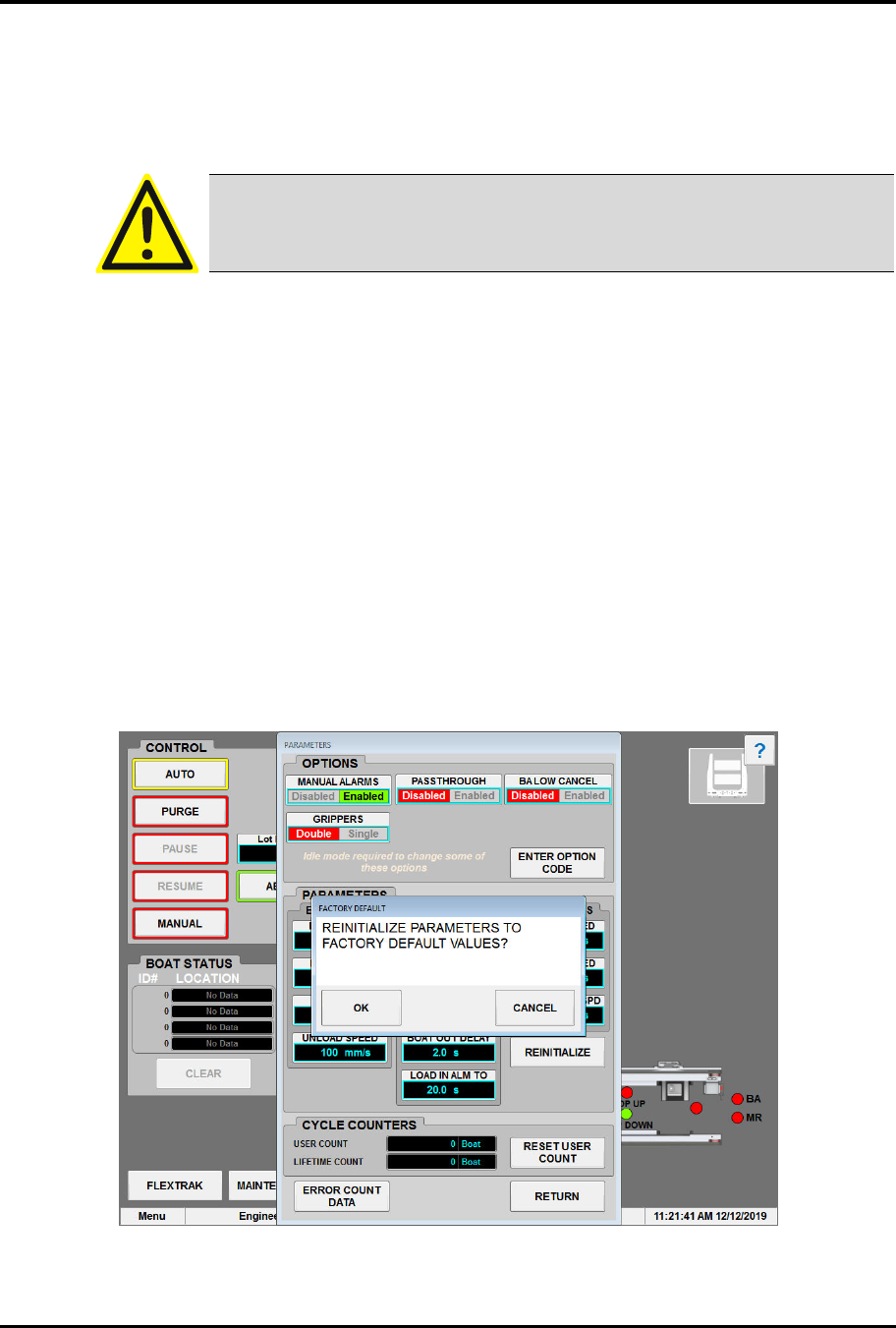
4. Touch the REINITIALIZE button.
„ The prompt “Reinitialize Parameters to Factory Default Values?” appears.
5. To reinitialize, touch OK. To cancel, touch CANCEL.
Figure 6-18 Reinitializing System Parameters