FlexTRAK 2MB Material Handler Addendum Rev 05.pdf - 第75页
FlexTRAK Series 2MB Mater ial Handler Adden dum Tour of HMI Softw are for the Material Handler © 2023 Nordson Corporation 5-9 5.5 Maintenance Master Scre en To access the Ma intenance Master screen, touch the MAINTENANCE…
FlexTRAK Series 2MB Material Handler Addendum Tour of HMI Software for the Material Handler
5-8 © 2023 Nordson Corporation
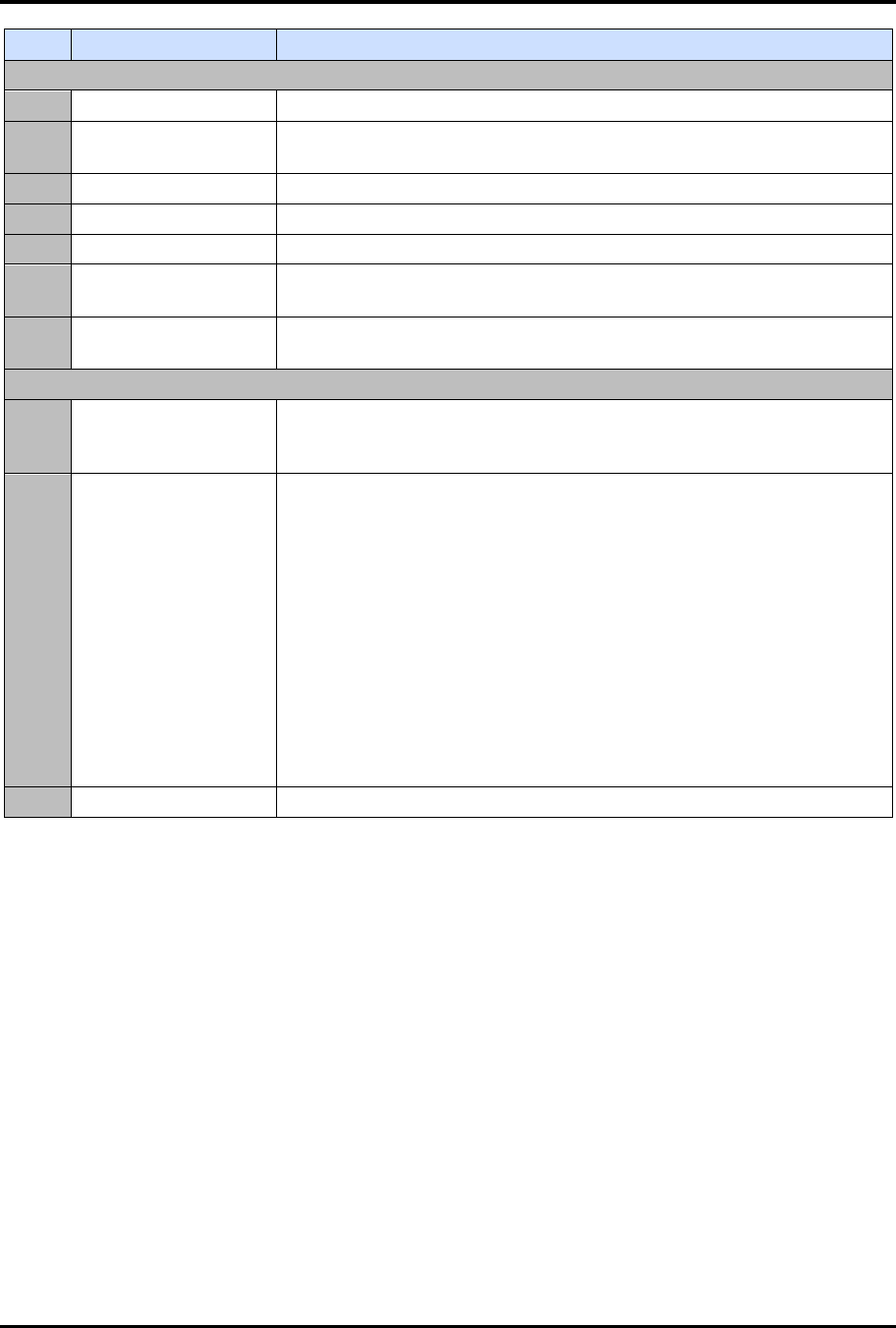
Item Name Description
Control
AUTO Touch to place the MH in Auto mode.
PURGE
Touch to stop incoming process carriers and purge all remaining
process carriers from the system after processing them.
PAUSE Touch to temporarily suspend operation of the system.
RESUME Touch to resume operation after a paused condition.
MANUAL Touch to place the MH in Manual mode.
LOT NUMBER
Displays the name of the current data logging file. Click to open a
dialog box where you can enter a new data logging filename.
ABORT
Touch to stop incoming process carriers and cease operation of the
MH. Boat ID Status is also aborted.
Boat Status
ID#
Displays the number given to a process carrier upon entering the
system. The system sequentially numbers the process carriers in auto
mode.
LOCATION
Displays a process carrier's location as it moves through the system.
Upon entering the system, one of the following descriptions displays in
the LOCATION field:
„
NO DATA - displays when either a process carrier is no longer
tracked, or when only one process carrier has entered a lane
and the other lane is empty.
„
TOP GRIP
„
BOT GRIP
„
CHAMBER
„
CONVEYOR
?
NOTE Text color indicates treated/untreated. Green (Lime) if
untreated, Purple (Magenta) if treated.
CLEAR Touch to clear the process carrier tracking information.
FlexTRAK Series 2MB Material Handler Addendum Tour of HMI Software for the Material Handler
© 2023 Nordson Corporation 5-9
5.5 Maintenance Master Screen
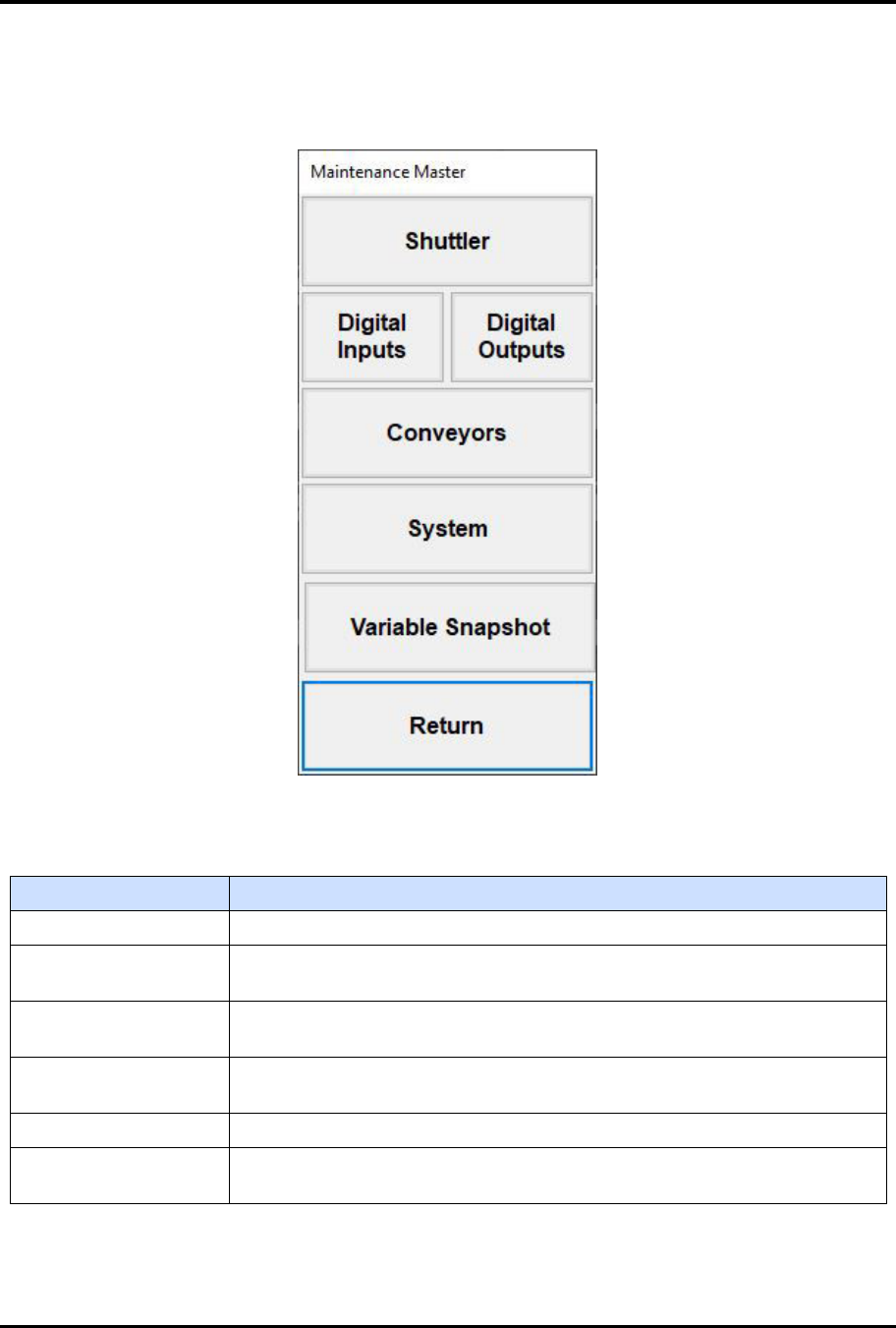
To access the Maintenance Master screen, touch the MAINTENANCE button on the 2MB MH Overview
screen (Figure 5-4).
Figure 5-5 Maintenance Master Screen
Table 5-7 Maintenance Master Screen Controls
Control Description
SHUTTLER Touch to open the Axis Status screen, see 5.5.1 Axis Status Screen.
DIGITAL INPUTS
Touch to open the Input Status screen, see 5.5.2 Digital Input Status
Screen.
DIGITAL OUTPUTS
Touch to open the Output Status screen, see 5.5.3 Digital Output Status
Screen.
CONVEYORS
Touch to open the Conveyor Status screen, see 5.5.4 Conveyor Status
Screen.
SYSTEM Touch to open the Parameters screen, see for 5.5.5 Parameters Screen.
VARIABLE
SNAPSHOT
Touch to open the Data Input popup for the snapshot, see 5.5.6 Variable
Snapshot Screen.
FlexTRAK Series 2MB Material Handler Addendum Tour of HMI Software for the Material Handler
5-10 © 2023 Nordson Corporation
5.5.1 Axis Status Screen
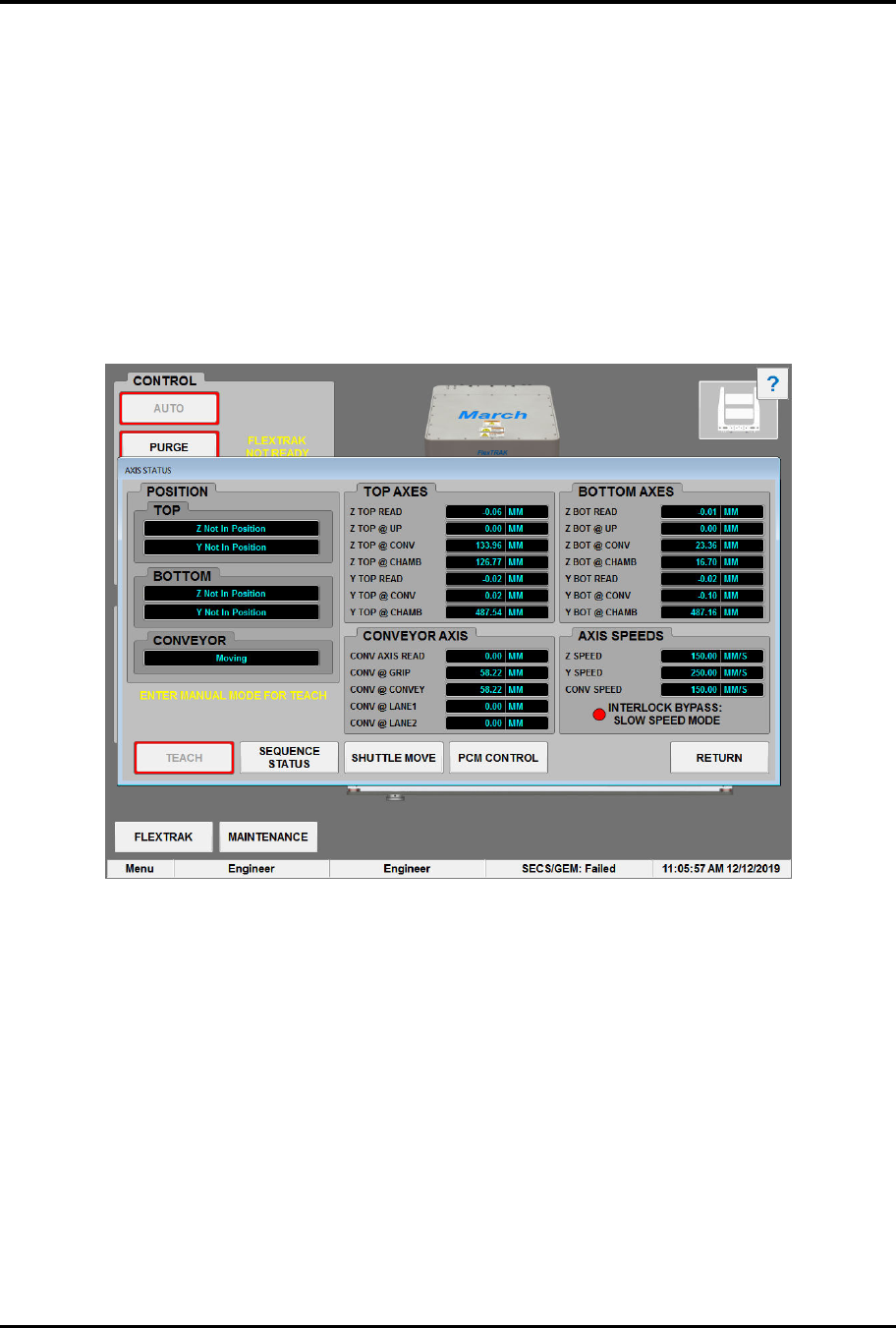
The Axis Status screen (Figure 5-6) displays the position reads for the drive axes, see 7.1 Teaching MH
Axis Position for details. See Table 5-14 for descriptions of the Axis Status screen controls and indicators.
To access the Axis Status screen:
1. Touch the MAINTENANCE button on the MH Overview screen to access maintenance
commands.
„ The Maintenance Master screen opens (Figure 5-5).
2. Touch the SHUTTLER button.
„ The Axis Status screen opens (Figure 5-6).
Figure 5-6 Axis Status Screen