FlexTRAK 2MB Material Handler Addendum Rev 05.pdf - 第70页
FlexTRAK Series 2MB Mater ial Handler Adden dum Tour of HMI Softw are for the Material Handler 5-4 © 2023 Nordson Corporati on 5.3.2 Lo g In Screen The Log In scre en (Figure 5-2) is accessed by touching the Login Bar at…
FlexTRAK Series 2MB Material Handler Addendum Tour of HMI Software for the Material Handler
© 2023 Nordson Corporation 5-3
5.3.1 Controls and Indicators
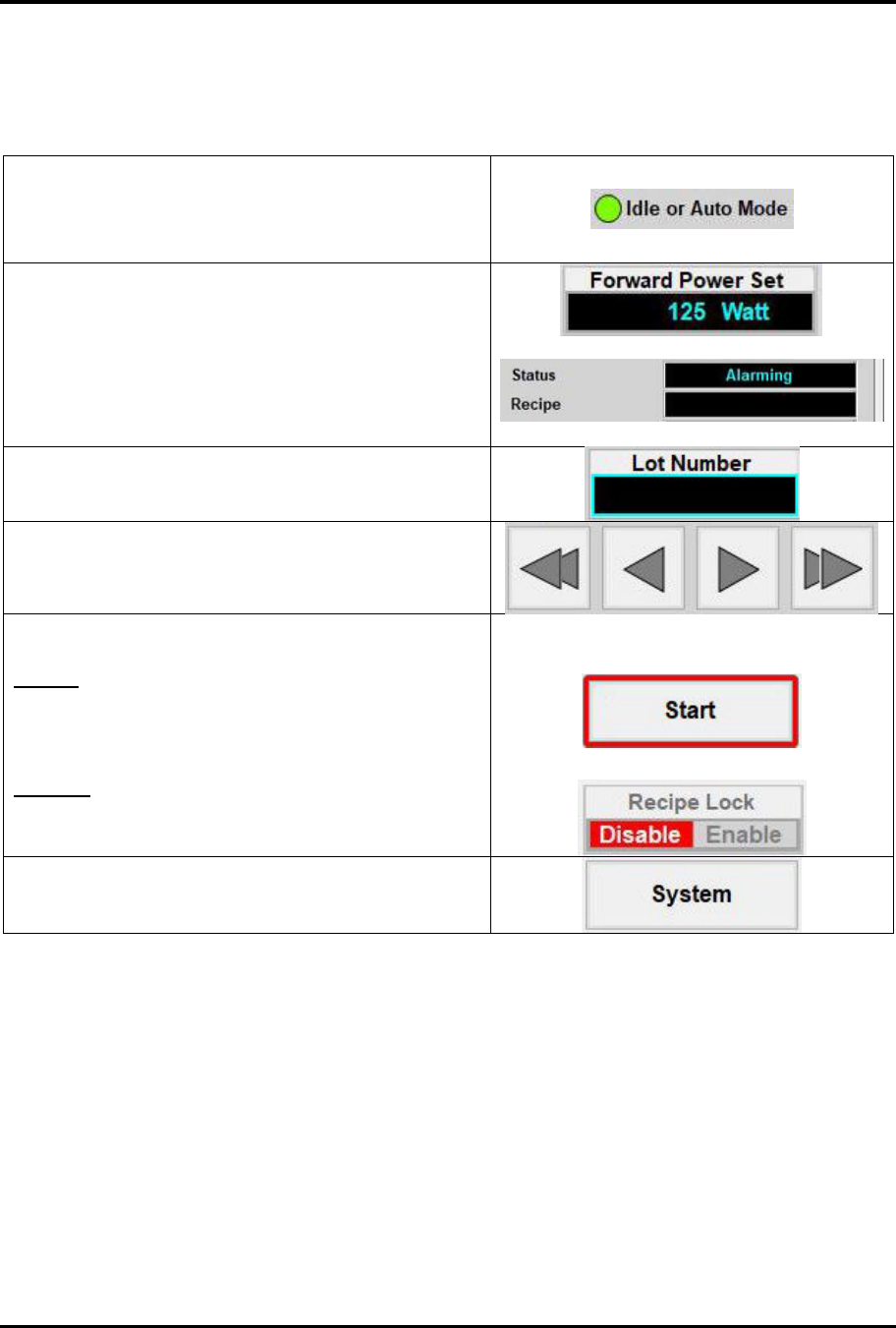
There are various types of controls and indicators in the software.
Table 5-2 Software Controls and Indicators
Status Indicators - Displays the current state of the
system.
Green - Conditions are met
Red - Conditions are not met
Fields - Displays current data or setpoint.
Changeable Fields - Displays the current data or
setpoint. Touching the field opens a popup allowing the
user to change the data or setpoint.
Controls - Touching the control sends a signal to the
plasma system.
Controls with Status Indicators - Touching the
control activates or deactivates the control.
Buttons
Green - Control is active
Yellow - Control is in process
Red - Control is inactive
Switches - The active state has a colored background
and the inactive state is grayed out.
Software Navigation Buttons - Touching the button
opens or closes a software screen.
FlexTRAK Series 2MB Material Handler Addendum Tour of HMI Software for the Material Handler
5-4 © 2023 Nordson Corporation
5.3.2 Log In Screen
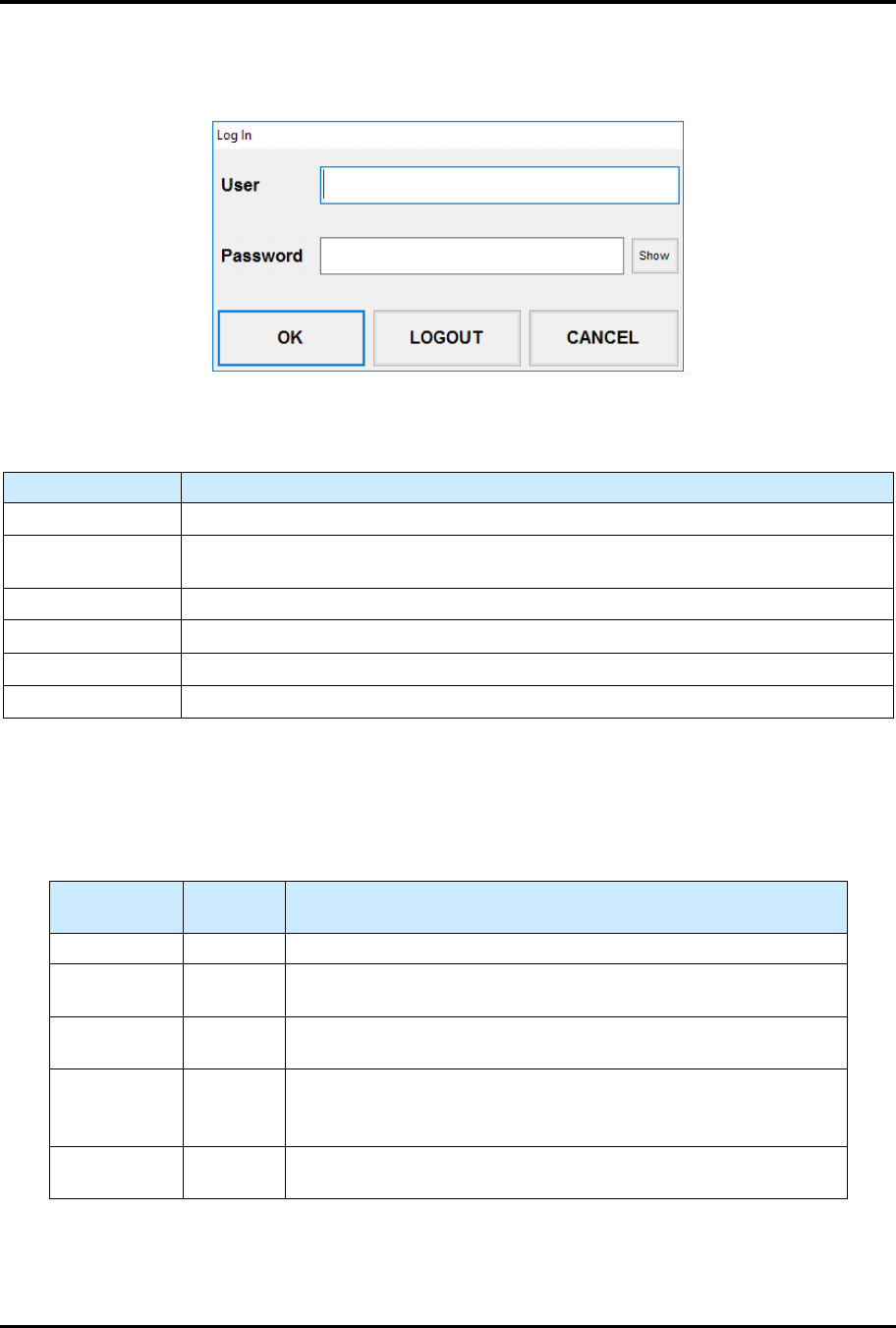
The Log In screen (Figure 5-2) is accessed by touching the Login Bar at the bottom of the HMI software.
Figure 5-2 Log In Screen
Table 5-3 Log In Screen Controls and Indicators
Control Description
USER Touch to enter the username.
PASSWORD
Touch to enter the password associated with the username entered above, see
5.3.2.1 Security Levels. Default passwords are blank.
SHOW Touch to show the password entered.
OK Touch to log in to the plasma system using the entered username and password.
LOGOUT Touch to log out of the HMI software.
CANCEL Touch to close the Log In screen without making any changes.
5.3.2.1 Security Levels
The plasma system is delivered with five pre-programmed user account levels as described in Table 5-4.
You can use the level names shown and/or create additional names as desired.
Table 5-4 Security Levels
Level Name
Level
Number
Description
Engineer 9 Allows total access to the system.
SuperTech 7
Limits access to top-level parameters with some capability for
changing default settings.
Tech 5
Limits access to top-level parameters with some capability for
changing default settings.
Operator 2 3
Allows user to operate the FlexTRAK 2MB system in Automatic
mode with stopping capabilities and view process recipes.
Also allows selection of process recipes.
Operator 1 1
Allows user to operate the FlexTRAK 2MB system in Automatic
mode with stopping capabilities and view process recipes.
FlexTRAK Series 2MB Material Handler Addendum Tour of HMI Software for the Material Handler
© 2023 Nordson Corporation 5-5
5.3.3 Alarms
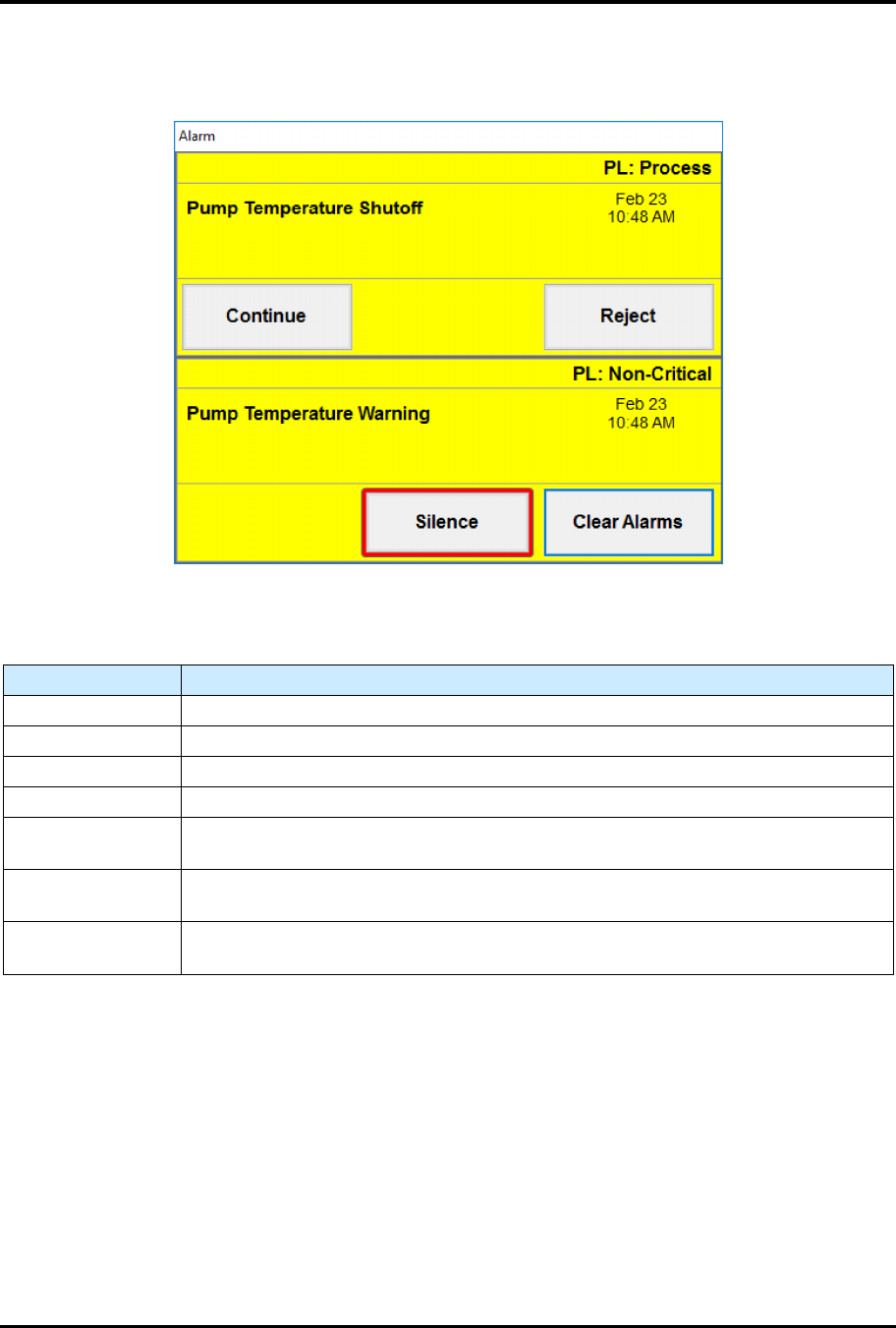
Active alarms will pop up on the screen (Figure 5-3) ensuring they are addressed quickly.
Figure 5-3 Sample Alarms Screens
Table 5-5 Alarms Screen Controls and Indicators
Control Description
(ALARM TYPE) Displays the type of alarm as either a Process alarm or Non-Critical alarm.
(ALARM NAME) Displays the name of the alarm
(DATE/TIME) Displays the date and time the alarm occurred.
CONTINUE Touch to dismiss the alarm and attempt to continue with the process.
REJECT
Touch REJECT to abort the current process and mark the material being
processed as error. Available for process alarms.
SILENCE
Touch to silence the light tower's audible beeping. This will not dismiss the Alarm
screen.
CLEAR ALARMS
Touch Clear Alarms to acknowledge and dismiss the alarm. Available for
Non-Critical alarms.