FlexTRAK 2MB Material Handler Addendum Rev 05.pdf - 第107页
FlexTRAK Series 2MB Mater ial Handler Adden dum Operations © 2023 Nordson Corporation 6-3 6.4 System Start-up ? NOTE See 3.6 Initial Star tup Procedure when star ting the system for the first time. To start the system: 1…
FlexTRAK Series 2MB Material Handler Addendum Operations
6-2 © 2023 Nordson Corporation
6.3 Stopping The Material Handler
6.3.1 E-STOP
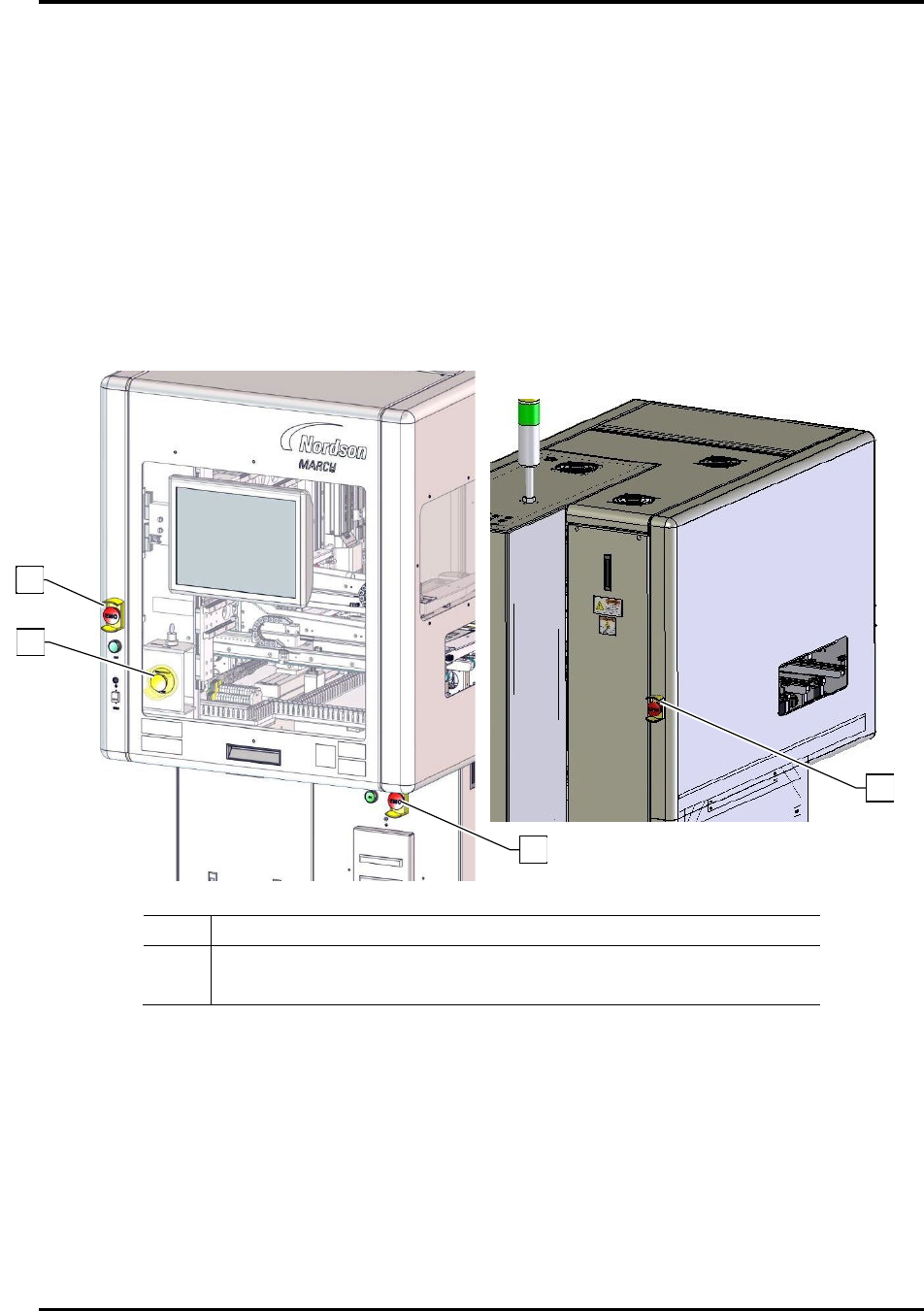
To immediately stop all movement of the material handler, press the E-STOP button (Figure 6-1). This
method can be used during both Automatic and Manual modes.
6.3.2 Emergency Off
In an emergency, push the red EMO button on your plasma system to completely shut off power. This
method can be used during both Automatic and Manual modes.
?
NOTE Using the EMO button will completely turn off power to the plasma system. The system
will have to be restarted.
Item Description
1 EMO Button
2 E-Stop Button (EMERGENCY STOP)
Figure 6-1 E-STOP and EMO Locations
1
1
1
2
FlexTRAK Series 2MB Material Handler Addendum Operations
© 2023 Nordson Corporation 6-3
6.4 System Start-up
?
NOTE See 3.6 Initial Startup Procedure when starting the system for the first time.
To start the system:
1. Make sure of the following:
„ Safety cover doors and all access panels are closed.
„ The purge gas, CDA, and process gases are connected and set at recommended
pressures. Verify that the lockable gas valves, if installed, are open.
„ The exhaust is connected to a suitable facility exhaust system.
„ The main circuit breaker is in the ON (up) position, indicating that power is supplied to
the machine.
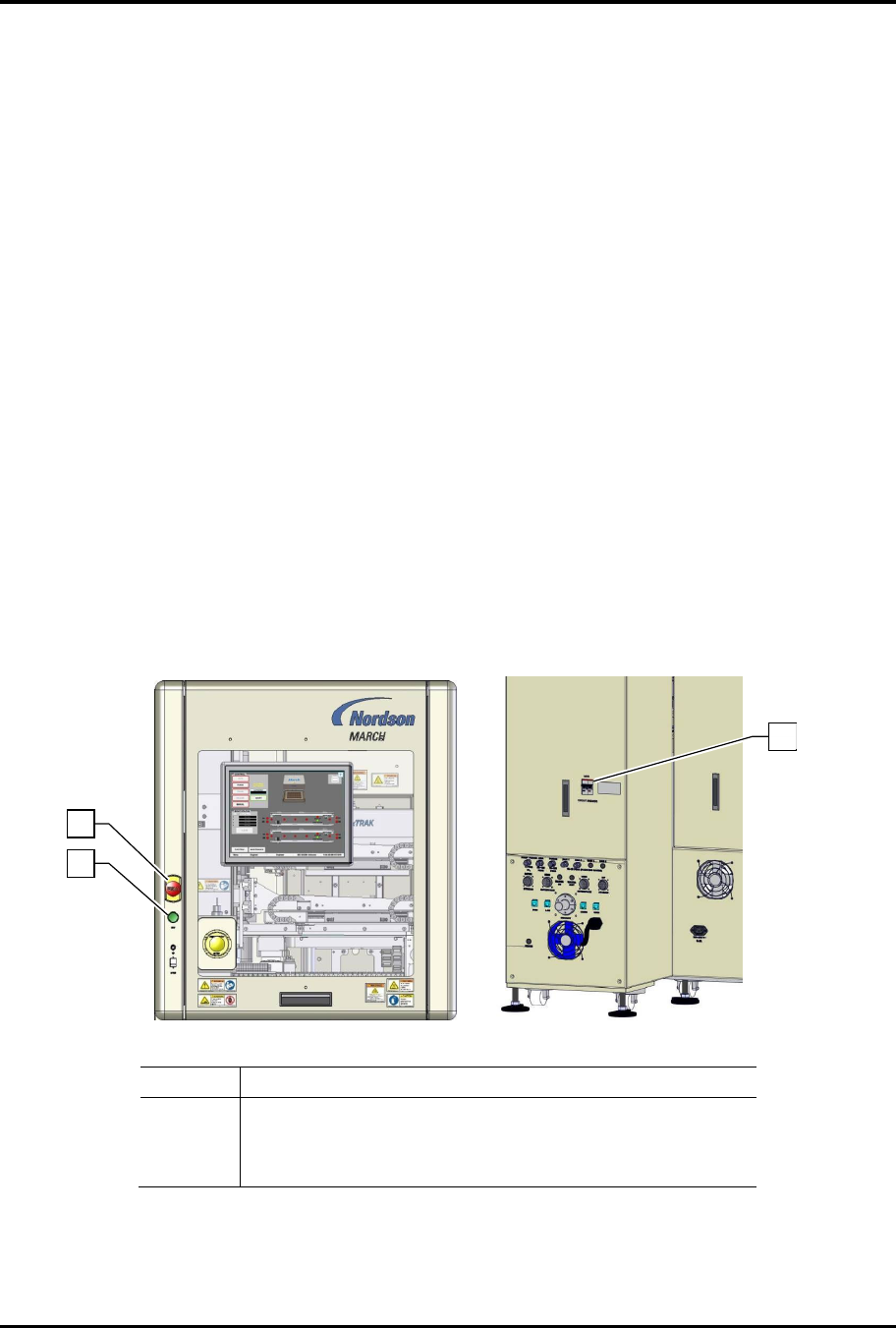
2. Reset each of the three (3) EMO/OFF buttons by turning the knob clockwise until it
pops out.
3. Press the green START button (Figure 5-1) to turn on system main power.
„ When the system is on and initialized, the PC automatically boots up and runs the HMI
software. Boot-up should take about three minutes. The yellow LED on the light tower
comes on.
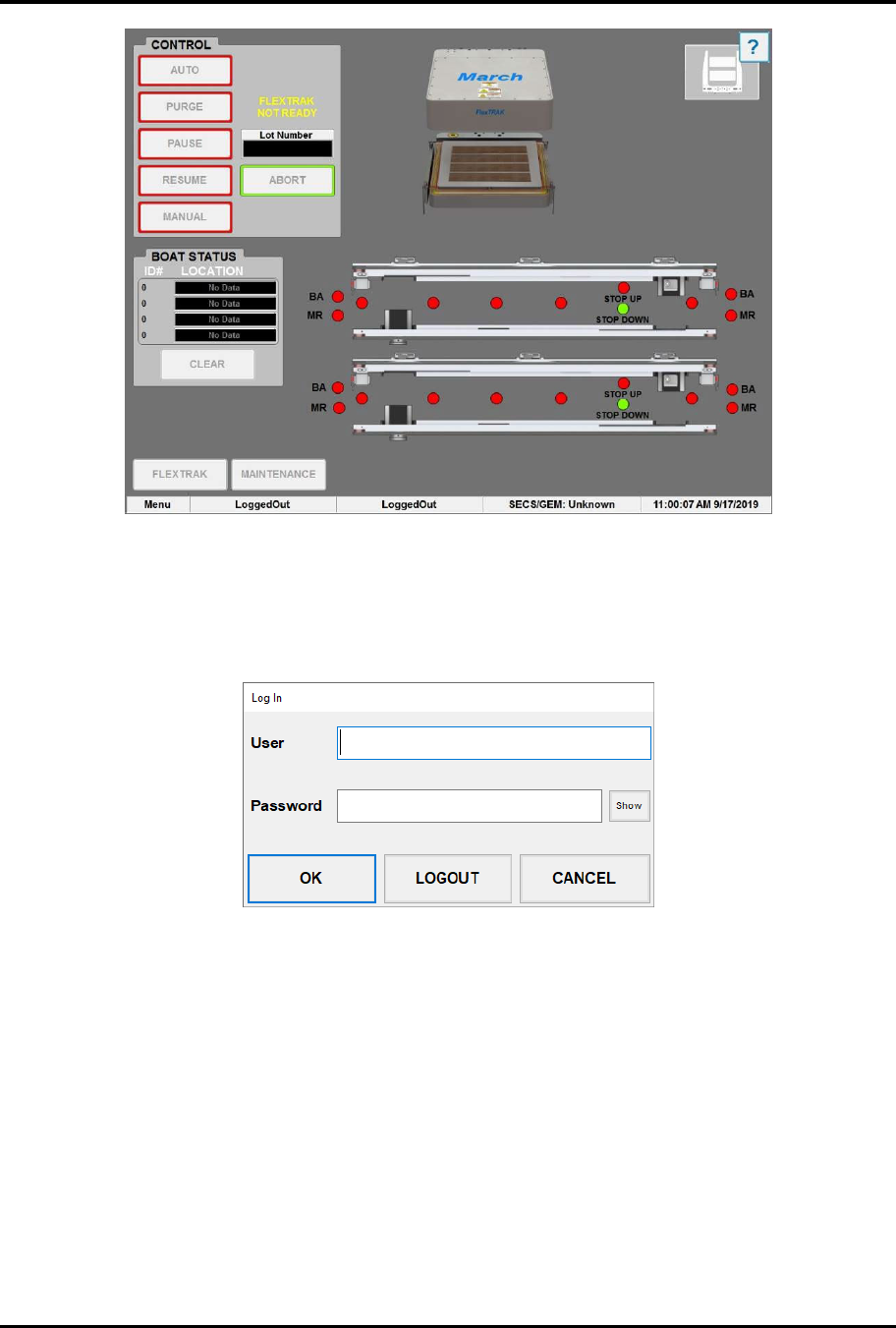
„ The plasma system starts up in idle mode and the FlexTRAK-2MB MH Overview
screen (Figure 6-3) displays. Material handler operations are controlled through this
screen. Figure 5-4 describes the MH Overview screen menu in detail.
Item Description
1 EMO Button
2 Start Button
3 Main Circuit Breaker
Figure 6-2 System Startup
1
2
3
FlexTRAK Series 2MB Material Handler Addendum Operations
6-4 © 2023 Nordson Corporation
Figure 6-3 MH Overview Screen - Logged Out
4. Touch the text LoggedOut on the status line at the bottom of the MH Overview screen
(Figure 6-3).
„ The Login Form dialog box appears (Figure 6-4).
Figure 6-4 Login Form Dialog Box
5. Log onto the system by entering your appropriate user log-on account name and password
and touching OK (Figure 6-5). Refer to the FlexTRAK Series Installation, Operation, and
Maintenance manual for password set-up.
?
NOTE When the system arrives from the factory, the default usernames are Engineer,
SuperTech, Tech, Operator1, and Operator2. No passwords are necessary.
Touch OK.