FlexTRAK 2MB Material Handler Addendum Rev 05.pdf - 第85页
FlexTRAK Series 2MB Mater ial Handler Adden dum Tour of HMI Softw are for the Material Handler © 2023 Nordson Corporation 5-19 Figure 5-11 PCM Mode Dialog Box - Stop Mode Table 5-13 PCM Mode Controls and Indicators Contr…
FlexTRAK Series 2MB Material Handler Addendum Tour of HMI Software for the Material Handler
5-18 © 2023 Nordson Corporation
Control
Description
Y SPEED Displays the current set value of both gripper Y-axes.
CONV SPEED Displays the current set value of the conveyor Y-axis.
SET Z HI SPEED
Displays the gripper Z-axis High speed
Touch to set the gripper Z-axis Hi speed.
SET Y HI SPEED
Displays the gripper Y-axis High speed.
Touch to set the gripper Y-axis Hi speed.
SET CONV SPEED
Displays the conveyor speed.
Touch to set the conveyor speed.
INTERLOCK
BYPASS
Displays the status of the Interlock bypass. The display is red
when the bypass key switch is set to AUTO. The display is
green when the bypass key switch is set to BYPASS.
SPEED MODE
Displays the current speed mode in green.
Touch to toggle between Full and Slow speed modes.
Full - Operates the system at the current set values.
Slow - Operates the system at 25 mm/sec. Slow speed is not
adjustable.
*Note:
This position is a taught location.
5.5.1.4 Process Cycle Mode (PCM) Control
Process Cycle Mode is a routine that will continuously run the material handling system for diagnostic
purposes, such as testing a new process carrier or cycling the system during down times.
?
NOTE The FlexTRAK system must be in stop mode when operating PCM Control with CYCLE
CHAMBER disabled. The FlexTRAK system must be in automatic mode when operating
PCM Control with CYCLE CHAMBER enabled.
To access the PCM control:
1. If necessary, return to the PM Overview screen and touch either the AUTO or STOP
button.
2. Touch MATERIAL HANDLER to access the MH Overview screen (Figure 5-4).
3. Touch the MAINTENANCE button on the MH Overview screen to access maintenance
commands.
„ The Maintenance Master screen opens (Figure 5-5).
4. Touch the SHUTTLER button.
„ The Axis Status screen opens (Figure 5-6) with the PCM CONTROL button enabled.
5. Touch PCM CONTROL.
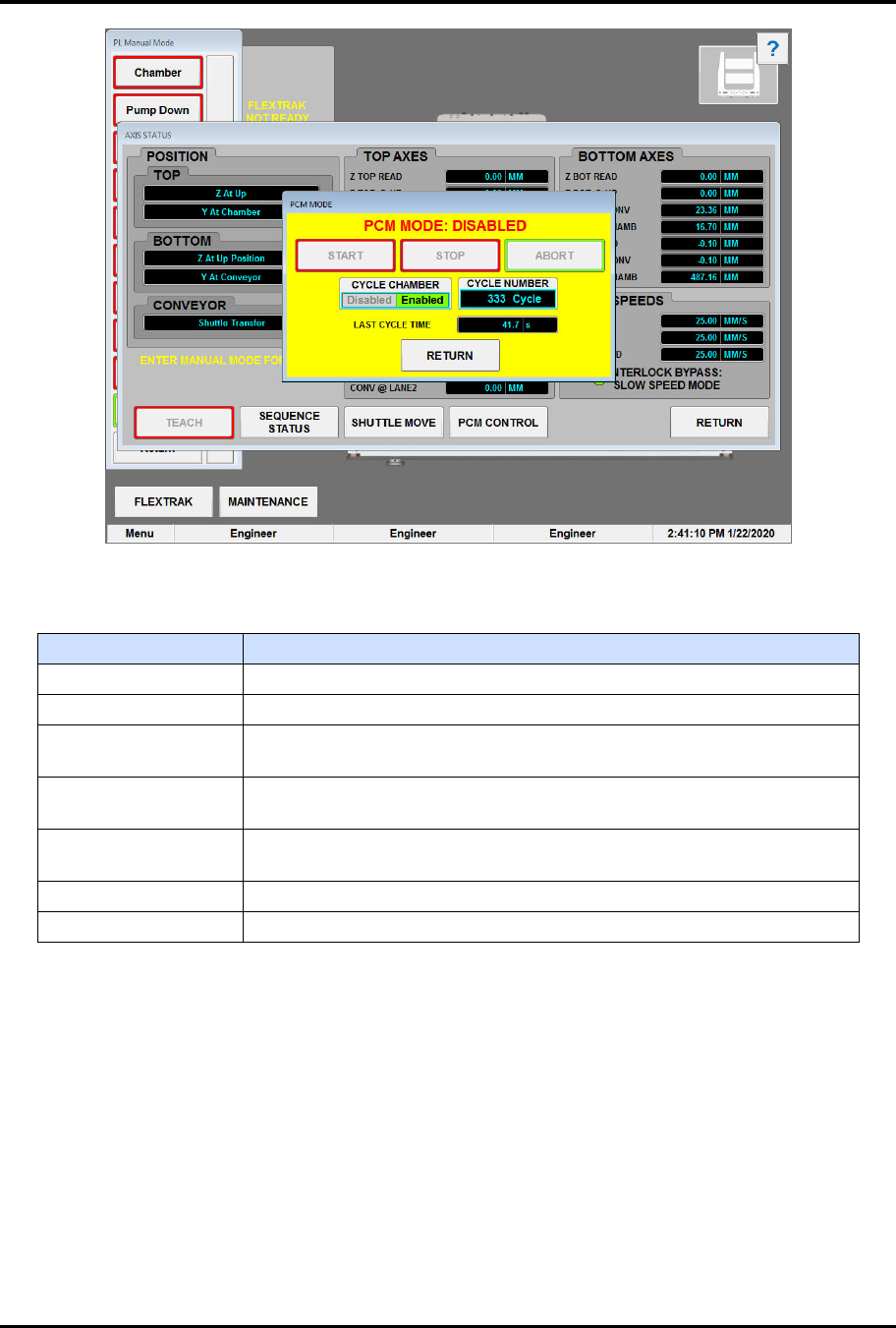
„ The PCM Mode dialog box opens (Figure 6-15).
„ Default status is disabled.
6. Touch RETURN to close the PCM Control dialog box.
FlexTRAK Series 2MB Material Handler Addendum Tour of HMI Software for the Material Handler
© 2023 Nordson Corporation 5-19
Figure 5-11 PCM Mode Dialog Box - Stop Mode
Table 5-13 PCM Mode Controls and Indicators
Control Description
START Touch START to start PCM mode.
STOP Touch STOP to stop the PCM at the end of the next cycle.
ABORT
Touch ABORT to stop the PCM at the current position. The MH will
finish the current move but not the complete cycle.
CYCLE CHAMBER
Touch DISABLED or ENABLED to toggle between cycling the MH
with or without the chamber.
NUM. CYCLES
Displays the current number of cycles performed by PCM. Click this
field to reset the cycle count.
LAST CYCLE TIME Displays the last cycle time in seconds.
RETURN Touch RETURN to close the PCM Mode dialog box.
FlexTRAK Series 2MB Material Handler Addendum Tour of HMI Software for the Material Handler
5-20 © 2023 Nordson Corporation
5.5.2 Digital Input Status Screen
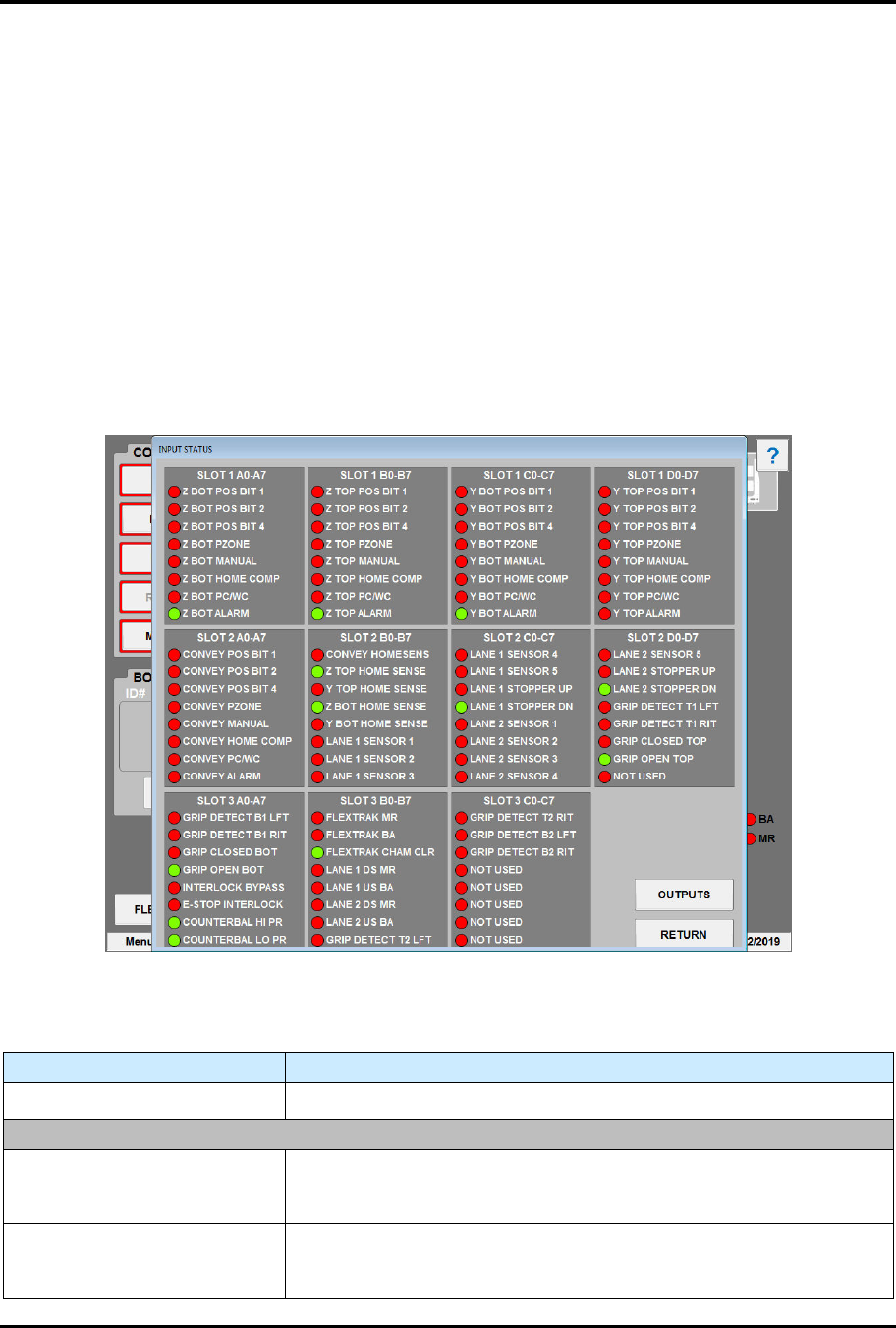
During operation, you can view the status of all digital input points of the plasma system’s EPC I/O on
the Input Status screen (Figure 5-12). The Input Status screen can also be useful during troubleshooting to
check if a sensor is active and lit. A red light means the I/O point is off (open/disconnected), and a green
light means that it is on (closed/connected). See Table 5-14 for descriptions of the Input Status screen
controls and indicators.
To access the input status screen:
1. Touch the MAINTENANCE button on the MH Overview screen to access maintenance
commands.
„ The Maintenance Master screen opens (Figure 5-5).
2. Touch the DIGITAL INPUTS button.
„ The Input Status screen opens (Figure 5-12).
Figure 5-12 Input Status Screen
Table 5-14 Input Status Screen Point Descriptions
Control Description
OUTPUTS
Touch to switch to the Output Status screen (Figure 5-13).
SLOT 1 A0-A7
Z BOT POS BIT 1
Indicates the status of the Z-axis Bottom Position Bit 1 sensor. A red
light means the I/O point is off (open/disconnected), and a green light
means that it is on (closed/connected).
Z BOT POS BIT 2
Indicates the status of the Z-axis Bottom Position Bit 2 sensor. A red
light means the I/O point is off (open/disconnected), and a green light
means that it is on (closed/connected).