Spectrum+Operating+Manual.pdf - 第74页
S2-9 XX X Se ri es Disp ensi n g Syst em IOM Man ual Operation 4-4 © 2023 Nordson Corporatio n 4.6 Daily Routine Proced ures Table 4-3 cont ai ns a br ie f d es cript i on an d i nstruc ti ons fo r ro ut i ne pr o cedure…
S2-9XXX Series Dispensing System IOM Manual Operation
© 2023 Nordson Corporation 4-3
4.5 Camera States
The dispensing system features a Dalsa Genie M640 digital 640 x 480 pixel camera. The camera
communicates bi-directionally to the laptop computer via Gigabit Ethernet. After the Dalsa-Genie
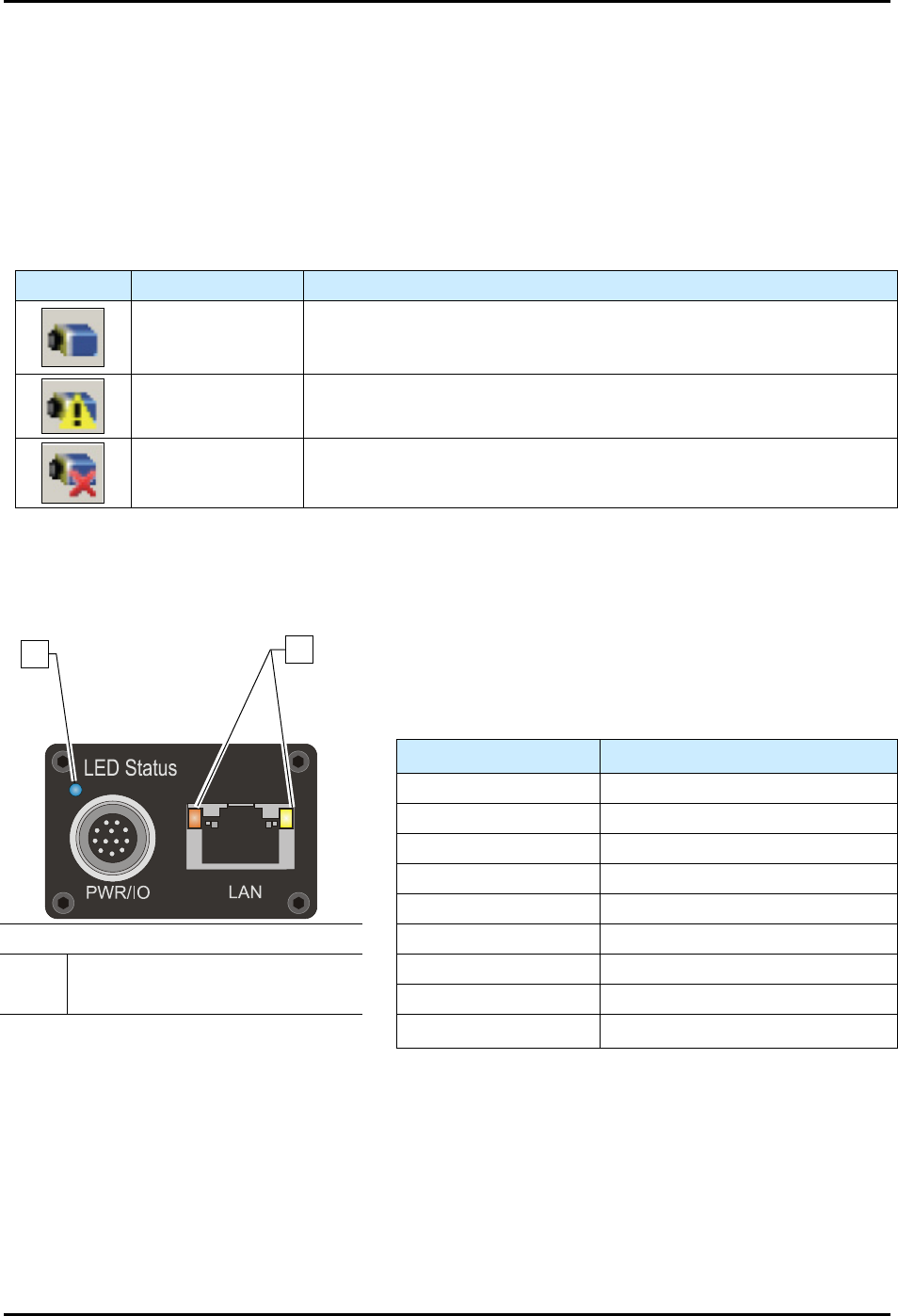
software package has been installed, the GigE Server icon will be visible in the desktop taskbar tray area.
The icons and descriptions are shown in Table 4-1.
NOTE The Dalsa-Genie software is installed at the factory prior to shipping.
Table 4-1 Genie Camera States
Icon
State
Description
Device Available
The GigE server tray icon when the Genie device is found. It will
take a few seconds for the GigE Server to refresh its state after the
Genie has obtained an IP address.
Device IP Error
The GigE server tray icon shows a warning when a device is
connected but there is some type of IP error.
Device Not
Available
A red X will remain over the GigE server tray icon when the Genie
device is not found. This indicates a major network issue.
The Genie has one multicolor LED to provide a simple visible indication of camera state. Additionally,
the RJ45 has two LEDs for network status conditions (Figure 4-2). LED Status indicators are described in
Table 4-2.
Table 4-2 Camera Status Indicators
LED Status
Description
LED is OFF
No power to camera
Steady Red Camera Not Initialized
Slow Flashing Red Camera Initialization Problem
Fast Flashing Red
Camera Overheating
Steady Blue IP Address Assigned
Item
Description
Slow Flashing Blue Waiting for an IP Address
1 Camera Status LED Fast Flashing Blue Ethernet Cable Disconnected
2 Network Status LEDs Steady Green Application Linked to the Camera
Figure 4-2 Camera LEDs (Rear View)
Slow Flashing Green Trigger Acquisition in Progress
1
2
S2-9XXX Series Dispensing System IOM Manual Operation
4-4 © 2023 Nordson Corporation
4.6 Daily Routine Procedures
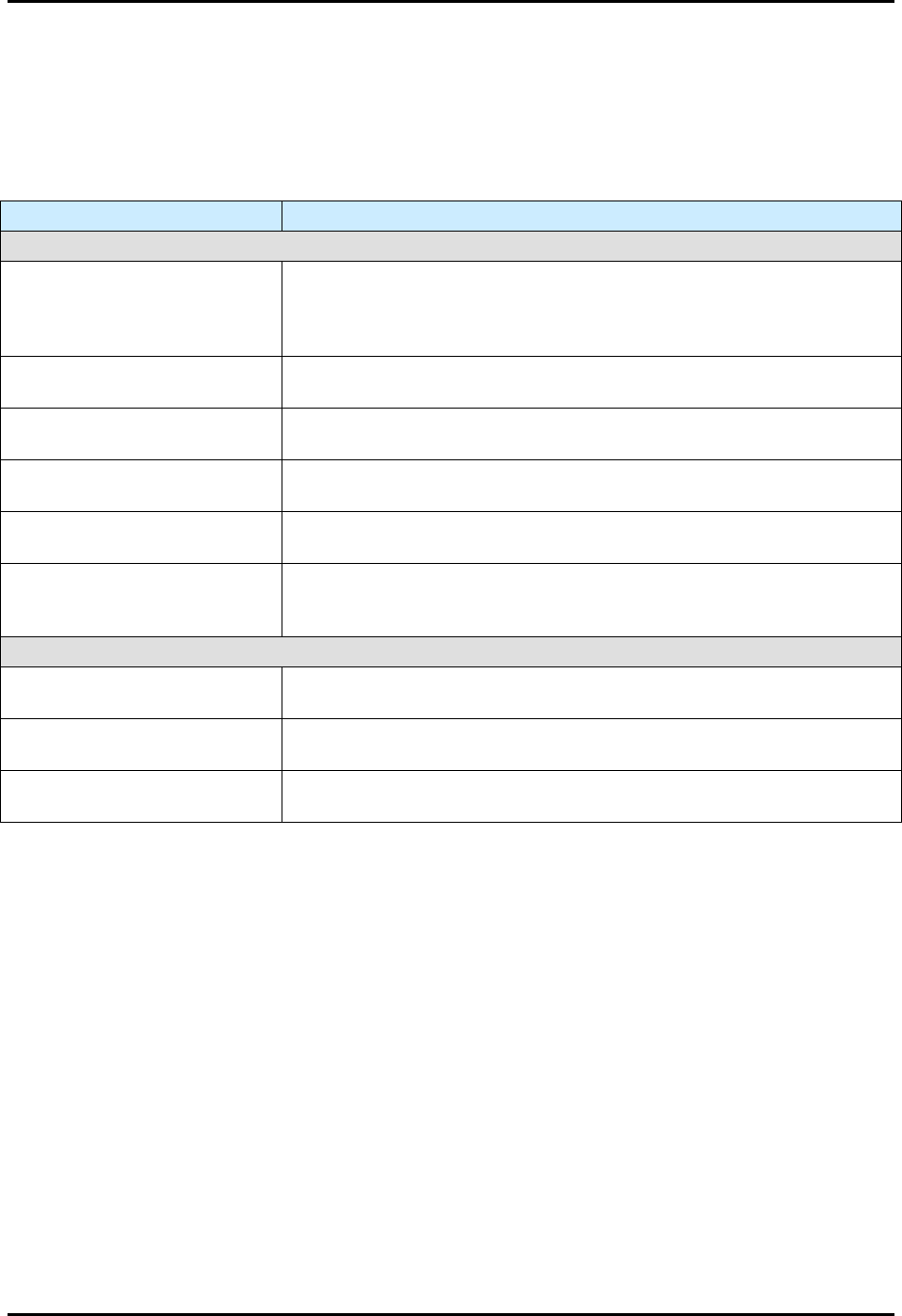
Table 4-3 contains a brief description and instructions for routine procedures that should be performed
daily before and after operating the dispensing system. See 6.4 Routine Maintenance Procedures for
routine maintenance procedures that should be performed daily.
Table 4-3 Daily Routine Procedures
Procedure
Description
STARTUP
Check Main Air Pressure
Ensure that the main air pressure is properly adjusted. If necessary,
adjust the main air pressure, see 3.14 Adjusting the Main Air Pressure.
Record the proper setting on the daily routine checklist for daily
reference.
Verify Exhaust Connection
(Optional)
Verify that the exhaust vent is properly connected to the facility exhaust
system ductwork.
Check Ventilation Airflow
(Optional)
Verify ventilation holes are clear from obstructions.
Inspect Hardware
Inspect the dispensing system for broken, loose, worn, or missing
hardware. Replace or repair as necessary.
Inspect Electrical and
Pneumatic Lines
Inspect the dispensing system for broken, loose, or frayed electrical and
pneumatic lines. Replace as necessary.
Inspect Conveyor
Inspect conveyor rollers, bearings, and chain for surface damage.
Ensure that no foreign material adheres to surfaces. Clean and replace
as necessary.
SHUTDOWN
Remove Workpieces
Remove all workpieces and foreign objects from the dispensing and
conveyor areas.
Clean Dispensing System
Clean all surfaces of the dispensing system (doors, side panels, front
panel, part sensor, etc.).
Clean/Replace Needle or
Mixertube
Refer to the applicable dispensing valve manual for instructions.

S2-9XXX Series Dispensing System IOM Manual Operation
© 2023 Nordson Corporation 4-5
4.7 Running Production
Running production consists of the steps shown in Figure 4-2.
Install Dispensing
Valve and Needle
Install Fluid Syringe
Clear Dispensing
Area
Check Purge/Scale
Cups
Verify Air Pressure
Settings
Focus Camera
(if necessary)
Load Workpiece
Verify Heater
Temperature
(if heat required)
Load the Dispensing
Program
Run the Program
Run Prompted
Setup
Monitor Production
Run
Figure 4-3 Production Run Flow Chart
To run production:
1. Install the dispensing valve. Refer to the applicable valve manual for installation,
configuration, and operation of the valve and the Fluidmove User Guide or Fluidmove
Online Help for software configuration instructions.
2. Install the fluid syringe. Refer to the applicable dispensing valve manual.
3. Clear the dispensing area. Clear the work area of any obstacles that may interfere with
dispensing head movement.
4. Verify that the purge station and weigh station contain disposable cups.
5. Load the dispensing program. Refer to the Fluidmove User Guide or Fluidmove Online
Help.
6. Check the air pressure.
a. Verify that the main air, valve, and fluid pressures are set to the desired levels.
If not, adjust pressure, see 5.10 Adjusting the Air Pressure.
7. Load the workpiece.
8. Adjust the camera focus, if necessary, see 5.4 Focusing the Camera.
9. Run a prompted setup procedure. Refer to the Fluidmove User Guide
or Fluidmove Online
Help.
10. If your process requires needle heat or tooling heat, verify the heater temperature.
a. In the Production Window, click on
Run and then on Run Production.
The Run Window opens.
b. Select the Temperature tab.
If your program requires both needle heat and tooling heat, there will be two
temperature tabs.
c. Verify the heater(s) has reached set point temperature before running the program.
NOTE The heater setup can be configured so that the dispensing program will
not run until the heaters have reached set point.
11. Run the program. Refer to the Fluidmove User Guide or Fluidmove Online Help.