3OM-1050-002.pdf - 第120页
• Operation Procedure Fig. 3B156 Menu for Editing Addition of "Fdr No." (1) Select [Add Line] icon on the menu. A new "Fdr No." is added to the last line (last Fdr No.). Insertion of "Fdr No.&quo…
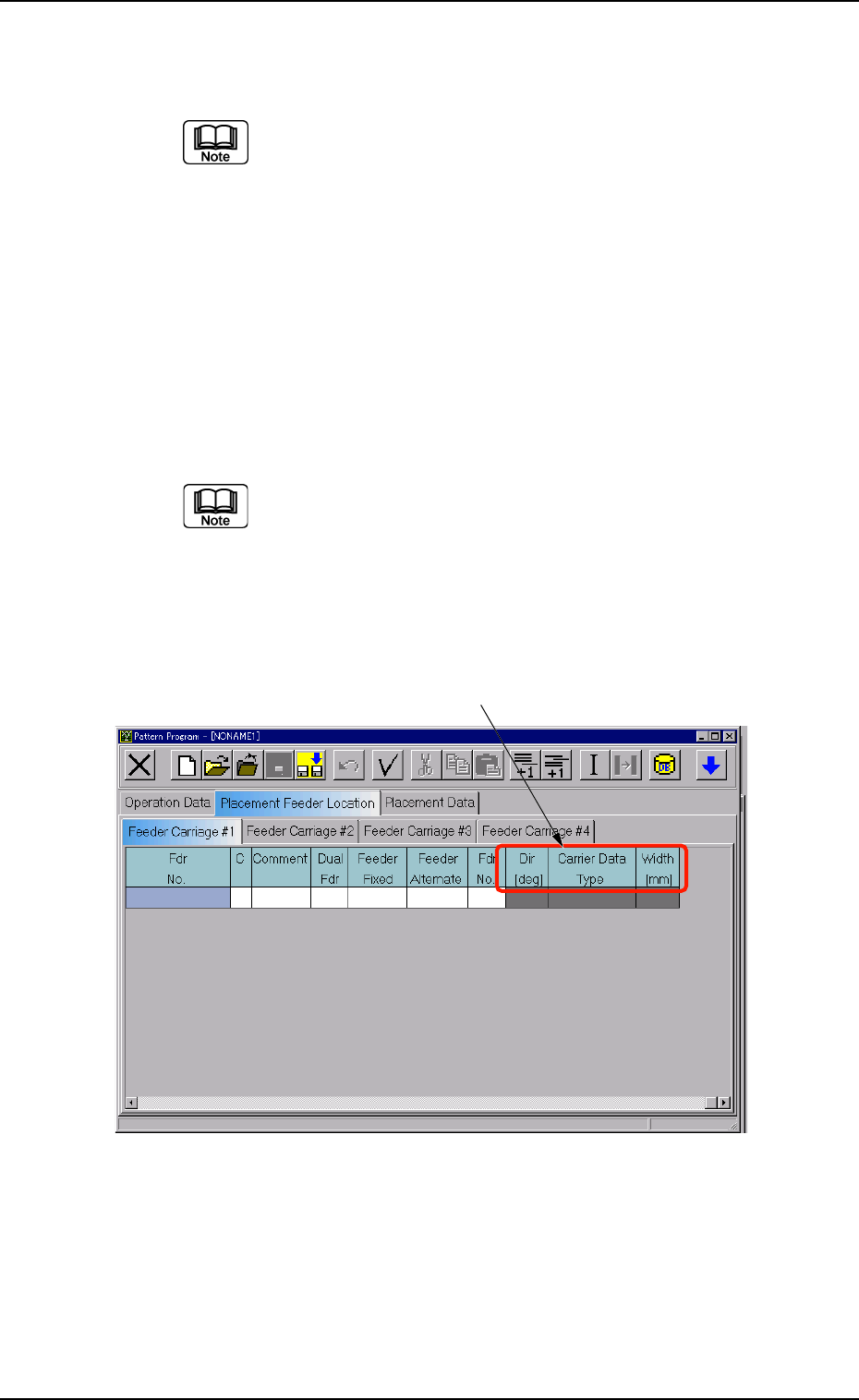
*2 Fdr No.
Shown under this key are the feeder Nos.
(a) Refer to "• Operation Procedure" (described later) for
the detailed information on how to add or delete feeder
Nos. (Fdr Nos.).
(b) When the background color is black, it indicates that
the feeders have exceeded the maximum installable
number.
Avoid this by deleting a feeder No. (Fdr. No.).
*3 Component ID
Displayed are the currently allocated component IDs.
Refer to "4.3.2 "Component ID List" Window" for how to
enter or delete a component ID.
*4 C, Comment, Dual Fdr, Feeder Fixed, Feeder Alternate, and
Fdr No.
Enter a parameter in each text box.
Fig. 3B155 "Feeder Carriage #1" Tab Sheet
*5 Dir [deg], Carrier Data Type, and Width [mm]
Displayed are the parameters specified in the component library.
*5
0301-005 2-98 AFO01EDTP
4.3 "Placement Feeder Location" Tab
• Operation Procedure
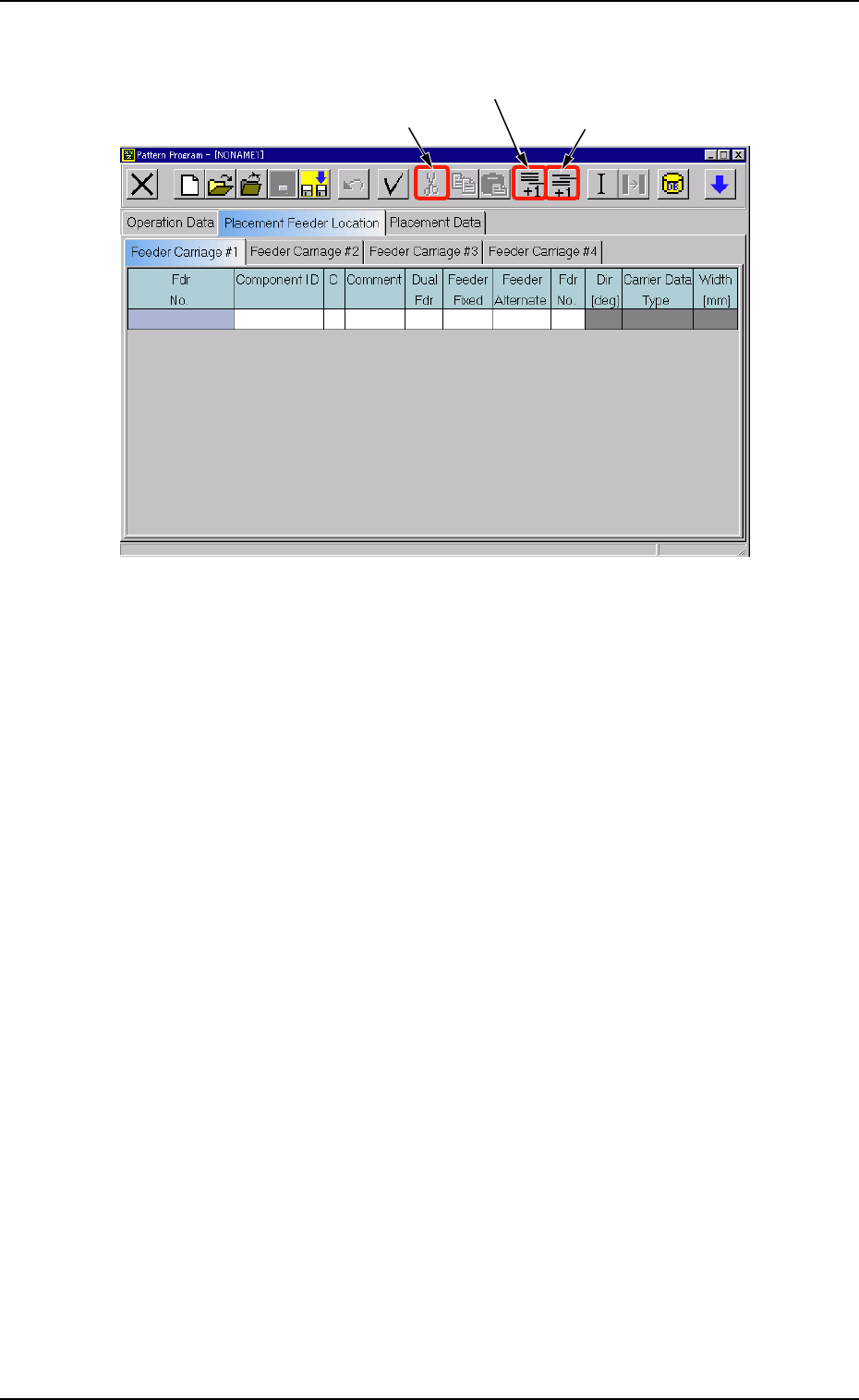
Fig. 3B156 Menu for Editing
Addition of "Fdr No."
(1) Select [Add Line] icon on the menu.
A new "Fdr No." is added to the last line (last Fdr No.).
Insertion of "Fdr No."
(1) Select the position where a Fdr. No. should be inserted with the
touch screen or the pointing device.
The selected line (Fdr. No.) turns blue, indicating that it is selected.
(2) Select [Insert Line] icon on the menu.
A new line (Fdr No.) is inserted at the selected line and the subse-
quent lines (Fdr Nos.) are shifted down.
[Add Line] Icon
[Cut] Icon
[Insert Line] Icon
0210-004 2-99 AFO01EDTP
4.3 "Placement Feeder Location" Tab
Deletion of "Fdr No."
(1) Select the Fdr. No. to be deleted with the touch screen or the point-
ing device.
The selected line (Fdr. No.) turns blue, indicating that it is selected.
(2) Select "Delete" on the menu.
The selected line (Fdr No.) is deleted and the subsequent lines (Fdr
Nos.) are shifted up.
Do not set any parameters for the feeder carriages that are not
used.
Otherwise, a data error occurs. If parameters are set, be sure
to delete them.
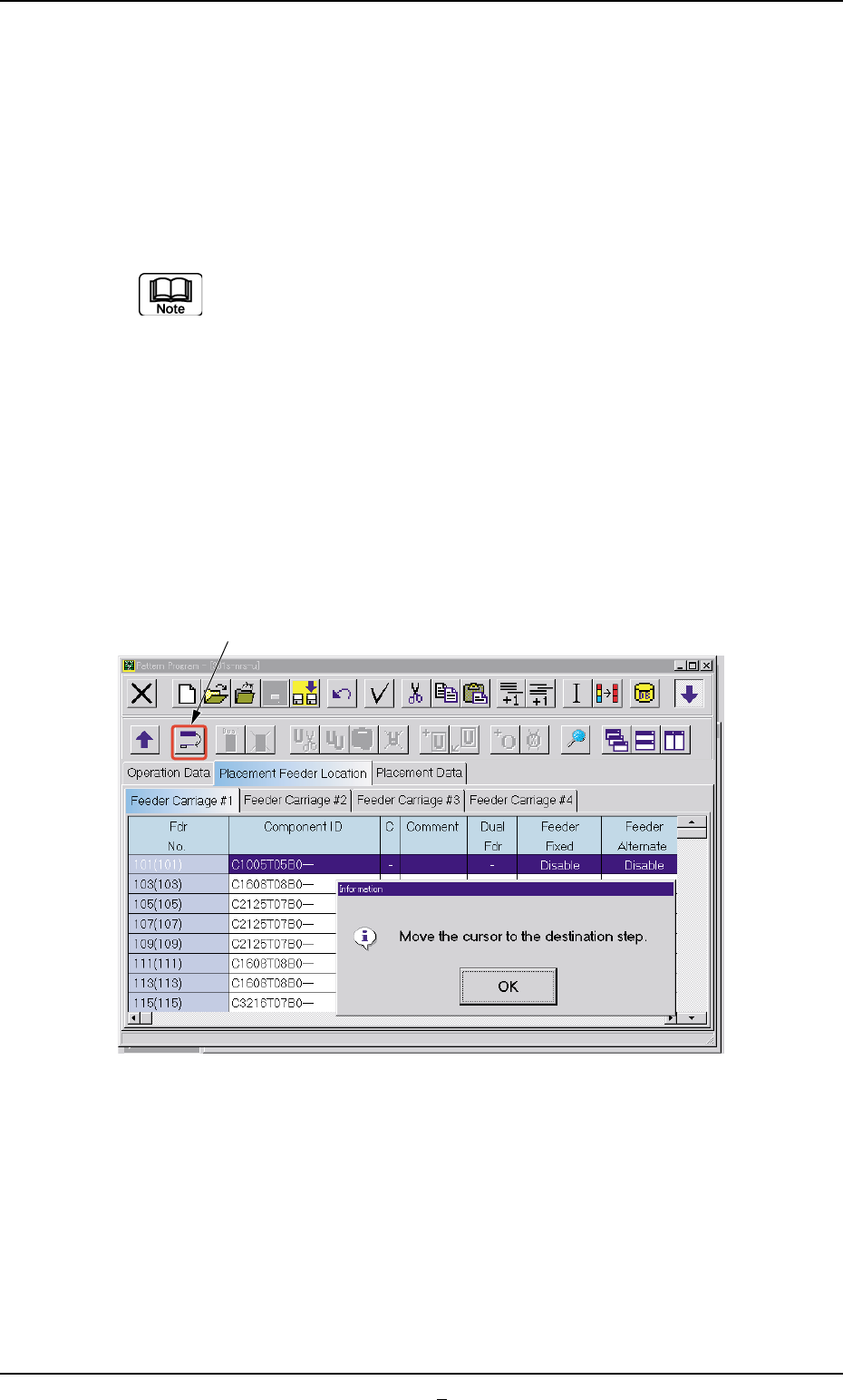
Transfer of Fdr. No.
(1) Select the Fdr. No. to be transferred with the touch screen or the
pointing device.
The selected line (Fdr. No.) turns blue, indicating that it is selected.
(2) Select the "Transfer the selected step data" icon.
Fig. 3B156-1
0307-005 2-100 AFO01EDTP
4.3 "Placement Feeder Location" Tab
[Transfer the selected step data] Icon