3OM-1050-002.pdf - 第122页
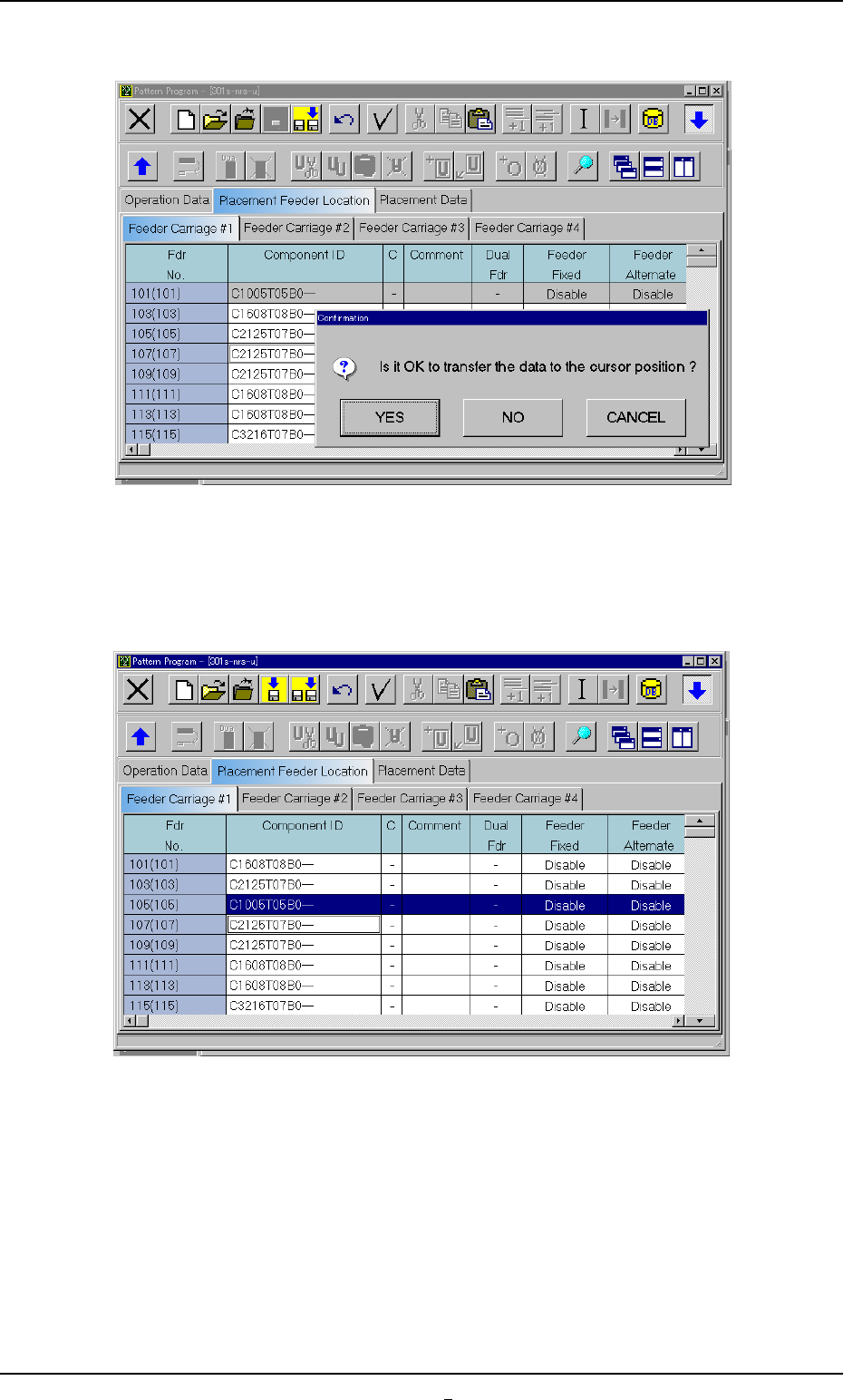
(3) Press the [OK] button and specify the destination step. Fig. 3B156-2 (4) Press the [YES] button. The line (step) of the selected Fdr . No. is transferred to the step just above the specified line (step). Fig. 3B156-3…
Deletion of "Fdr No."
(1) Select the Fdr. No. to be deleted with the touch screen or the point-
ing device.
The selected line (Fdr. No.) turns blue, indicating that it is selected.
(2) Select "Delete" on the menu.
The selected line (Fdr No.) is deleted and the subsequent lines (Fdr
Nos.) are shifted up.
Do not set any parameters for the feeder carriages that are not
used.
Otherwise, a data error occurs. If parameters are set, be sure
to delete them.
Transfer of Fdr. No.
(1) Select the Fdr. No. to be transferred with the touch screen or the
pointing device.
The selected line (Fdr. No.) turns blue, indicating that it is selected.
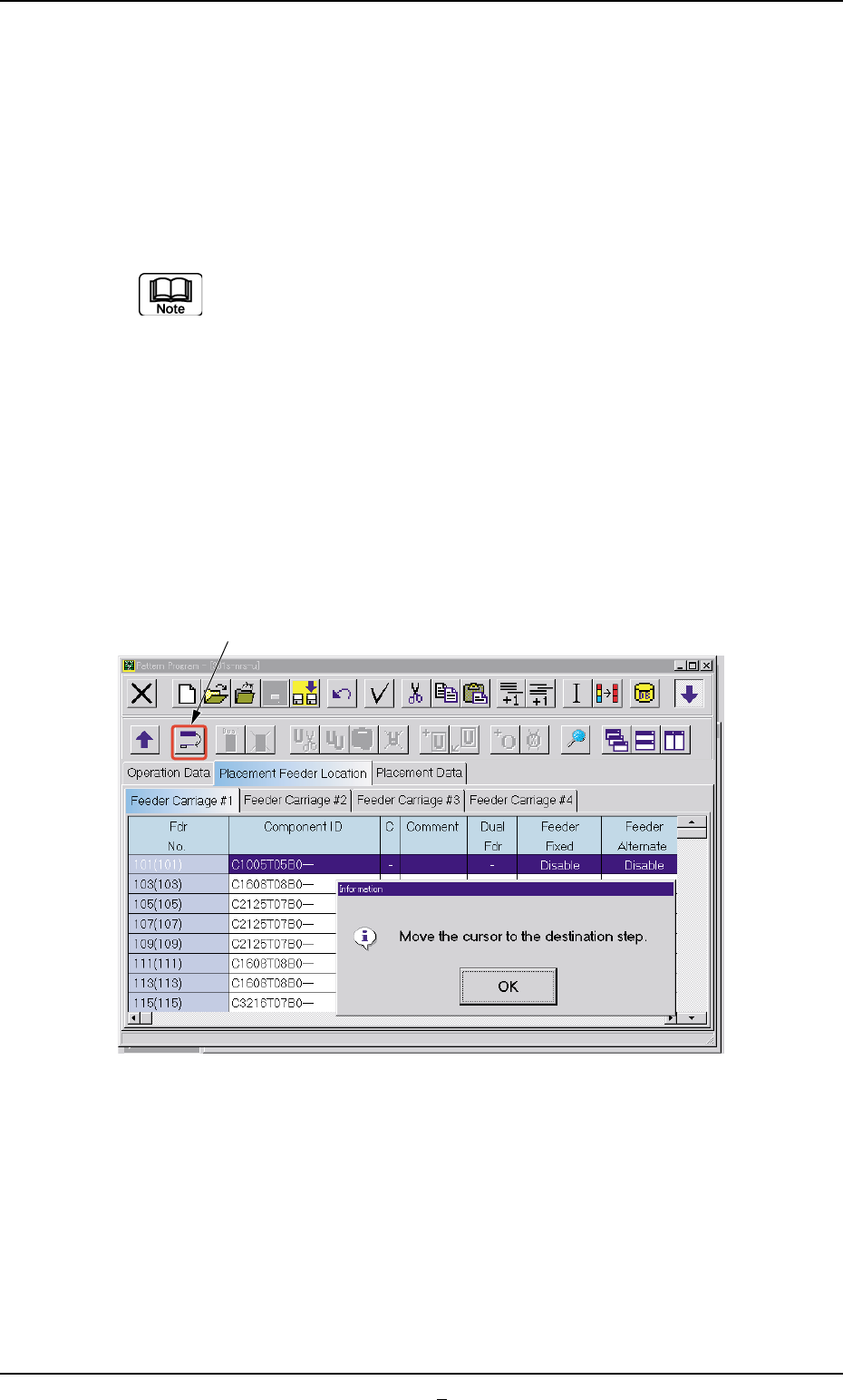
(2) Select the "Transfer the selected step data" icon.
Fig. 3B156-1
0307-005 2-100 AFO01EDTP
4.3 "Placement Feeder Location" Tab
[Transfer the selected step data] Icon
(3) Press the [OK] button and specify the destination step.
Fig. 3B156-2
(4) Press the [YES] button. The line (step) of the selected Fdr. No. is
transferred to the step just above the specified line (step).
Fig. 3B156-3
4.3 "Placement Feeder Location" Tab
0307-002 2-100-1 AFO01EDTP
4.3.2 "Component ID List" Window
• Window Layout
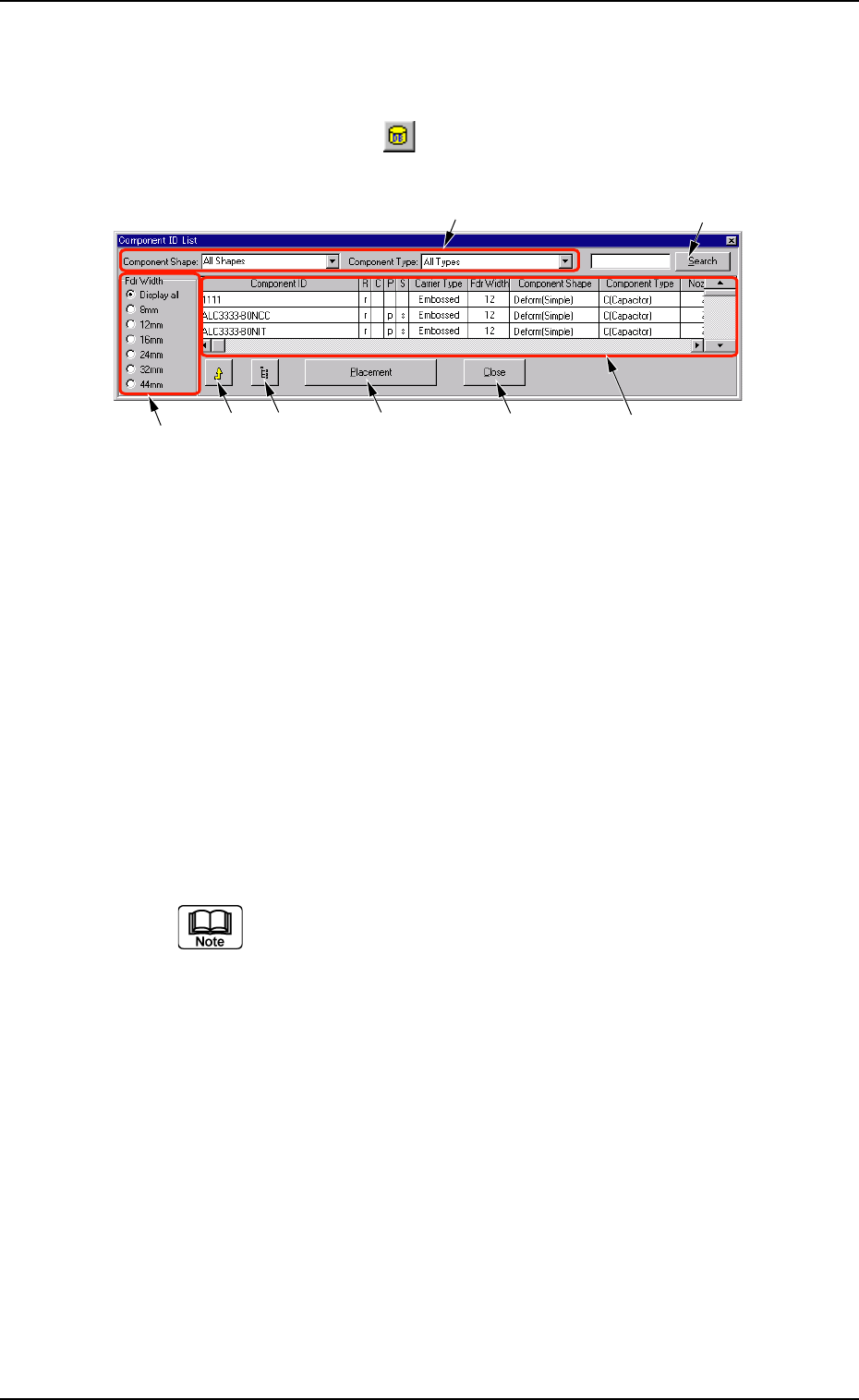
When the [Database] icon (
) on the toolbar of the "Pattern Program"
window is pressed, the "Component ID List" dialog box opens.
Fig. 3B157 "Component ID List" Window
• Window Composition
*1 Component Shape and Component Type
Enter a parameter in each text box.
When parameters are set in the text boxes, a list of the correspond-
ing components appears in "*6".
*2 Fdr Width
Select the desired option button to specify the feeder width.
*3 "Component Library" Edit Window Button
When this icon is pressed, the "Component Library" edit window
opens, making it possible to edit the component library data.
Refer to "Section 3 Component Library" for the detailed in-
formation on how to edit the component library data.
*4 [Placement] Button
When this button is pressed, the component selected from the list
of component IDs is set in the placement feeder location data.
*5 [Close] Button
When this button is pressed, the "Component ID List" window closes.
*6 List of Component IDs
A list of component IDs is displayed.
*7 [Search] Button
When this button is pressed, the displayed list of component IDs is
searched.
*1
*6
*2
*3
*7
*8 *4
*5
0307-006 2-101 AFO01EDTP
4.3 "Placement Feeder Location" Tab