3OM-1050-002.pdf - 第137页
2. "Selection of component ID" Window 2 . 1 Window Layout This session describes how to open the "Selection of component ID" window . (1) Press the [DA T A EDIT] button on the main menu bar . A "…
1. Outline of Component Library
1.1 Purpose
• The component library is a database used to manage "specific infor-
mation (data) on components" required for operation of the compo-
nent placement machine.
• By making use of the component library data, time for pattern pro-
gram data creation and editing can be shortened greatly.
1.2 Component IDs and Component Library Data
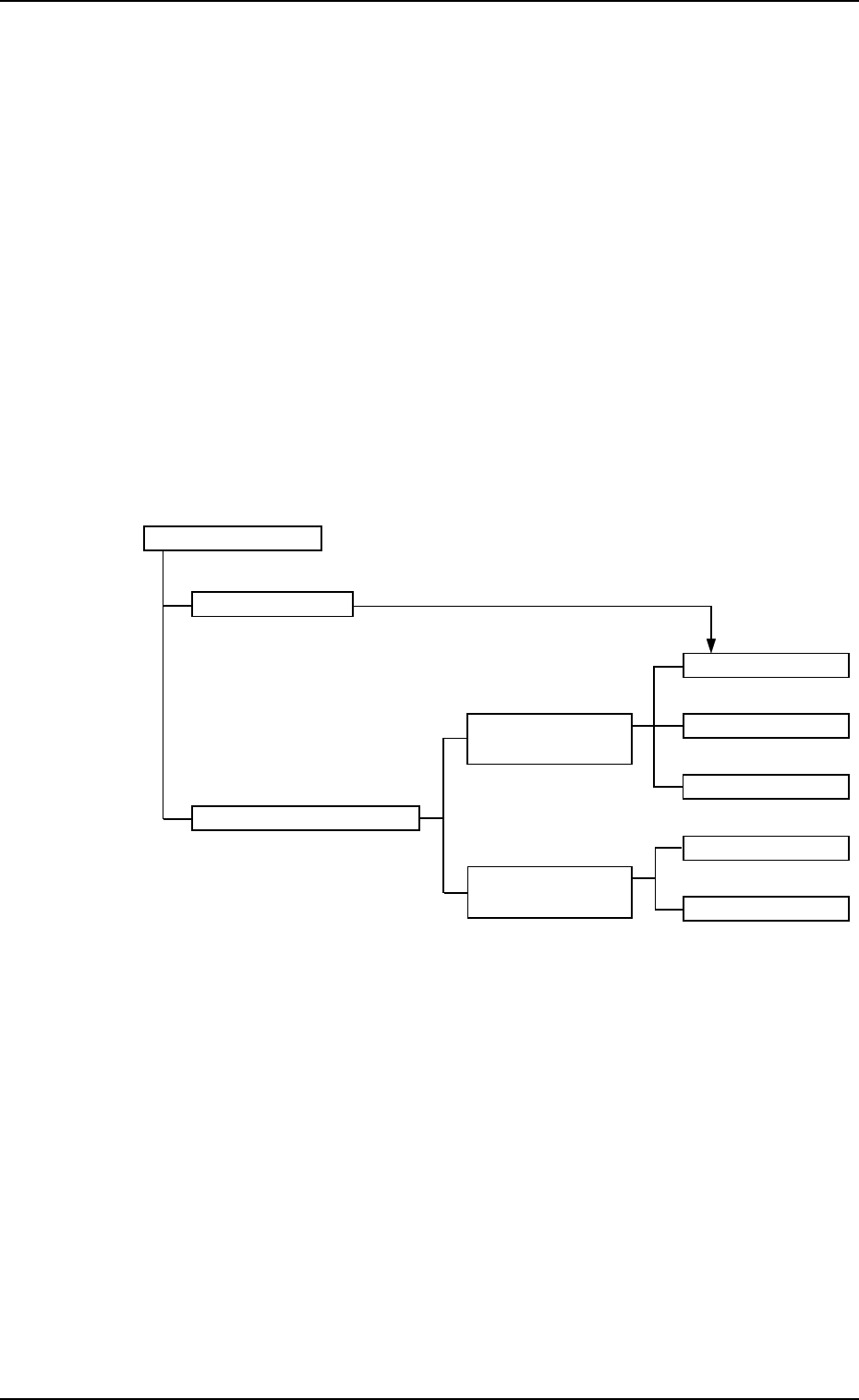
• The component library is composed of "Component IDs (data names)"
and "Component Library Data (Specific Data on Components)".
Component Library
Component IDs
Identification Data
Common Control Data
Component Data
Carrier Data
Component Library Data
Shape Data
Individual
Component Data
Recognition Data
Fig. 3C1 Composition of Component Library
01 10-003 3 - 1 AFO01EDTP
1.1 Purpose
2. "Selection of component ID" Window
2.1 Window Layout
This session describes how to open the "Selection of component ID"
window.
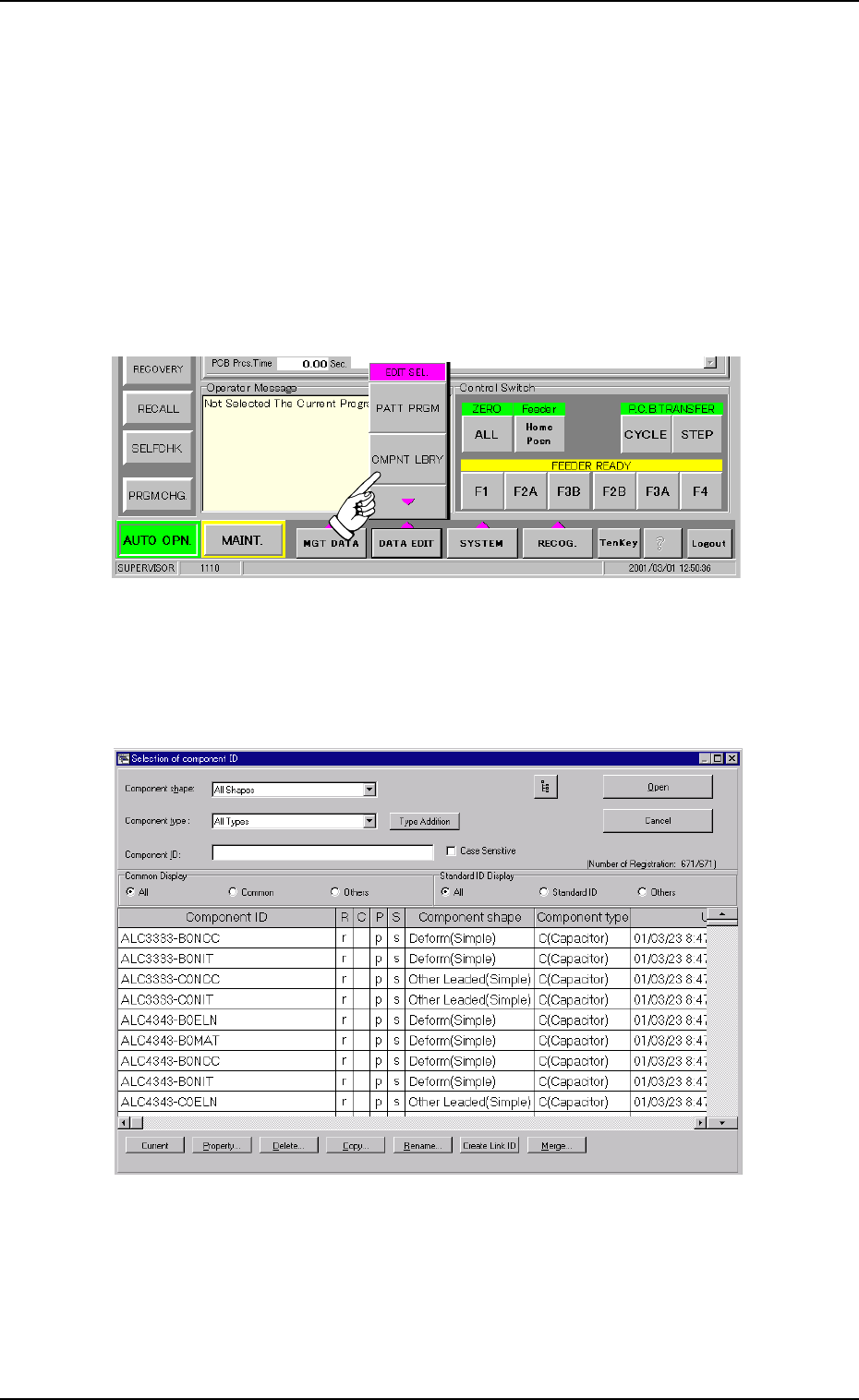
(1) Press the [DATA EDIT] button on the main menu bar. A "EDIT SEL."
menu opens.
Fig. 3C2 "EDIT SEL." Menu
(2) Press the [CMPNT LBRY] button. The "Selection of component ID"
window opens.
Fig. 3C3 "Selection of component ID" Window
2.1 Window Layout
0301-005 3 - 2 AFO01EDTP
2.2 "Selection of component ID" Window
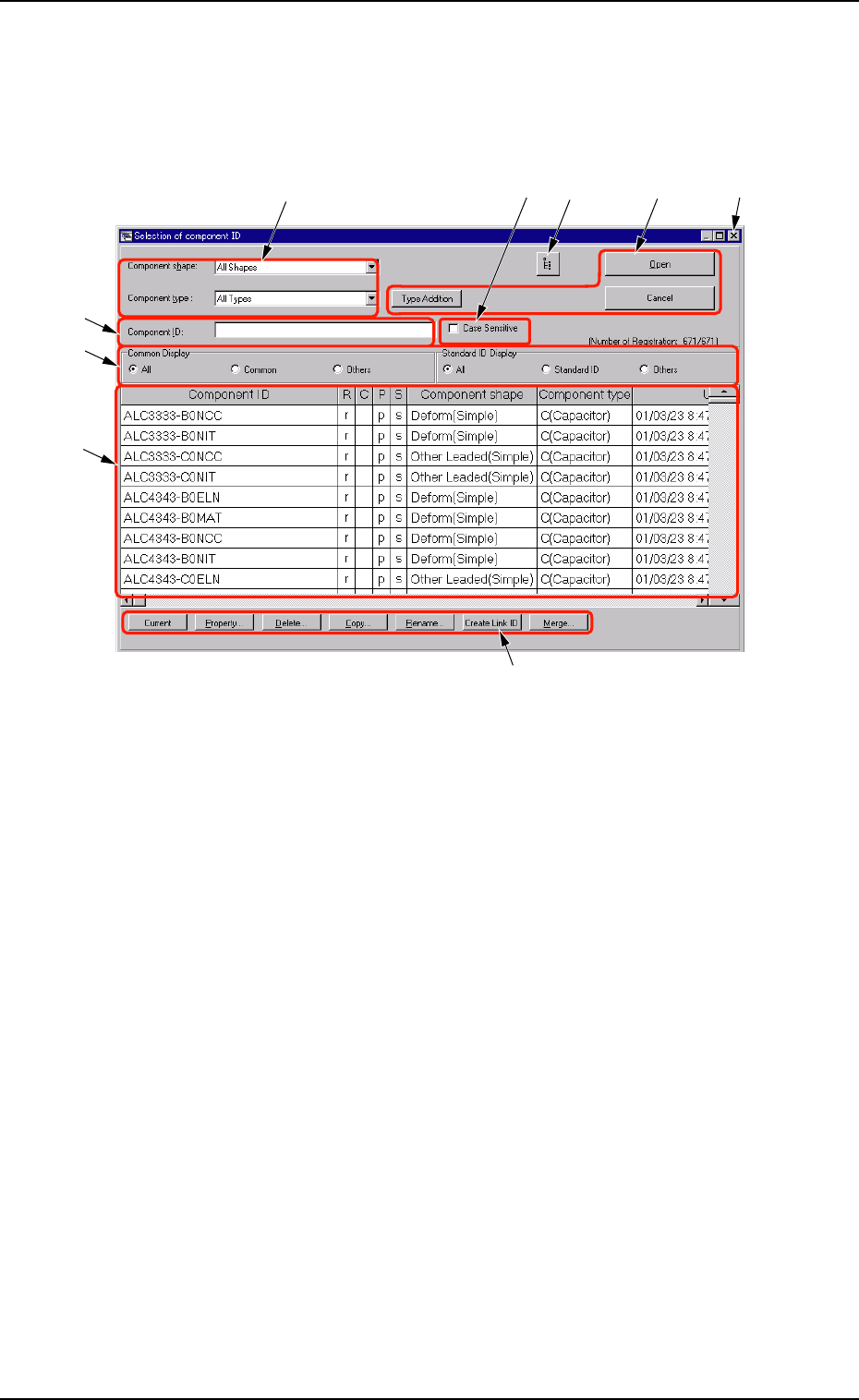
This session describes the composition of the "Selection of component
ID" window.
Fig. 3C4 "Selection of component ID" Window
*1 Component shape, Component type
Select the desired component shape and type from the corresponding
combo boxes.
The component types corresponding to the selected shape and type
appear in "*7".
*2 Component ID
Displayed is the component ID selected in "*7".
*3 [Open], [Cancel], and [Type Addition] Buttons
[Open] Button
When pressed, this button opens the "Component Library" window
related to the component ID selected in "*7".
[Cancel] Button
When pressed, this button opens the "Component Library" window
without the selected component ID.
The "Close", "New", and "Open" icons become available in the "Com-
ponent Library" window.
0301-005 3 - 3
AFO01EDTP
2.2 "Selection of component ID" Window
*1 *3
*2
*6
*5
*8
*4
*7
*9