3OM-1050-002.pdf - 第142页
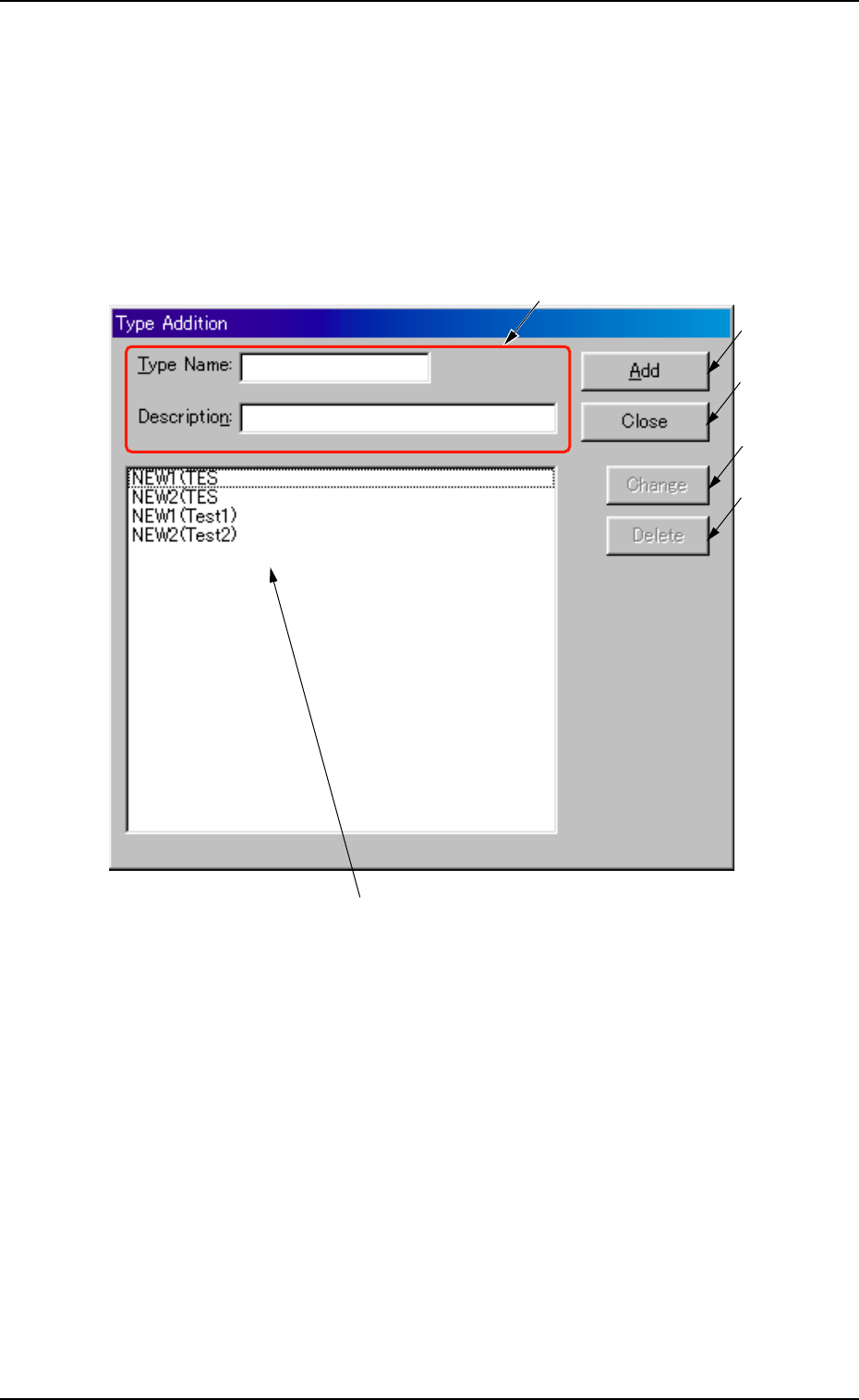
2 . 3 Basic Usage of the "Selection of component ID" Window 2.3.1 T ype Addition When the [T ype Addition] button is pressed, the following window ap- pears. Fig. 3C5 "T ype Addition" Window • Composi…

[Merge...] Button
When pressed, this button enables you to merge the component
IDs selected in "*7".
*9 [Link ID] Button
Link and root IDs are arranged side by side and displayed in the tree
(hierarchical) file system.
2.2 "Selection of component ID" Window
0301-001 3-5-1 AFO01EDTP
2.3 Basic Usage of the "Selection of component ID"
Window
2.3.1 Type Addition
When the [Type Addition] button is pressed, the following window ap-
pears.
Fig. 3C5 "Type Addition" Window
• Composition of "Type Addition" Window
*1 Type Name and Description
Enter a parameter in each text box.
*2 "List of Component Types" Pane
Newly created component types are displayed in this pane.
*3 [Add] Button
When this button is pressed, a type entered in the "Type Name" text
box is added as a new type.
0207-004 3 - 6 AFO01EDTP
*3
*4
*5
*6
*2
*1
2.3 Basic Usage of the "Selection of component ID" Window

*4 [Close] Button
When this button is pressed, the "Type Addition" window closes.
*5 [Change] Button
When this button is pressed, a component type is changed to the
contents entered in the "Type Name" and "Description" text boxes.
*6 [Delete] Button
When this button is pressed, the component type selected in "*2" is
deleted.
01 10-003 3 - 7
AFO01EDTP
2.3 Basic Usage of the "Selection of component ID" Window