3OM-1050-002.pdf - 第149页
3. "Component Library" Edit Window 3 .1 T oolbar and Icons This session describes the toolbar and icons in the "Component Li- brary" edit window . Fig. 3C7 "Component Library" Edit Window • …

01 10-003 3-12 AFO01EDTP
Check Boxes
: The check box is marked, indicating that the function is used or
enabled.
: The check box is not marked, indicating that the function is not
used or disabled.
Turning on or off a check box
When is pressed, it changes to .
When
is pressed, it changes to .
• "Protect"
When this check box is turned on (checked), this component ID
is specified as "Protected", making it impossible to edit the data
of the component ID.
• "Common"
When this check box is turned on (checked), this component ID is
registered as "Common".
• "Std Id"
When this check box is turned on (checked), this component ID is
specified as "Standard ID".
*3 [OK] Button
When this button is pressed, the changed attributes are applied if
any and the "Property" sheet closes.
*4 [Cancel] Button
The changed attributes are not applied and the "Property" sheet
closes.
*5 [Apply] Button
The changed attributes are applied.
2.3 Basic Usage of the "Selection of component ID" Window
3. "Component Library" Edit Window
3.1 Toolbar and Icons
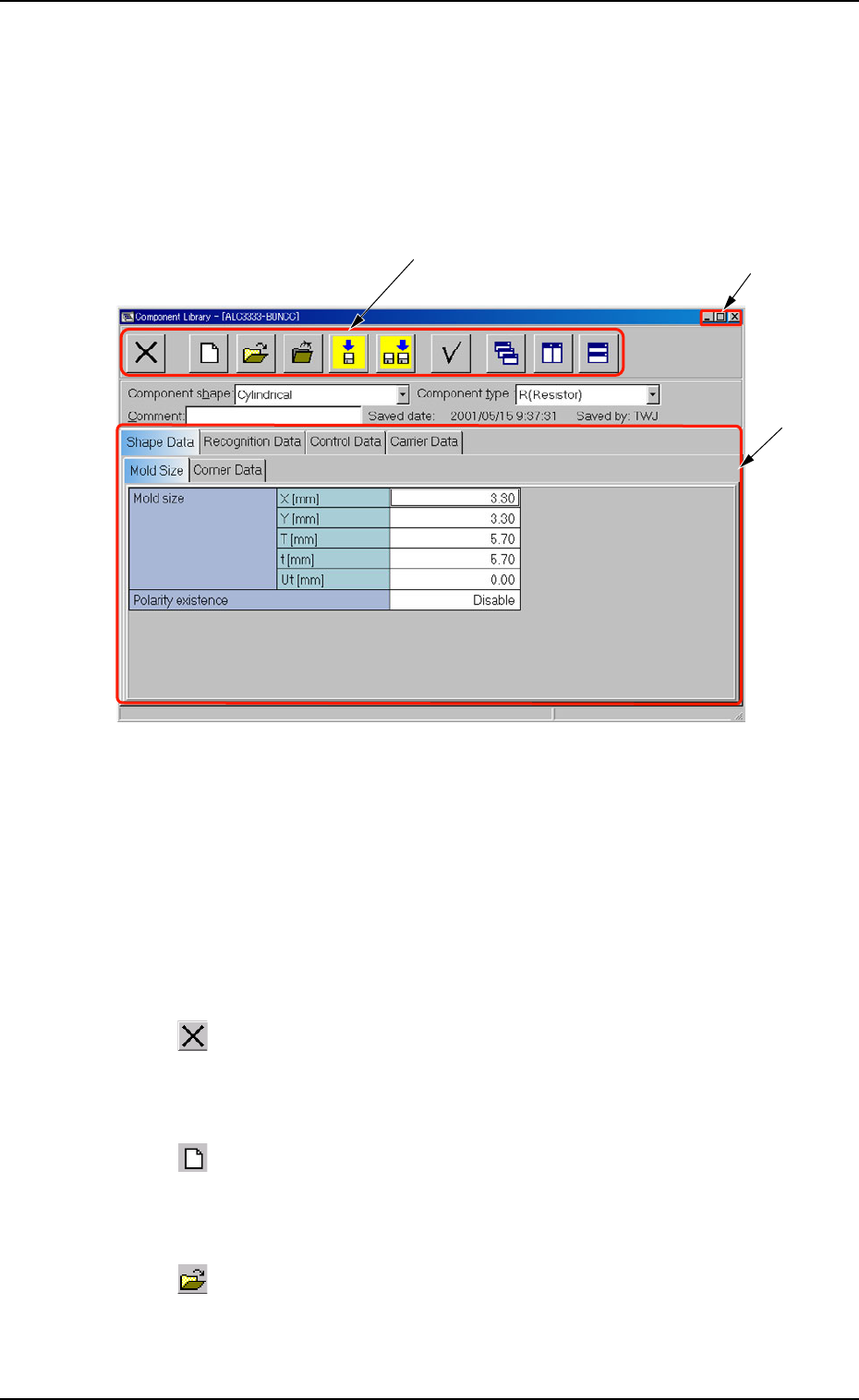
This session describes the toolbar and icons in the "Component Li-
brary" edit window.
Fig. 3C7 "Component Library" Edit Window
• Composition of "Component Library" Edit Window
*1 Toolbar
This toolbar is provided with a collection of icons that can be imple-
mented as operation commands in the "Component Library" edit
window.
: Exit
When pressed, this closes the "Component Library" edit
window.
: New
When pressed, this creates a new component ID, using
the data for the component ID in the list.
: Open File
When pressed, this opens the "The List of component ID"
window.
01 10-003 3-13
AFO01EDTP
*3
*2
*1
3.1 Toolbar and Icons
: Close
When pressed, this closes the active file of the component
ID data.
: Save
When pressed, this saves the edited data, replacing the
existing file with the current one.
When a new file is created, it will be saved with a new file
name.
: Save As
When pressed, this saves the edited data with a new name.
: Check
When pressed, this checks if there is any deficiency in the
data of the selected component ID.
: Cascade
When pressed, this overlays the selected windows (com-
ponent ID files) so that you can see each title bar.
: Tile Vertically
When pressed, this re-arranges the selected windows side
by side.
: Tile Horizontally
When pressed, this re-arranges the selected windows up
and down.
01 10-003 3-14 AFO01EDTP
3.1 Toolbar and Icons