3OM-1050-002.pdf - 第234页
• Composition of "Nozzle Data" Window Fig. 3E7 "Nozzle Data" Window *1 Icons The following functions can be executed. : When pressed, this closes the "Nozzle Data" window . : When pressed, t…
2.1.2 "Nozzle Data" Window
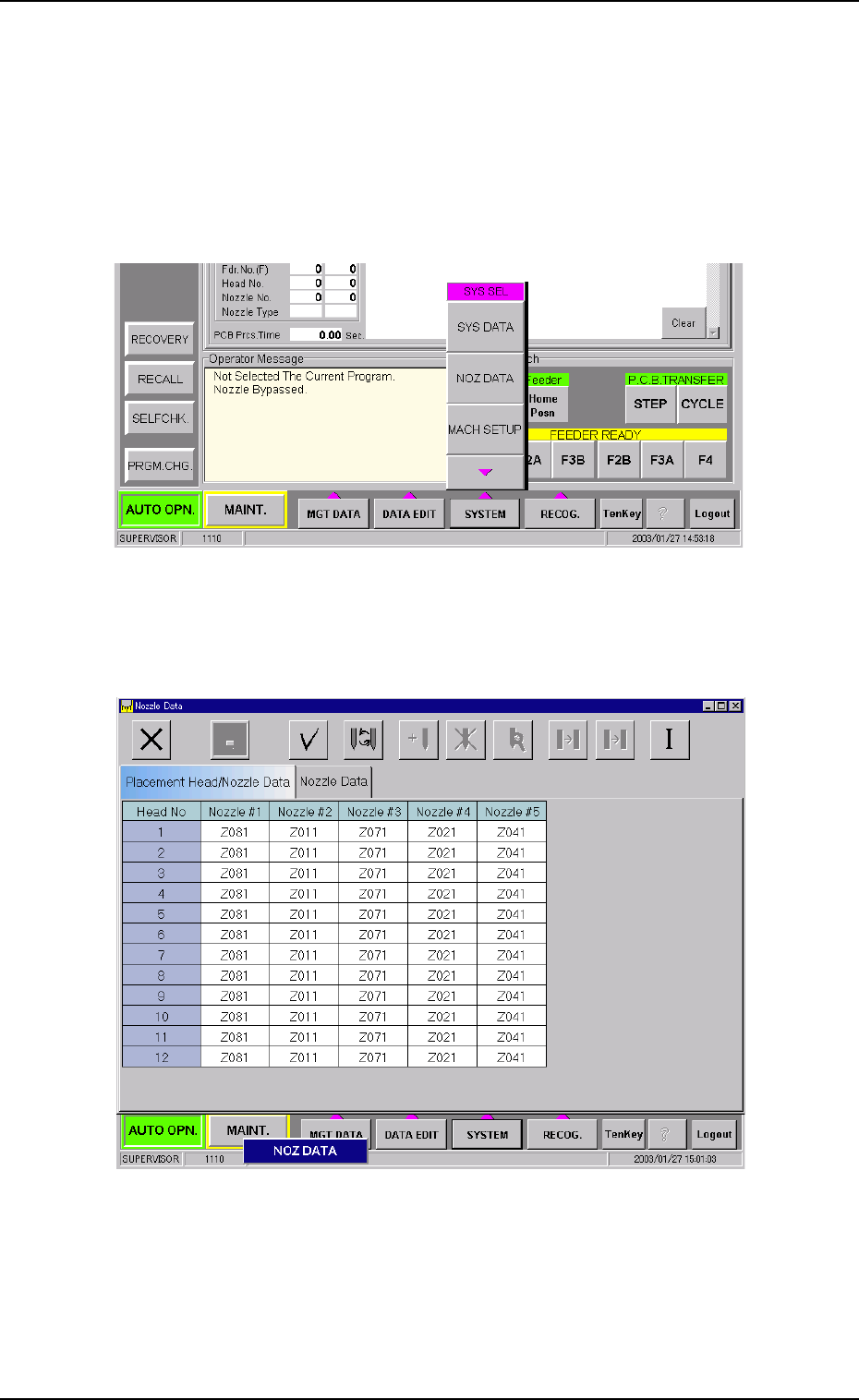
The following describes how to open the "Nozzle Data" window.
• Window Layout
(1) Press the [SYSTEM] button on the main menu bar. The "SYS SEL"
menu opens.
Fig. 3E5
(2) Press the [NOZ DATA] button.
The "Nozzle Data" window opens.
Fig. 3E6 "Nozzle Data" Window
0301-005 5 - 6
AFO01EDTP
2.1 Display of Each Window
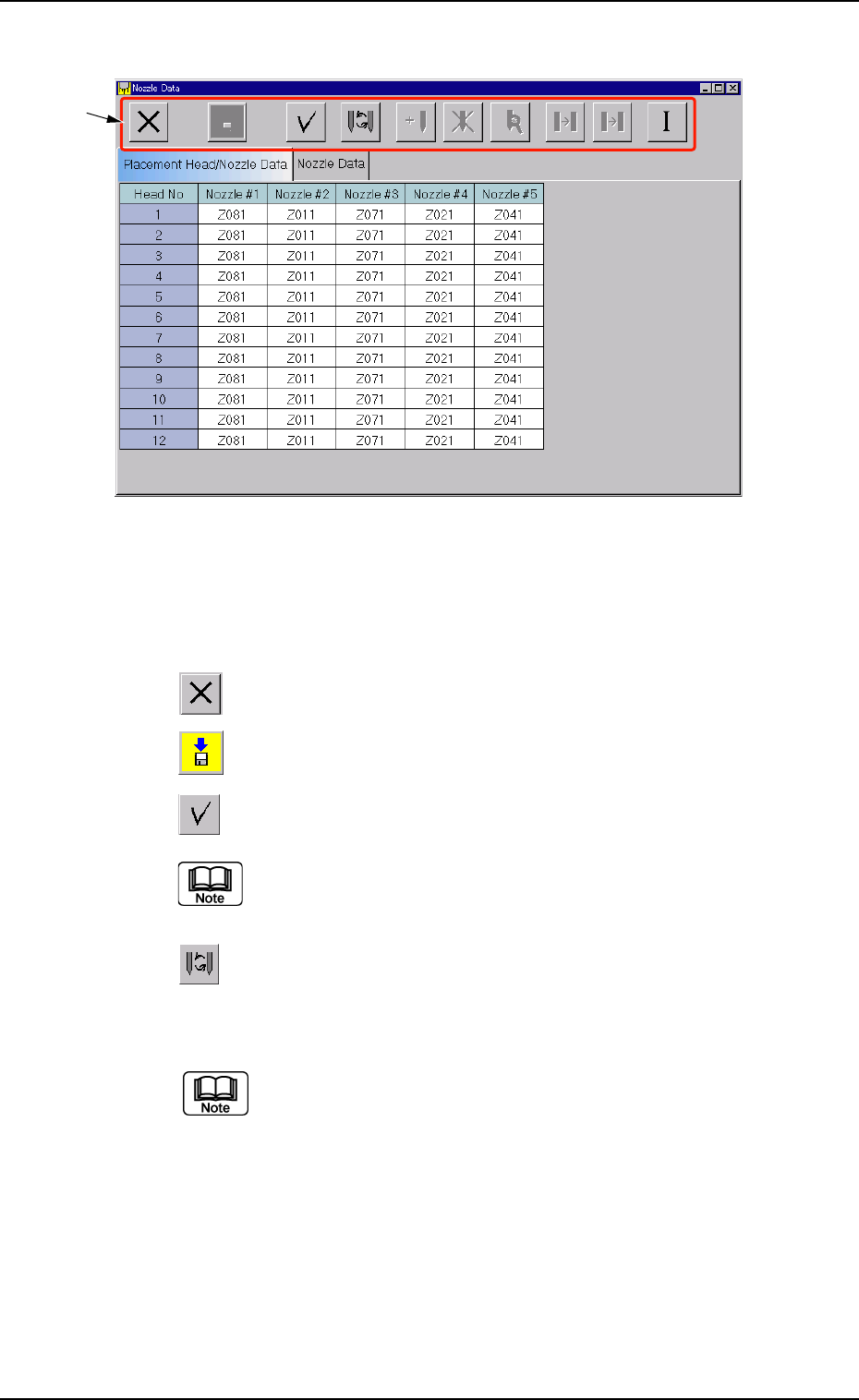
• Composition of "Nozzle Data" Window
Fig. 3E7 "Nozzle Data" Window
*1 Icons
The following functions can be executed.
: When pressed, this closes the "Nozzle Data" window.
: When pressed, this saves the entered parameters.
: When pressed, this checks the entered parameters.
When an error is found, an error message box opens.
: When pressed, this opens the "Nozzle Type" window.
This window enables you to change the currently selected
nozzle type to another one.
(a) Double-clicking a text box also opens the "Nozzle
Type" window.
(b) Clicking a "Nozzle #" label (title) selects the nozzle
Nos. on all heads at a time.
0210-004 5 - 7
AFO01EDTP
*1
2.1 Display of Each Window
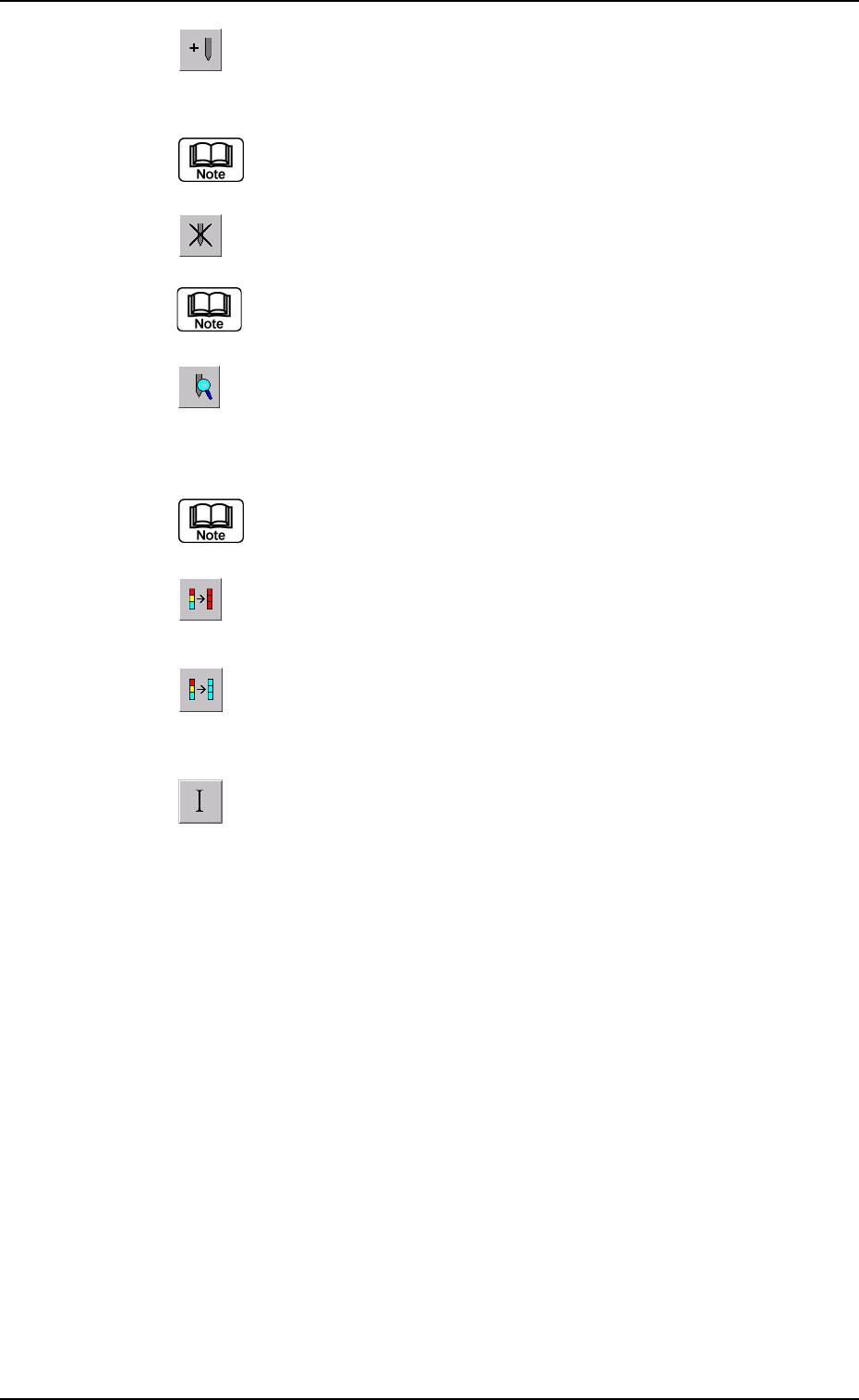
: When pressed, the "Nozzle Type Property" window opens,
enabling the operator to add a new nozzle type.
This function is available only in the "Nozzle Data" tab sheet.
: When pressed, this deletes the selected nozzle type.
This function is available only in the "Nozzle Data" tab sheet.
: When pressed, this opens the "Nozzle Type Property" win-
dow for the selected nozzle type, enabling the operator to
change the nozzle type.
This function is available only in the "Nozzle Data" tab sheet.
: When pressed, this fills all the selected text boxes with the
parameter in the first text box.
: When pressed, this fills all the selected text boxes with
the parameter in the last text box.
: When pressed, this initializes the selection (sets the de-
faults).
01 10-003 5 - 8
AFO01EDTP
2.1 Display of Each Window