3OM-1050-002.pdf - 第133页
Fig. 3B163 "O-data" T ab Sheet • Operation Procedure New Creation of "O-data" T ab (1) When the second toolbar is not visible, press the [Open 2nd. T oolbar] icon [ ] to make the second toolbar visibl…
4.4.3 "O-data" Tab
• Sheet Layout
When the "O-data" tab is pressed in the "Placement Data" tab sheet,
the following tab sheet appears.
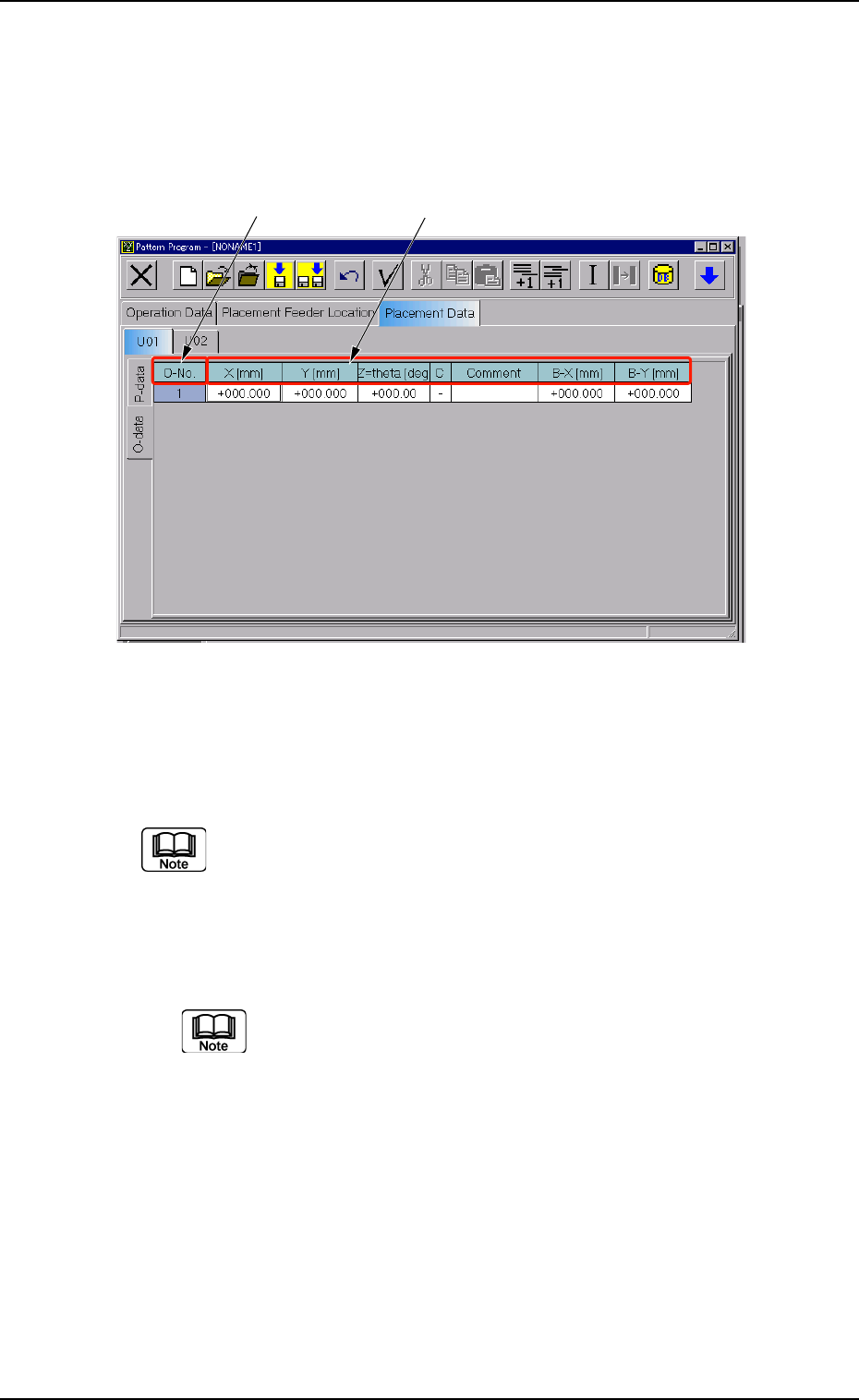
Fig. 3B162 "O-data" Tab Sheet
• Sheet Composition
Each parameter is displayed or can be entered.
Refer to "4.1.3 Basic Usage of Text Boxes" for the detailed in-
formation on how to enter each parameter.
*1 O-No.
Shown are the step Nos.
Follow the same steps as "• Operation Procedure" in "4.4.2
"P-data" Tab" on how to add or delete a step No. (O-No.).
*2 X [mm], Y [mm], Z
= =
= =
= theta [deg], C, Comment, B-X [mm], and B-
Y [mm]
*1 *2
0301-005 2-108 AFO01EDTP
4.4 "Placement Data" Tab
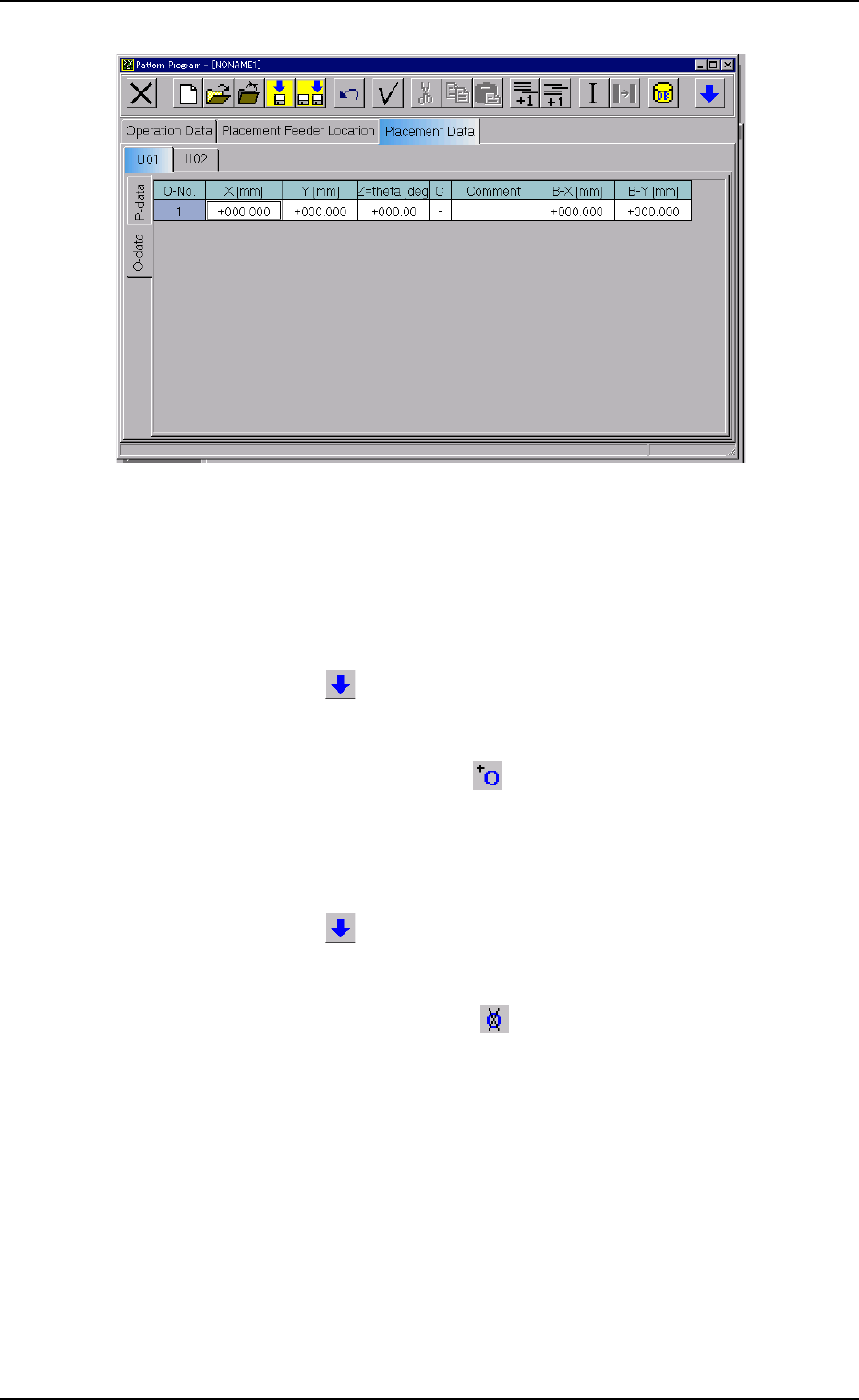
Fig. 3B163 "O-data" Tab Sheet
• Operation Procedure
New Creation of "O-data" Tab
(1) When the second toolbar is not visible, press the [Open 2nd.
Toolbar] icon
[ ] to make the second toolbar visible.
(2) Select the "U#" tab where an "O-data" tab should be added with
the touch screen or pointing device.
(3) When the [Add O-Data] icon
[ ] is selected, a new "O-data"
tab is added.
Deletion of "O-data" Tab
(1) When the second toolbar is not visible, press the [Open 2nd.
Toolbar] icon
[ ] to make the second toolbar visible.
(2) Select the "U#" tab where an "O-data" tab should be deleted with
the touch screen or pointing device.
(3) When the [Delete O-Data] icon (
) is selected, the selected "O-
data" tab is deleted.
0301-006 2-109 AFO01EDTP
4.4 "Placement Data" Tab

Section 3
Component Library
0307-004 3-A AFO01EDTP
This section describes the outline of the component library
and how to navigate in each window.
Refer to another instruction manual "COMPONENT LIBRARY
(TCM-X Series)" for the description and creation of compo-
nent library data.