N7201A652E.pdf - 第84页
NPM- TT2 EJM1EE-MB -02O-04 ■ T o select 2-2-1 -3 (The next paramet er i s displayed) Compo- nent names T ouc hscr een 2 Operation types (The numerical entry is displayed as [ON]) A B C A Select (The next screen is displa…
NPM-TT2 EJM1EE-MB-02O-04
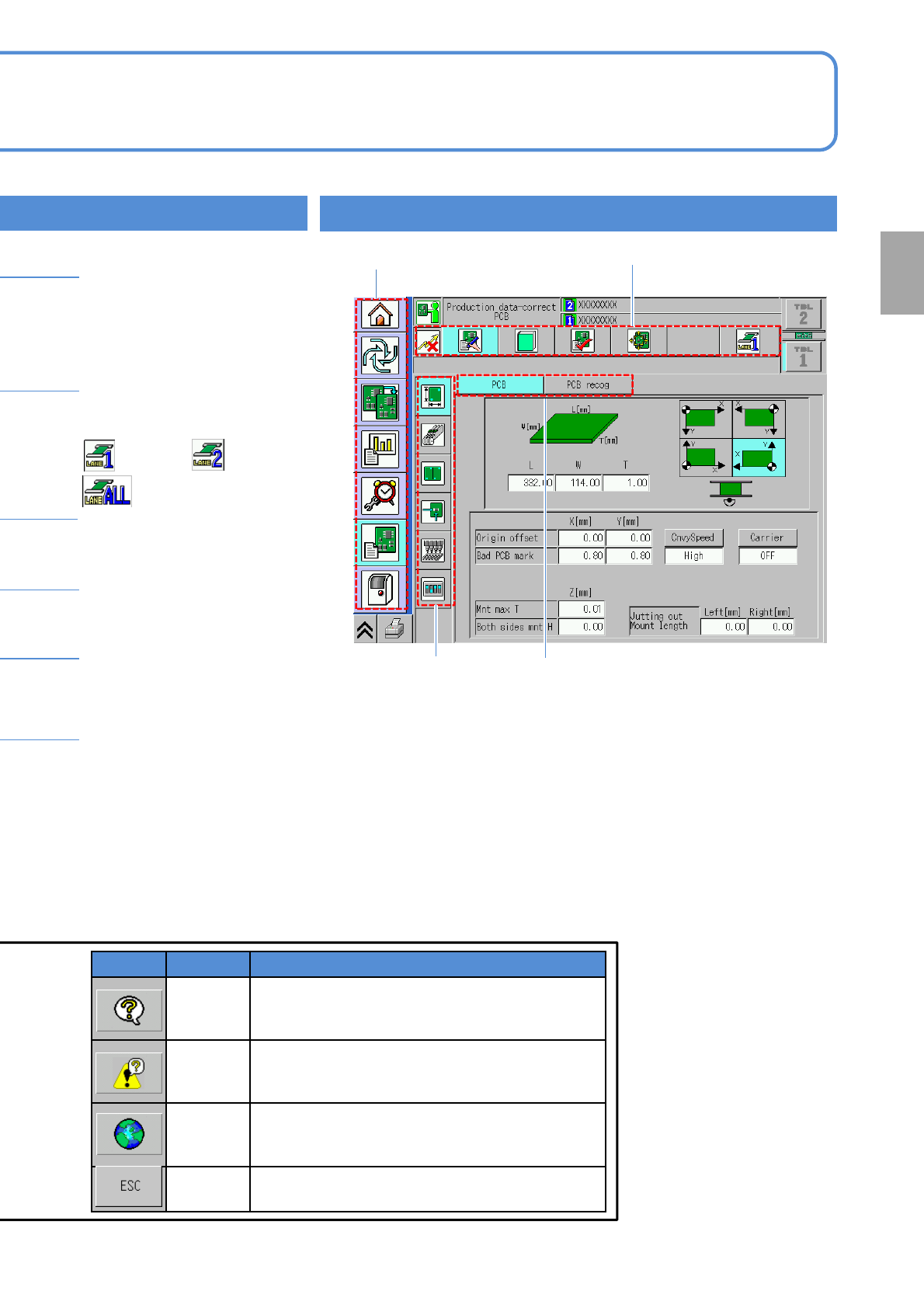
Table change button
● Changes the display
(operation) of the front/rear
tables.
Message area
● Displays one of various
messages
Production data name
Status display, Button,
Message area
●Current task status and
information.
Menu hierarchy
The 1st layer The 2nd layer
The 3rd layer
The 4th layer
●The icons shown in the 1st layer vary depending on the operation
mode.
When shipped from the plant
Operator mode: 5 menu icons
Engineer mode: 7 menu icons
●The icons shown in the 2nd, 3rd and 4th layers vary according to the
item that you have selected in the next higher layer.
2-2-1-2
Time/Version display
●Displays the machine’s
current time, front/rear head
configuration, and machine
software version.
●Name of the production
data currently loaded. When
no data is loaded a blank box
is displayed.
Lane display
●Current lane is displayed
for dual conveyor.
:Lane 1 :Lane 2
:Lane 1 and 2
Single conveyor: 1st layer
Dual conveyor: 2nd layer
Preparation
Name Functions
Help
Displays the explanation of the currently displayed
screen.
●See Help screen (→[Troubleshooting] P.2-1-1).
Error help
Displays error help in the event of an error.
It changes back to the screen help button after
recovery from the error.
Language
select
Switches the language displayed on the screen in
the following order;
Japanese Chinese English
ESC Closes the function menu.
NPM-TT2 EJM1EE-MB-02O-04
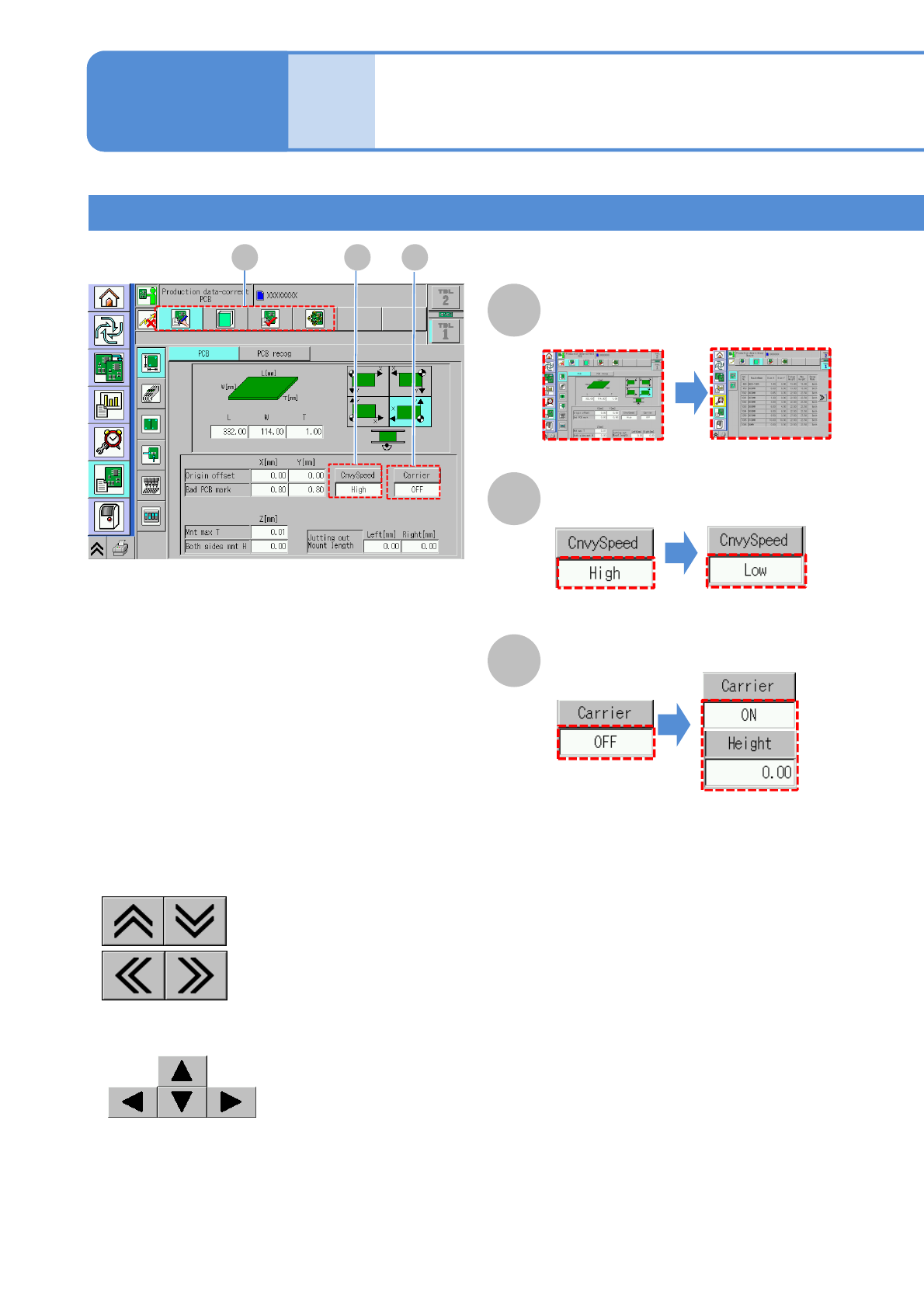
■To select
2-2-1-3
(The next parameter is
displayed)
Compo-
nent
names
Touchscreen 2
Operation types
(The numerical entry
is displayed as [ON])
A B C
A
Select
(The next screen is
displayed)
B
Switch
C
Switch and input
■To scroll the table
:Vertical direction
:Horizontal direction
■To move a recognition image
:Up, down, right and left
Operating procedure
2-2-1
NPM-TT2 EJM1EE-MB-02O-04
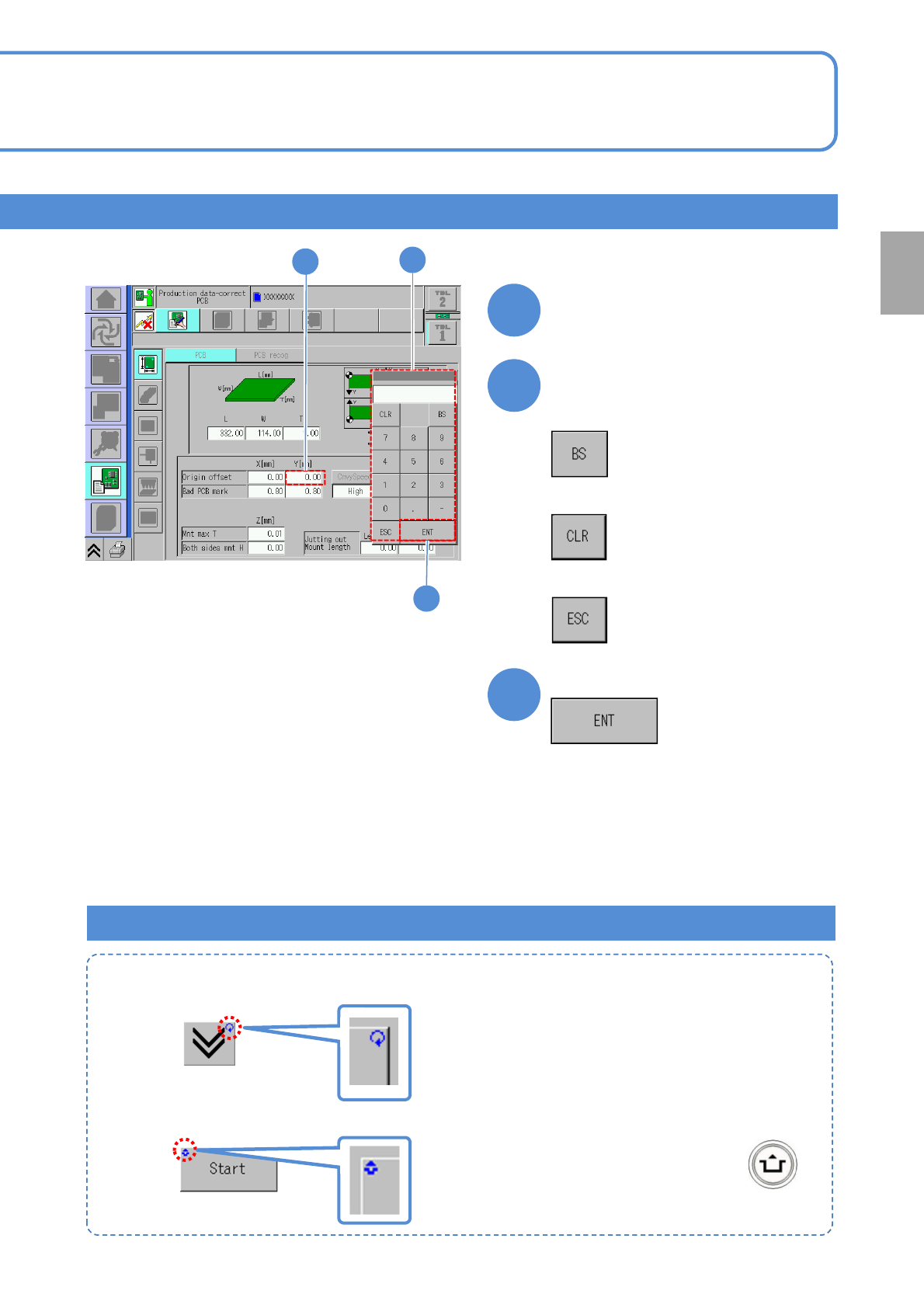
:Means to press the button while holding down .
■To input
1
Select an item
1
2
3
2
Enter numerical values
■To delete a single character
3
●Repeat mark (upper right)
: Operation runs while you press it.
●Unlock mark (upper left)
■To delete all
■To cancel the entry
Complete the entry
Marks on the operation button
Preparation
2-2-1-4