Dek-265GSX-User-Manual.pdf.pdf - 第102页
Run a Product in Step Mode 1. Select Run (F1). Run 2. Load a board on to the conveyor. 3. Select Auto Board (F1). Auto Board 4. Select Step (F1). Step 5. Select Step (F1). Step 6. Select Step (F1). Step 7. Select Step (F…
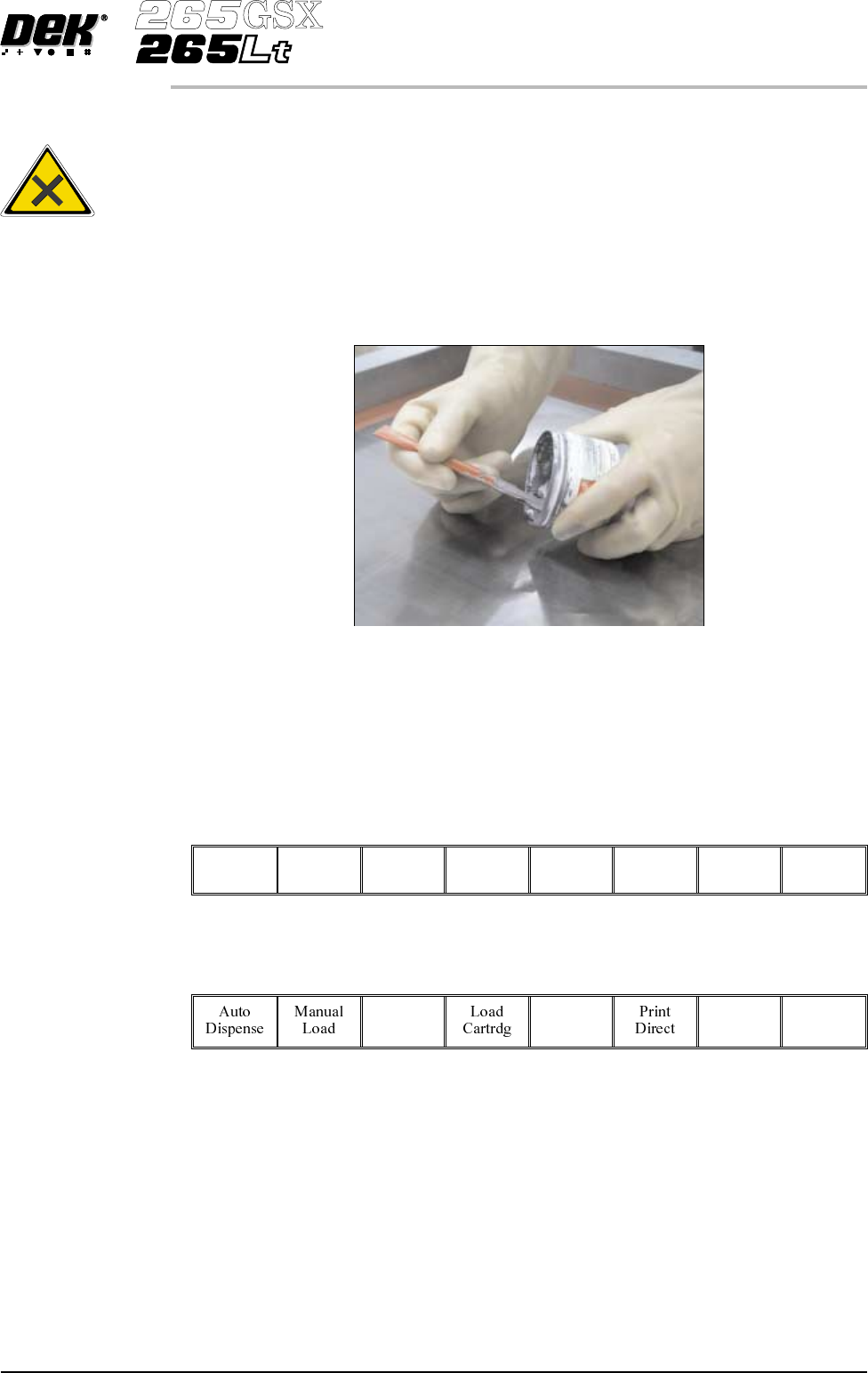
4. Load the solder paste onto the screen.
5. Lower the front printhead cover.
6.
Press the System button.
7.
Select Continue (F1).
Continue
8.
Select Exit (F8).
Exit
Software Version 6 User Manual 1.85
MACHINE PROGRAMMING
STAGE 8
WARNING
SOLDERPASTEANDSOLVENTS. WHENUSINGORHANDLINGAN
Y
SOLDER PASTE OR SOLVENT FORMULATION THE
MANUFACTURERS' RECOMMENDED SAFETY PRECAUTIONS
MUSTBESTRICTLYADHEREDTO.
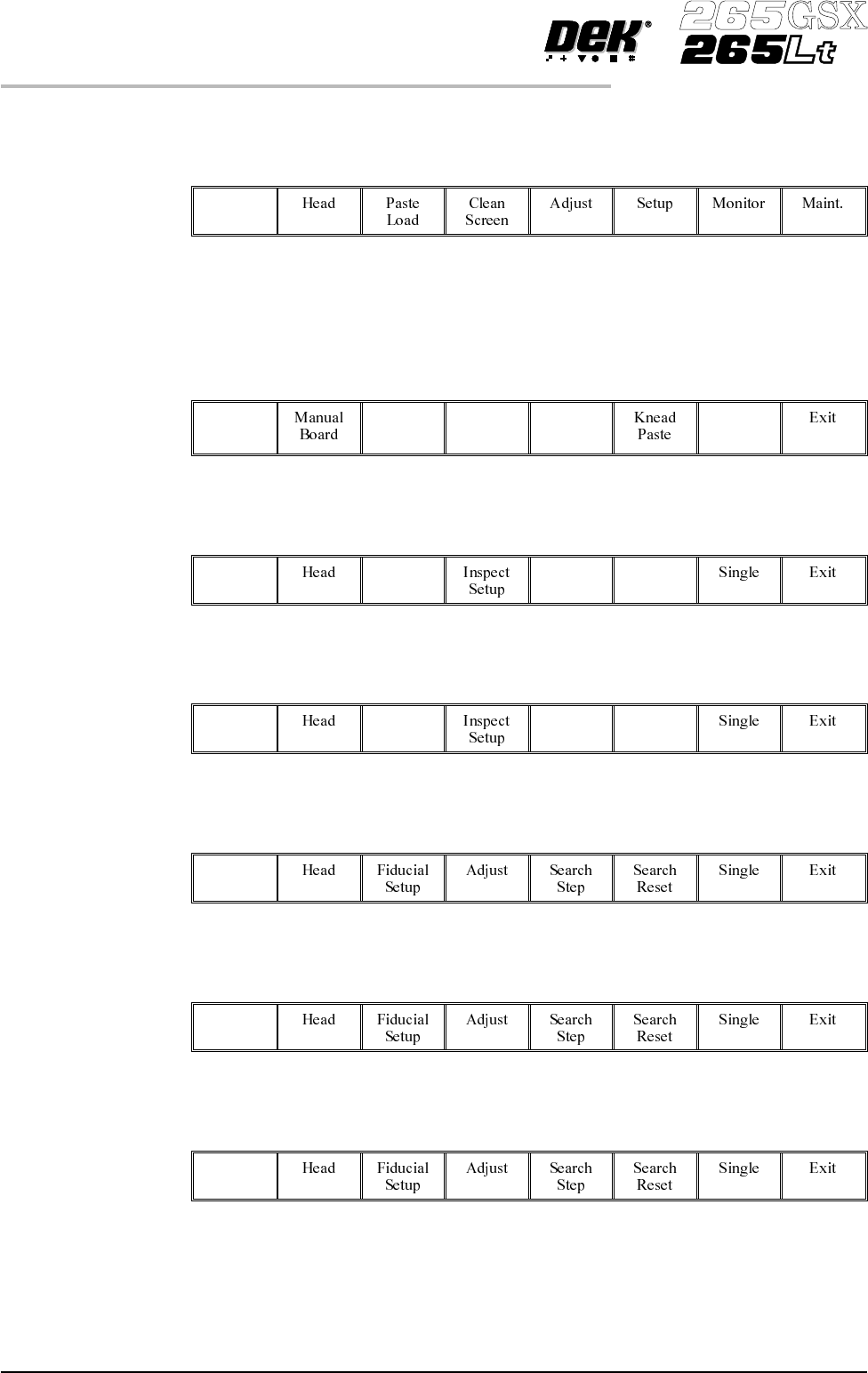
Run a Product in Step Mode
1.
Select Run (F1).
Run
2. Load a board on to the conveyor.
3.
Select Auto Board (F1).
Auto
Board
4.
Select Step (F1).
Step
5.
Select Step (F1).
Step
6.
Select Step (F1).
Step
7.
Select Step (F1).
Step
8.
Select Step (F1).
Step
1.86 User Manual Software Version 6
MACHINE PROGRAMMING
STAGE 8
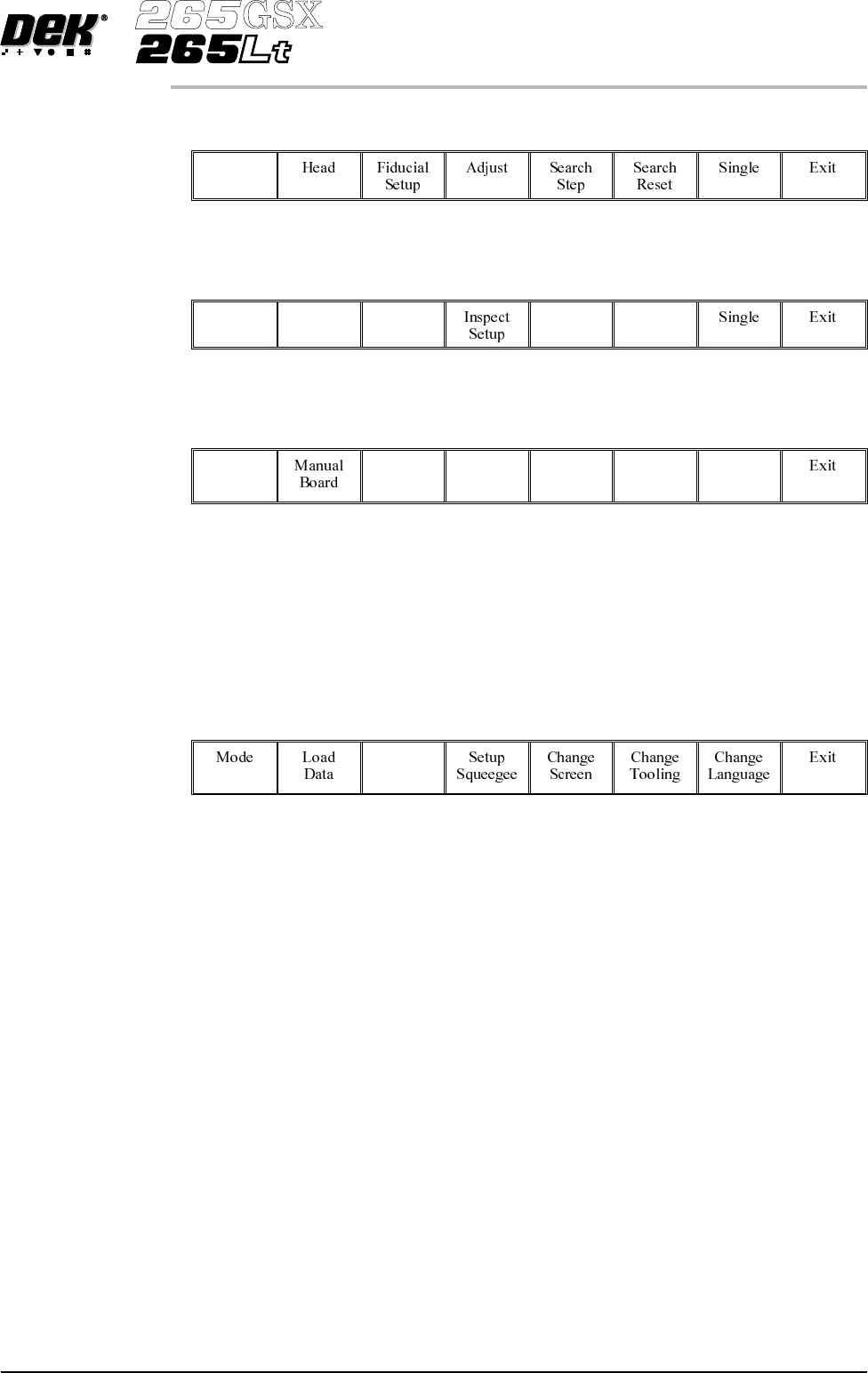
9.
Select Step (F1).
Step
10.
Select Step (F1).
Step
11.
Select Auto Board (F1).
Auto
Board
12. Remove the board from the conveyor and inspect the print for alignment. If
the alignment is satisactory go to Step 16, if the alignment needs adjusting,
calculate the following:
X Offset, Y Offset and θ Offset.
13.
Select Edit Data (F3).
Edit
Data
14.
Enter the X Offset, Y Offset and θ Offset, calculated in Step 12 to both the
Forward and Reverse set of offsets.
15. Repeat Steps1-12until the alignment is correct for both a forward and
reverse print.
16. If 2D Inspection is being used continue with Stage 9, if 2D Inspection isn’t
being used go to Stage 10.
Software Version 6 User Manual 1.87
MACHINE PROGRAMMING
STAGE 8