Dek-265GSX-User-Manual.pdf.pdf - 第331页
7. Screw the end cap onto the dispenser ensuring that it is only fingertight. 8. Close the printhead cover. 9. Press the System button. 10. Press Exit (F8). Exit Software Version 6 User Manual 9.17 CONSUMABLE REPLENISHME…
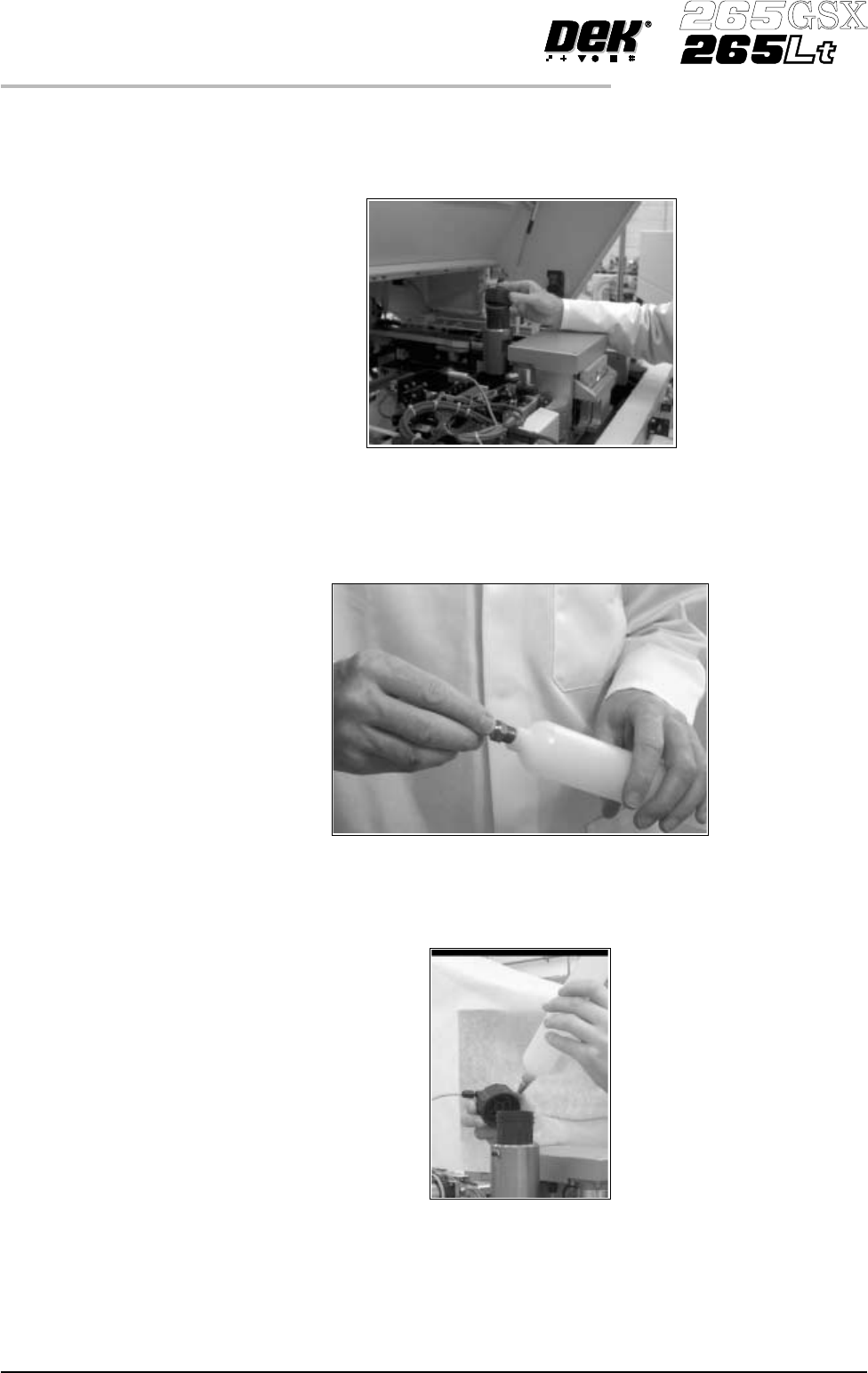
4. Remove the empty cartridge by unscrewing the cap at the rear of the paste
dispense tube to allow it to be withdrawn.
5. Unscrew the nozzle from the old cartridge and insert it into the new
cartridge.
6. Fit the new cartridge into the dispenser.
9.16 User Manual Software Version 6
CONSUMABLE REPLENISHMENTS
PASTE LOADING
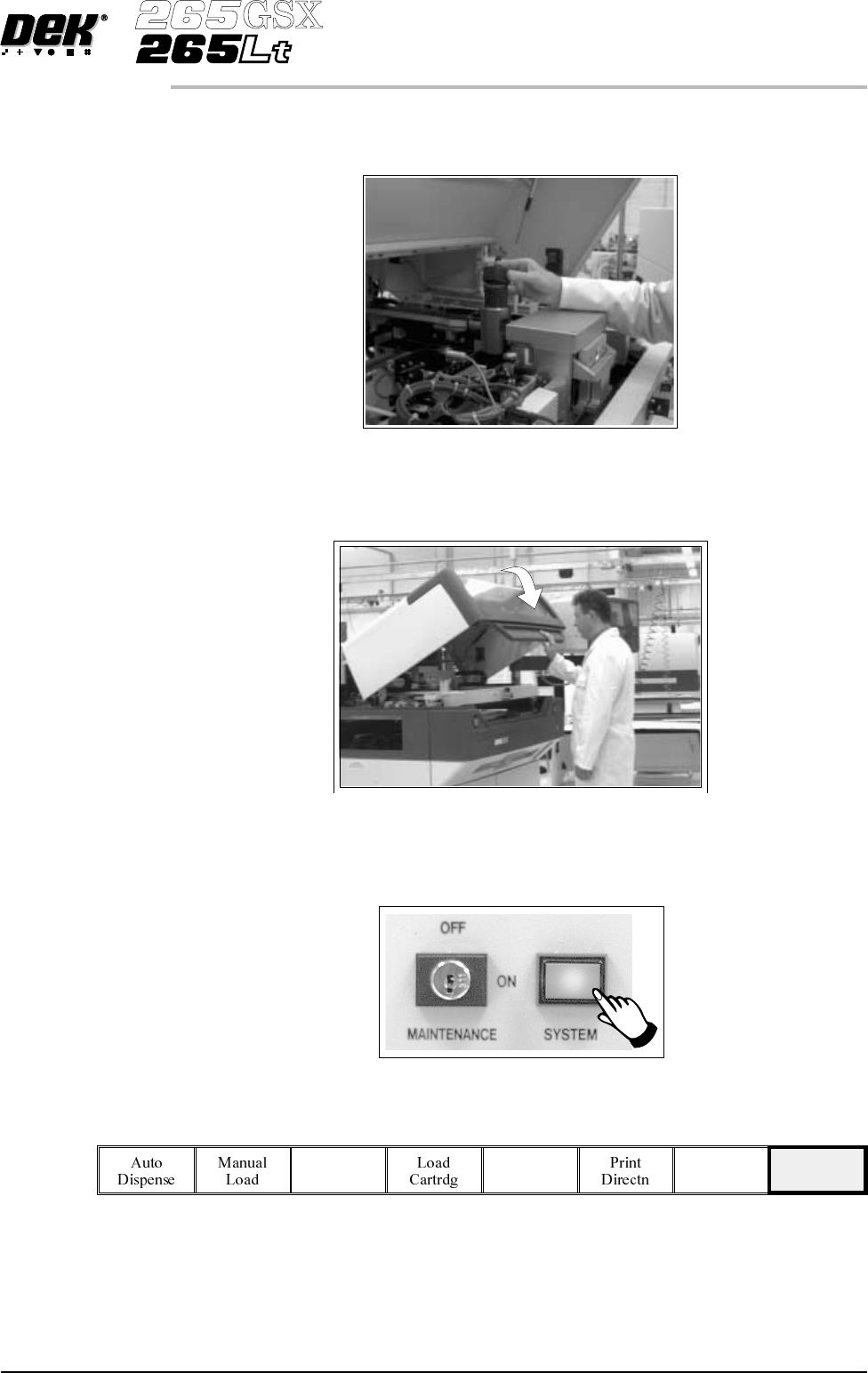
7. Screw the end cap onto the dispenser ensuring that it is only fingertight.
8. Close the printhead cover.
9.
Press the System button.
10.
Press Exit (F8).
Exit
Software Version 6 User Manual 9.17
CONSUMABLE REPLENISHMENTS
PASTE LOADING
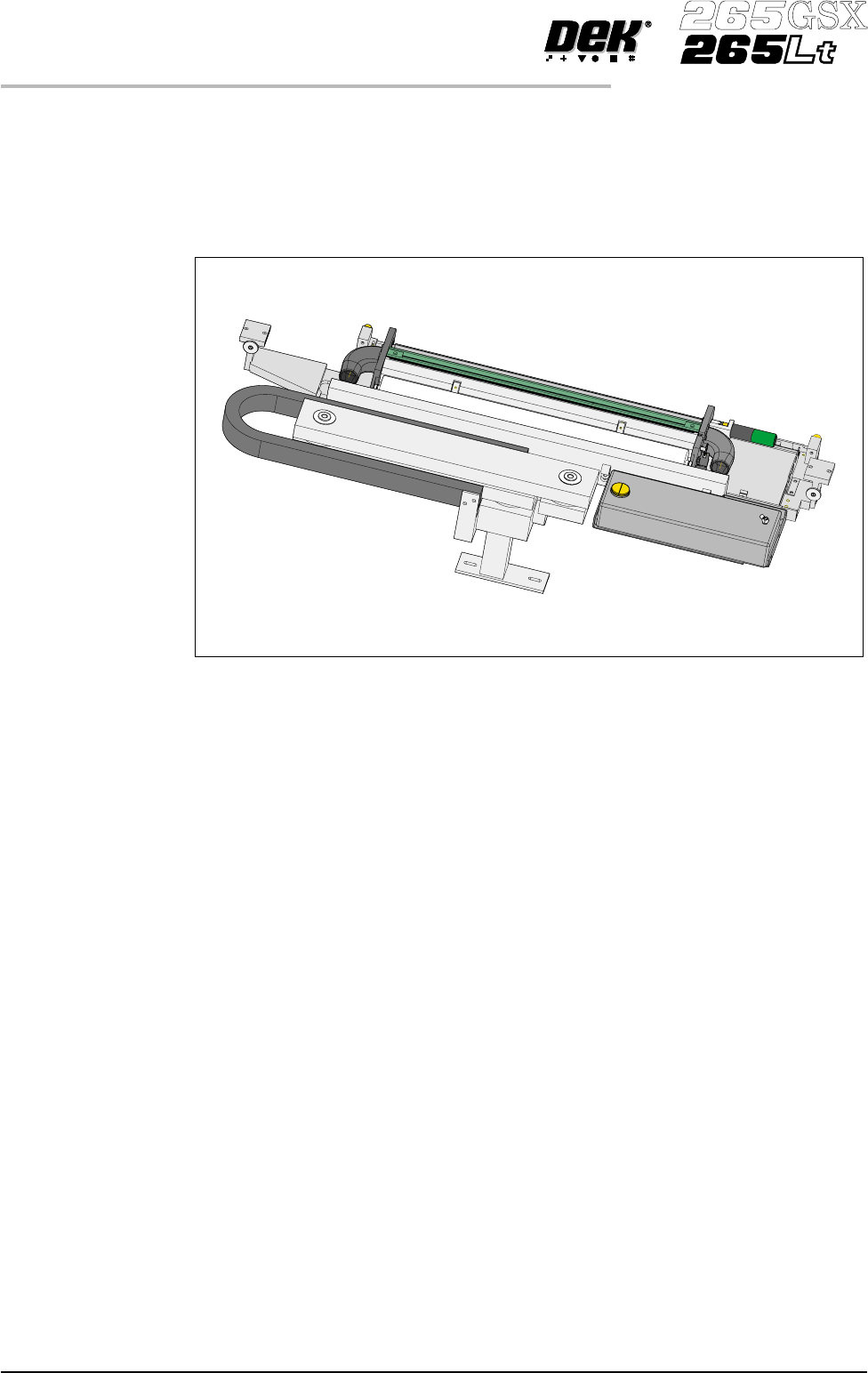
BLUE UNDERSCREEN CLEANER
Provision is made on the printer for automatic underscreen cleaning. This is
carried out using a lint free paper roll which can be dry or wetted with an
appropriate solvent. A combination of wet and dry wipes can be programmed.
The cleaning options can be programmed into a particular product file so that
they take place at preprogrammedintervals or they canbe selected,directly from
the control console, to take place at the operators discretion.
Programming Screen Clean Operation into a Product File
The screen clean parameters can be setup when editing a product file, while
setting up a new product. It may be more convenient to set these after the
product has been setup and printed and screen cleaning requirements have been
decided upon.
The parameters to be edited that affect the operation of the underscreen cleaner
are:
Clean Screen Rate
This parameter sets the number of print cycles between the cycling of the
underscreen cleaner. This can be set at any number between 0 to 200 in
increments of 1.
9.18 User Manual Software Version 6
CONSUMABLE REPLENISHMENTS
BLUE UNDERSCREEN CLEANER