Dek-265GSX-User-Manual.pdf.pdf - 第25页
STAGE 3 Editing a Product File 1. Select Edit Data (F3). Edit Data The Edit Current Process Parameters window is displayed: 2. Select Incr. (F6). Type in required product name and press Enter using the keyboard. Incr. 3.…
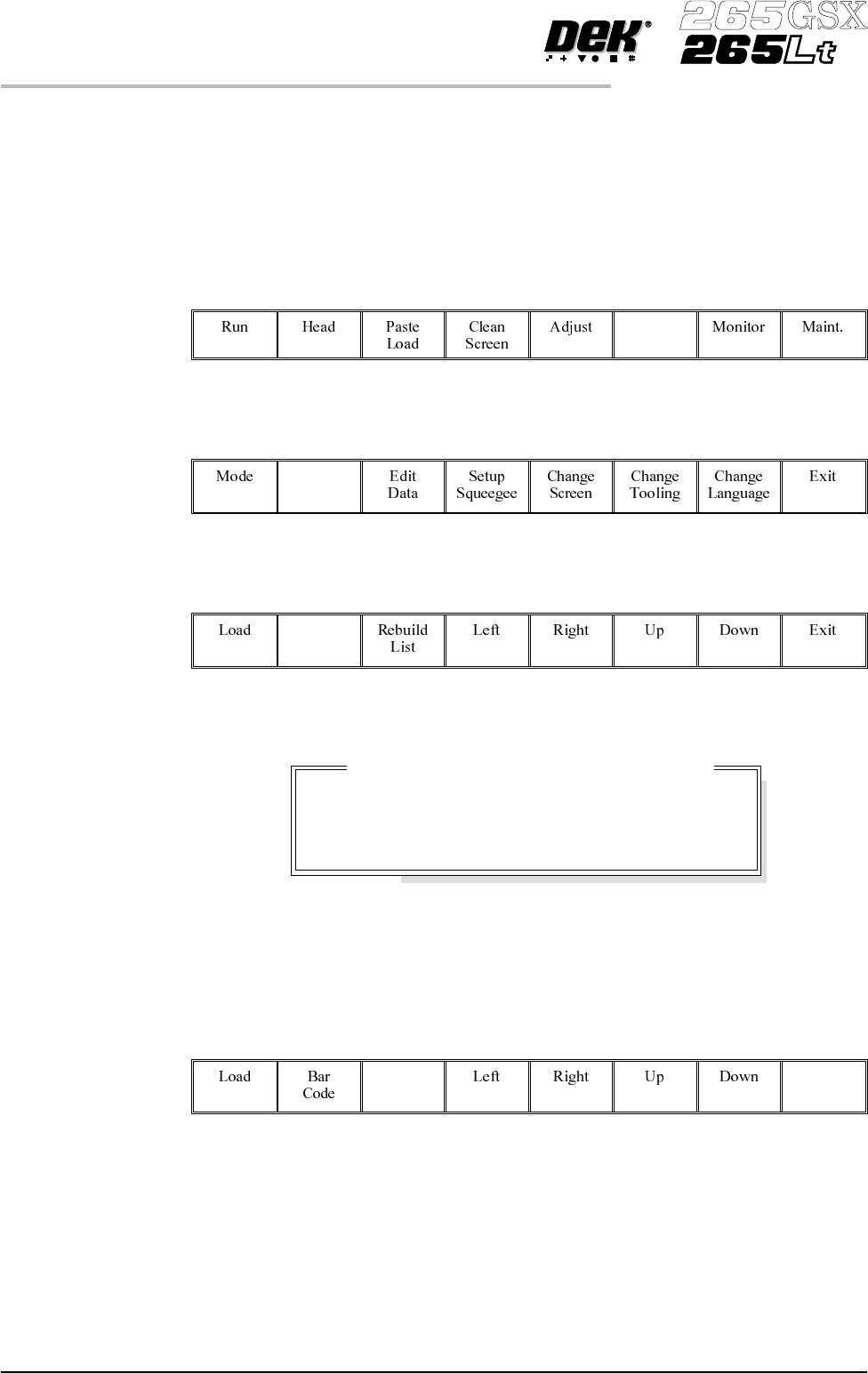
STAGE 2B
Loading a Product File - Using Bar Code
A product with a barcode can be loaded by using either the product light pen or
by using the keyboard. From the status page:
1.
Select Setup (F6).
Setup
2.
Select Load Data (F2).
Load
Data
3.
Select Bar Code (F2).
Bar
Code
The Bar Code Product Data Selection window is displayed:
4. Swipe the barcode at a steady speed, left to right, or right to left, or enter the
code using the keyboard.
5.
Select Exit (F8).
Exit
6. Go to Stage 4.
1.8 User Manual Software Version 6
MACHINE PROGRAMMING
STAGE 2B
Entered Code:
Use light pen to swipe the Bar Code strip, or enter
the code number using the keyboard.
BAR CODE PRODUCT DATA SELECTION
STAGE 3
Editing a Product File
1.
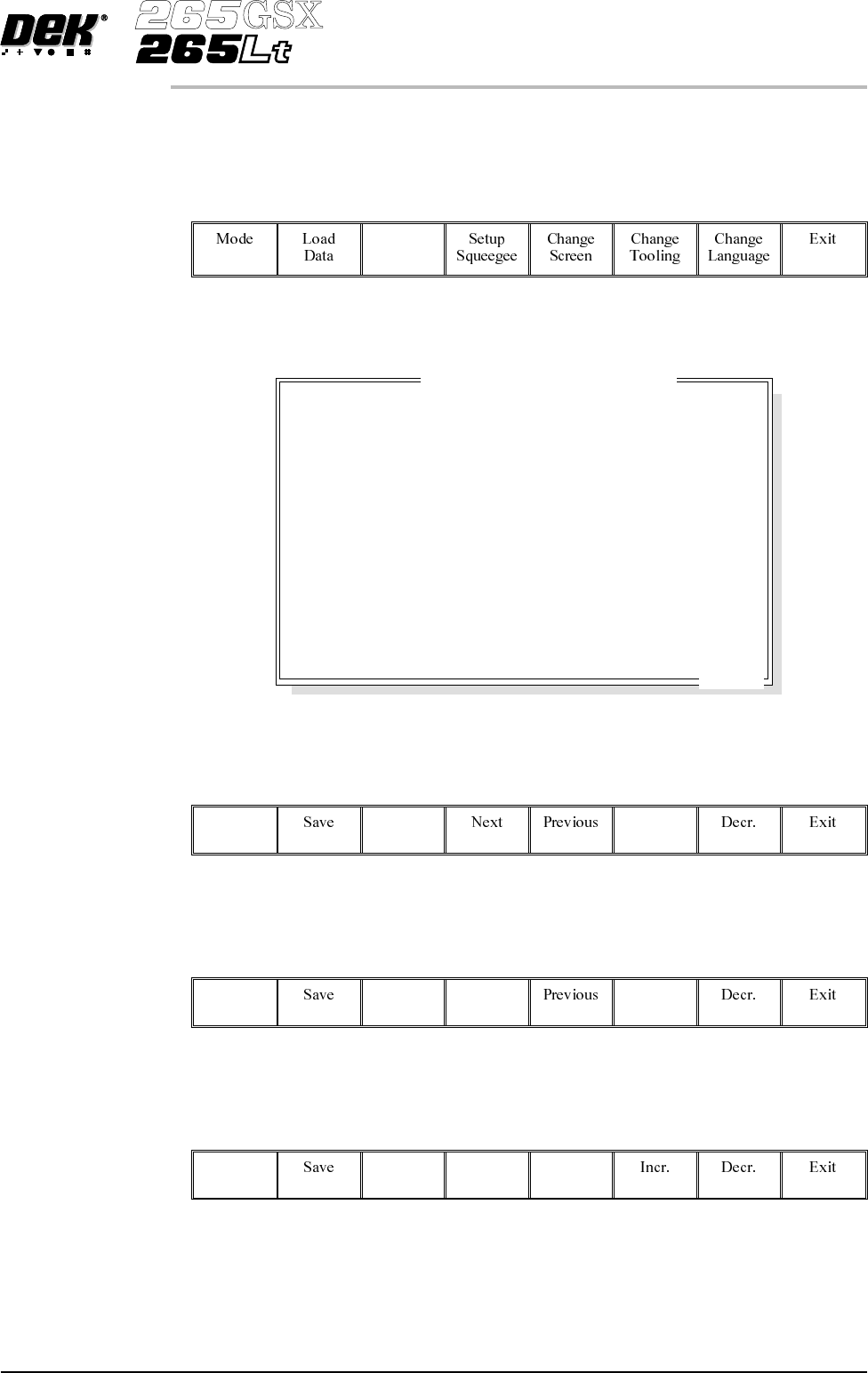
Select Edit Data (F3).
Edit
Data
The Edit Current Process Parameters window is displayed:
2.
Select Incr. (F6). Type in required product name and press Enter using the
keyboard.
Incr.
3.
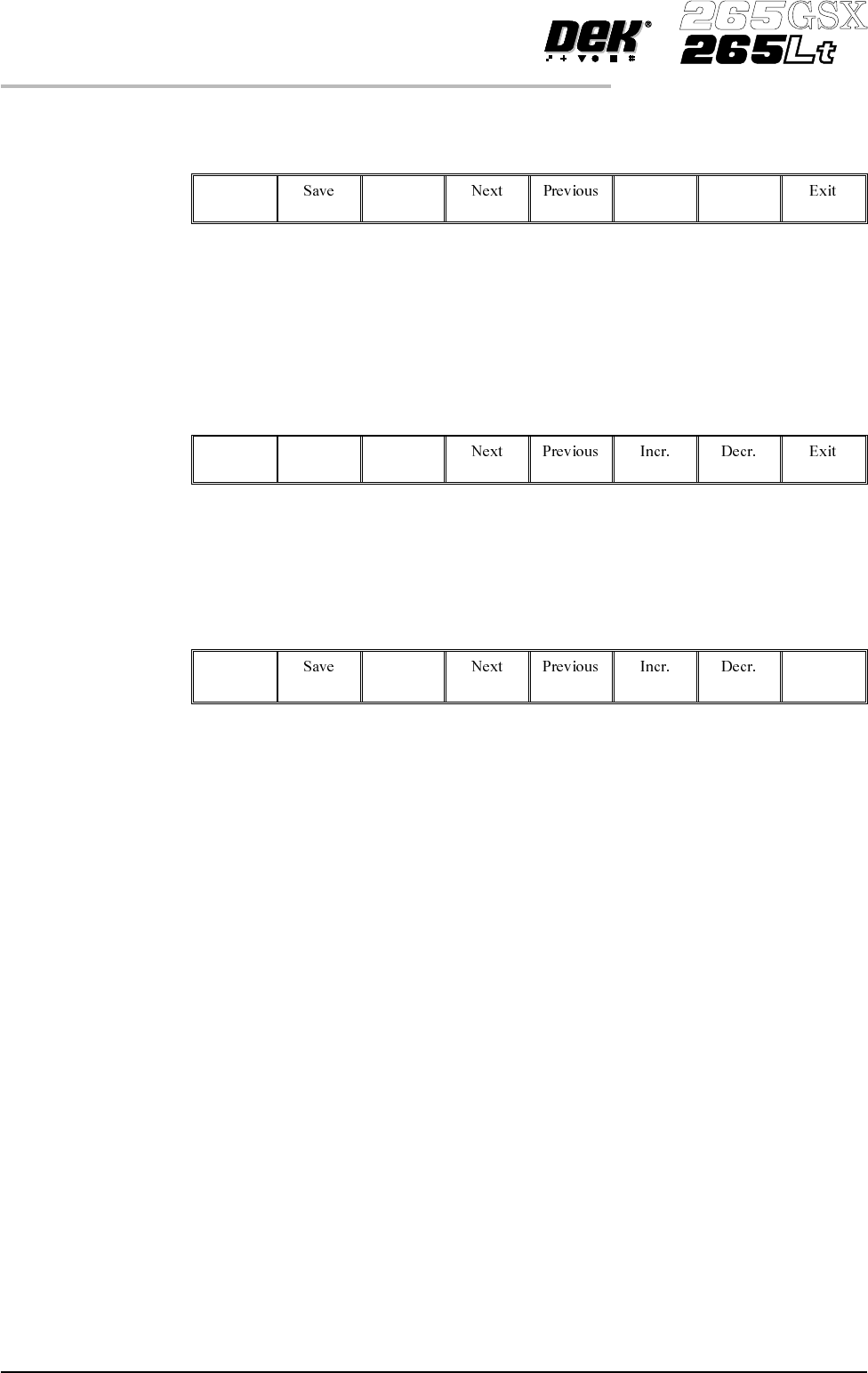
Highlight Product ID using theNextkey (F4). Select Incr. (F6). Typein the
required product ID and press Enter using the keyboard.
Next Incr.
4.
Use the Next and Previous keys (F4 - F5) to highlight the required
parameter.
Next Previous
Software Version 6 User Manual 1.9
MACHINE PROGRAMMING
STAGE 3
PRODUCT NAME
PRODUCT ID
DWELL HEIGHT
DWELL SPEED
SCREEN ADAPTOR
SCREEN IMAGE
CUSTOM SCREEN
BOARD WIDTH
BOARD LENGTH
BOARD THICKNESS
PRINT SPEED
FLOOD SPEED
PRINT FRONT LIMIT
PRINT REAR LIMIT
Dek04
Dek04
30
24
NONE
EDGE
DISABLED
101.5
152.5
1.6
150
20
0.0
0.0
mm
mm/s
mm
mm
mm
mm/s
mm/s
mm
mm
.. more
Edit Current Process Parameters
5.
Use either the Incr. and Decr. keys (F6 - F7) or the forward slash key (/) on
the keyboard to change the parameter value.
Incr. Decr.
NOTE
A definition of all editable parameters is contained at the end of this chapter.
6.
Select Save (F2). The message ‘Saving fiducial data - Please wait
Board data file saved’ is displayed.
Save
7. Repeat Steps 4 - 6 for the remaining parameters.
8.
Select Exit (F8).
Exit
1.10 User Manual Software Version 6
MACHINE PROGRAMMING
STAGE 3