Dek-265GSX-User-Manual.pdf.pdf - 第148页
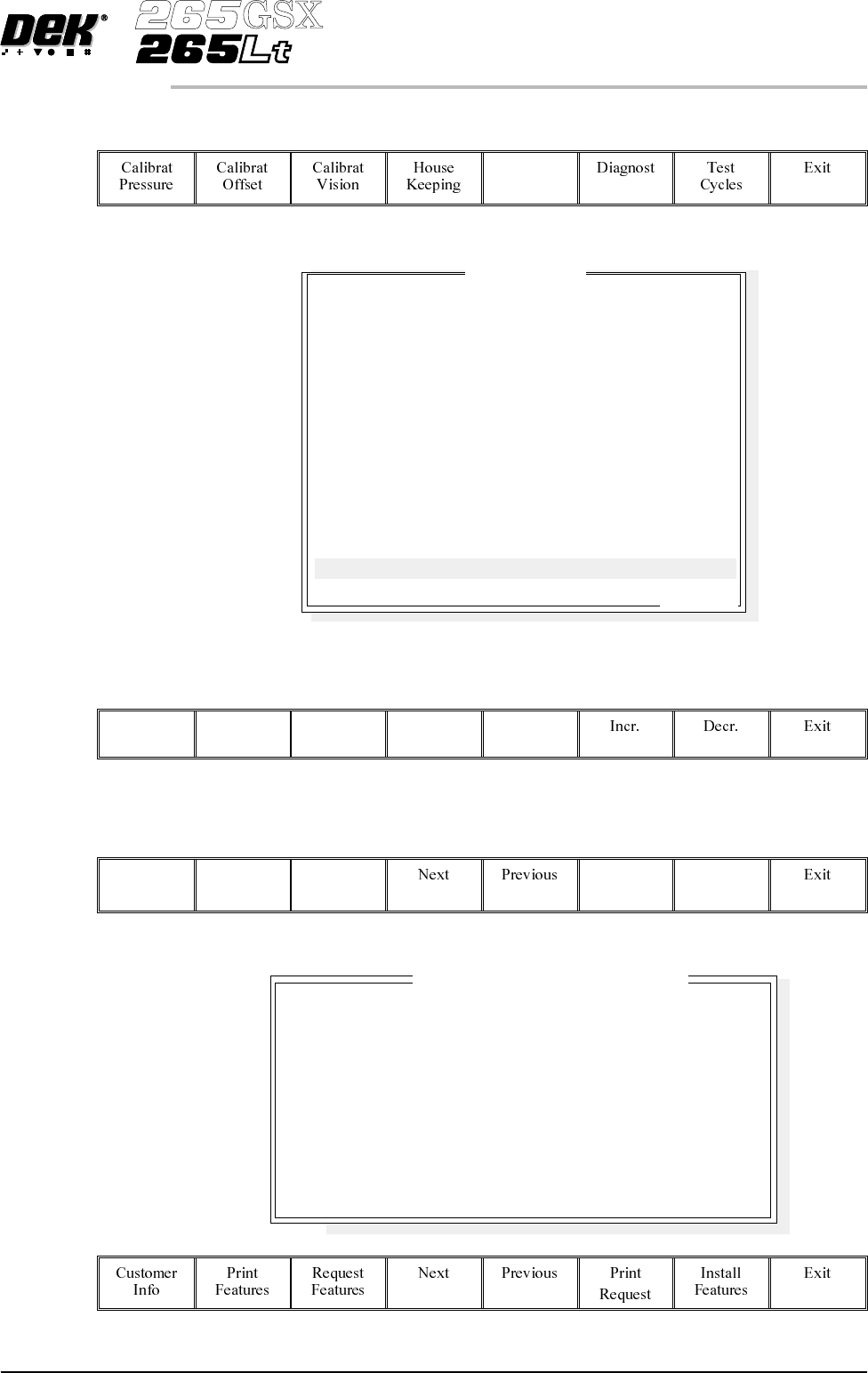
5. Select Customer Info (F1). Customer Info The following window and menu bar is displayed: 6. Using Next and Previous (F4 - F5) highlight the required field. Next Previous 7. Select Edit Data (F2). Edit Data 8. Using th…
2.
Select Set Prefs (F5).
Set
Prefs
The following window is displayed:
3.
Using Next and Previous (F4 -F5) highlight Feature Licensing.
Next Previous
4.
Select Edit Features (F1).
Edit
Features
The following window and menu bar is displayed:
Software Version 6 User Manual 2.13
SET PREFERENCES
PREFERENCES
Set Preferences
..more
TRANSPORT MODE
MACHINE UNITS
UPLINE PROTOCOL
DOWNLINE PROTOCOL
TRANSFER PERIOD
PASTE DISPENSE POS
EVENT RECORDING
TOOLING HARDWARE
FIDUCIAL REFERENCE
REMOTE BARCODE H/W
CHANGE MODE OPTION
SCREEN SIZE
PAPER/SOLV/PASTE LOW
FEATURE LICENSING
LEFT TO RIGHT
METRIC
NO FMI
NO FMI
60 secs
FRONT
CUSTOM
MAGNETIC
LEFT
NOT FITTED
MANUAL
265
WAR N
ENABLED
Basic Screen Insp.
Basic Board Insp.
Advanced Screen Insp.
Advanced Board Insp.
SEC GEM Option
Net Files Option
Flexi Print
Selective Prnt Pass
Tooling Monitoring
Features L
i
cense
db
y 112737
DISABLED
DISABLED
DISABLED
DISABLED
DISABLED
DISABLED
DISABLED
DISABLED
DISABLED
5.
Select Customer Info (F1).
Customer
Info
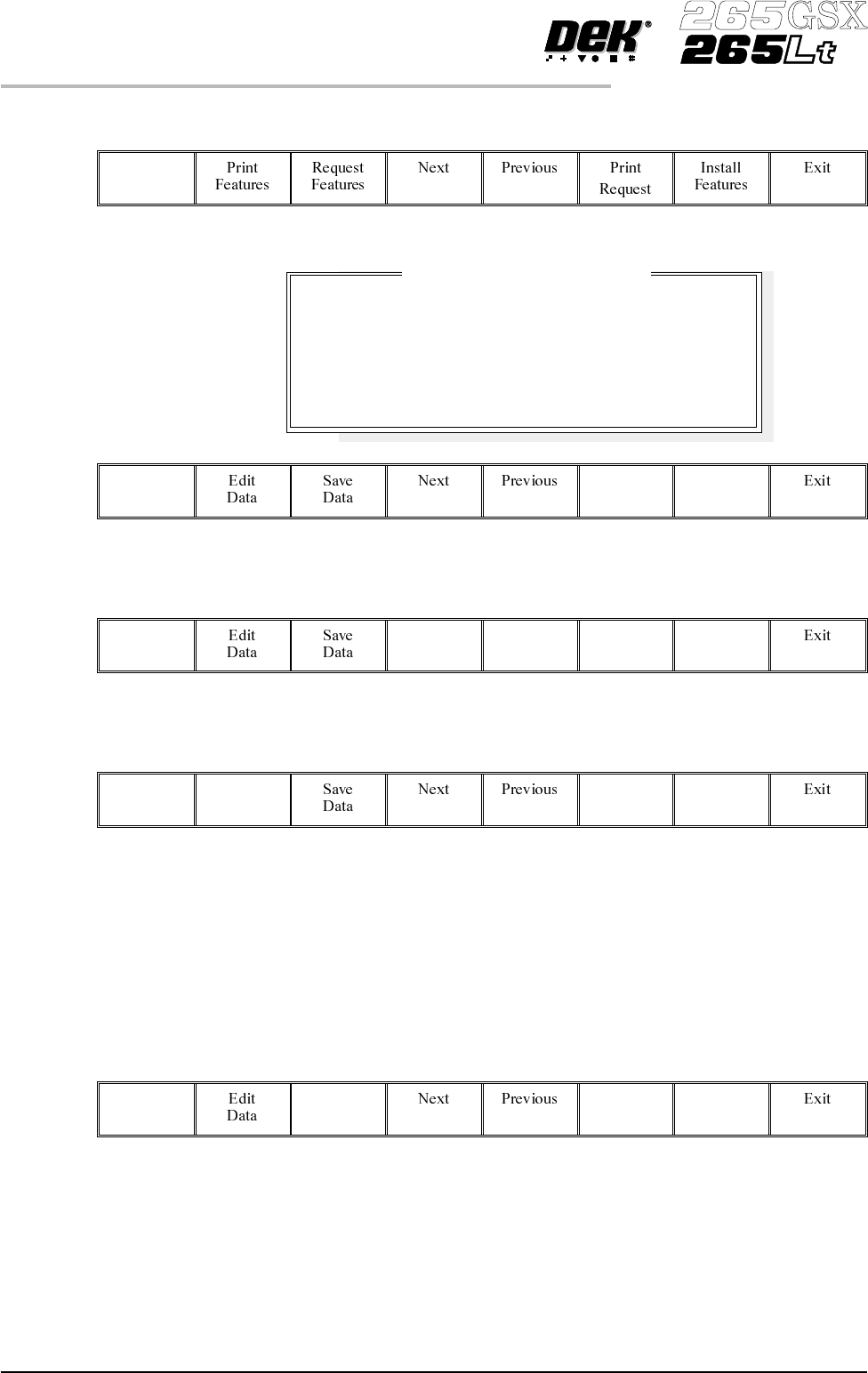
The following window and menu bar is displayed:
6.
Using Next and Previous (F4 - F5) highlight the required field.
Next Previous
7.
Select Edit Data (F2).
Edit
Data
8. Using the keyboard input the required information. On completion of
editing a field, press Enter on the keyboard.
9. Repeat Steps 6 - 8 for the remaining fields.
10.
On completion of editing fields, select Save Data (F3).
Save
Data
The message ‘Printer configuration data file saved’ is displayed. The
information is written to a ‘customer.txt’ file and attached to all licence request
files, the window is closed.
2.14 User Manual Software Version 6
SET PREFERENCES
PREFERENCES
Company Name
Cust. Order Number
Contact Name
Phone Number
Fax Number
Email Address
Customers Own Informat
i
on
DEK Printing Machines Ltd
ABC01-21/10/99
George Smith
01305 760760
01305 760123
gsmith@dek.com
11.
SelectNext and Previous(F4 - F5) to highlightthefeaturetoberequested.
Next Previous
12.
Select Request Features (F3).
Request
Features
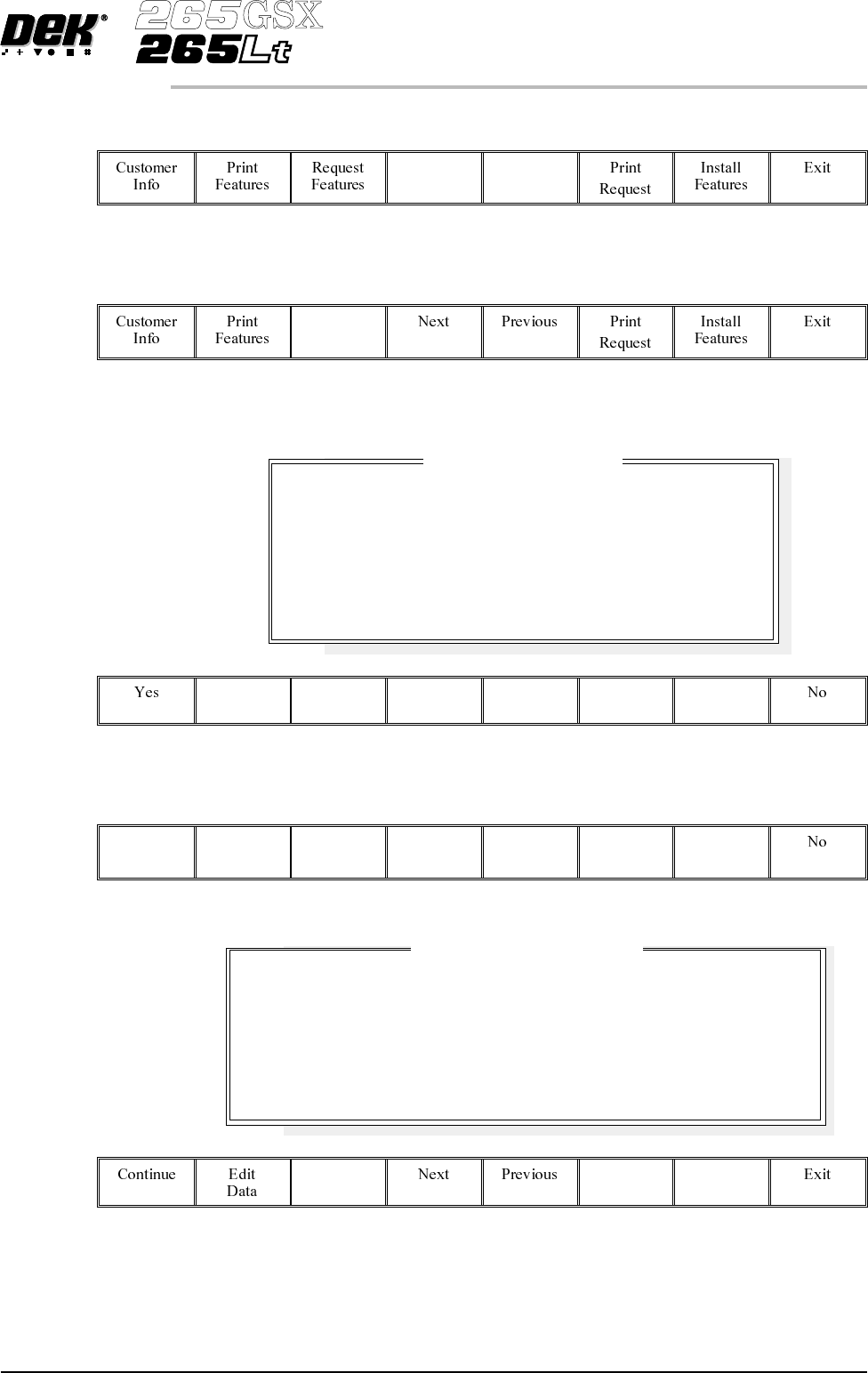
The following window and menu bar is displayed:
13.
Select Yes (F1).
Yes
The following window and menu bar is displayed:
Software Version 6 User Manual 2.15
SET PREFERENCES
PREFERENCES
License Acquisition
Do you want to obtain a license to use:
Basic Screen Insp.
On Dongle :
112737
Feature License Request
Request File Path
Request File Name
A:\ GS1
request8.txt
A request to license the feature you have selected will be
written or appended to the above file
in the above directory path.