Dek-265GSX-User-Manual.pdf.pdf - 第98页
NOTE Once aligned it may be necessary to change the line fiducial dimension to achieve a better fit. 21. Select Learn Fiducial (F1). The message ‘Learning Fiducial - Please Wait’ is displayed in the message prompt bar. L…
17.
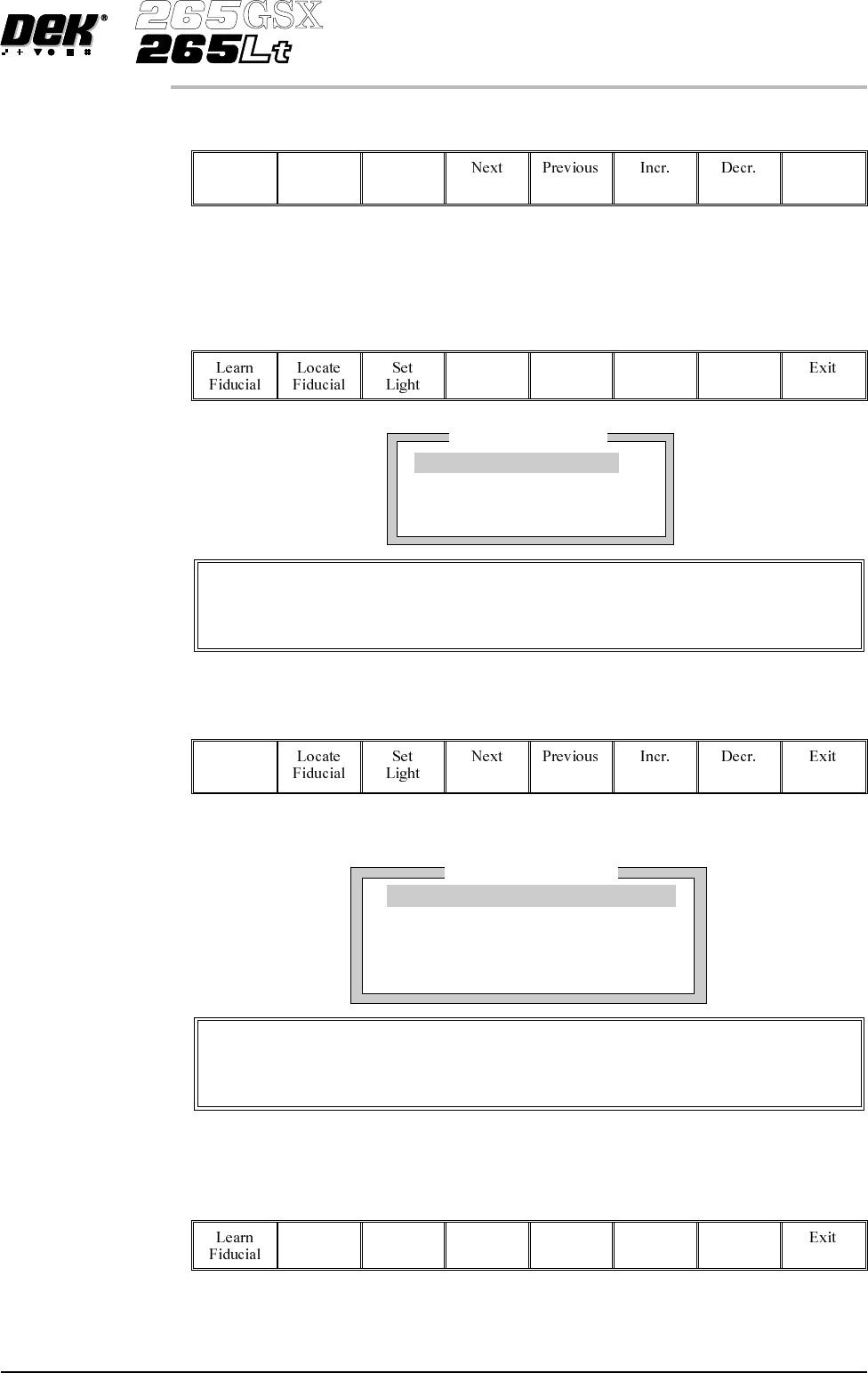
Select Exit (F8).
Exit
18.
Use the Next, Previous, Incr. and Decr. keys (F4 - F7), to highlight and
adjust each of the board fiducial parameters in the left hand box on the
monitor.
Next Previous Incr. Decr.
19.
Select Learn Fiducial (F1).
Learn
Fiducial
Setup the fiducials appearing in the right hand box on the monitor.
20.
Use the Next, Previous, Incr. and Decr. keys (F4 - F7), to highlight and
adjust each circle parameter in turn to obtain the best fit over the fiducial.
Next Previous Incr. Decr.
Software Version 6 User Manual 1.81
MACHINE PROGRAMMING
STAGE 7
PrinterStatus
Boar
d
F
id
uc
i
a
l
1
Background
Dark
AcceptScore
700
FiducialType
Circle
Video Model
To setup a video model, choose Video Model from the Fiducial Type
Parameter.
Circle Parameters
mm
mm
mm
mm
mm
xxx
xxx
xxx
xxx
xxx
Position X
Position Y
Diameter
InnerContour
OuterContour
Video Model
When using video model the parameters are as follows:
Video Model, Position X, Position Y, Fiducial X, Fiducial Y
NOTE
Once aligned it may be necessary to change the line fiducial dimension to
achieve a better fit.
21.
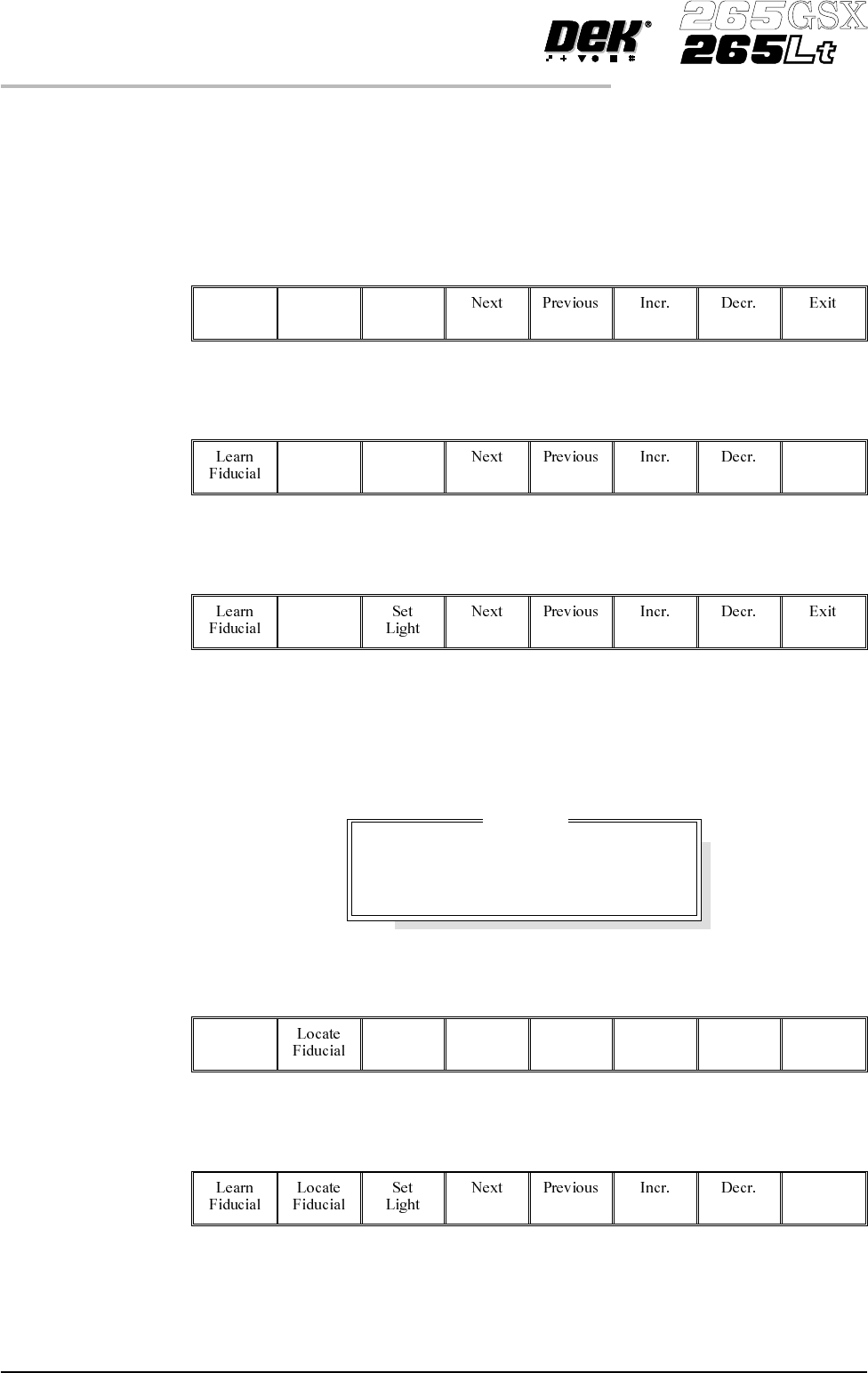
Select Learn Fiducial (F1). The message ‘Learning Fiducial - Please
Wait’ is displayed in the message prompt bar.
Learn
Fiducial
22.
Select Exit (F8).
Exit
23.
Select Locate Fiducial (F2).
Locate
Fiducial
A figure appears on the monitor indicating the score of the fit between the
synthetic fiducial and the actual fiducial. The synthetic fiducial parameters may
need resetting and relearning toobtain a better figure ifthere are other features in
the camera window.
24.
Select Exit (F8).
Exit
25.
Select Exit (F8).
Exit
1.82 User Manual Software Version 6
MACHINE PROGRAMMING
STAGE 7
Location
Fiducial
X
Y
Score
1
0.038
-0.017
984
26.
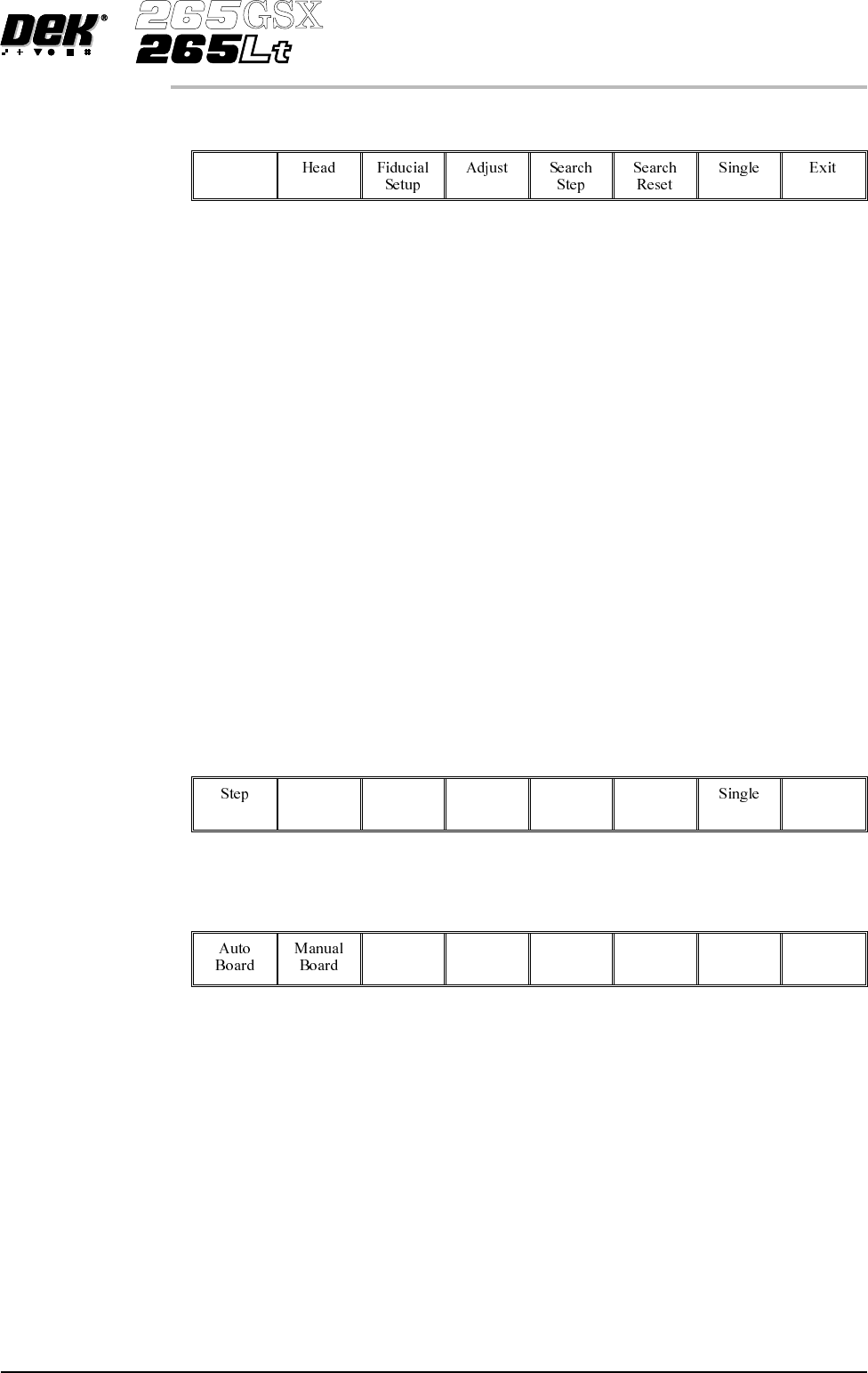
Select Step (F1).
Step
NOTE
If selective print/pass through is enabled, the first board fiducial should now be
displayed on the monitor. In this case repeat Steps 14 - 26 for this fiducial.
The first screen fiducial should now be displayed on the monitor.
27. Repeat Steps 14 - 25 for this fiducial.
28.
Continue for other selected fiducials by selecting Step at the end of each
fiducial setup.
29. After Step 28 for the second screen fiducial the message
’Saving Fiducial Data - Please Wait
Board data file saved’ is displayed.
Afteraligningscreentoboardthecamerachecksallfourfiducialpositions.
30.
Select Exit (F8).
Exit
31.
Select Exit (F8).
Exit
Software Version 6 User Manual 1.83
MACHINE PROGRAMMING
STAGE 7