SI-F130 Manual(EN)_jpg_ Rev1.pdf - 第81页
Pickup Position Setup HLF-10314-01 Pickup Position Setup SHEET 3/7 XY Position Data T eaching [Procedure] 1 Display a Front/All Cass. Pos. T eaching by T ools screen. 1. Click the T eaching button on the Front Pos. Data …
Pickup Position Setup
HLF-10314-01
Pickup Position Setup
SHEET
2/7
2 Press the ORG button on the operation panel to perform origin position return.
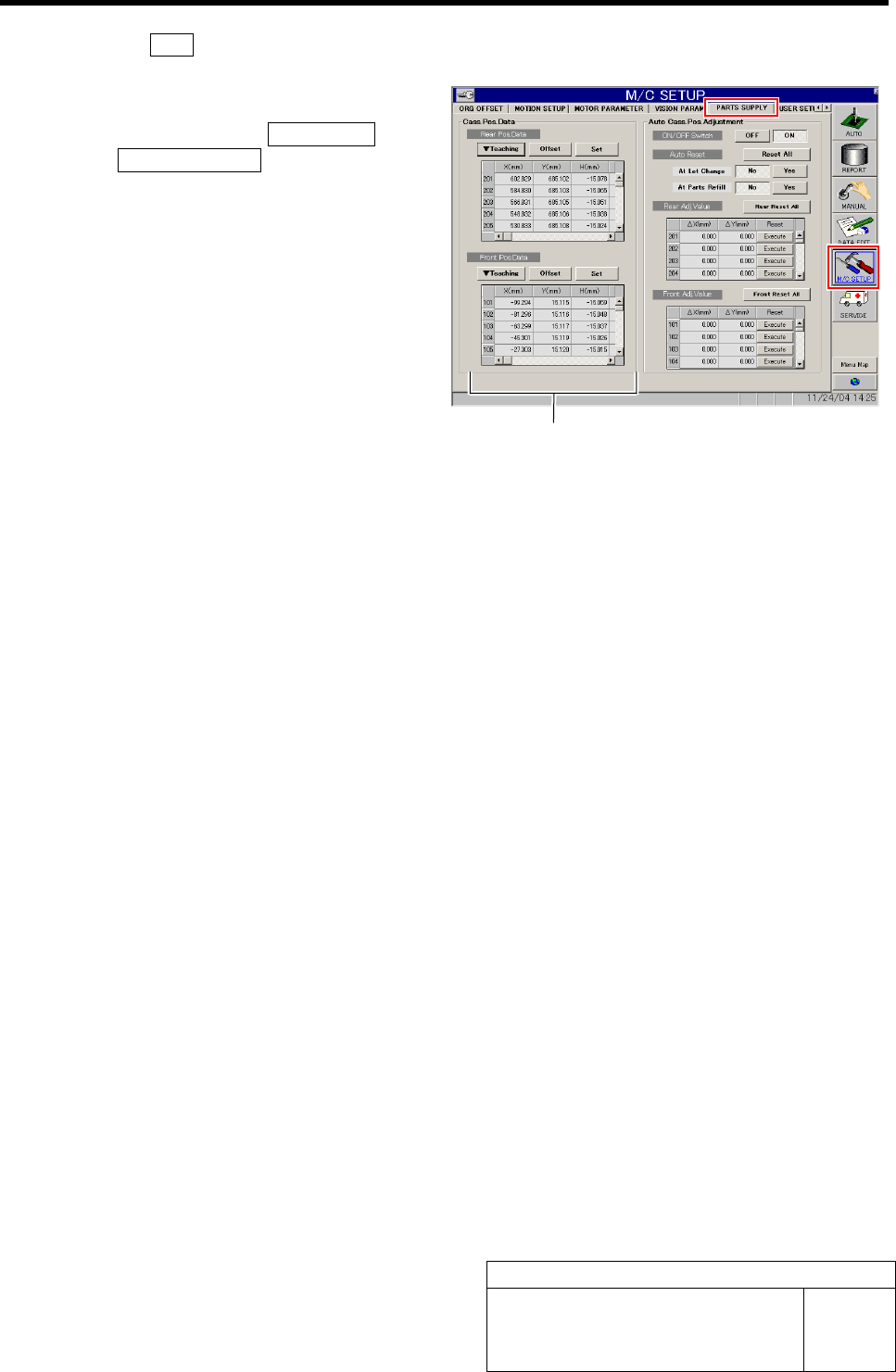
3 Open the Cassette Pos. Data.
1. Click in an order of M/C SETUP menu
ÎPARTS SUPPLY tab.
Cassette position coordinates are displayed on
left part of the PARTS SUPPLY screen.
Cassette position coordinates
Pickup Position Setup
HLF-10314-01
Pickup Position Setup
SHEET
3/7
XY Position Data Teaching
[Procedure]
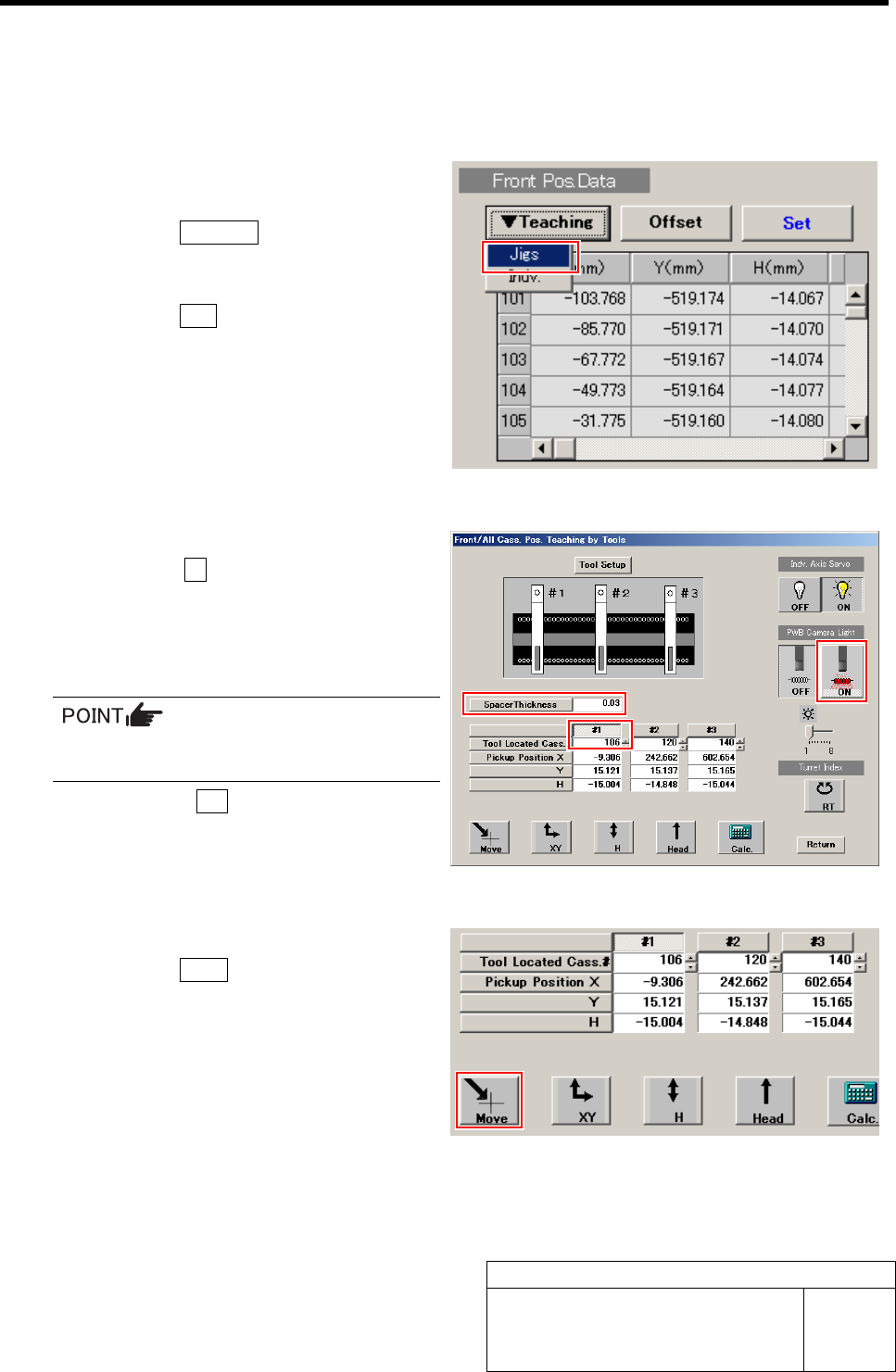
1 Display a Front/All Cass. Pos. Teaching by
Tools screen.
1. Click the Teaching button on the Front
Pos. Data to display a drop down
menu.
2. Click the Jigs in the drop down menu.
The Front/All Cass. Pos. Teaching by Tools
screen is displayed.
2 Set the jig.
1. Click the #1 and input “106” in input
box for Tool Located Cass.
2. Input thickness of “0.03” of thickness
gauge used for H axis position data
teaching.
The value of the spacer thickness becomes
offset value when acquiring H coordinate.
3. Click the ON button on the PWB
camera light.
The PWB camera light lights up.
3 Move the PWB camera to the pickup point.
1. Click the Move button.
Move screen is displayed.
Pickup Position Setup
HLF-10314-01
Pickup Position Setup
SHEET
4/7
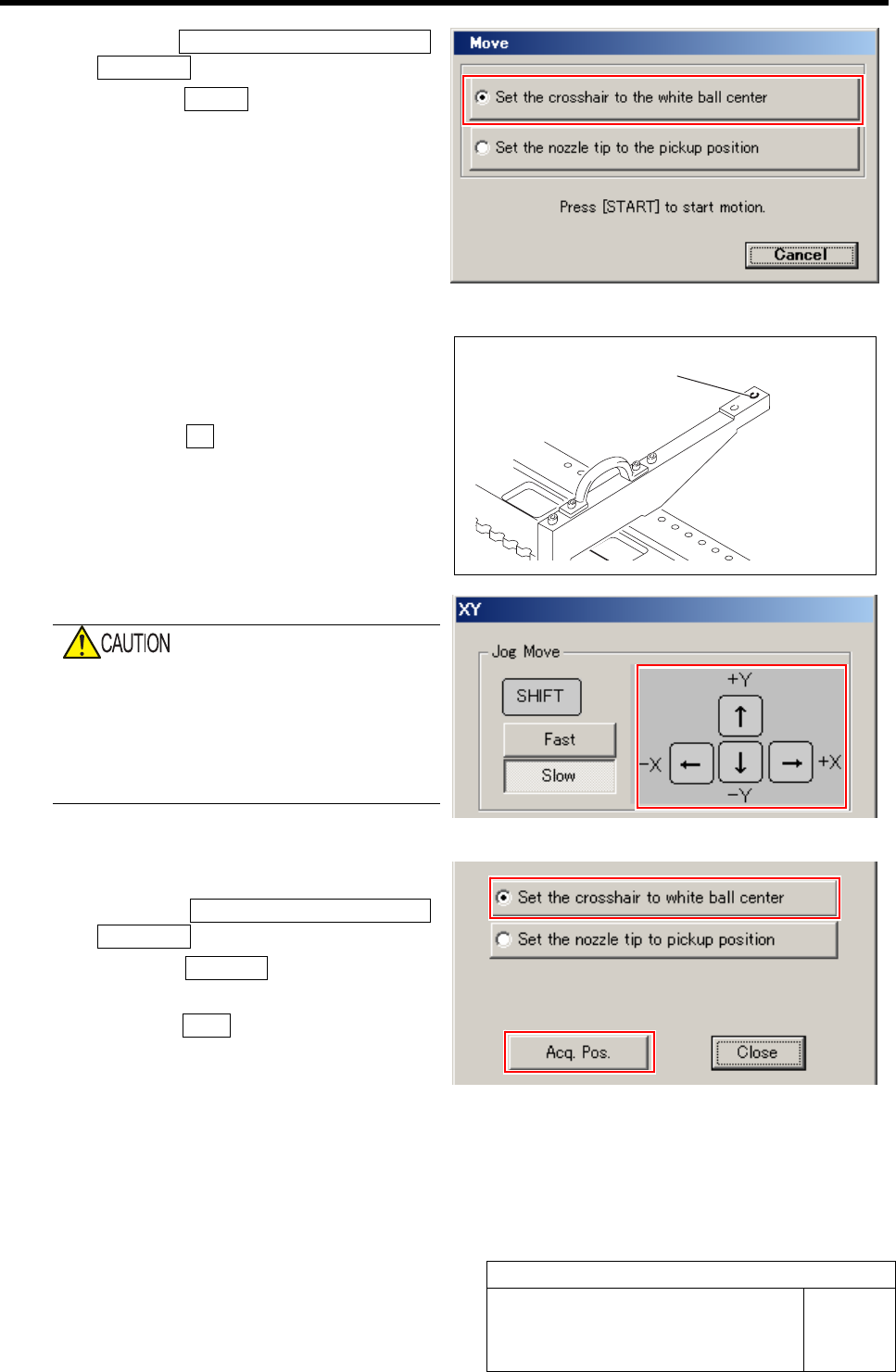
2. Click the Set the crosshair to the white
ball center button.
3. Press the START button on the opera-
tion panel.
The PWB camera automatically moves to nearly
the center of the pickup point.
4 Adjust XY position of the pickup point by jog
move while checking on the PARTS
DISPLAY.
1. Click the XY button on the Front/All
Cass. Pos. Teaching by Tools screen.
XY screen is displayed.
2. Press the cursor key to jog move the
head until the hole in the end of the
pickup point jig is positioned on the
crosshair on the PARTS DISPLAY.
When checking on the PARTS DISPLAY with
the screen being small, discrepancy of hole
center may not be found.
Be sure to expand the window of the PARTS
DISPLAY to enlarge the displayed image and
check the hole center.
5 Acquire the XY position after positioning.
1. Click the Set the crosshair to white
ball center button.
2. Click the Acq. Pos. button on the XY
screen to acquire XY position.
3. Click the Close button to close the XY
screen.
This is completion of acquiring the XY position
data of Z106.
Subsequently, perform “H Position Data Teach-
ing” at the position of Z106.
Pickup point position