编带机说明书-含图纸tm401.pdf - 第48页
3-6 TM-401 User’s Guide Job Tab D292104.6.fm J ob T ab Ov er vie w The Job T ab allows the user to select a pre-programmed job, change job information and move to the other tab screens. It also features an easy-to-use Jo…
D292104.6.fm Job Tab
Chapter 3: Human Machine Interface 3-5
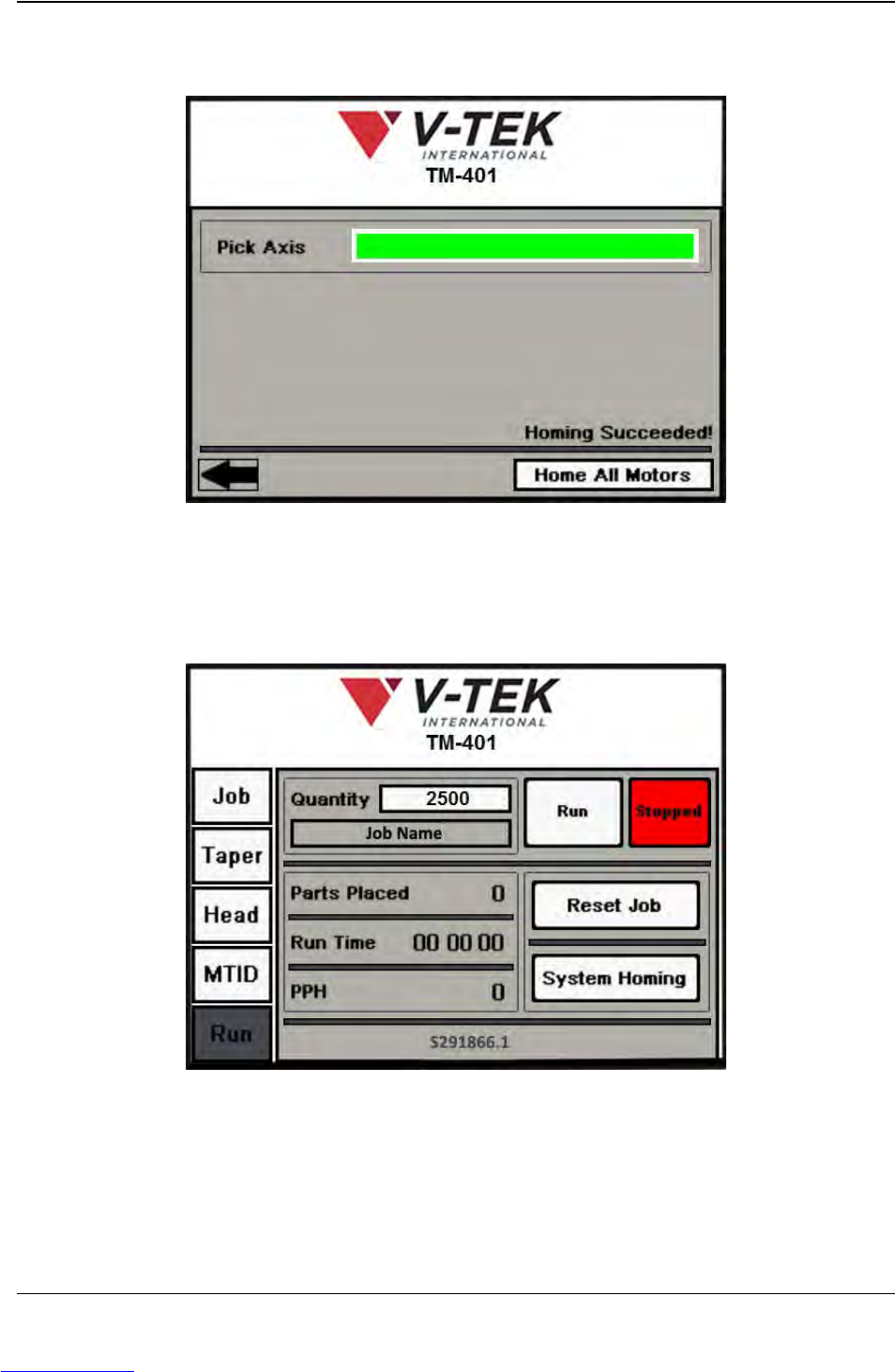
As the homing sequence is completed, the bar gradually turns from black to green. A Homing
Succeeded! message appears at the end of the sequence.
If a problem arises during homing, the status bar will turn red and a Homing Failed message will
appear.
Pressing the Left Arrow button will open the Run Tab.
Select the Job Tab from the Tab Menu to navigate back to the Job Tab.
Downloaded from www.Manualslib.com manuals search engine
3-6 TM-401 User’s Guide
Job Tab D292104.6.fm
Job Tab Overview
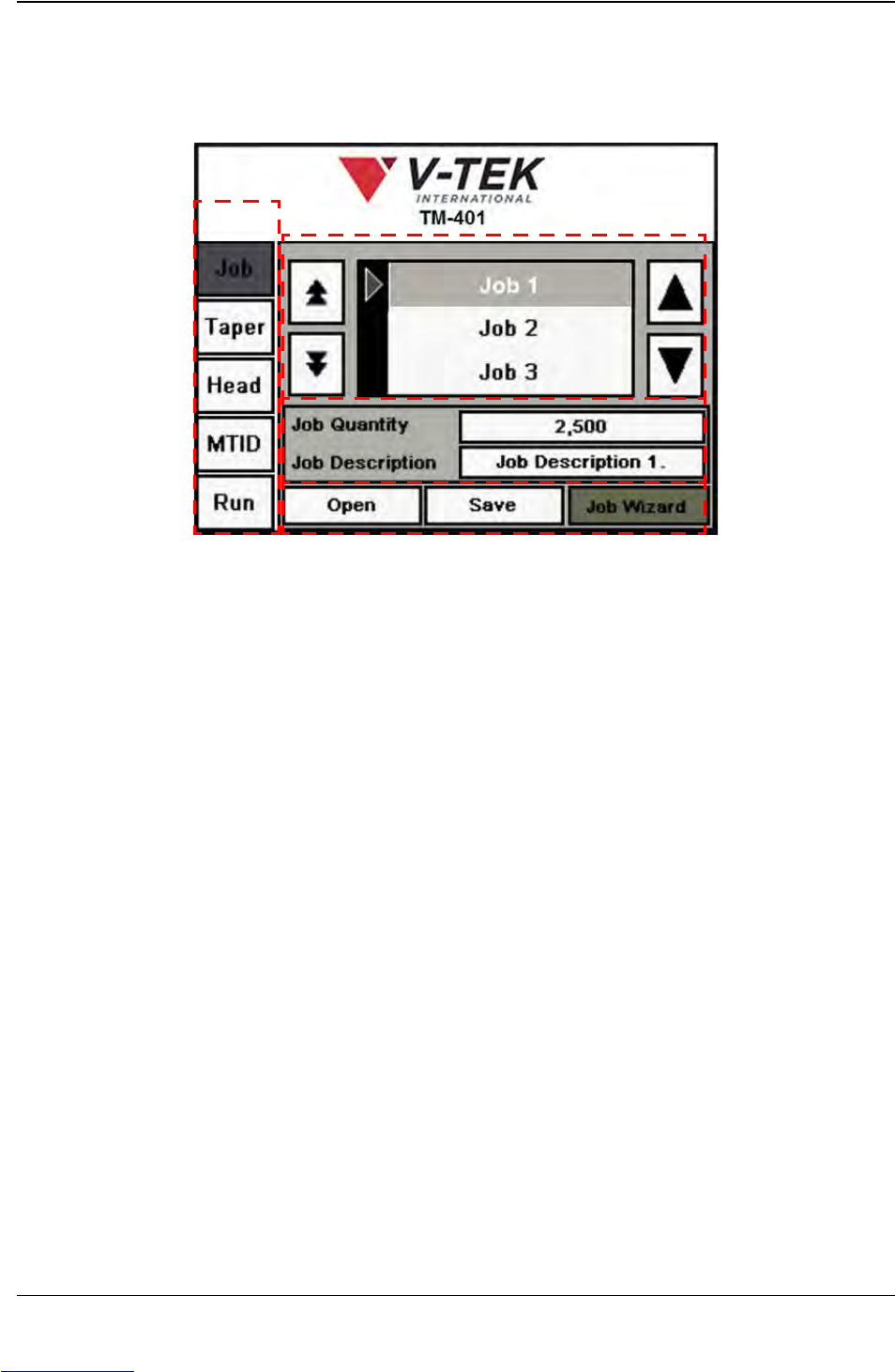
The Job Tab allows the user to select a pre-programmed job, change job information and move
to the other tab screens. It also features an easy-to-use Job Wizard which leads the user through
the job set-up process. The Job Tab is pictured below.
A. Tab Menu
B. Job Library
C. Job Information
D. Control Buttons
A. Press any tab in the Tab Menu to open that tab window.
B. The Job Library holds up to fifty saved jobs (Job 1 through Job 50). The Up and
Down Arrows buttons to the right of the Job Library are used to move through the
job list one job at a time. The Page Up and Page Down Arrows buttons to the left
of the Job Library are used to move through the job list five jobs at a time. The
Enter button selects and highlights a job from the Job Library list so it can be
opened or saved.
C. The Job Information section has two open fields for entering job information: Job
Quantity and Job Description. Press the field to open a keypad for data entry. The
maximum number of characters for any field is 20.
D. At the bottom of the Job Tab there are three control buttons:
• The Open button opens the currently selected job.
• The Save button is used to save current job settings for future use.
• The Job Wizard button opens the Job Wizard, allowing the user to configure job
settings.
A
B
C
D
Downloaded from www.Manualslib.com manuals search engine
D292104.6.fm Job Tab
Chapter 3: Human Machine Interface 3-7
Job Wizard
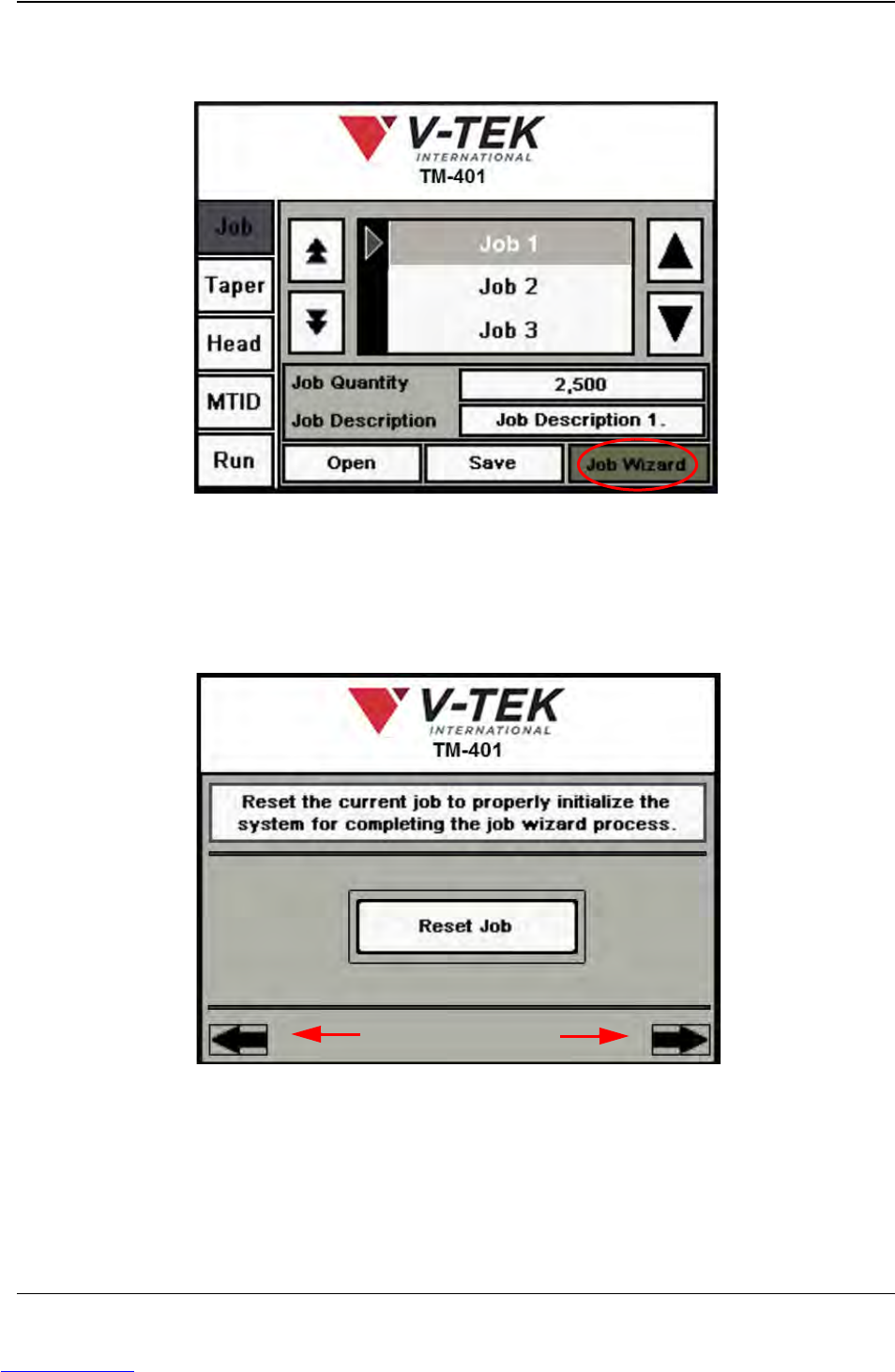
Pressing the Job Wizard button in the Job Tab opens the Job Wizard.
The Job Wizard has 15 screens that lead the user through the job set-up process. Instructions at
the top of each Job Wizard screen explain each step. The Arrow buttons on the bottom of the
window move the user forward and backwards through the process. Pressing the right Arrow
button opens the next Job Wizard screen. Pressing the left Arrow opens the previous screen.
In the first Job Wizard screen the user resets the job to initialize the system. Press Reset Job,
then press the right Arrow key to move to the next Job Wizard screen.
Arrow Buttons
Job Wizard Step 1
Downloaded from www.Manualslib.com manuals search engine