编带机说明书-含图纸tm401.pdf - 第71页
D292104.6.fm Run Tab Chapter 3: Human Machine Interface 3-29 Run T ab When Run is selected from the T ab Menu , the Run T ab opens. It includes job information, current job statistics, S tatus messages and Run contr ol b…
3-28 TM-401 User’s Guide
MTID Tab D292104.6.fm
.
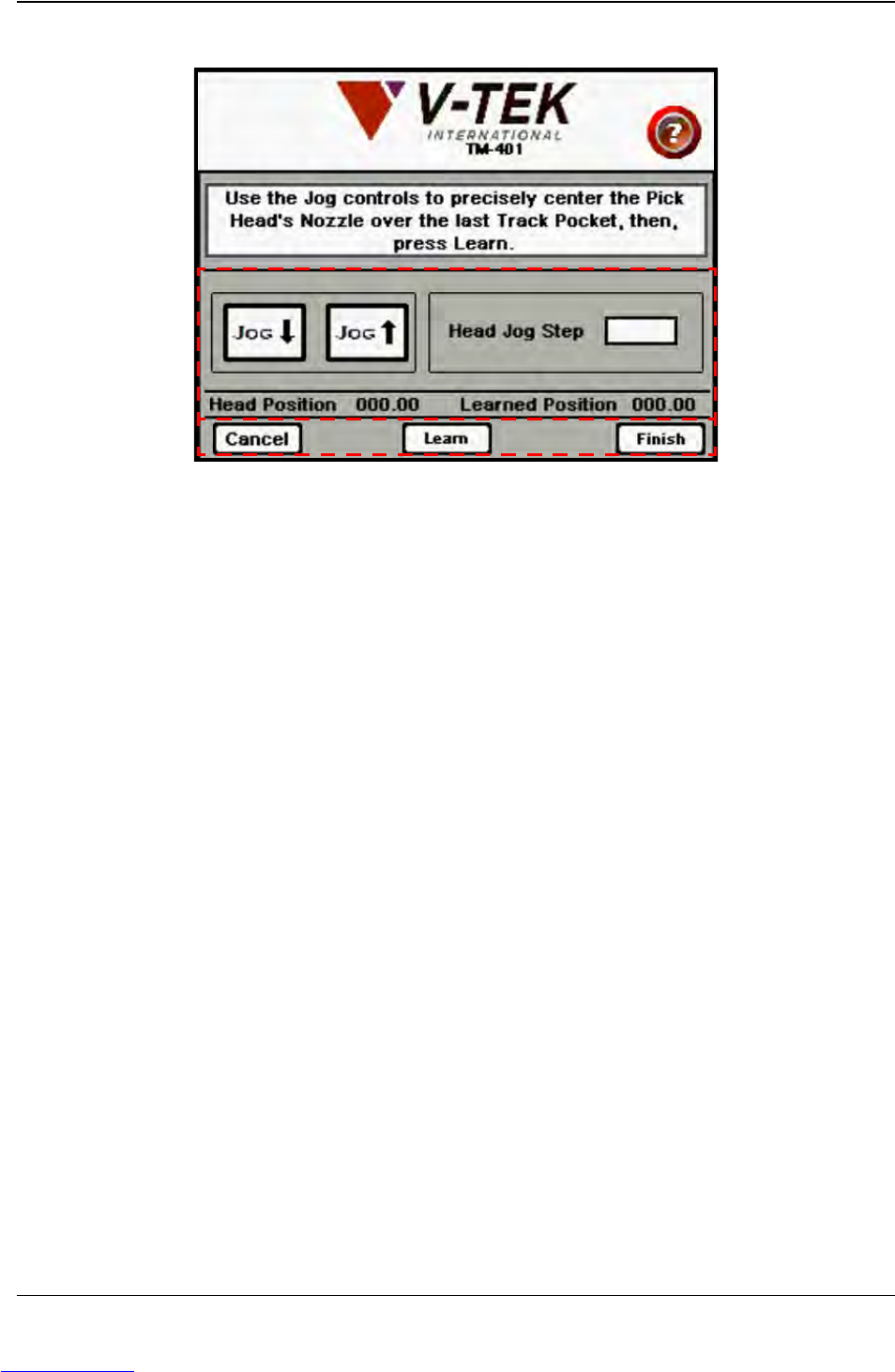
A. Help Icon
B. Head Jog Controls
C. Pick Wizard Control buttons
A. To see an illustration of the correct head placement, push the Help icon.
B. The Jog buttons in the Head Settings section are used to jog the head forward or
backward along the X Axis (left/right) until the nozzle is centered over the last
Tube Pocket.
Head Jog Step is the distance in millimeters that the head will move when Jog is
pressed.
Note: Enter Jog Step field values in the following format: XXX.XX. (i.e. 100.00).
The Head Position message indicates where the pick head is located in relation
to the Home position. The Learned Position indicates the current Pick position.
C. Press the Cancel button to return to the MTID Tab. Once the Learn button has
been pressed, the Cancel button disappears.
Pressing Learn saves the current head position as the programmed pick location.
This is the position the pick head will move to along the X Axis (left/right) when
picking a part from the Tube Feeder.
Press the Finish button to calculate tube pitch and return to the MTID Tab.
Note: The TM-401 will use these settings for the current job. To save MTID Settings for
future jobs, go to the Job Tab, select a job name and Save.
B
C
A
Downloaded from www.Manualslib.com manuals search engine
D292104.6.fm Run Tab
Chapter 3: Human Machine Interface 3-29
Run Tab
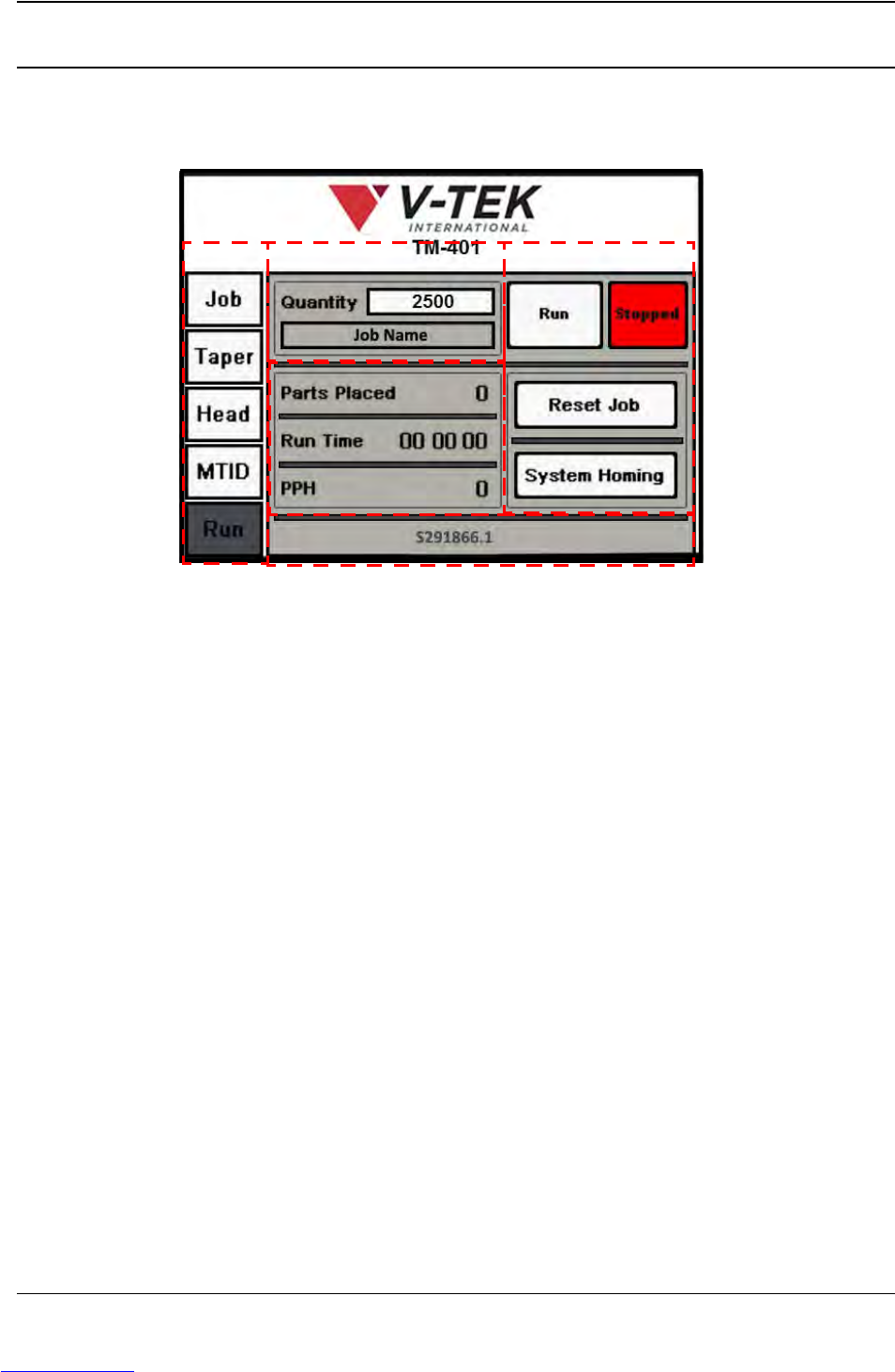
When Run is selected from the Tab Menu, the Run Tab opens. It includes job information, current
job statistics, Status messages and Run control buttons. The Run Screen with all status mes-
sages displayed appears below.
A. Tab Menu
B. Job Information
C. Run Control Buttons
D. Job Statistics
E. Software Version/Status Messages
A. Press any tab in the Tab Menu to open that tab window.
B. The Job Information section has two fields: Quantity and Job Description. This
information was entered in the Job Wizard during job setup. The Job Description
field is greyed out, indicating it cannot be altered in this tab. To edit the Quantity
field, press anywhere inside the field to open a keypad for data entry.
C. There are four control buttons on the Run Tab: Run/Running, Stop/Stopped,
Reset Job, and System Homing.
• The Run and Stop buttons start and stop job processing. They change color to
indicate they are active. In the Run Tab above, the red Stopped button indicates
the current job has been stopped.
• The Reset Job button resets all job statistics to zero. This is useful for running
multiple reels of the same job.
A
B
D
C
E
Downloaded from www.Manualslib.com manuals search engine
3-30 TM-401 User’s Guide
Run Tab D292104.6.fm
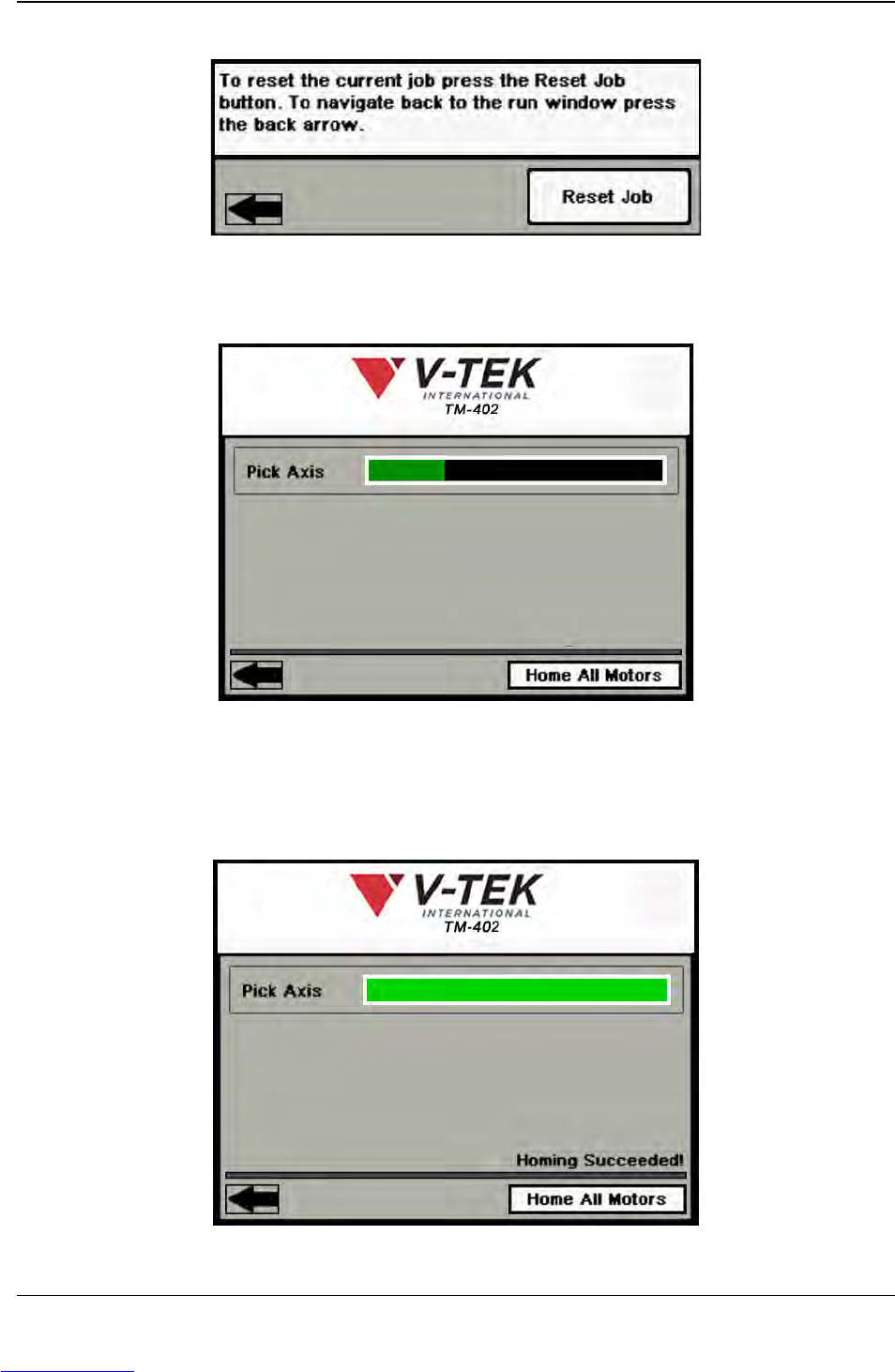
When Reset Job is pressed, the following message appears.
• The System Homing button allows the user to home the motor. Homing motors
should be done once following every system power up. When System Homing is
selected, the Homing Status window will appear.
Pressing the Home All Motors button begins the homing sequence. Homing
progress is displayed in the Pick Axis Motor Status Bar.
As the homing sequence is completed, the bar gradually turns from black to
green. A Homing Succeeded! message appears at the end of the sequence.
Downloaded from www.Manualslib.com manuals search engine