1OM-1626-001_w.pdf - 第101页
1OM-1610 2-2 1. Starting : Chap.2 091 1-001 1.1 "TOP" window When the self-diagnosis is completed, the color of the [POWER] button changes to yellowish green and the "TOP" window appears on the touch …
1OM-1610
2-1
1. Starting : Chap.2
0911-001
1. Starting
Conrm that the machine is powered. After the con rmation, hold down the
[POWER ON] button for more than 1 second.
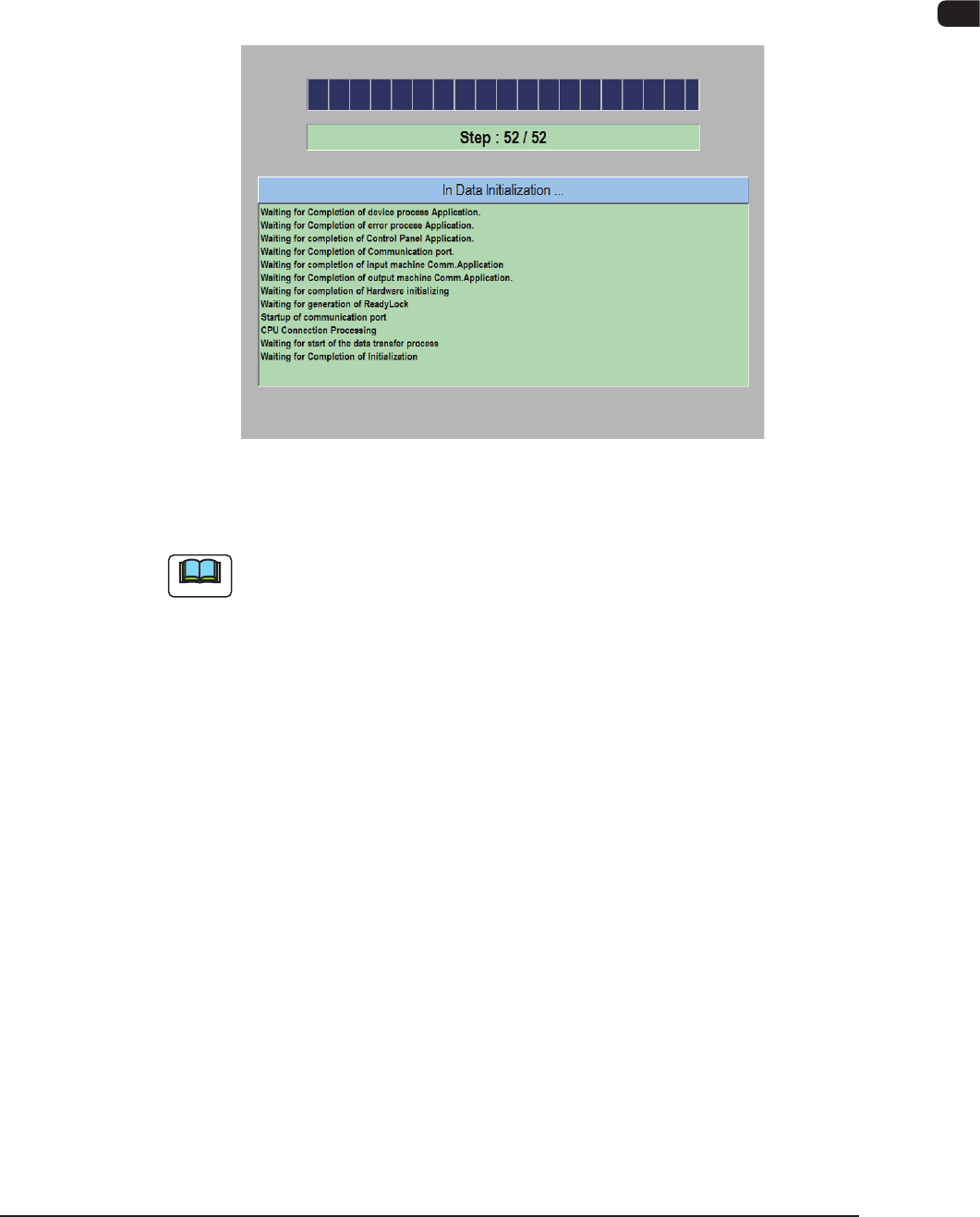
The [POWER ON] button illuminates in red, the system program starts, and the
machine executes the self-diagnostics program.
Self -Diagnostics (Data Initializing...) Window
F1B1
Note
It takes about 2 to 3 minutes for the machine to make a self-diagnostics.
Please wait until another window appears.
1OM-1610
2-2
1. Starting : Chap.2
0911-001
1.1 "TOP" window
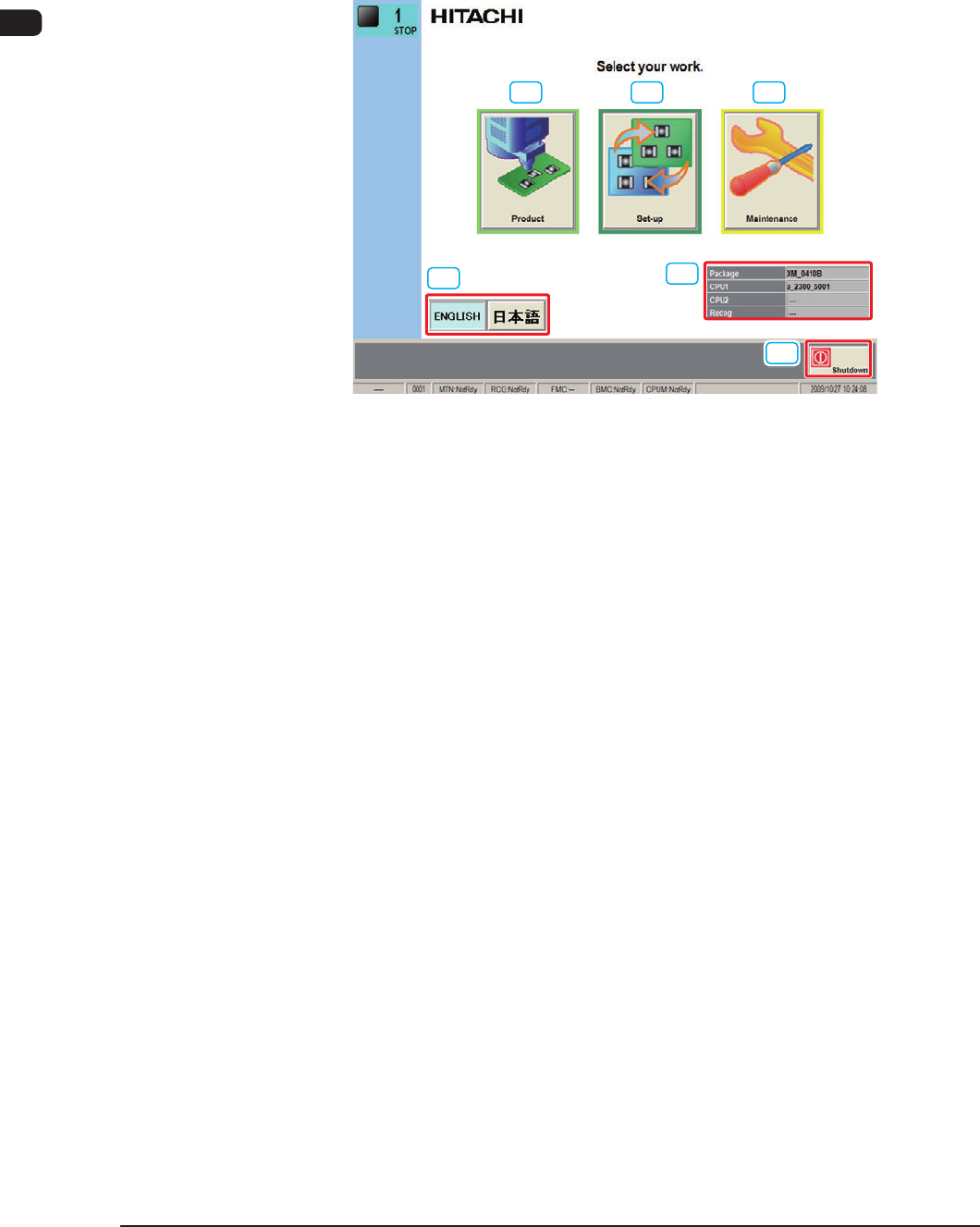
When the self-diagnosis is completed, the color of the [POWER] button changes
to yellowish green and the "TOP" window appears on the touch screen.
[1] [2] [3]
[4]
[5]
[6]
F1B2
[1] [Product] Button
When this button is pressed, the "Product" window appears.
[2] [Set-up] Button
When this button is pressed, the "PP CHANGE" window appears.
[3] [Maintenance] Button
When this button is pressed, the "Select Login User" window appears. Then,
when the log-in user is selected, the "Maint." window appears.
[4] [Language] Button
Press the button for the required language to change to it.
[5] Software V
ersion Display
The software version is displayed.
[6] [Shutdown] Button
When this button is pressed, the power to the machine is stopped after the
shut-down processing.
1OM-1610
2-3
1. Starting : Chap.2
0911-001
1.2 Select Login User
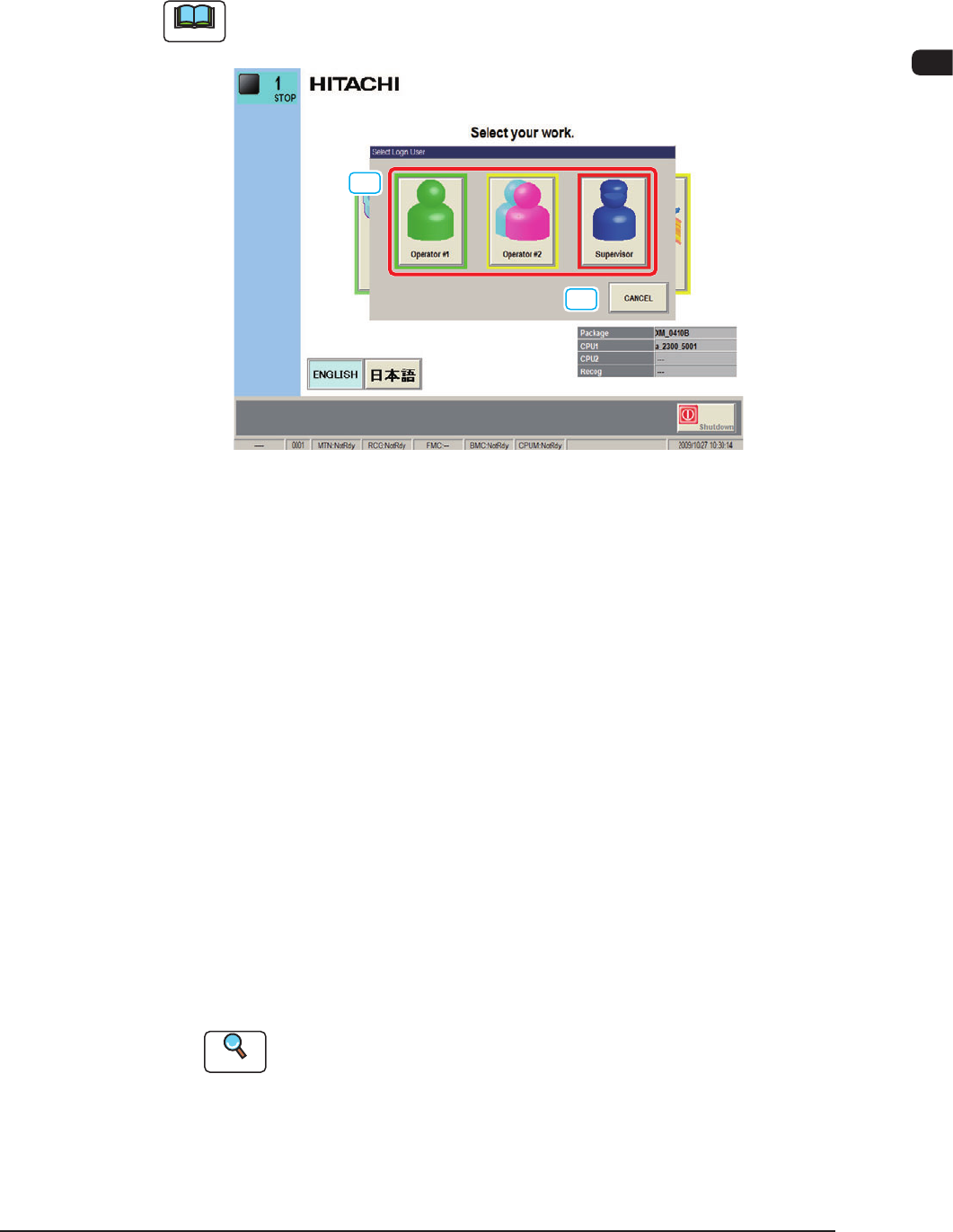
When the [Maintenance] button is pressed in the "TOP" window, the following
window appears.
Note
When the [Product] button or [Set-up] button is pressed, the operator can be
logged as qualied as "OPERATOR 2".
[1]
[2]
F1B3
[1] Select Login User Button
In this machine, the password and the available function range for each
log-in user can be set to avoid trouble where any third person operates this
machine without permission, and to eliminate the possibility that any of the
various data is deleted in error.
[Operator #1] Button
Access can be gained by only the person identi ed as "Operator #1". For
example, the operator is given a permission to edit the data and operate the
machine.
[Operator #2] Button
Access can be gained by only the person identi ed as "Operator #2". For
example, the operator is limited to the operations related to the automatic
operation of the machine.
[Supervisor] Button
This button is for the person in charge of the management of the machine.
Using this button, all the functions are available.
Reference
Refer to "5. Password Setting" in "Chapter 2 (Vol. 3)" for how to set a
password and the range of available functions.
[2] [CANCEL] Button
When this button is pressed, the log-in user selection is cancelled and the
"TOP" window is returned