1OM-1626-001_w.pdf - 第104页
1OM-1610 2-5 2. Operation Screen : Chap.2 091 1-001 2. Operation Screen 2.1 Main Menu Bar The buttons selected in the common menu bar are displayed in this window. Main Menu Bar Common Menu Bar F1B5
1OM-1610
2-4
1. Starting : Chap.2
0911-001
1.2.1 Login Procedure
Procedure
(1) Press one of the [Operator #1], [Operator #2] and [Supervisor] log-in user
selection buttons, appropriate for the access given to you.
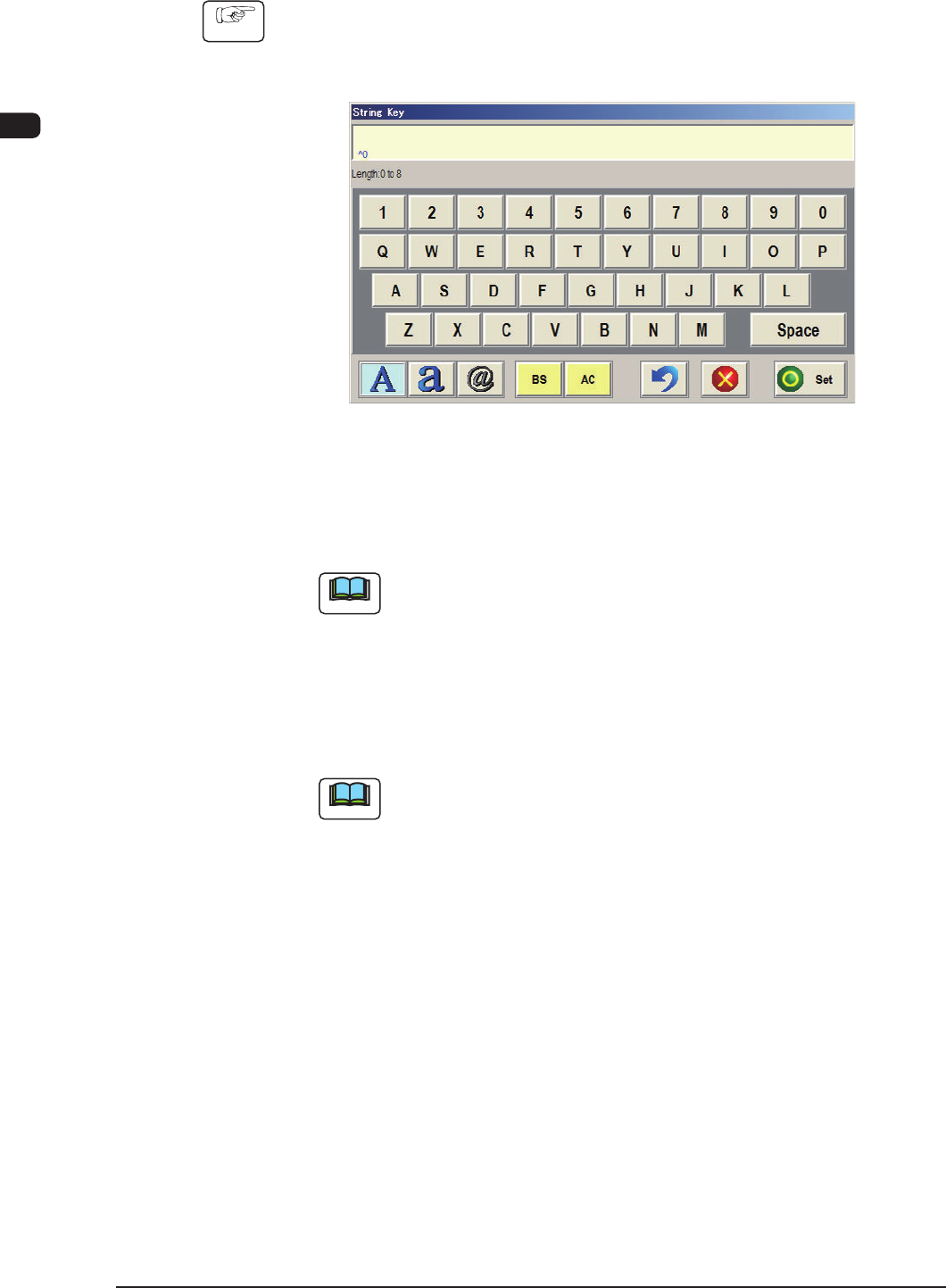
When a password is set, the "String Key" window opens.
F1B4
(2) Entry the specied password.
The entered password is signied by asterisk "*" and will not be disclosed to
anyone.
Note
(a) If no password is entered for 10 seconds after the "String Key"
window is opened, the window closes automatically.
(b) While the "String Key" window is active, no window appears on the
touch screen on the other side (not under operation).
(3) After entering the password, press the [Set] button.
The "MAINT." window appears on the touch screen.
Note
(a) When no password is set, press the [Supervisor], the [Operator #1],
or the [Operator #2] button according to the given authority. The
"Maintenance" window appears on the touch screen.
(b) The available function range in the "Maintenance" window varies
depending on the type of the log-in user.
1OM-1610
2-5
2. Operation Screen : Chap.2
0911-001
2. Operation Screen
2.1 Main Menu Bar
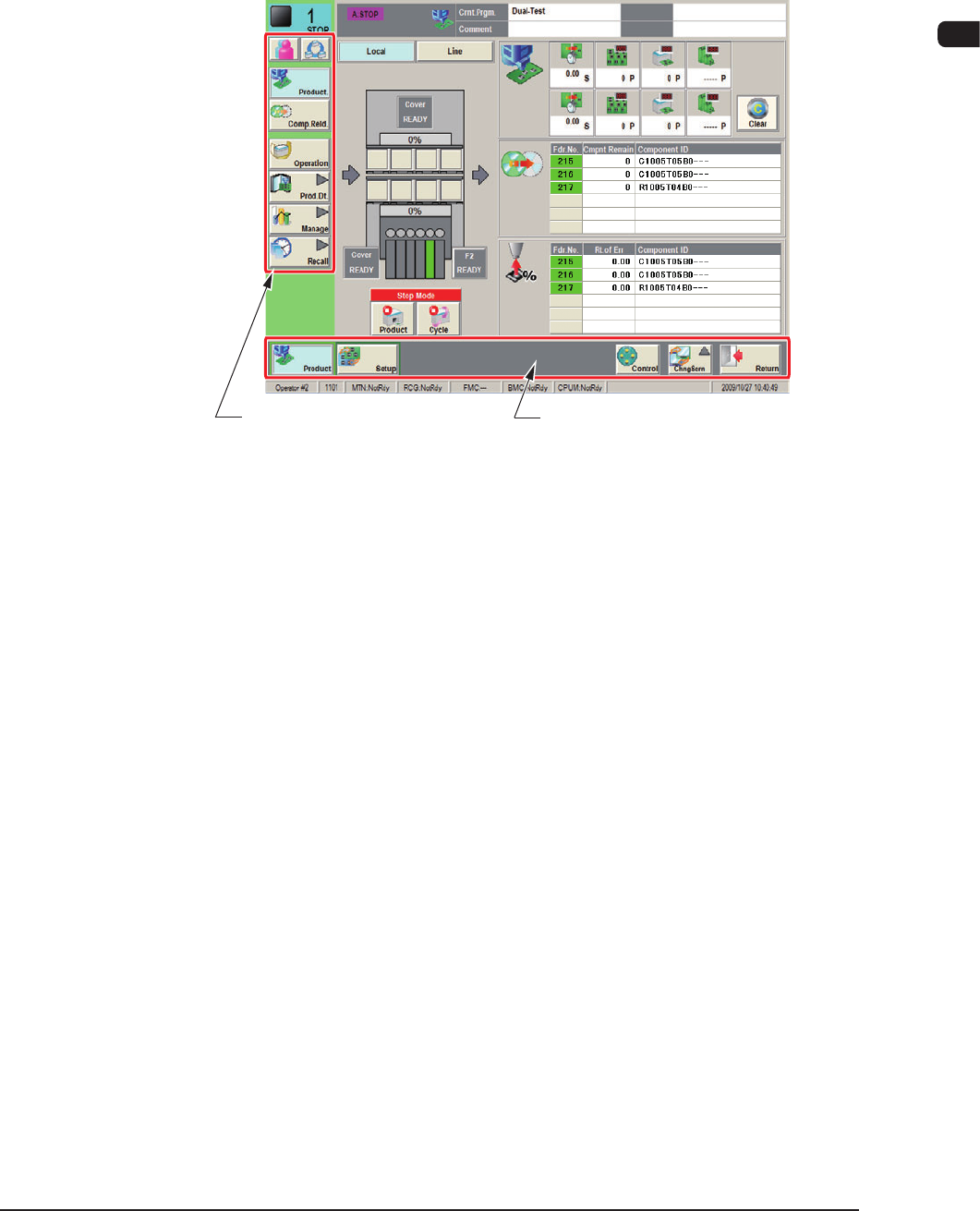
The buttons selected in the common menu bar are displayed in this window.
Main Menu Bar Common Menu Bar
F1B5
1OM-1610
2-6
2. Operation Screen : Chap.2
0911-001
2.2 Common Menu Bar
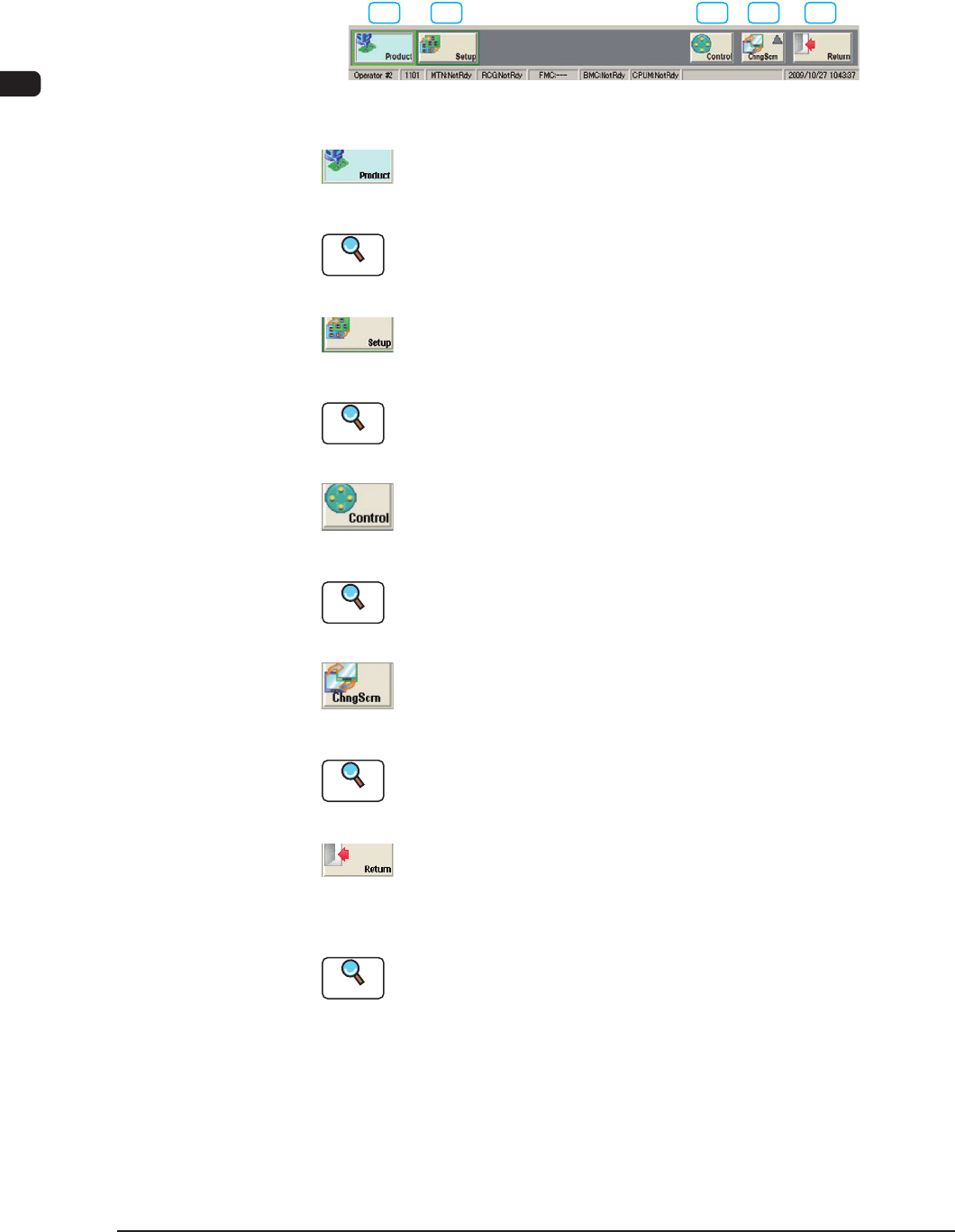
When the window is logged in using the [Product] or [Set-up] button, the
following common menu bar is displayed.
[1] [2] [3] [4] [5]
Common Menu Bar F1B6
[1] [Product] Button
When this button is pressed, the "Product" window is displayed.
Reference
Refer to "Menus for Automatic Operation" in "Chapter1 (Volume 2)" for
the detailed information on the "Product" window.
[2] [Setup] Button
When this button is pressed, the "Set-up" window is displayed.
Reference
Refer to "Menus for Setup Operation" in "Chapter2 (Volume 2)" for the
detailed information on the "Set-up" window.
[3] [Control] Button
When pressed, this button opens the "Cont. Prgm" window.
Reference
Refer to "2.3 Control Menu" for the detailed information on the "Control"
window.
[4] [Chng Scrn] Button
When this button is pressed, the "Chng Scrn" window is displayed.
Reference
Refer to "2.4 Chng Scrn" for the detailed information on the "Chng Scrn"
window.
[5] [Return] Button
When this button is pressed, the operation window is closed and the "TOP"
window is returned.
Reference
Refer to "Exiting from the System Program" for the detailed information
on the "LOGOUT " window.