1OM-1626-001_w.pdf - 第114页
1OM-1610 2-15 4. Exiting from the System Program : Chap.2 091 1-001 4. Exiting from the System Program 4.1 Logout Press the [Return] button on the main menu bar to log out of the system. The active operation window close…
1OM-1610
2-14
3. Entry of Each Paramenter : Chap.2
0911-001
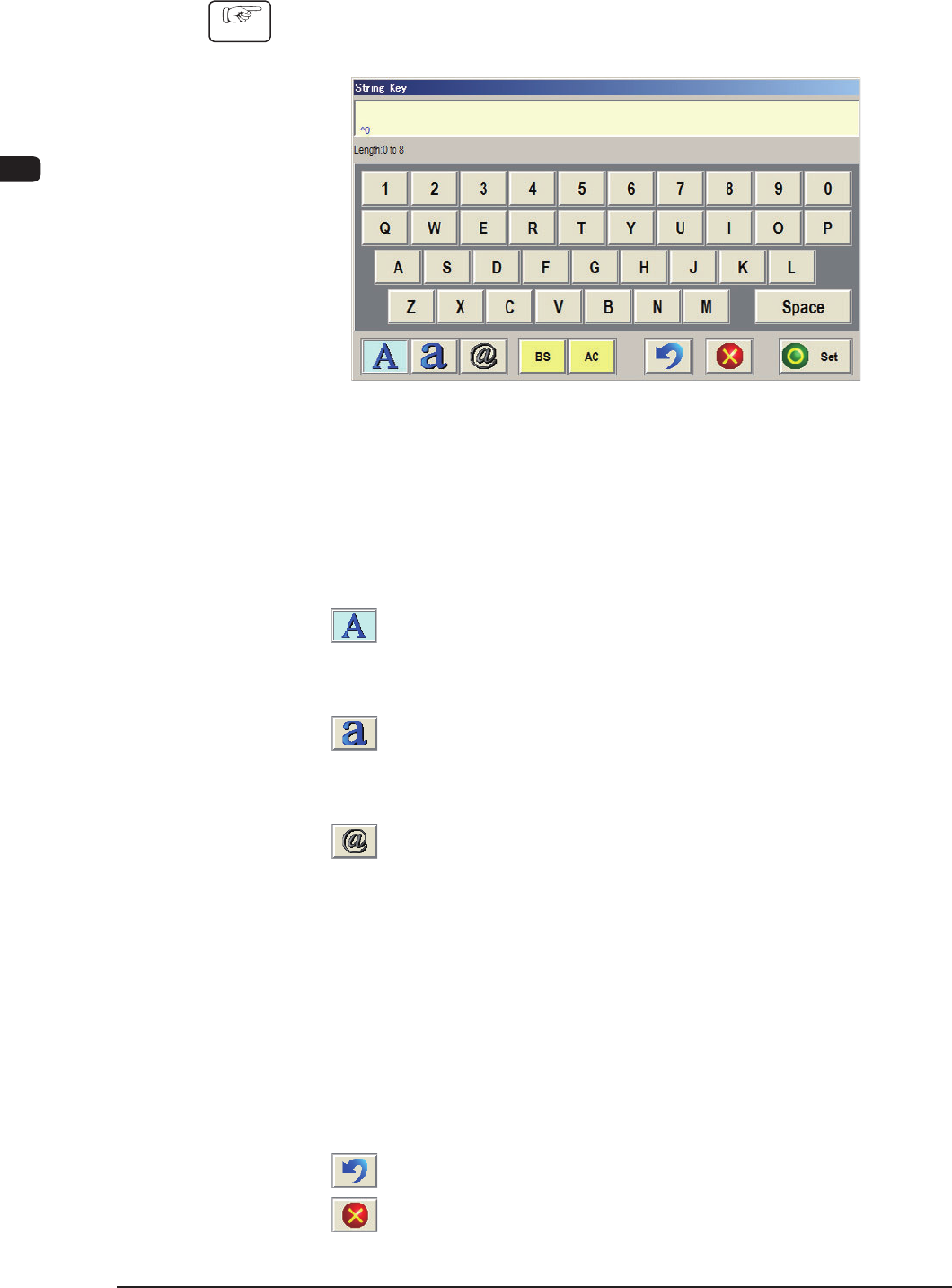
3.2 How to enter a string of characters
Procedure
(1) When a button for the character data entry is pressed in an operation
window, the corresponding window for the character data entry opens.
Character Data Entry (Virtual Keyboard) Window Example ("Password Entry" Window) F1B8
(2) When characters are entered using the corresponding keys on the on-screen
keyboard, the entered characters appear in the display box (located at the
upper area of the window).
Use the following buttons to facilitate your data entry (capital letters, small
letters, and symbols).
[
] Button :
Use this button to enter capital letters. When
pressed,this button turns blue, indicating that only
capital letters can be entered
.
[ ] Button :
Use this button to enter small letters. When pressed,
this
button turns blue, indicating that only small letters
can be entered.
[ ] Button :
Use this button to enter symbols.
When pressed, this button turns blue, indicating that
symbols can easily be entered.
(3)
When the [Set] button is pressed after the conrmation of the entered value,
the window for the character data entry closes and the entered data appears
in the operation window.
To cancel the correction of the entered data or the data entry, use the
following buttons.
[BS] Button
: Deletes a character to the left of the cursor.
[AC] Button
: Deletes the data displayed in the display box.
[
] Button
: Makes it possible to retry the data entry operation.
[
] Button
: Cancels the data entry operation.
1OM-1610
2-15
4. Exiting from the System Program : Chap.2
0911-001
4. Exiting from the System Program
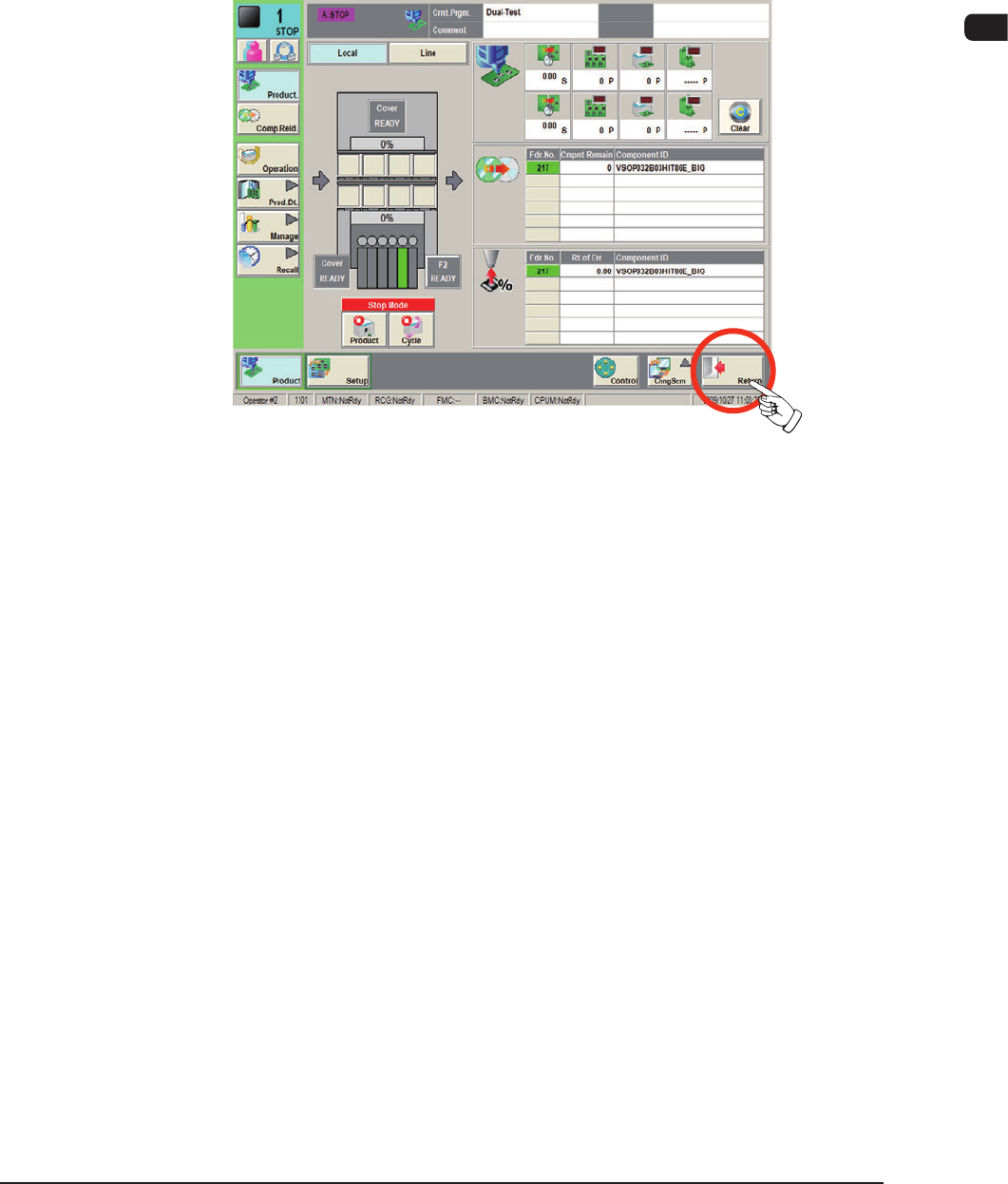
4.1 Logout
Press the [Return] button on the main menu bar to log out of the system.
The active operation window closes and the "Login Type Selection" window
resumes.
F1B9
1OM-1610
2-16
4. Exiting from the System Program : Chap.2
0911-001
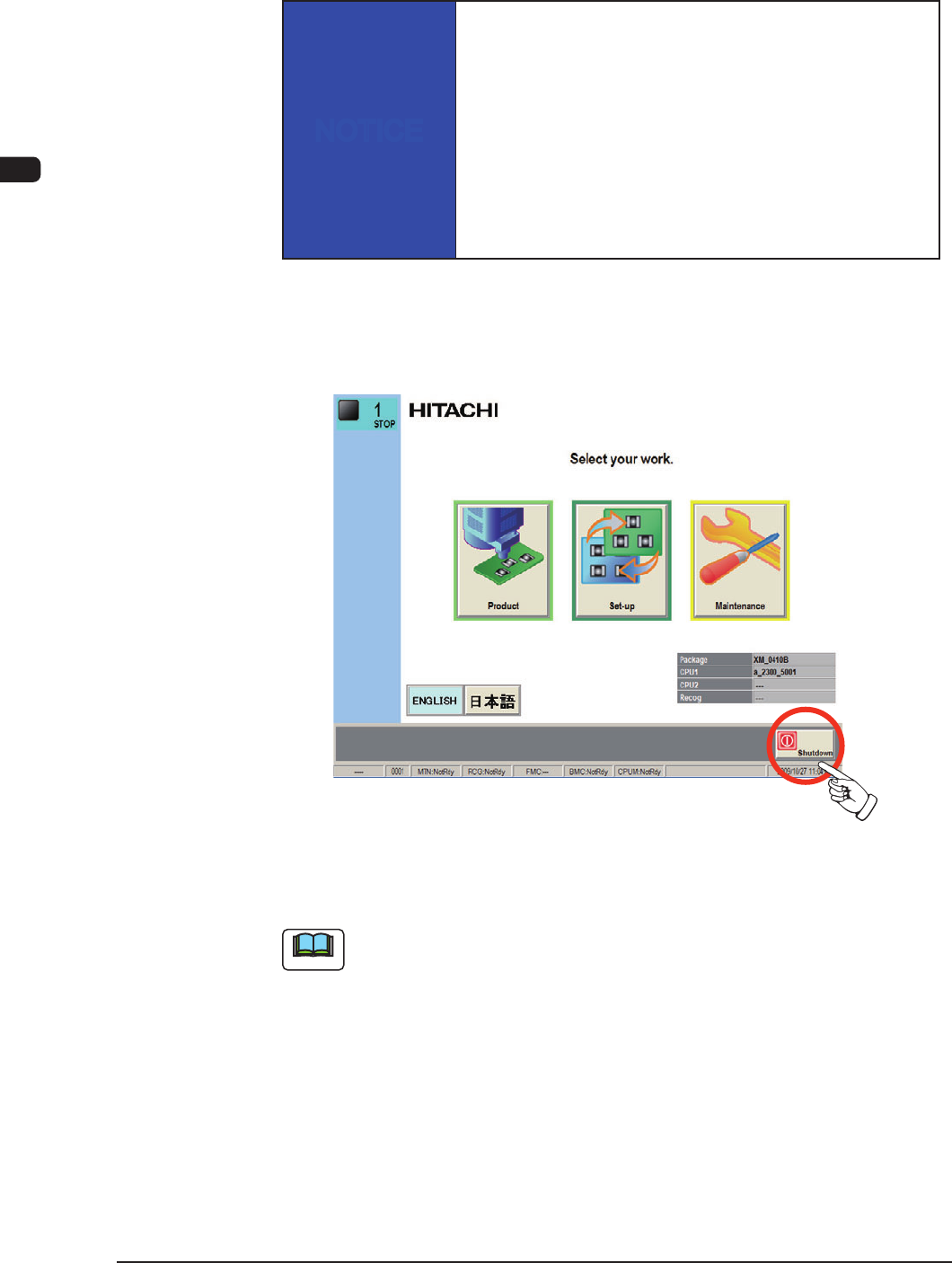
4.2 Power OFF
The following explains how to shut down the power to the machine.
NOTICE
Be sure to log out from an operation window to open
the "TOP" window and go through the shutdown
procedure by pressing the [Shutdown] button before
turning off the power to the machine.
When the power is turned off without going through the
shutdown procedure, the saved data may be deleted and/or
the hard disk and the main body of the machine may be
damaged.
(1) When the operation window is closed, press the [Return] button in the
common menu. When the [Return] button is pressed, the operation window
is closed and the "TOP" window is returned.
"Logout" window
F1B10
Note
Whenever an edit window such as the "Pattern Program Data" window is active,
follow the speci ed steps to close the window before the [Return] button is
pressed.