1OM-1626-001_w.pdf - 第110页
1OM-1610 2-1 1 2. Operation Screen : Chap.2 Button : Image Real-Size Display Mode (Captured image is displayed in real-size). After changing to the image real-size display mode using the button (the shape of the pointer …

1OM-1610
2-10
2. Operation Screen : Chap.2
[2] Displayed Image Operation Buttons
The following buttons change the mode for the enlargement or movement
operations, for the image displayed in the [1] Recognition Image Display
Domain.
Button :
Normal Operation Mode
Button :
Image Enlargement Mode
After changing to the image enlargement mode using the
button (the shape of the pointer is changed to ), when
the image to be enlarged is touched, or the left button of the
track ball is clicked on the image, the image is enlarged from
the pointer position as the center.
When the image is to be enlarged with its position xed,
place the pointer on the center of the image before the
enlargement operation.
Button :
Image Reduction Mode
After changing to the image reduction mode using the
button (the shape of the pointer is changed to
) when the
image to be reduced is touched, or the left button of the track
ball is clicked on the image, the image is reduced from the
pointer position as the center.
When the image is to be reduced with its position xed,
place the pointer on the center of the image before the
reduction operation.
Button :
Image Movement Mode
After changing to the image movement mode using the
button (the shape of the pointer is changed to
mark),
drag the image to be moved (pressing the left button of the
track ball, turn the ball to move the image).
0911-001

1OM-1610
2-11
2. Operation Screen : Chap.2
Button :
Image Real-Size Display Mode (Captured image is displayed
in real-size).
After changing to the image real-size display mode using the
button (the shape of the pointer is changed to ), when
the image to be displayed in real-size is touched, or the left
button of the track ball is clicked on the image, the image
is displayed in real-seize from the pointer position as the
center.
When the image is to be displayed in real-size with its
position xed, place the pointer on the center of the image
before the image real-size display operation.
Button :
Image Fitting Mode (the image is displayed fully using the
recognition image display domain).
After changing to the image tting mode using the
button (the shape of the pointer is changed to
), when the
image to be t is touched, or the left button of the track ball
is clicked on the image, the image is displayed fully using
the recognition image display domain, from the pointer
position as the center.
When the image is to be displayed in the image tting mode
with its position xed, place the pointer on the center of the
image before the image tting operation.
0911-001
1OM-1610
2-12
2. Operation Screen : Chap.2
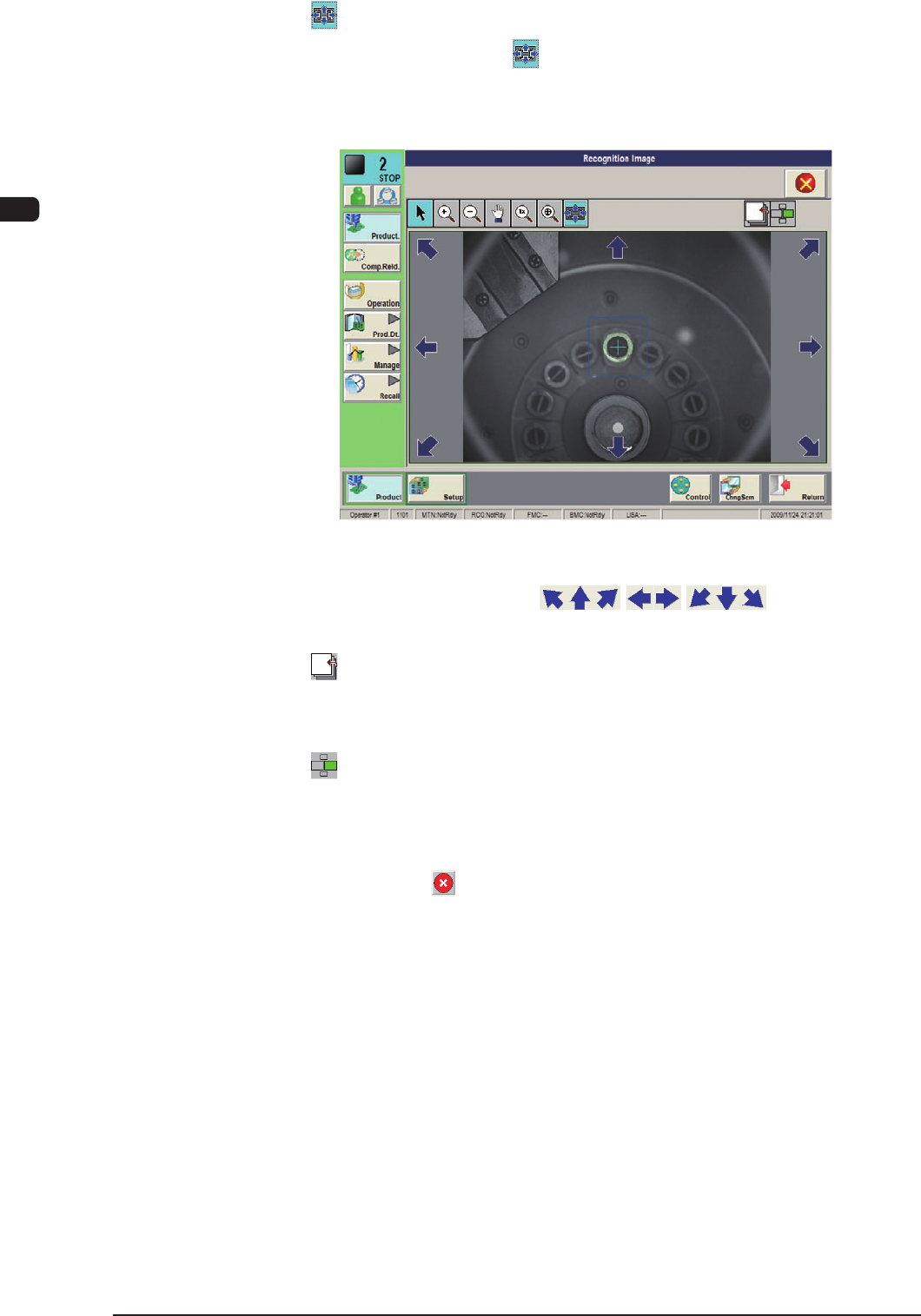
Button :
Image Matching Mode
When the
button is pressed, after the recognition image
is displayed in the single display mode, the image movement
buttons appear.
F1B6-3
Image Movement Buttons ( Buttons)
The image is moved in the arrow direction of the selected button.
Button :
Change Button
Pressing this button changes the image in the front/rear
judgement or polarity judgement operation.
Button :
Multi-Display Mode Button
Pressing this button changes to the multi-display mode
window.
[3]
Close Button (
Button)
Pressing this button closes the recognition window in the image matching
mode.
0911-001