1OM-1626-001_w.pdf - 第107页
1OM-1610 2-8 2. Operation Screen : Chap.2 [2] [F2 READY] Button When the [F2 READY] button is pressed, the feeder ready switches on the main machine are turned ON/OFF, and feeder clamp holding bar is locked/ unlocked. No…
1OM-1610
2-7
2. Operation Screen : Chap.2
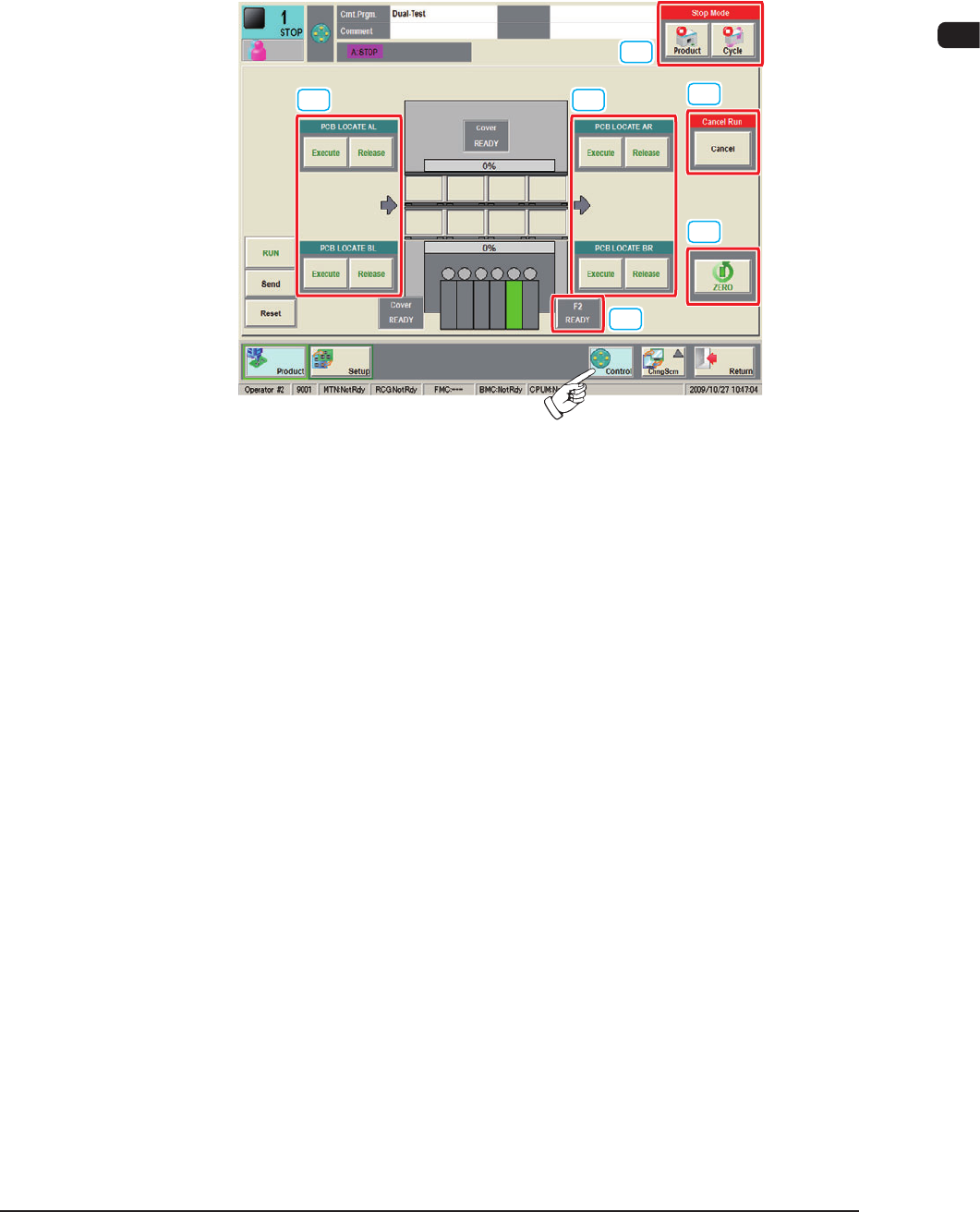
2.3 Control Menu
When the [Control] button is pressed on the common menu bar, the "Control
menu" window appears.
In the "Control menu" window, groups of the basic operation buttons are arranged.
[1] [1]
[3]
[4]
[5]
[2]
F1B6-1
[1] PCB LOCATE
AL, AR, BL, BR
[Execute] Button
When the [Execute] button is pressed and within 10 seconds, the [START]
button on the operation panel is pressed, the backup base and clamp are lifted
and the PCB on the PCB positioning unit is positioned.
[Release] Button
When the [Release] button is pressed and within 10 seconds, the [START]
button on the operation panel is pressed, the backup base and clamp are
lowered and the positioned PCB is released.
0911-001

1OM-1610
2-8
2. Operation Screen : Chap.2
[2] [F2 READY] Button
When the [F2 READY] button is pressed, the feeder ready switches on the
main machine are turned ON/OFF, and feeder clamp holding bar is locked/
unlocked.
Note
The moving up/down operation of the feeder base is unavailable. If
needed, perform it using the feeder ready switches on the main machine.
Reference
Refer to "2.3 Feeder Ready Switches and Cover Lock Switches" in Chapter
1, for the feeder ready switches on the main machine.
[3] Stop Mode
[Product] Button
When this button is pressed, after the production of the PCB which is in
the course of the production, is completed, the PCB is discharged and the
automatic operation is stopped.
[Cycle] Button
When this button is pressed, after the component placement operation on the
PCB which is in the course of the production, is completed, the automatic
operation is stopped.
[4]
Cancel Run
[Cancel] Button
When the machine status is turned to "Pause", the [Cancel] button is
displayed. When the [Cancel] button is pressed, the "Pause" status is
cancelled and the machine is in the "Stop" mode.
[5] [ZERO] Button
After the [ZERO] button is pressed and within 10 seconds, the [START]
button on the operation panel is pressed, all the axes are zeroed.
0911-001
1OM-1610
2-9
2. Operation Screen : Chap.2
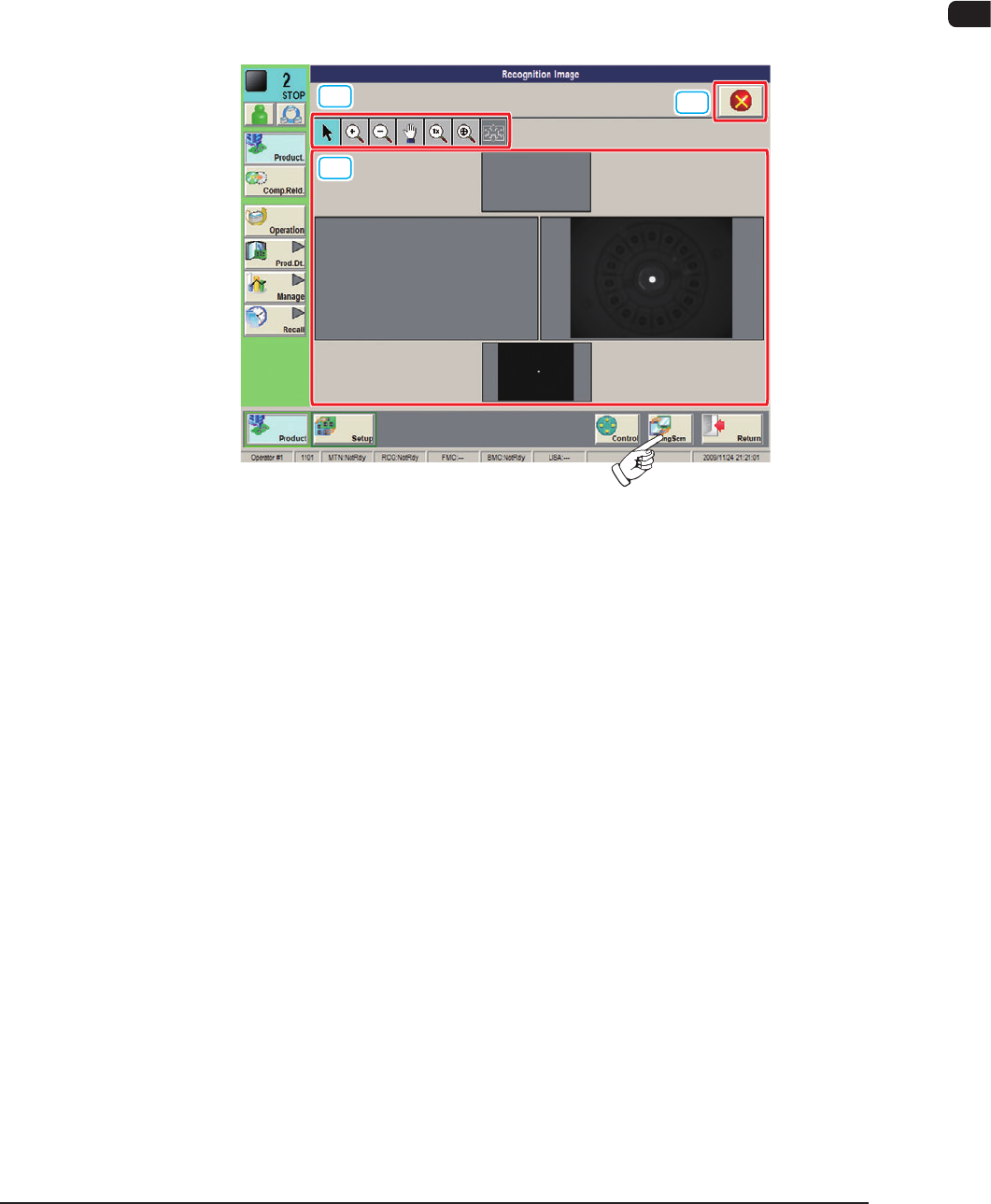
2.4. Recognition Window
When the [Chng Scrn] button is pressed on the main menu bar, the touch panel
indication is changed to "Recognition Image" window.
2.4.1 Recognition Window in Normal Operation
When the "Recognition" window is displayed in the "RUN" mode, the following
window appears.
[1]
[3]
[2]
F1B6-2
[1] Recognition Image Display Domain
The recognition images (camera images) in each block are displayed.
The multi- (4 beams simultaneously) or single (1 beam) display can be
selected.
Selecting the recognition image to be displayed, changes the recognition
image in the recognition image display domain.
0911-001