MAN00000772_SI-G200BB_SVCPDFA.pdf - 第33页
SettingUPSwhenexchangingh arddisk WKGB-10103-02 Setting UPS when exchanging hard disk 8/14 2 . M a k e a d o u b l e c l i c k o n t h e S y s t e m f o l d e r o f t h e C o n t r o l p a n e l . S y s t e …
SettingUPSwhenexchangingharddisk
WKGB-10103-02
Setting UPS when exchanging
hard disk
7/14
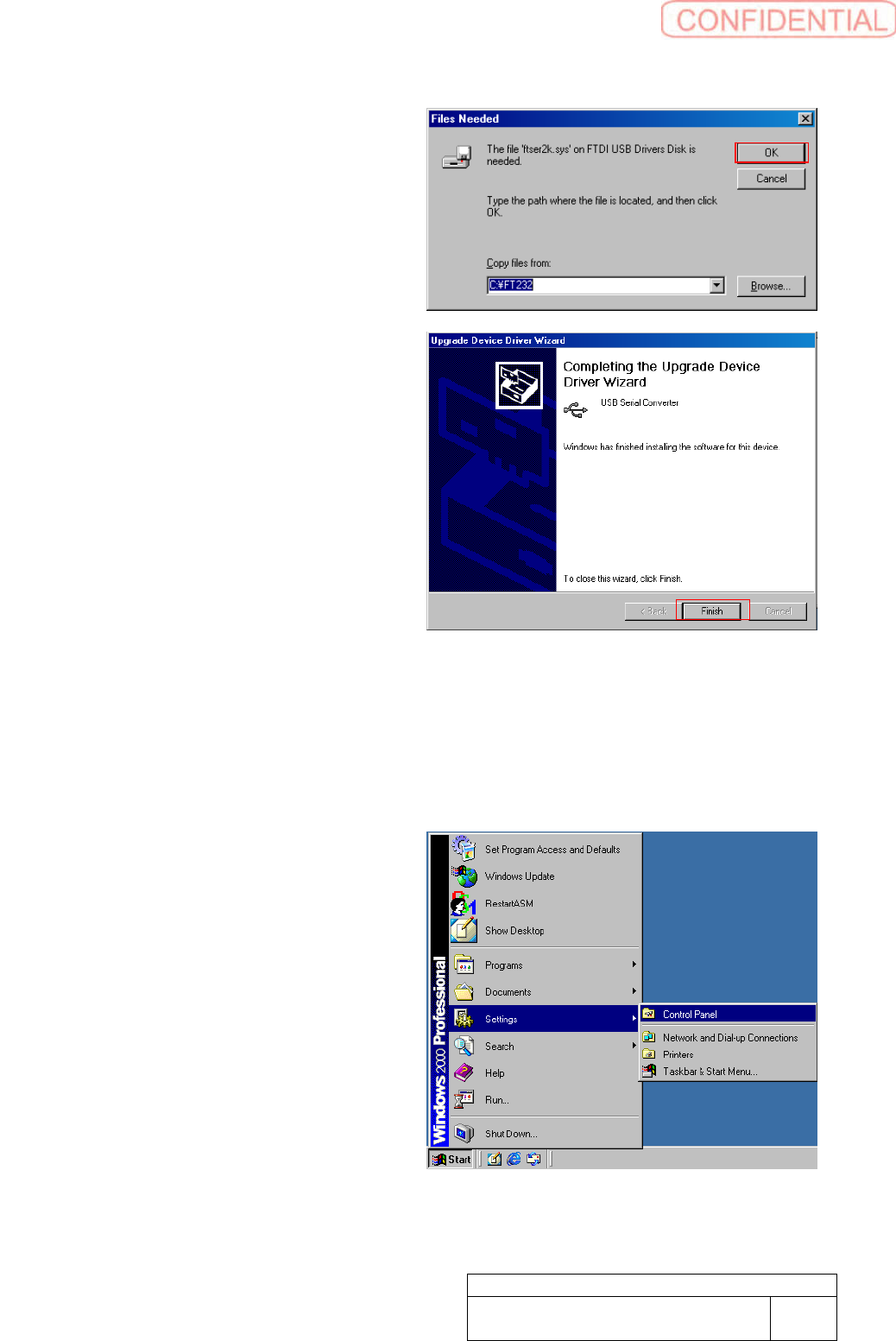
14. Click OK button.
Completing the Upgrade Device
Driver Wizard screen appears.
15. Click Finish button.
16. Close all windows.
[COMPORTsetting]
This work should be done on the machine
front and rear separately.
1. Open Control Panel. Windows の
Open Control Panel from Windows
Start Menu.
SettingUPSwhenexchangingharddisk
WKGB-10103-02
Setting UPS when exchanging
hard disk
8/14
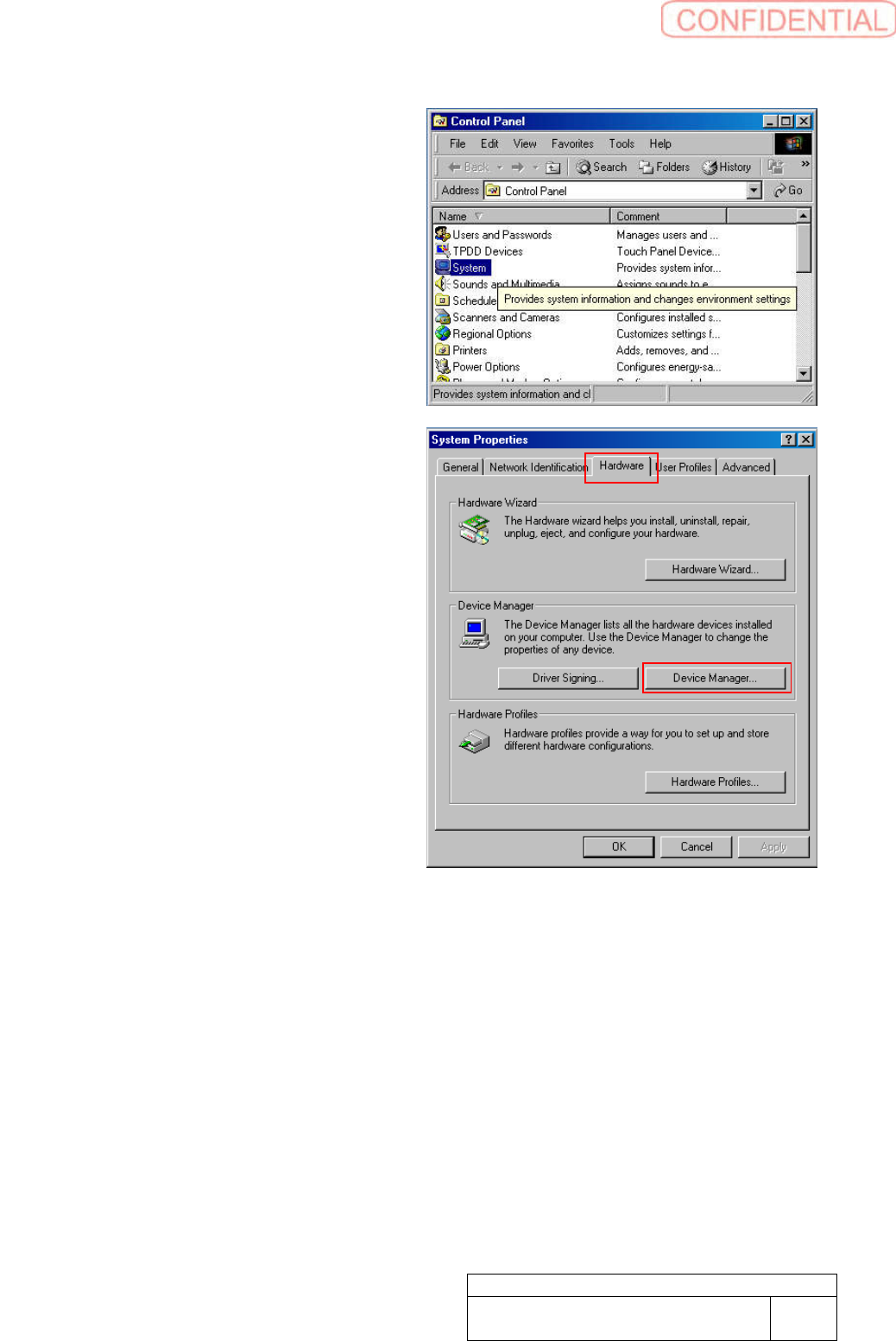
2. Make a double click on the System
folder of the Control panel. System
Properties window appears.
3. Click Hardware tab of System
Properties screen. Click Device
Manager button.
SettingUPSwhenexchangingharddisk
WKGB-10103-02
Setting UPS when exchanging
hard disk
9/14
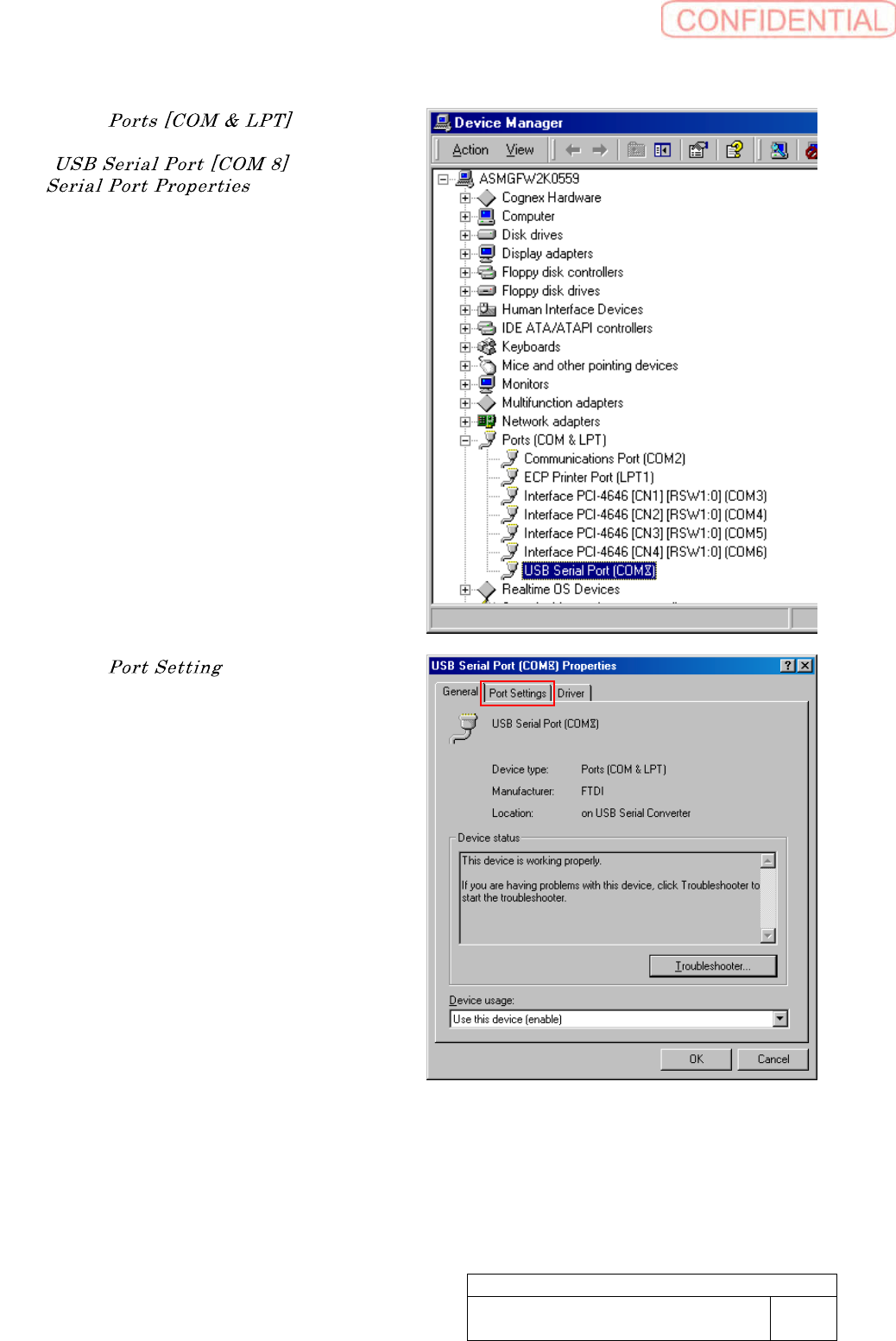
4. Click “ ” to open
the link. Make a double click on
“ ”. USB
window
appears.
5. Click “ ” tab to show Port
Setting window.