TR7500E_Manual_en_v28.pdf - 第105页
C h a p t e r 2 M a nu a l B a r i n t r o d u ce T R 7500 U S E R M A N U AL 98 f o l l o wi n g . S t e p 2. M o v e s e l e c t i ng t oo l s t o t h e o b j e c t i v e c om p o n e n t c e n t e r a n d t h e c o m …
Chapter 2 Manual Bar introduce
TR7500 USER MANUAL
97
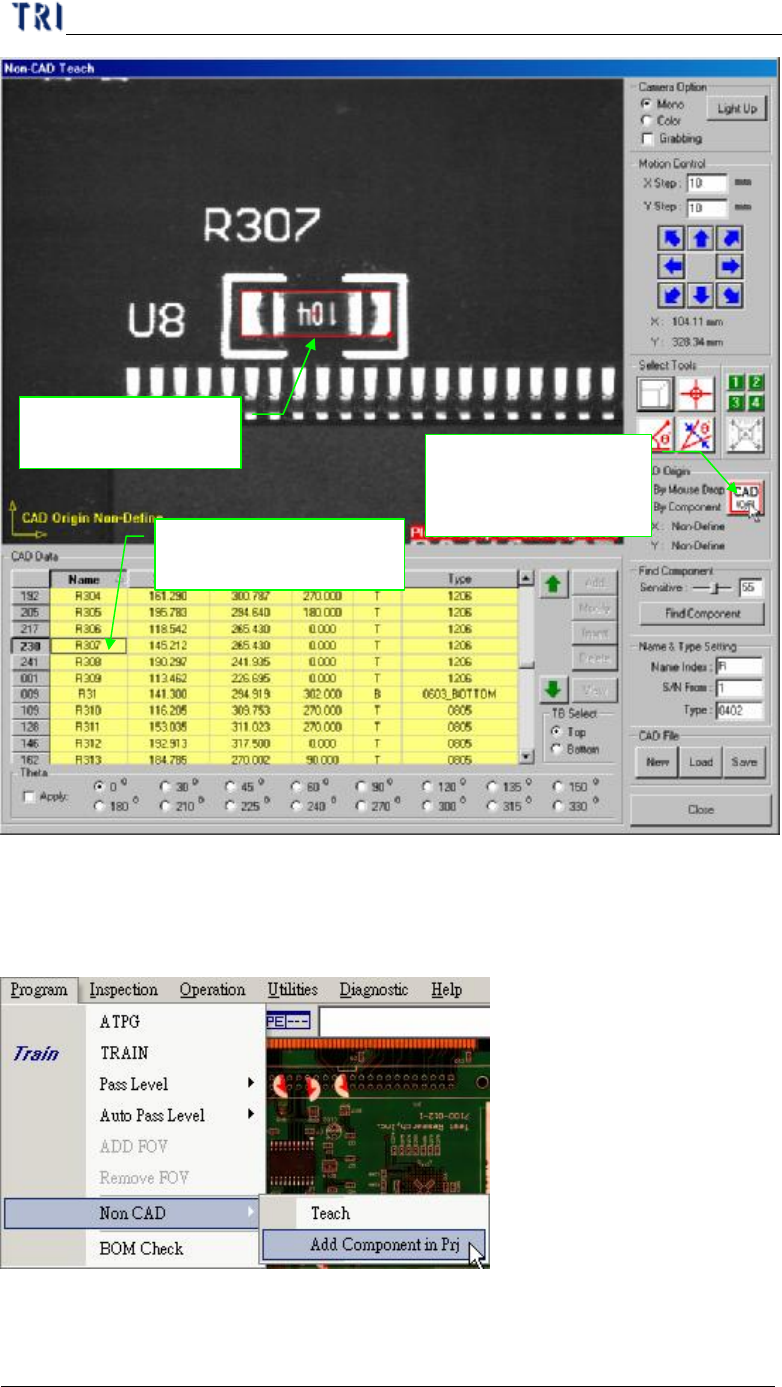
Step3. Add the other component data and save the file.
4.7.6. Add Component in Pre.
l This is to add a new component to an existing project with non-cad function.
l Procedure
Step1. Press [Program/Non CAD/Add Component in Pre.] and enter the dialog as the
1. Use box tool to set
the component
3. Select [By
Component] then
press [CAD(0,0)]
2. Select the component
in the table
Chapter 2 Manual Bar introduce
TR7500 USER MANUAL
98
following.
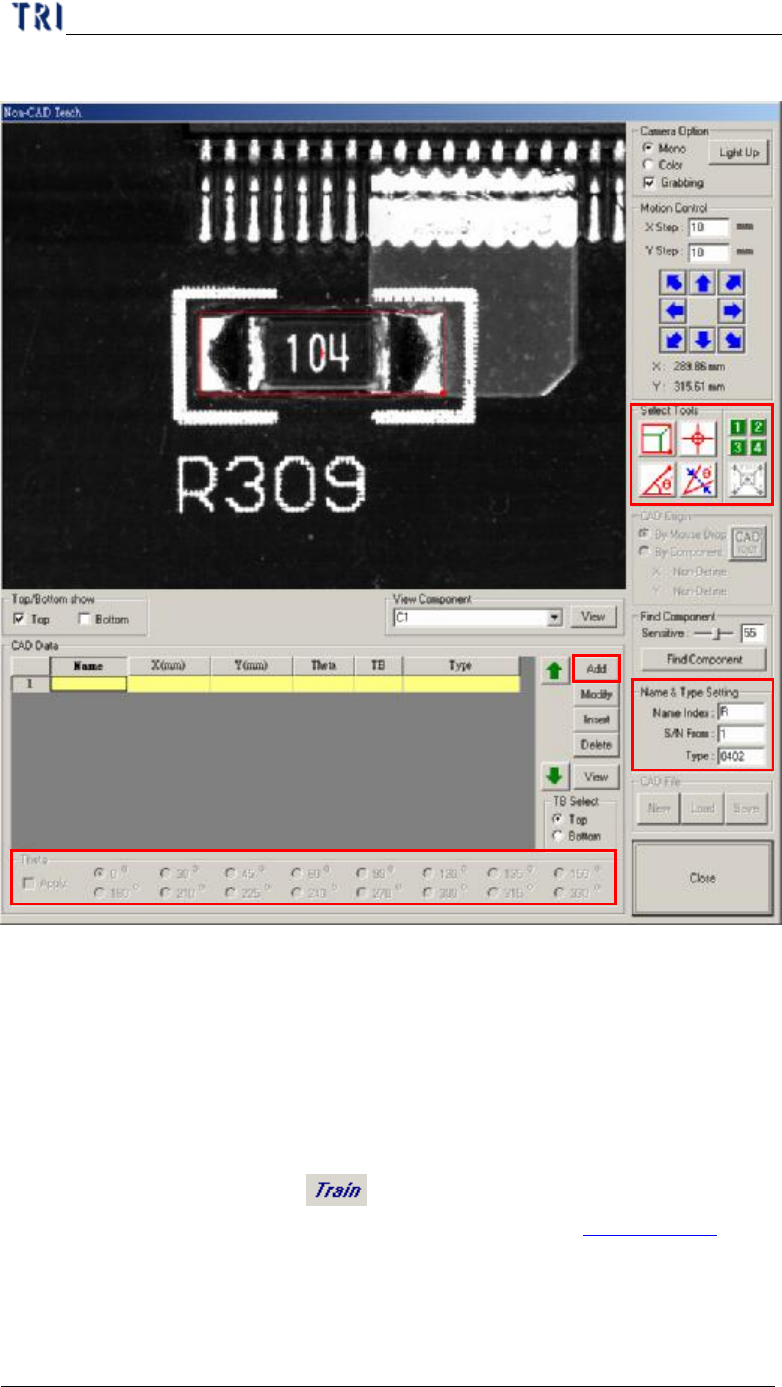
Step2. Move selecting tools to the objective component center and the component has
to be on board 1.
Step3. Input data at [Name&Type Setting] field
Step4. Check [Apply] and select an angle.
Step5. Press [CAD Data/Add] to create the component data.
Step6. Add the other components on board 1.
Step7. Press [Close] to exit.
Step8. Press [Program/Train] or [ ] to enter the train dialog.
Step9. Use [Merge] button to merge the component library. See Chapter 4 6.8. for
more information about “Merge”.
Step10. Press [Utilities/Capture FOV Images] to get the FOV images again.
4.8. BOM Check
Step3
Step4
Step5
Step7
Step2
Chapter 2 Manual Bar introduce
TR7500 USER MANUAL
99
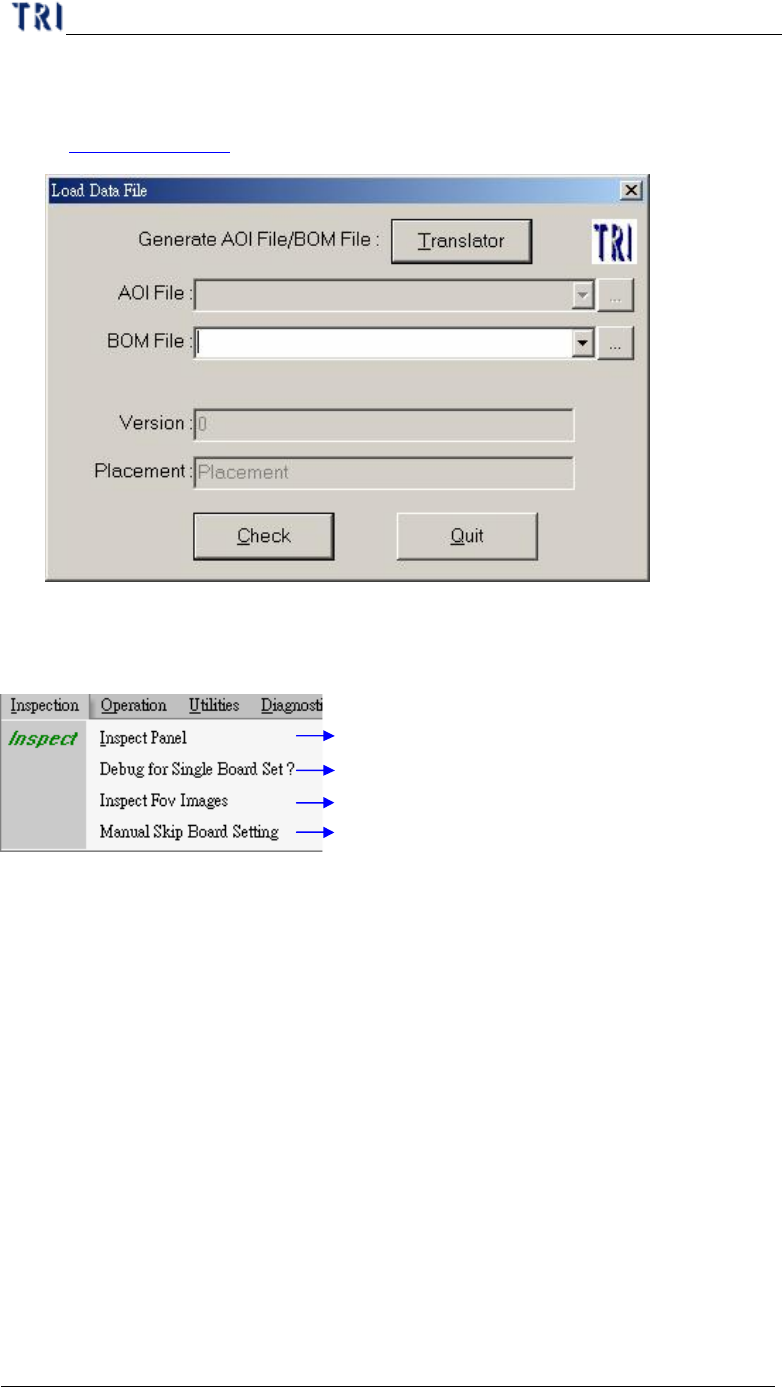
l Using the function to import a BOM file for a completing project is to set the
component that is not listed on BOM file as “Untest”. The format of BOM file is
in Chapter 3 1.1. (3).
5. Inspection
Start to inspect
Only show single board result
Inspect saved FOV images
Specify single to test or not
5.1. Inspect Panel
l Start to inspect the PCB with standard procedure.
5.2. Debug for Single Board Set
l Start to inspect, but it shows only the result of one set.
5.3. Inspect FOV Images
l Inspect the FOV images that are saved in hard disk.
5.4. Manual Skip Board Setting
l You can use this function to specify every single board to be tested or not.
l As the image below, click on the board directly; the green [O] means that the
single have to be inspected and the red [X] means that the single board doesn’t
have to be inspected. Then press [OK] to finish sitting.