TR7500E_Manual_en_v28.pdf - 第67页
C h a p t e r 2 M a nu a l B a r i n t r o d u ce T R 7500 U S E R M A N U AL 60 3.2.2. H al t Mac h i n e w h e n F i d u cial F ail l W h e n t h e p r o j e c t c an ’ t f i n d f i du c i a l m a r k , t h e m o t i …
Chapter 2 Manual Bar introduce
TR7500 USER MANUAL
59
3.1.1. Link to Repair Station?
l Check to deliver the after result data to repair station. If the communication
between computers is broken the data will be saved in [C:\AOI_Repair_Data]
folder. After the link is normal the data will be transferred to repair station
automatically.
3.1.2. Link to Offline Editor?
l Select this item to pass the result to Offline Editor. When you set [Offline=1] at
registry (it means that the machine is an Offline Editor), the item turns to display
[Link to Machine?]. See Chapter 8 for more information about Offline Editor.
3.1.3. Operator Mode/Engineer Mode
l You can choose [Operator Mode] or [Engineer Mode] to operate the project. The
beginning setting is the same as the previous setting. The user can’t edit the
project in [Operator Mode] they can open project or inspect only. The password
of choosing [Engineer Mode] is [7100].
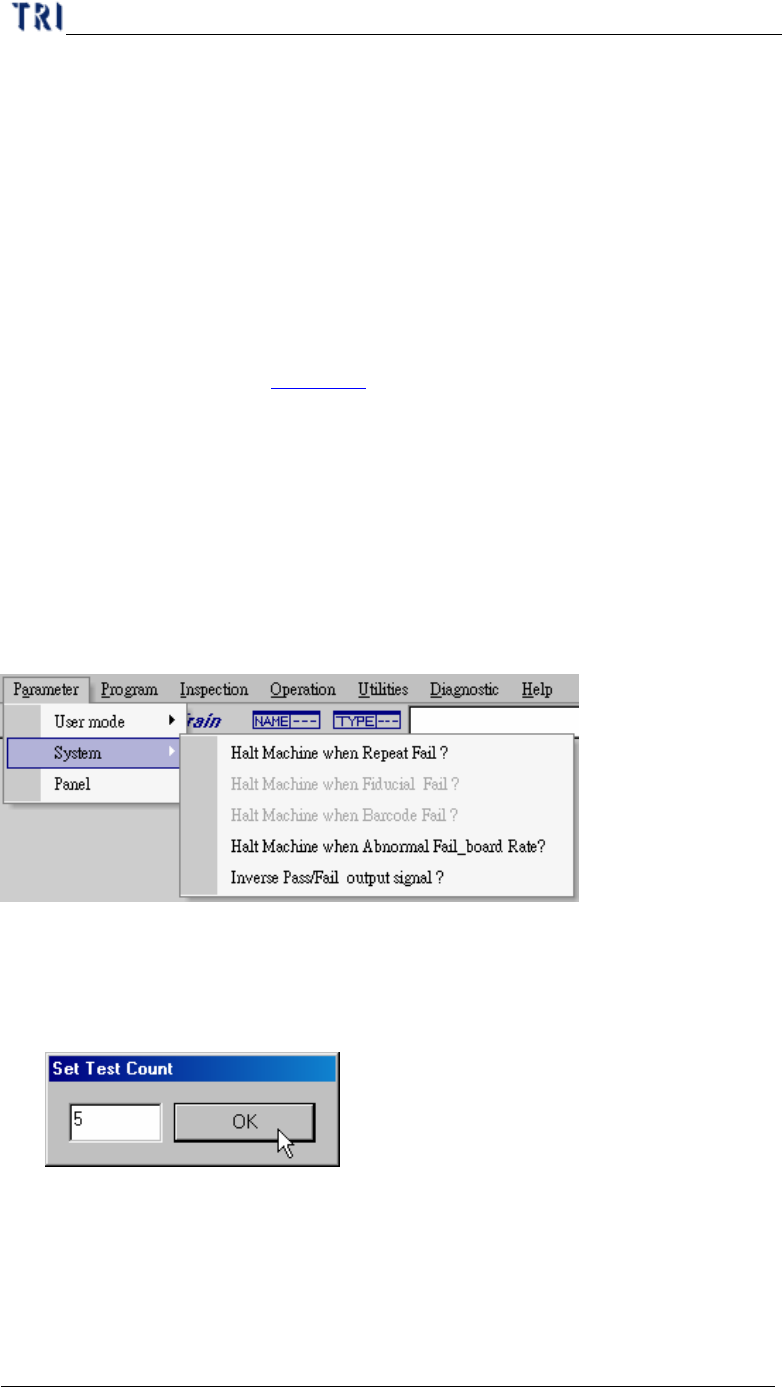
3.2. System
3.2.1. Halt Machine when Repeat Fail
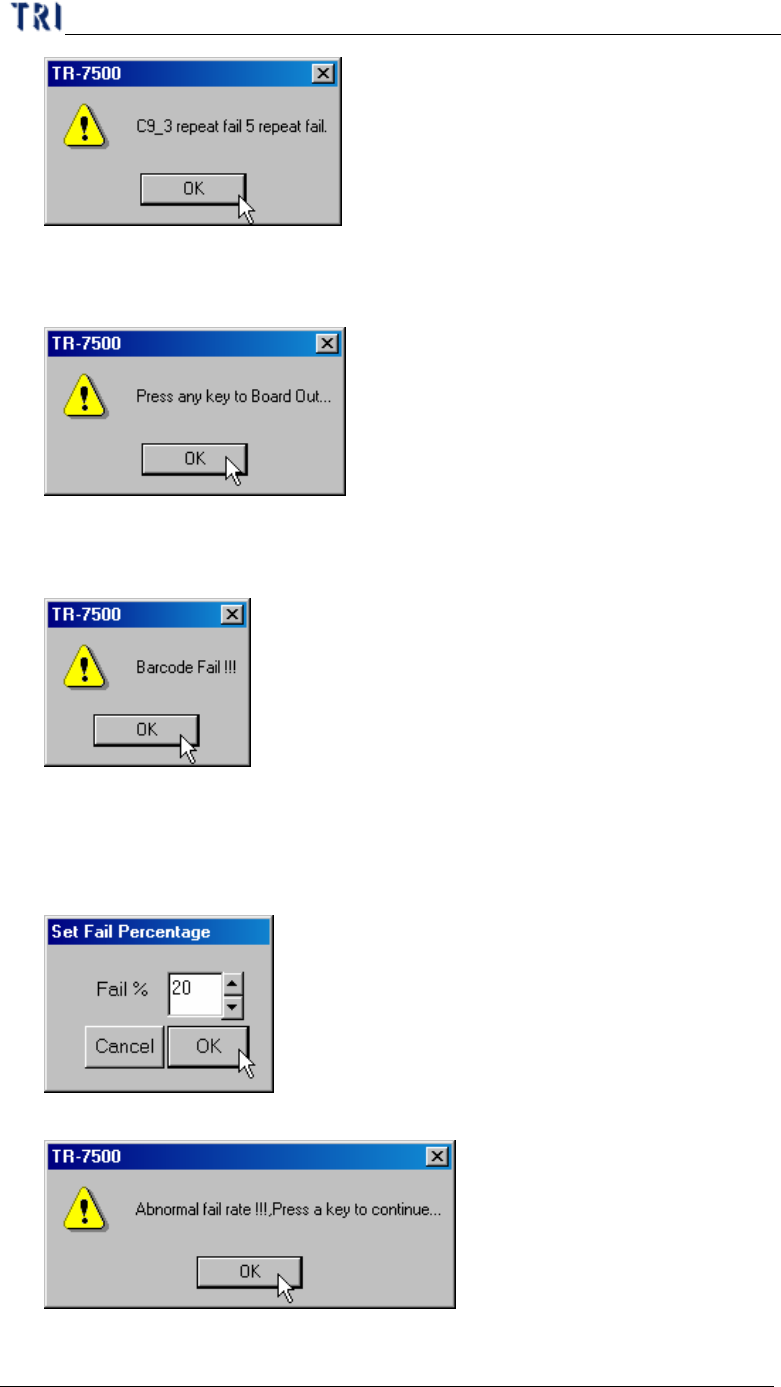
l When a component is failed for specific times, the motion of table will pause and
the project presents a warning dialog.
l Set test counts
l Warning dialog
Chapter 2 Manual Bar introduce
TR7500 USER MANUAL
60
3.2.2. Halt Machine when Fiducial Fail
l When the project can’t find fiducial mark, the motion of table will pause and the
project present a warning dialog.
3.2.3. Halt Machine when Barcode Fail
l The function is enabled when you set [Check Barcode]. If the barcode isn’t read,
the motion of table will pause and the project presents a warning dialog.
3.2.4. Halt Machine when Abnormal Fail_board Rate
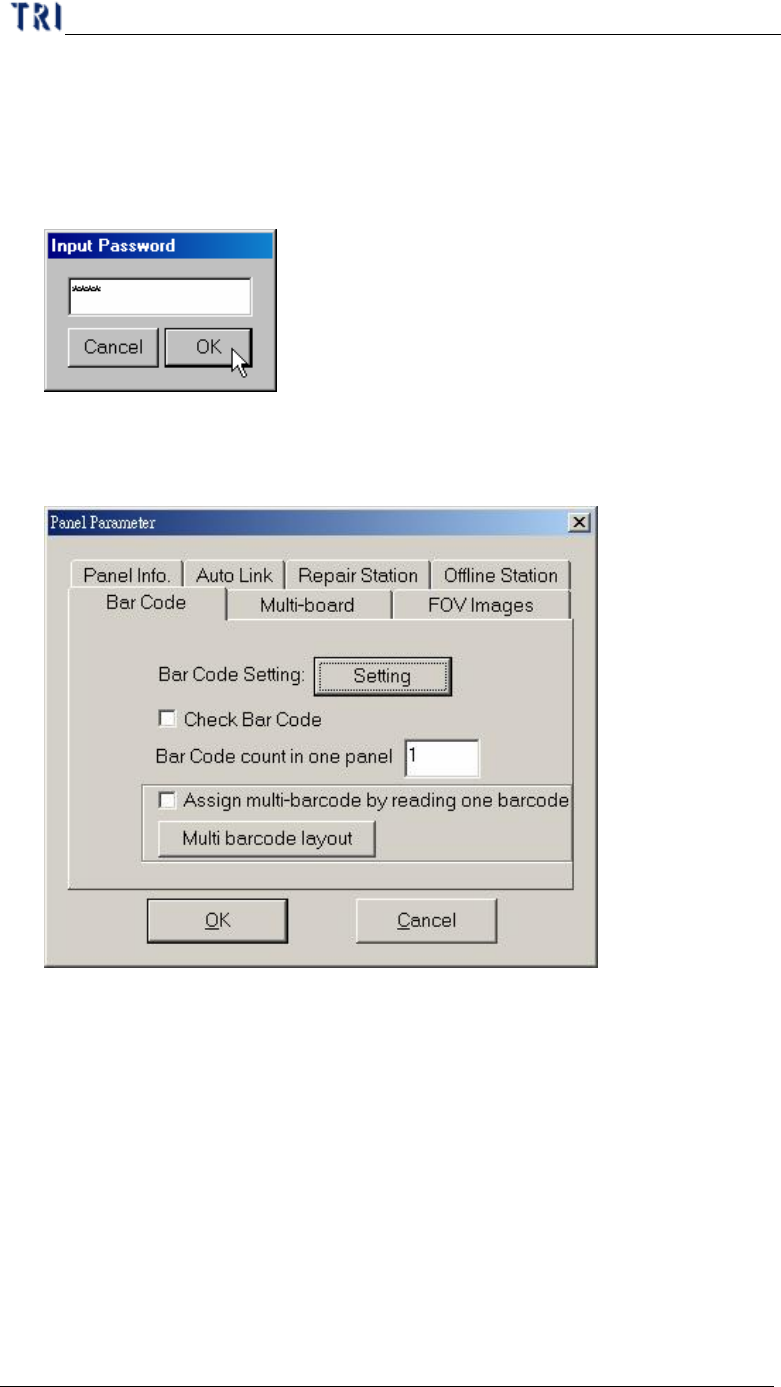
l When the percentage of failed board is over the specific one, the motion of table
will pause and the project present a warning dialog.
l Set fail percentage
l Warning dialog
Chapter 2 Manual Bar introduce
TR7500 USER MANUAL
61
3.2.5. Inverse pass/Fail output signal
l Check to change the signal of white and yellow line in Port 2. In original when
the result is [PASS], the output signal is “short”; when the result is [FAIL], the
output signal is “open”. You can choose the item to reverse the output signal. The
password is [7100].
3.3. Panel
3.3.1. Bar Code
3.3.1.1 Introduction
l Setting – Pressing this button is to enter the Barcode Setting Dialog.
l Check Barcode –Check to start the function of reading barcode. It must read
barcode before inspecting.
l Barcode count in one panel – Input the number of barcodes that we want to read
on whole panel.
l Assign multi-barcode by reading one barcode – When there is a regular
arrangement of the barcode, you can use this function to read only one barcode
and the system calculated the others. If the PCB is sent to machine from left side,
you should read the barcode on the board that is at the upper right corner. If the